Aiseesoft Data Recovery 1.8.32 — download for Mac
Utilities Intel processors only Updated
Scans drives to recover lost files using quick directory or deep sector-by-sector modes.
Screenshots
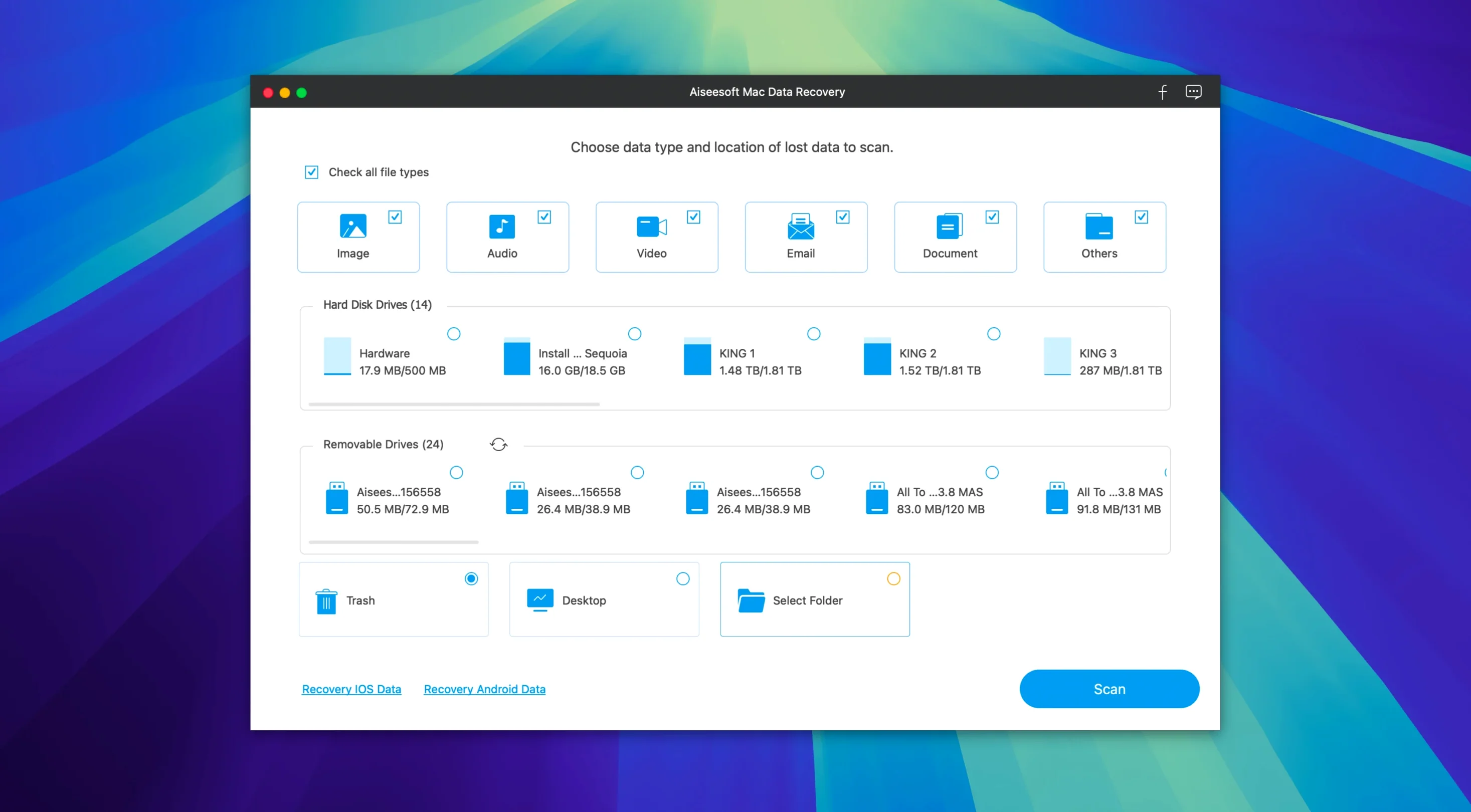
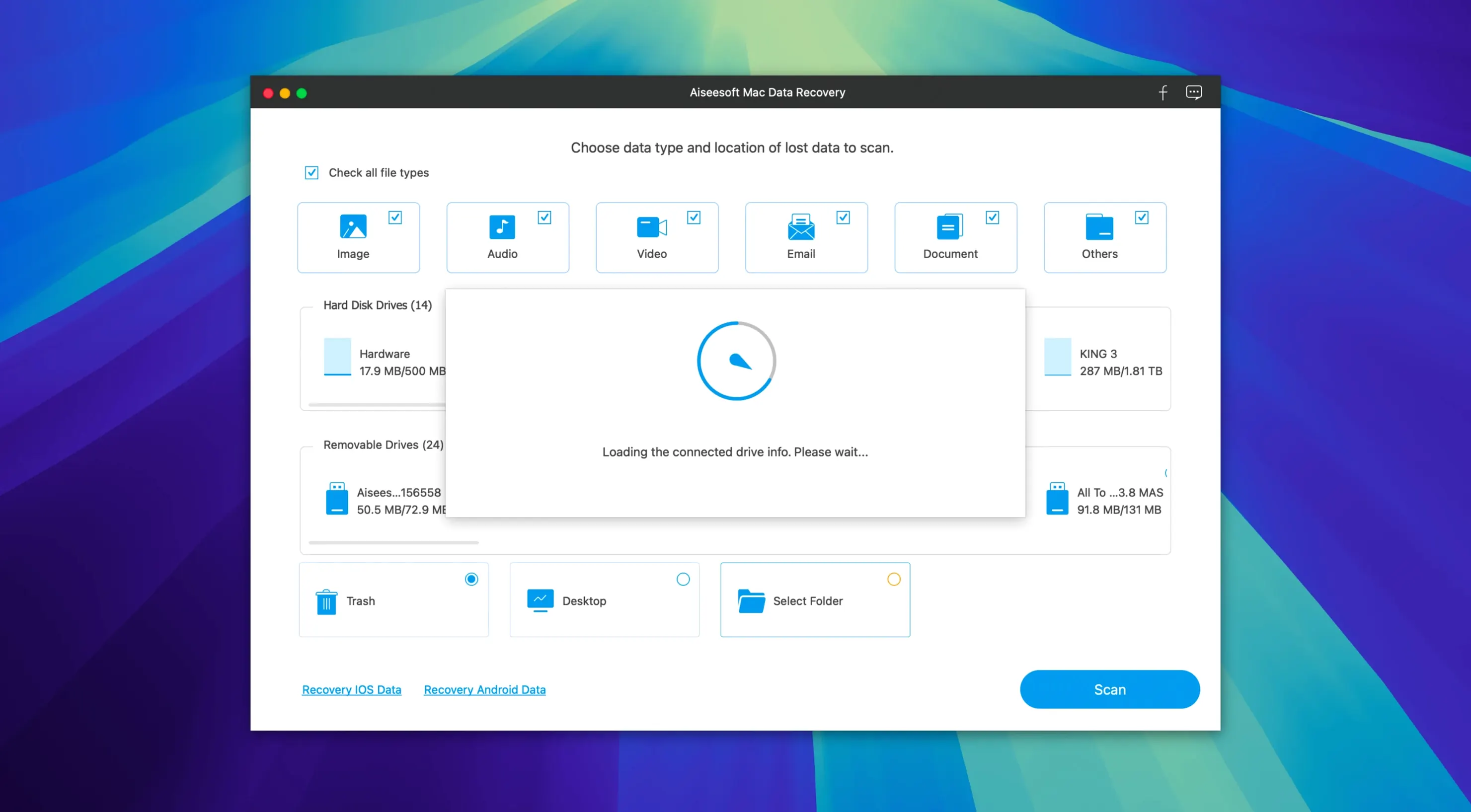
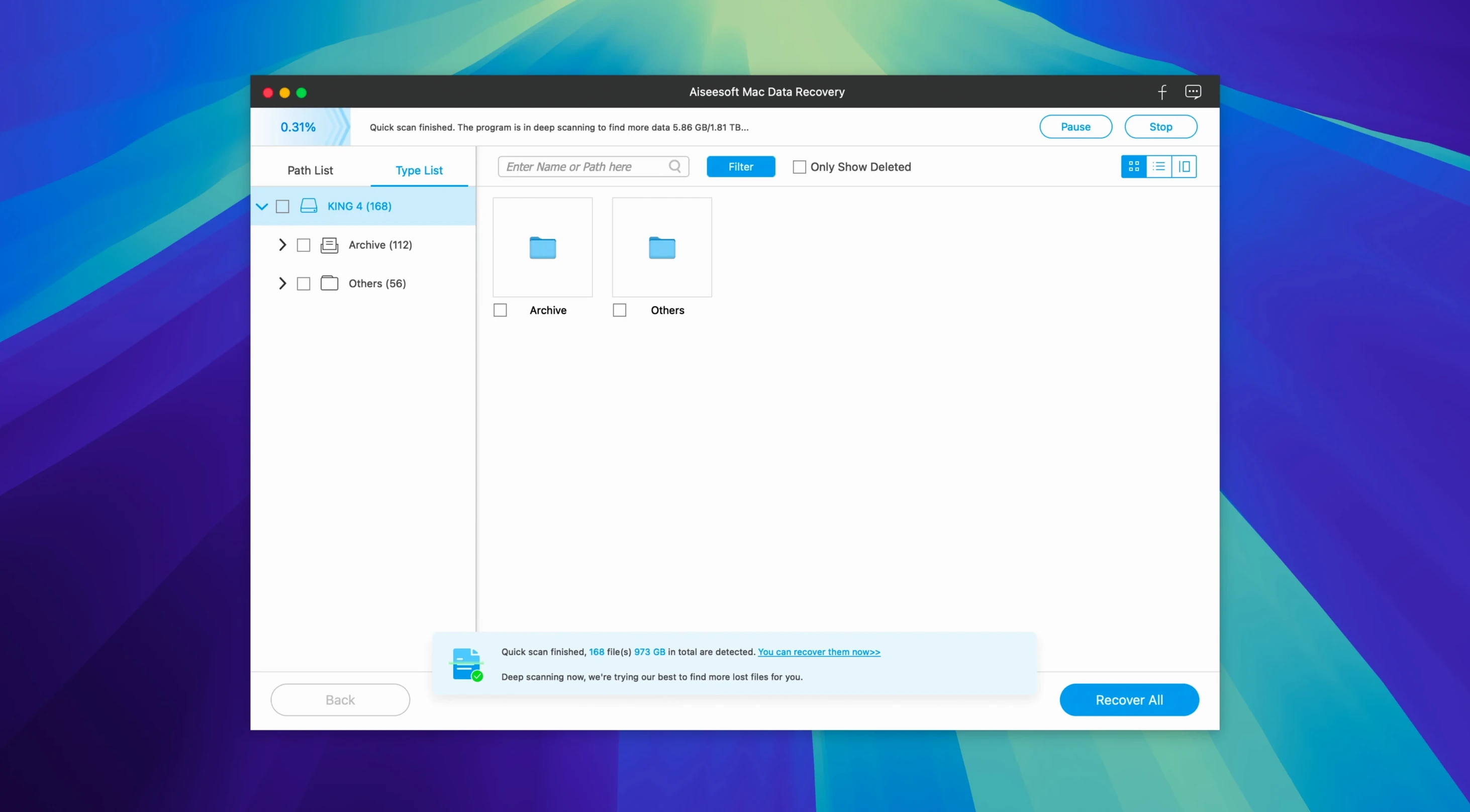
After picking a drive to scan, the Quick Scan and Deep Scan modes give you two paths to finding lost work. Quick Scan runs through the directory structure first, often pulling up recently deleted items in under a minute. Deep Scan reads the raw data on the disk sector by sector, which takes longer but surfaces files the system no longer recognizes.
Recovery workflow
- Pick a location. Select the internal drive, a camera card, or a USB flash drive. The app lists all mounted volumes.
- Run the scan. Quick Scan for fast results; switch to Deep Scan if the file does not appear.
- Filter the results. Narrow the list by file type — documents, images, audio, video, or email — or search by name. This cuts down scrolling through thousands of recovered items.
- Preview and restore. Check the content before saving. Recovered files stay on your Mac; nothing uploads to a server.
The tool suits office workers who lose a working document, photographers pulling shots from a formatted SD card, or anyone who emptied the trash too quickly. macOS 10.7 El Capitan and later require System Integrity Protection to be disabled beforehand. The interface runs in English, German, French, and Japanese.
Because Aiseesoft Data Recovery operates as a standalone app, it does not integrate directly into Finder or your email client. However, you can pair it with everyday macOS workflows. After restoration, files land in a folder you choose — usually the desktop or a project directory — so they appear in Finder alongside your current work. If you use Time Machine backups, run Aiseesoft first when a file is missing; only fall back to restoring from backup if the scan comes up empty. The app also handles external drives that macOS refuses to mount, which means you can scan a failing USB stick without forcing the system to mount it first.
A typical recovery session
You delete a folder of quarterly reports by accident. Instead of panicking, you open Aiseesoft Data Recovery, select the internal SSD, and start a Quick Scan. The scan finishes in about thirty seconds. You type the project name into the search box — ten matching files appear. You preview one spreadsheet to confirm the numbers are intact, then select the whole batch and click restore. The files go into a new folder on your desktop. The whole process takes under two minutes. Later that week, an external drive with travel photos refuses to show in Finder. You plug it in, select it from the volume list, and run a Deep Scan overnight. By morning, the app has found the JPEGs by their headers, not by the file system, and you restore them to a new folder.
Trash Recovery After Emptying
Does it slow the Mac during a scan?
Deep Scan reads every sector of the disk, so you will notice the drive working harder. Most users let it run unattended — before leaving work or overnight.
Quick and Deep Scan for Emptied Trash
Yes, as long as the original data has not been overwritten. Quick Scan handles recently emptied trash; Deep Scan reaches further back.
Will the recovered files have the same names?
Often, yes, because the directory entry still exists. Files found only by Deep Scan may appear with generated names, which is why the preview step matters before restoring everything.
Disable System Integrity Protection on macOS 10.7+
Only on macOS 10.7 El Capitan and later. System Integrity Protection must be turned off before the app can write recovered data. Aiseesoft's tutorial explains the procedure.
What if I accidentally recover the same file twice?
The app does not prevent duplicates, but you can sort the results by name or date in the scan window and skip files you already restored.
No release notes filed for 1.8.32. They are added here when a build changes how the program behaves.
| macOS | OS X 10.7 or later |
|---|---|
| Processor | Intel 64-bit |
| Download | 26 MB |
- macOS OS X 10.7 or later
- Intel processor
How to install, in order
- Mount the downloaded disk image.
- Drag the app icon into the Applications folder shortcut.
- Open the app from Launchpad once copying completes.
Comments and corrections 0
Sign in or open a free account to leave a comment.
No comments or corrections yet.