App Cleaner & Uninstaller 10.0.3 — download for Mac
Utilities Updated
Removes applications and their scattered support files in one complete pass.
Screenshots
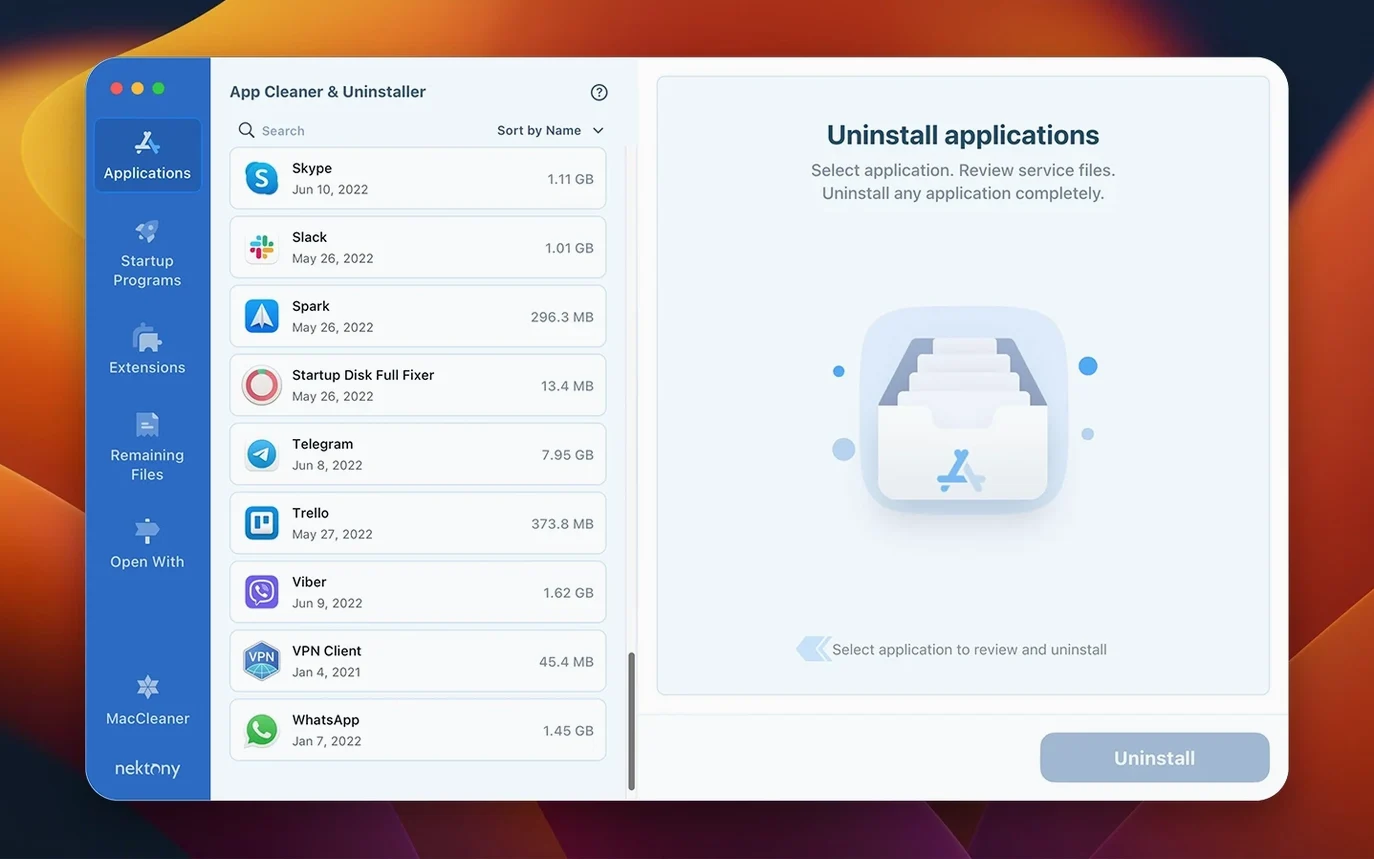
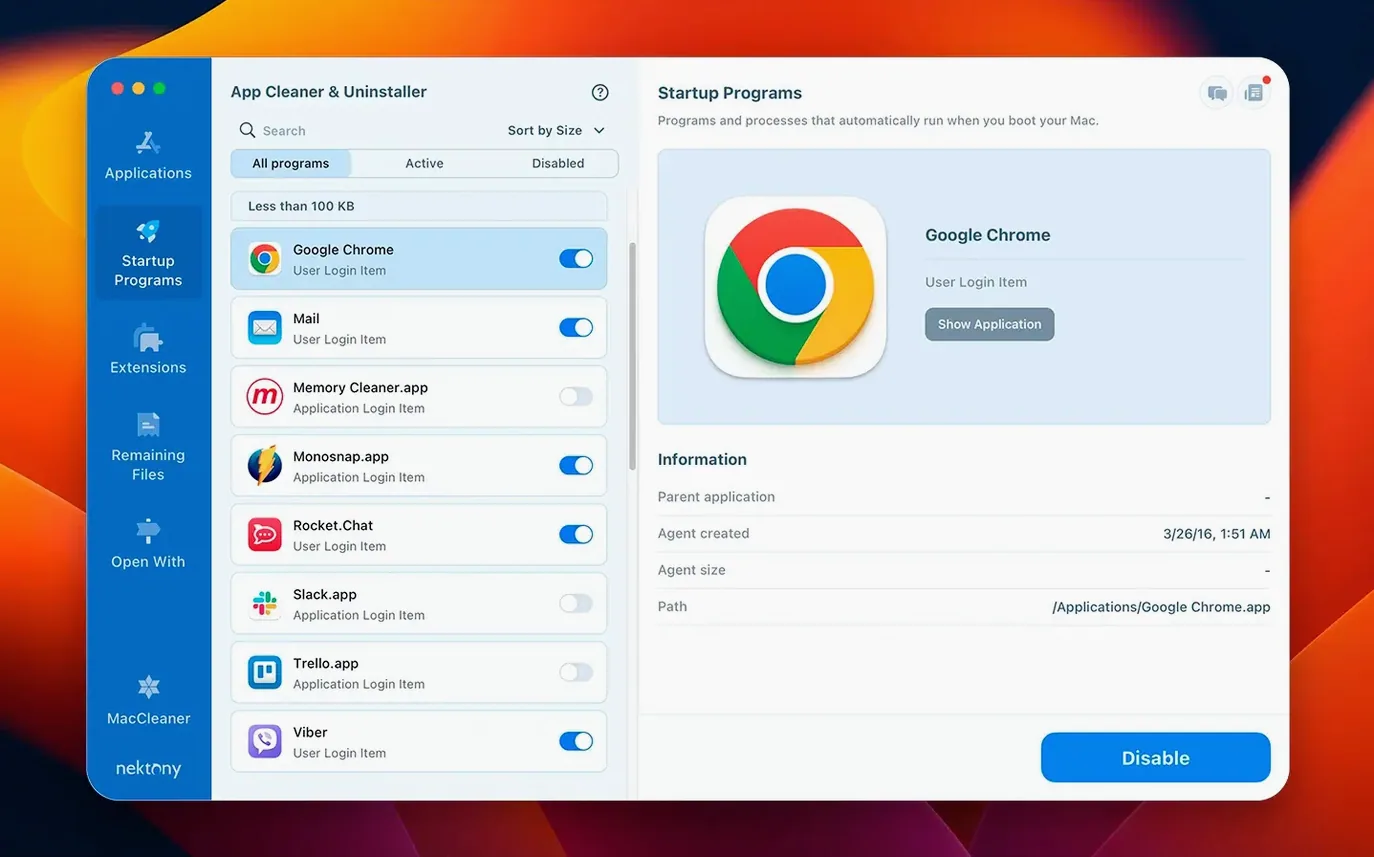
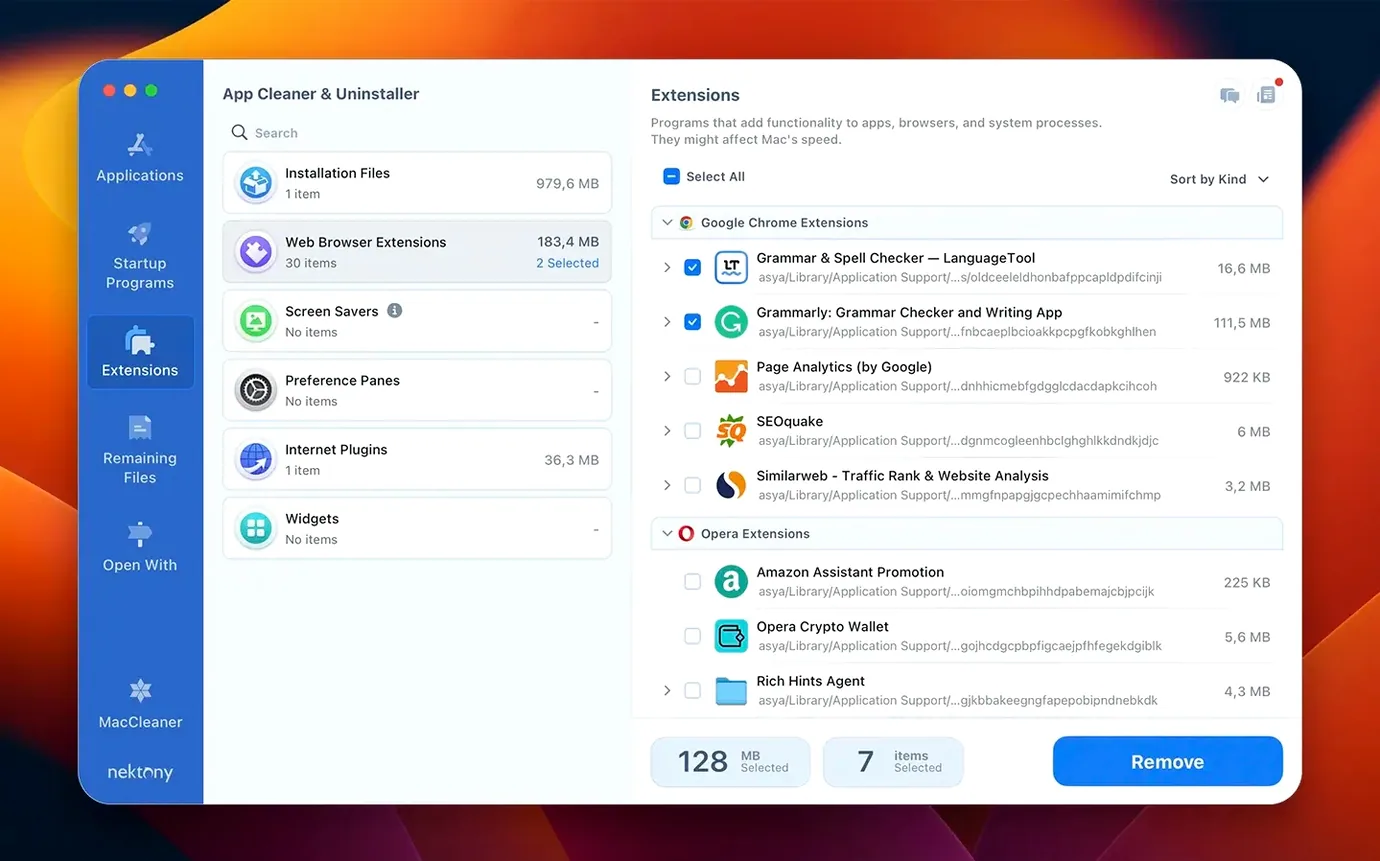
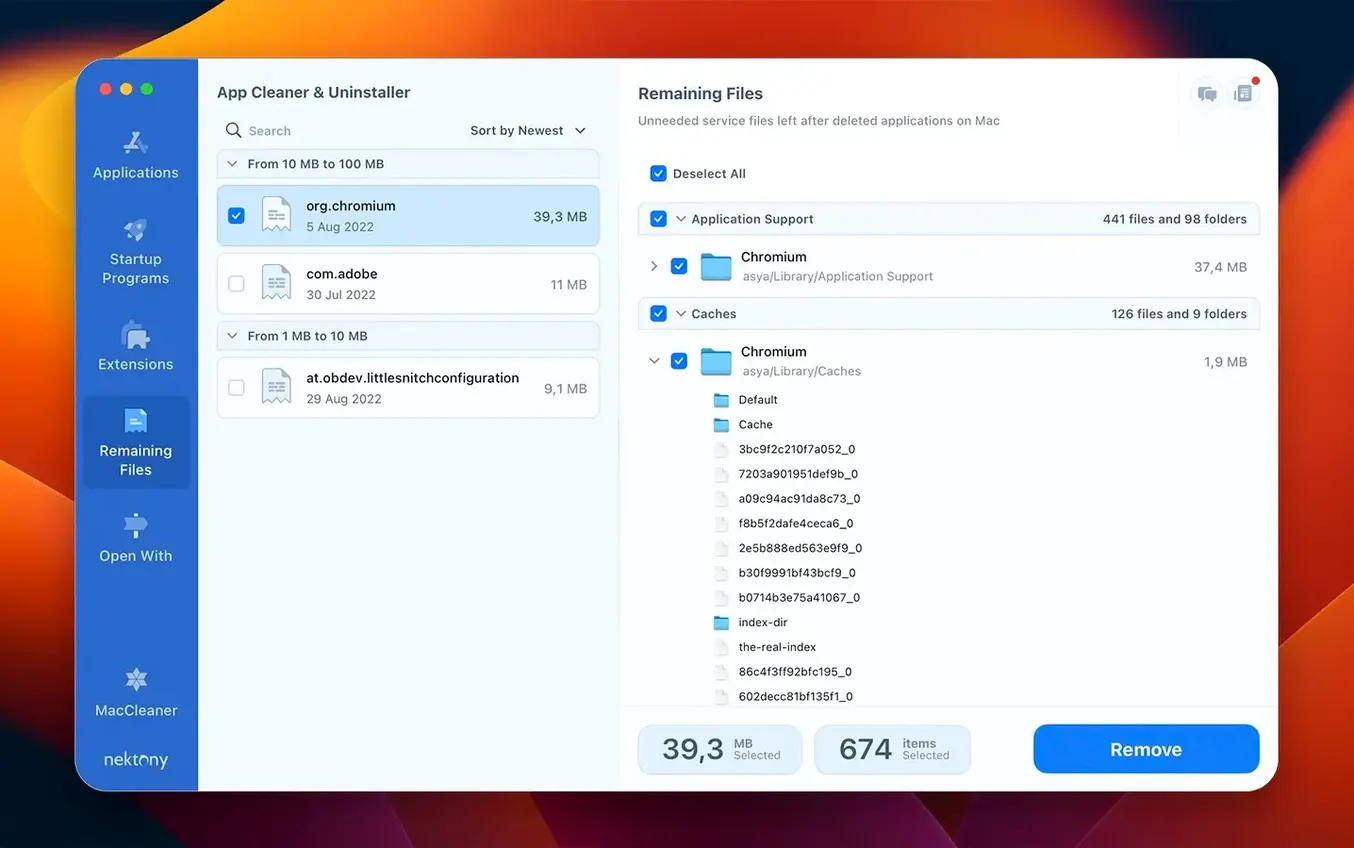
Expert mode skips the confirmation dialog and removes an application with all its service files in one click.
Complete Uninstall — scanning that finds not just the .app bundle but the caches, preferences, and support files scattered in Library folders.
Startup Programs — a single panel listing every launch agent, daemon, and login item; you disable what you don't need without digging through System Settings.
Extension Manager — lists widgets, Spotlight importers, and plug-ins; you can delete or deactivate them individually.
Leftovers — a cleanup mode that finds orphaned files from apps you already dragged to the Trash.
Privacy Audit — a newer module that surfaces which apps have camera, microphone, or full disk access permissions.
Security Check — a quick filter for outdated or incompatible applications.
The Network Access Tab Shifted Routines
The jump to version 10.0 brought a few practical shifts that affect how you work with the app day to day. None of them require re-learning the interface, but they do change a couple of routines.
- Network Access tab — a new section that shows which applications have outbound or inbound network permissions. You can block or allow them from the same view, which saves a trip to System Settings or a third-party firewall panel.
- Redesigned menu bar app — the icon in the top-right corner now includes network traffic controls. A quick click shows current connections and lets you toggle them without opening the full window.
- Expanded updates database — the app now tracks updates for Safari extensions and Homebrew command-line tools, not just standard macOS applications. That closes a gap if you manage a mix of GUI and terminal-installed software.
- Incompatible applications filter — a toggle in the main list that hides anything known not to work on your macOS version or architecture. Useful when you have old 32-bit titles that get in the way during a cleanup pass.
For me, the network tab is the most noticeable change. Before 10.0, I had to run a separate tool to audit which apps were phoning home. Now it is one tab over from the uninstall list.
Workflow: Deep Clean an App You No Longer Need
Say you want to remove an old design tool that you installed six months ago, used twice, and forgot about. The standard drag-to-Trash approach leaves behind configuration files and font caches that eat disk space. Here is the workflow inside App Cleaner & Uninstaller.
- Open the app and switch to the Complete Uninstall tab. The list populates with every installed application that the app can identify.
- Locate the target app. If the list is long, use the search field at the top rather than scrolling.
- Select it and click Uninstall. The app scans for related files before removing the main bundle. A dialog shows the total size of the debris it found — caches, logs, preferences, and support files.
- Confirm the removal. The app deletes the .app bundle and every orphaned file in one pass. You do not need to hunt through ~/Library/Application Support afterwards.
- After the uninstall finishes, switch to the Leftovers tab. If the tool was ever moved to the Trash manually, its leftover files appear here. Run a sweep to catch anything the first scan missed.
- Optional: open the Network Access tab to verify that no lingering background processes are still trying to connect. If you see anything, block it from that panel.
The whole sequence takes about two minutes. The time saved is in not having to manually browse Library folders and guess what is safe to delete.
Quick Fixes for Regular Use Hiccups
Over a few months of regular use, I have hit a handful of issues that are easy to resolve once you know where to look.
App does not appear in the uninstall list
Some command-line tools and apps installed via Homebrew do not register in the standard application database. If an app is missing, check the Updates tab first — the expanded database in 10.0 covers Homebrew tools and Safari extensions. If it still does not show up, locate the app in Finder and drag it into the App Cleaner window. The app will scan for leftover files manually.
Leftovers scan finds nothing, but you know files remain
This usually happens when the original app was deleted months ago and its support files have been modified by other software. Try running the Leftovers scan after a fresh reboot. If that does not help, use the Extension Manager to look for system-level plug-ins or Spotlight importers that might be tied to the old app. Remove those manually, then re-run the scan.
Network Access tab shows an app you already uninstalled
A background process might still be registered in the system's firewall rules. In the Network Access tab, select the stale entry and click Block. The app may prompt for your system password. After that, the entry should disappear on the next scan. If it persists, restart your Mac and open the app again — the rule usually clears after a reboot.
The incompatible applications filter hides something you need
This filter is conservative. If you know an older app works on your machine despite the warning, you can toggle the filter off from the view menu. The app will show all entries, including those marked incompatible. Proceed with caution — the filter exists because the developer flagged a known issue.
Scanning Connections and Freeing Space in Minutes
Wednesday morning. I want to free up space and check that nothing suspicious is running in the background.
I click the menu bar icon. The redesigned panel shows my current network connections: Slack, Chrome, and a weather widget. Nothing unexpected, but I note that the widget has outbound access. I decide to block it later.
I open the main window and go straight to Complete Uninstall. There are three apps I no longer use: a free video editor, an old VPN client, and a PDF tool that came bundled with a printer driver. I select the video editor first. I confirm the removal. Thirty seconds later, it is gone.
The VPN client takes a bit longer because it has kernel extensions. The app prompts me to restart the machine after the uninstall. I defer that — I will do it after the meeting. The PDF tool removes cleanly with no extras.
I switch to the Leftovers tab. The scan finds two orphaned preference files from a font manager I deleted last month. Combined, they are 4 MB. I delete them.
Then I open the Startup Programs panel. Six items are enabled. I disable the Adobe updater and a cloud sync client I do not need at boot. That should shave a few seconds off future startups.
Finally, I glance at the Updates tab. It shows that one Homebrew tool is outdated. I make a mental note to update it later — not urgent, but good to know.
The whole session took maybe twelve minutes. I did not open a terminal once. I did not dig through Library folders. I freed up over a gigabyte and cleaned up my startup list. Before the meeting, I restart the Mac for the VPN kernel extension removal. The machine comes up noticeably faster with those boot items disabled.
That is the kind of session where App Cleaner & Uninstaller earns its place in a project manager's toolkit. It handles the housekeeping so you do not have to think about it.
No release notes filed for 10.0.3. They are added here when a build changes how the program behaves.
| macOS | macOS 12 or later |
|---|---|
| Processor | Apple Silicon, Intel 64-bit |
| Download | 47 MB |
- macOS 12 or later
- Apple Silicon or Intel 64-bit processor
Questions about App Cleaner & Uninstaller
Does this version run on Intel Macs?
Yes, version 10.0 is a universal binary. It runs on Apple Silicon and Intel Macs with macOS 12 or later.
What does the AI Summary feature do?
It is a component of the app manager that helps you understand what an application does before you decide to uninstall it or manage its permissions.
Can it remove extensions from Safari?
Yes. The updated database in version 10.0 now includes Safari extensions, letting you delete or disable them alongside other system plug-ins.
How to install, in order
The download weighs in around 47 MB and asks for macOS 12 or later on an Intel or Apple Silicon Mac. Three steps put the app into the Applications folder.
- Open the downloaded disk image.
- Drag the application icon onto the Applications folder shortcut.
- After the copy finishes, launch the app from Launchpad.
Comments and corrections 0
Sign in or open a free account to leave a comment.
No comments or corrections yet.