
AnyTrans for iOS 8.9.14 — download for Mac
Utilities Intel processors only Updated
Transfers photos, music, and data between an iOS device and Mac without iTunes restrictions.
Screenshots
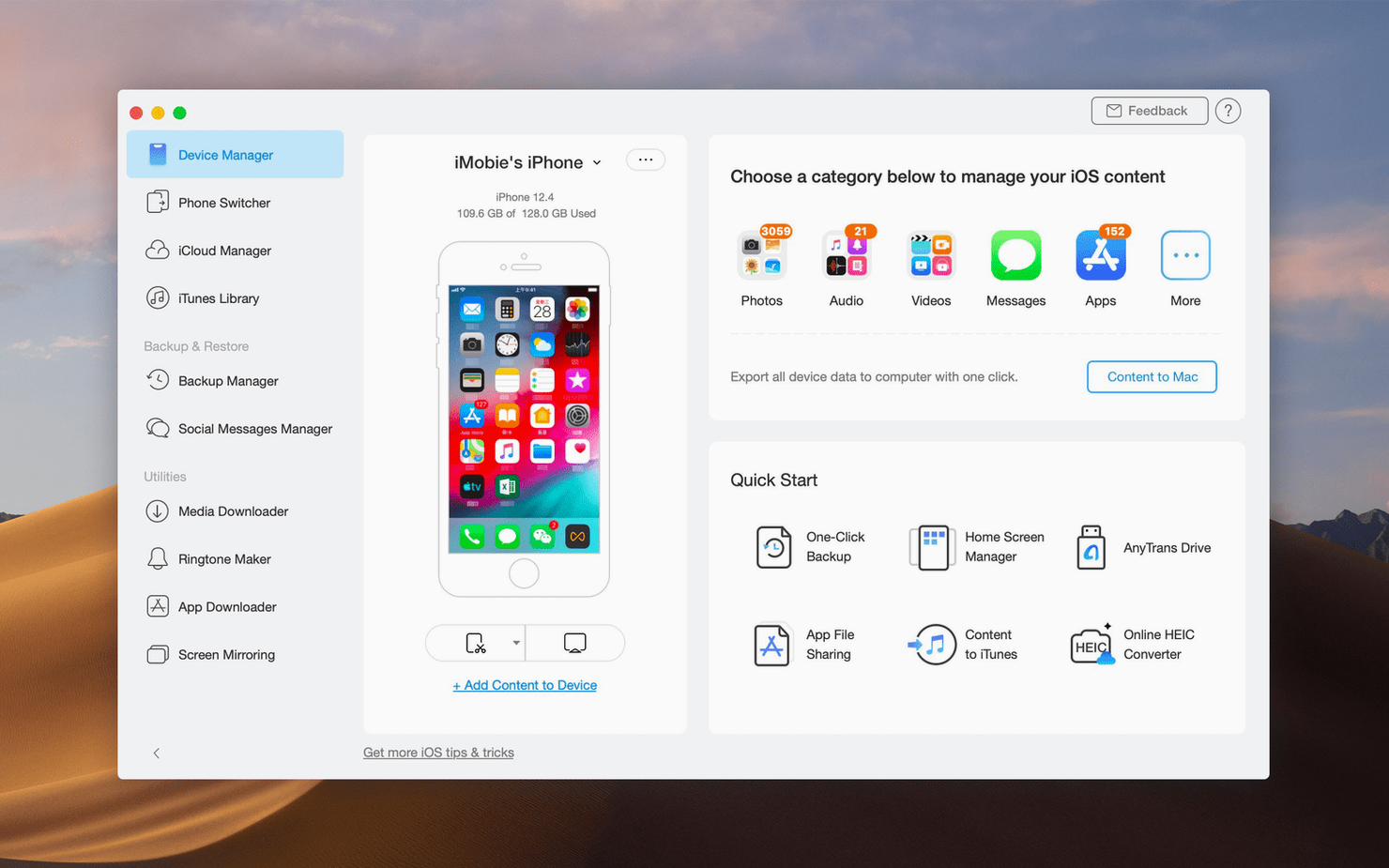
If you have used iTunes to shuffle photos or music onto an iPhone, you know how narrow that window is. AnyTrans for iOS treats the same USB connection as a wider door. It lets you pull data off an iOS device by category, back it up on a Mac, and move content between iCloud accounts without first downloading everything through Apple's apps.
People usually ask three things before installing it. First, whether it replaces iTunes. It does not, but it manages iPhone, iPad, iPod, iTunes, and iCloud content from one place, which is often faster than switching between Apple's tools. Second, whether a USB cable is enough. Yes, transfers to a Mac work over USB, and iCloud files can be saved locally on the Mac.
Third, whether it can move data between two iOS devices. It can, which is useful when a phone is replaced and the old backup does not line up with the new iOS version. The app was formerly named AnyTrans for iOS, so older references to it point to the same program.
I would hand this to anyone in a small office who manages several work phones or a family's devices and wants a single Mac app for transfers and backups.
iPhone Plugged In, Photos Instant
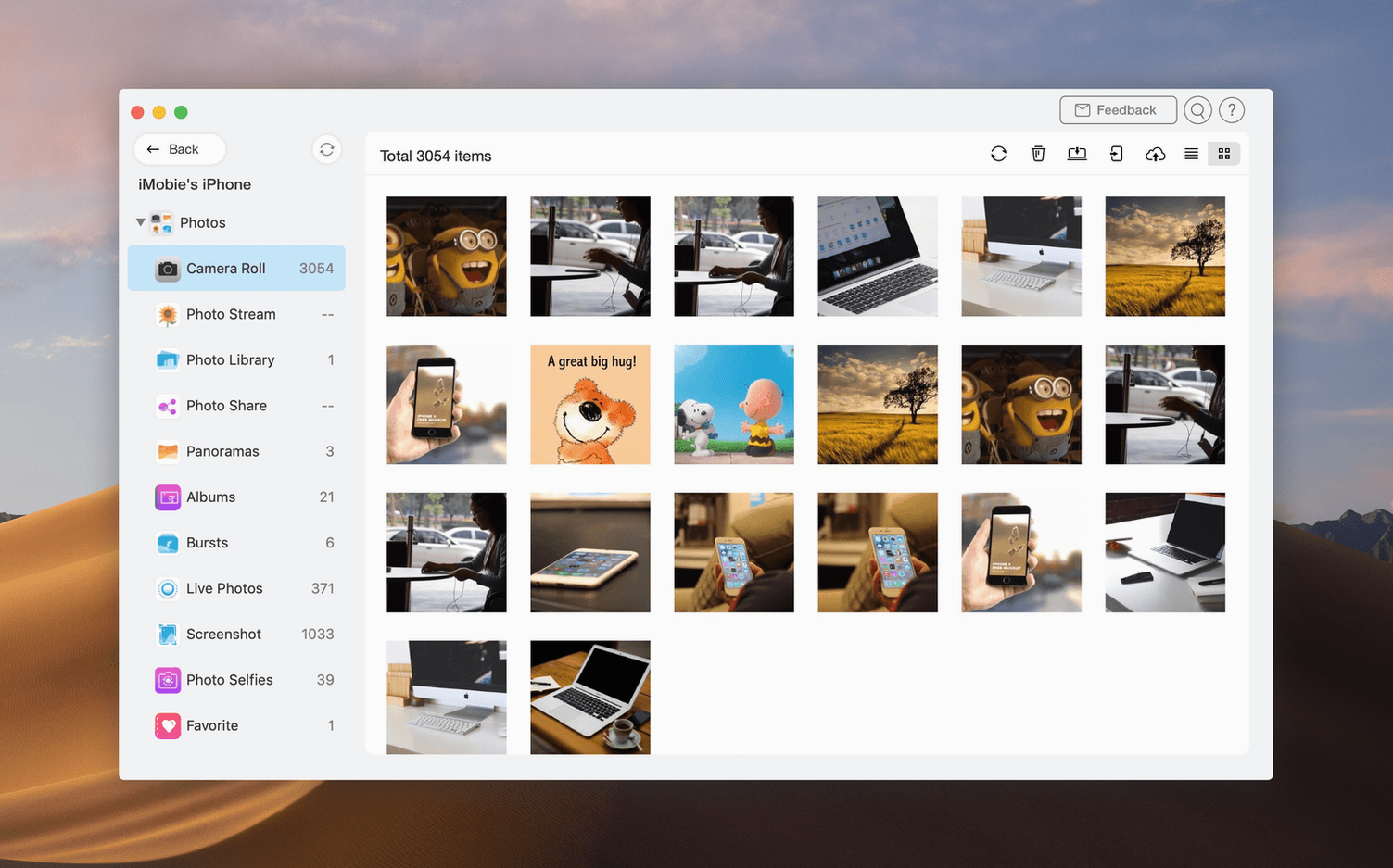
I plug in an iPhone over USB. AnyTrans for iOS recognizes it within a few seconds. The main window shows the device name and a list of categories: music, photos, videos, contacts, messages, and apps. I click Photos and see thumbnails grouped by date. I select the batch from last week's site visit, choose "Transfer to Mac," and pick a destination folder. The transfer starts immediately. No sync queue to clear first.
Next, I open the device manager to check the destination path. By default it saves to a folder inside Documents, but I change it to a project folder on the desktop. The same manager lets me decide whether to keep the original file names or rename them with the date added. I leave it as is and let the transfer finish.
When the iPhone is disconnected, I open the same session to move a few photos from an iPad to the Mac. The flow is identical: connect, choose category, select files, transfer. The app treats each iOS device as an independent source, not a clone of the previous one.
Fix USB Cable That Charges But Doesn't Sync
People sometimes plug in a device and see nothing in the app window. The usual cause is the USB cable. A cable that charges but does not sync will not work. Swapping to the original cable or a known data-transfer cable usually fixes it. If the device still does not appear, restarting the Mac and reconnecting the phone often clears the connection.
Another snag happens when transferring iCloud content. AnyTrans for iOS shows the iCloud folders only if the account is signed in on the device. If the content list is empty, check that the iCloud account is active and that files are stored there, not locally only. Signing out and signing back in on the device sometimes refreshes the list.
A third issue is incomplete transfers for large video files. The app handles them, but interrupting the process by unplugging the cable or putting the iPhone to sleep can corrupt the partial file. The fix is to let the transfer finish before touching the cable or the device.
Direct iCloud-to-iCloud Transfer
One convenience I like is the ability to move content between two iCloud accounts. Instead of downloading everything to the Mac then re-uploading, the app transfers directly. It saves time when merging work and personal iCloud storage.
The media downloader is another feature that gets overlooked. It pulls audio and video from more than 900 websites. I use it to grab a training video from a client's site and save it directly to a project folder on the Mac. No browser plugins or separate downloaders needed.
Copying data from an iPad to a Mac in one click is also easy to miss. It appears as a single button in the device view. It copies everything by category into a single folder structure, ready for archiving or moving to another device.
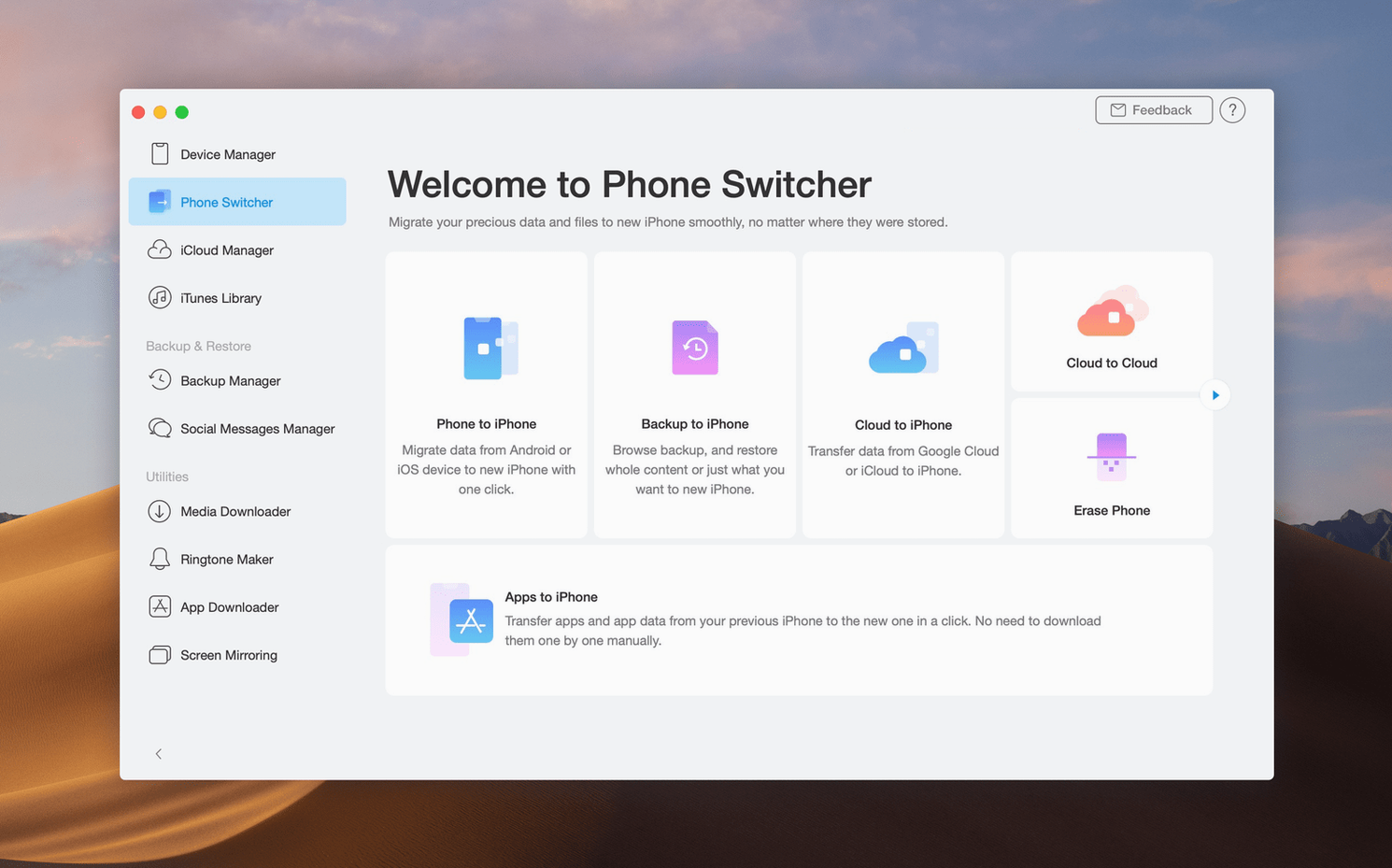
AnyTrans for Mac also lets you transfer data from an Android or an older iOS device to a new iPhone. If you are replacing a phone in the office, you do not need a separate Android migration tool. The app handles both sources.
Not a Replacement for iCloud Backups
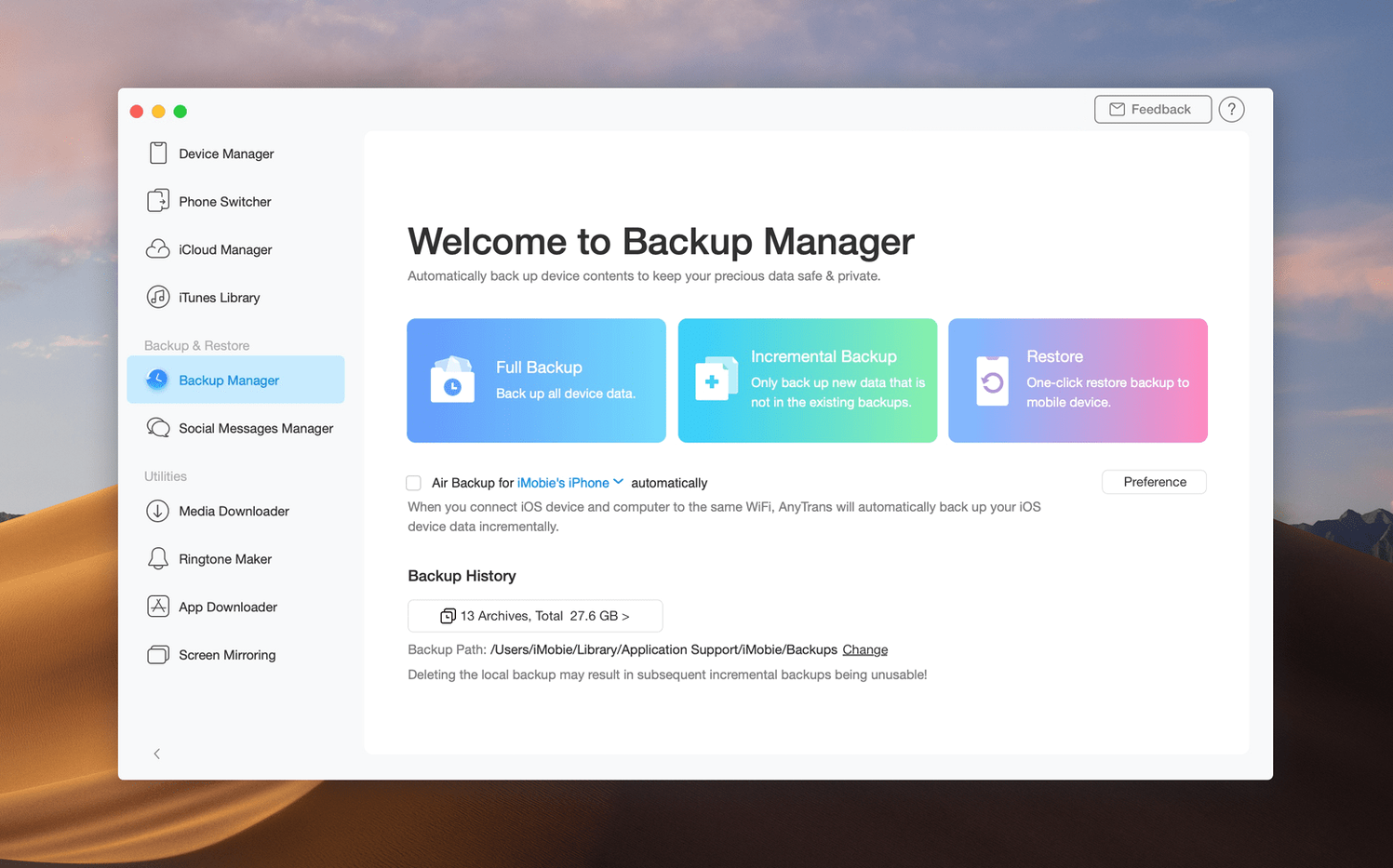
A common mistake is thinking the app replaces the need for iCloud backups entirely. It does not. AnyTrans for iOS backs up iOS data on a Mac, but it does not sync in the background the way iCloud does. You have to connect the device and run the transfer manually. Relying on it as an automatic backup solution leads to gaps.
Another mistake is selecting "Transfer to iPhone" without checking the available storage on the target device. The app will copy files from the Mac onto the phone, but if the phone is full, the transfer stops partway. Beginners should check free space in the device manager before starting a large move.
Some users also try to transfer iTunes library content directly without first letting the app index the library. The app needs a few seconds to read the iTunes database. If the transfer button stays gray, wait for the indexing to finish. It is not a stuck app.
Finally, people sometimes unplug the USB cable as soon as the transfer bar reaches 100 percent. The app may still be writing metadata or cleaning up temporary files. Unplugging early can corrupt the destination files. Wait for the app to say "Transfer complete" before disconnecting.
No release notes filed for 8.9.14. They are added here when a build changes how the program behaves.
| macOS | macOS 10.13 or later |
|---|---|
| Processor | Intel 64-bit |
| Download | 398 MB |
- macOS 10.13 High Sierra
- Architecture: Intel
- Interface languages: English, German, Arabic, Spanish, Simplified Chinese, French, Japanese
How to install, in order
- Mount the disk image and run the Open Gatekeeper friendly file.
- Press Enter in Terminal when asked, to bypass Gatekeeper.
- Drag the app into the Applications folder.
- Open AnyTrans from Applications after the copy finishes.
Comments and corrections 0
Sign in or open a free account to leave a comment.
No comments or corrections yet.