Haptyk 2.0.4 — download for Mac
Utilities Updated
Turns the built-in keyboard into a mechanical-style sound keyboard using keypress force.
Screenshots
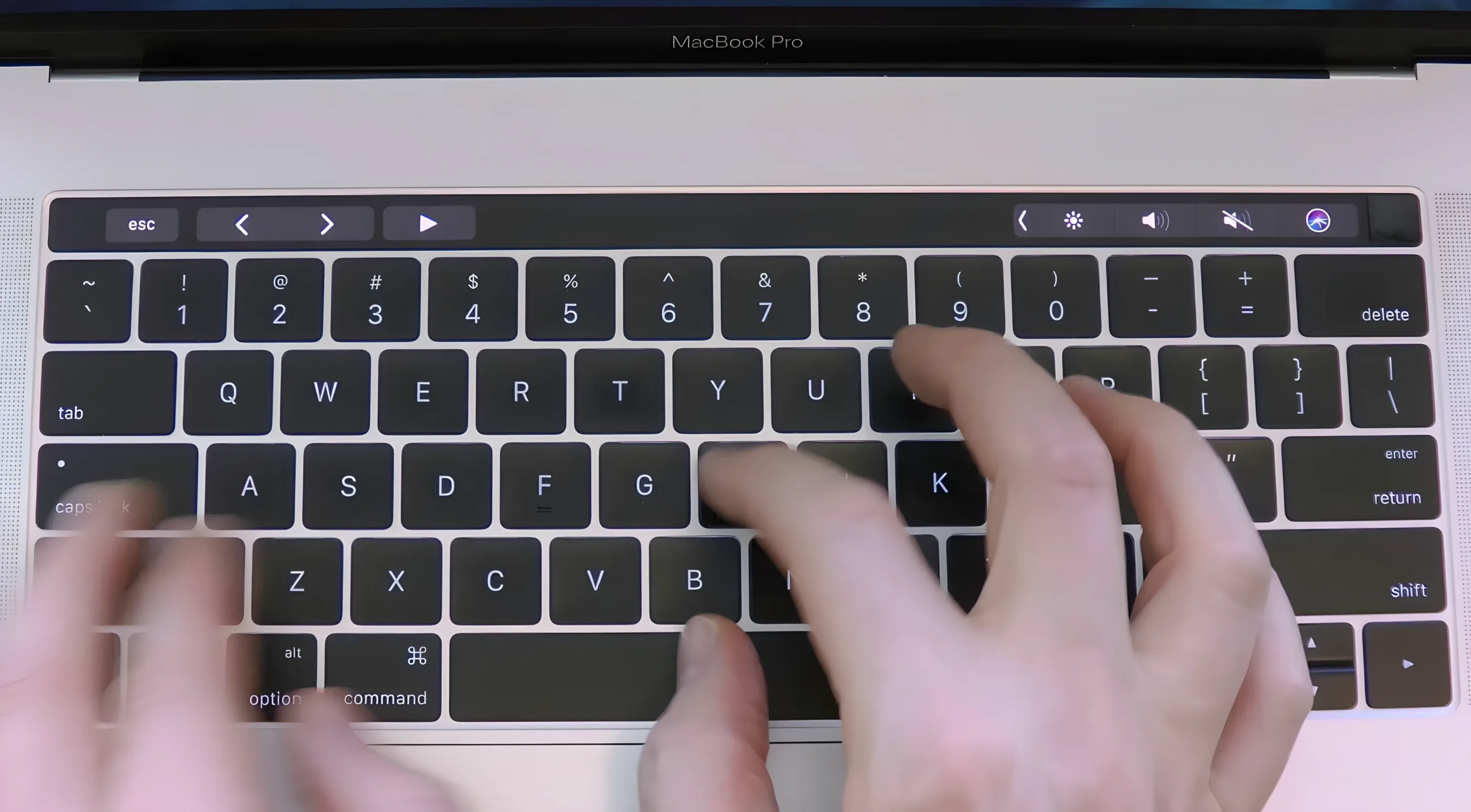
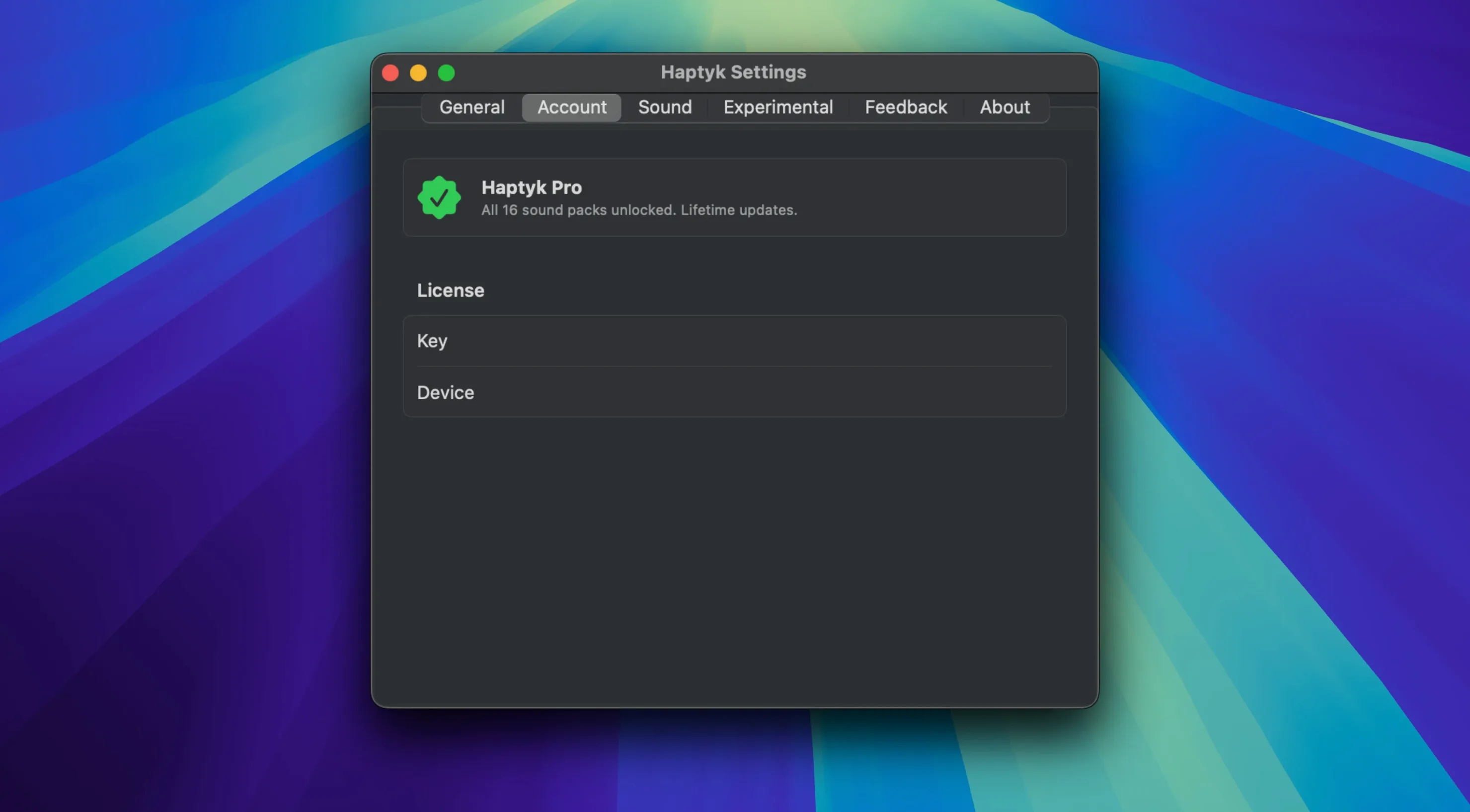
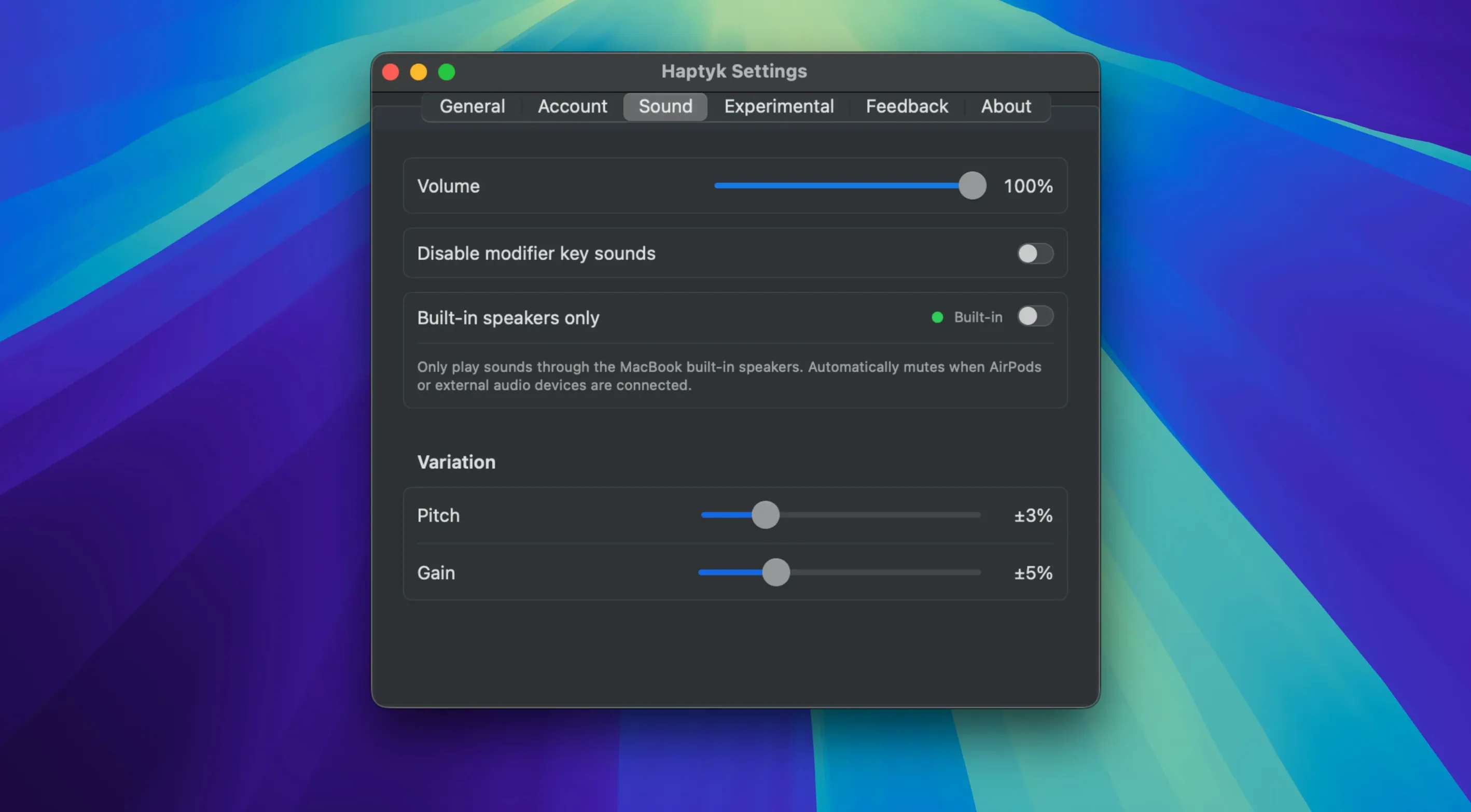
Haptyk is a Mac utility that turns the built-in keyboard on Apple Silicon MacBooks into a mechanical-style sound keyboard, using the hidden accelerometer to detect keypress force.
Version 2.0.2 refines that idea for people who type all day. The app responds to how hard you press, not just whether you press. A light tap produces a softer click; a firmer stroke gives a sharper clack. That nuance matters when you are writing a spec at 2 a.m. — the feedback matches your tempo without being obnoxious.
For an experienced user, the practical details are what count. It requires an M2 Pro chip or later, so older M1 Airs and 13-inch M1 Pros are out — the sensor simply is not there. macOS 13 or newer is the floor. Installation is a drag into Applications, and launch from Launchpad once the copy finishes.
The tool sits quietly in the background. You forget it is on until you switch back to a silent keyboard and miss the response. That is the mark of a utility done right.
Typing Force Determines Sound
On customization, version 2.0.2 keeps things simple — there are no tone pickers or volume sliders in this release. The sound changes based on your typing force, and that is the whole point. If you want a quieter click, you type lighter. If you need more feedback, you press harder. The app does not offer a way to swap sound profiles or adjust sensitivity. What you hear is what the accelerometer reads.
Haptyk only activates when the keyboard is in use. It does not poll in the background while you read or scroll. The app uses macOS events tied to the accelerometer, so it is not running a constant loop. Users on M2 Pro machines report it being negligible in daily use. The app has no autostart entry by default, so it only runs when you launch it.
Another question is whether it works with external keyboards. The short answer is no. Haptyk relies on the built-in keyboard's accelerometer. External Bluetooth or USB keyboards do not send that data, so the app ignores them. If you dock your MacBook with a mechanical keyboard, you get silence — which is fine, since the mechanical keyboard already gives its own sound.
Scenario: The Night Editor
Consider someone who edits long-form reports on a MacBook Air M2. This person works late, often in shared co-working spaces or hotel rooms. They need tactile feedback to maintain typing rhythm without loud clicks that disturb neighbors. Haptyk fills that gap. The light press produces a muted tap that only the user hears. The heavier press on a delete key or a return gives a satisfying clack that confirms the action. The editor gets audio confirmation of key force without wearing headphones or looking down at the keyboard. It changes the typing experience from silent and vague to responsive and precise, without adding volume.
Lives in Menu Bar Without Conflicts
Haptyk lives in the menu bar while running. It does not interfere with keyboard shortcuts, text expanders, or clipboard managers. You can run it alongside apps like TypingMind, Alfred, or BetterTouchTool without conflicts. The app respects macOS sound settings — if your system volume is muted, Haptyk stays quiet. It does not create a separate audio channel. System audio routing applies normally, so if you use audio interface software or SoundSource to control per-app volume, Haptyk appears as an audio source you can adjust.
The utility integrates with macOS window management. It does not draw a window of its own beyond the menu bar icon. Switching virtual desktops or using full-screen apps does not interrupt it. It works with keyboard-driven workflows in iTerm2, VS Code, or Obsidian without issue.
Workflow: Setting Up Haptyk for Daily Use
Here is a workflow for someone who wants Haptyk running every time they sit down to work.
- Download the disk image from the haptyk download page.
- Open the disk image and drag Haptyk into the Applications folder.
- Wait for the copy to finish, then launch it from Launchpad.
- Open System Preferences > Sound and confirm your system volume is at a comfortable level. Haptyk follows this setting.
- Type a sentence in any text field. Adjust your finger pressure to feel the range — light taps for vowels, firmer strikes for shift and enter.
- If you want the app available at login, add it to your user startup items in System Preferences > Users & Accounts > Login Items. Drag Haptyk into the list. This step is optional; many people prefer to launch it manually when they start writing.
- Type through a morning of emails or documents. The sound becomes background feedback. You will only notice it when it is missing.
That is all the setup needed. No configuration files, no permission prompts, no extra steps. The app is ready as soon as the copy finishes.
No release notes filed for 2.0.4. They are added here when a build changes how the program behaves.
| macOS | macOS 13 or later |
|---|---|
| Processor | Apple Silicon, Intel 64-bit |
| Download | 18 MB |
- macOS 13 or later
- Apple Silicon MacBook with M2 Pro or later
- Both Intel and Apple Silicon architectures supported for the app itself
Questions about Haptyk
Which Macs support Haptyk?
Haptyk requires an Apple Silicon MacBook with M2 Pro or later and macOS 13 or newer. The M1 MacBook Air and 13-inch M1 MacBook Pro lack the accelerometer sensor the app relies on.
How do I install Haptyk?
Open the downloaded disk image, drag the app into the Applications folder alias, then launch it from Launchpad after copying finishes.
Does Haptyk work with external keyboards?
The app is designed for the built-in MacBook keyboard only. It uses the accelerometer inside the MacBook, which external keyboards cannot access.
How to install, in order
- Open the downloaded disk image.
- Drag the app onto the Applications folder alias.
- Once copying finishes, launch it from Launchpad.
Comments and corrections 0
Sign in or open a free account to leave a comment.
No comments or corrections yet.