HarborDrop 1.4 — download for Mac
Utilities Updated
Manages downloads with segmented fetching and sorting by site or type.
Screenshot
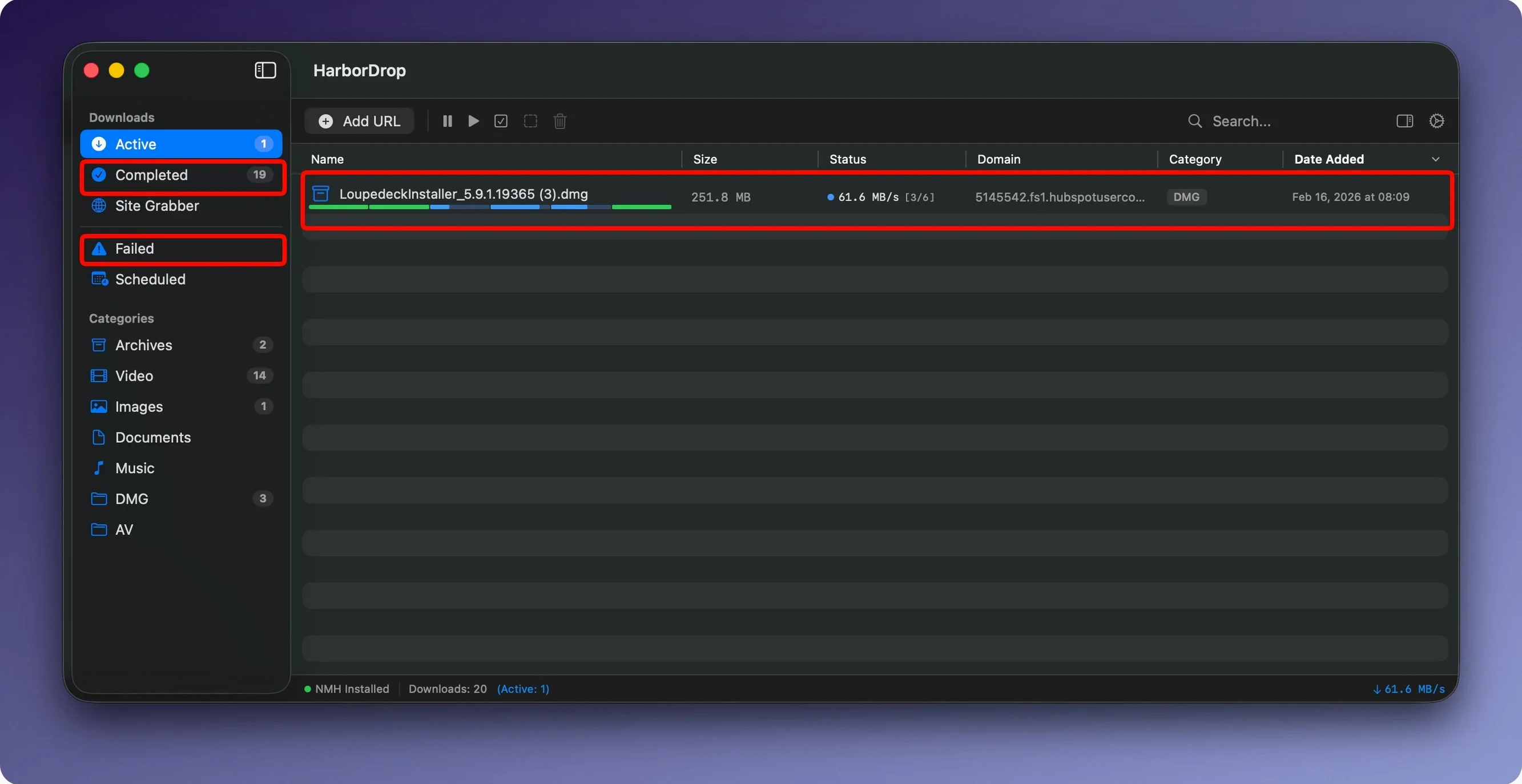
HarborDrop runs on macOS 12 and later, Intel and Apple Silicon. It is a download manager that fits between the browser’s built-in download shelf and a full automation tool. Version 1.4 is current.
Set segments per download; sort by site or type
You can set the number of segments for each download, which helps with larger files. Downloads sort automatically by site domain or file type, so the Downloads folder stays organized without manual sorting.
What automation does it offer after a download finishes?
HarborDrop can run AppleScript or JavaScript once a file lands. This is useful for moving files to a project folder, converting formats, or triggering another app — all hands-off.
Does it integrate with browsers beyond Safari?
Yes, the browser extension supports Brave. You can send media links directly to HarborDrop, and the Site Grabber feature lets you download pages up to a specified crawl depth. Non-DRM video from supported websites can also be pulled for offline viewing.
Who typically adds this to their Mac workflow?
Six parallel streams replace one-at-a-time drag
Before HarborDrop, they would sit through browser downloads one at a time, then manually drag each file into the client’s project folder. With HarborDrop, they set six parallel segments for each large file and use the automatic sorting rules to tag incoming footage by site domain — Dropbox sends go to one folder, WeTransfer files to another. A simple AppleScript runs after each download, moving the file into the correct dated client folder.
Video producers and IT teams gain the most
- Video and audio producers – anyone handling 4K video, sample packs, or multitrack stems. The segmented download and HLS stream support keep the timeline moving.
- IT and devops people – downloading large disk images, log bundles, or nightly builds. The post-download scripts can unzip, checksum, or move files without extra tools.
- Project managers juggling client assets – setting up site-based sorting means assets from a client’s portal land in the right folder automatically, not mixed into the general download pile.
- Anyone with a strict file-organizing system – if your workflow collapses without the Downloads folder being clean, harbor drop mac gives you rules that run without reminders.
Why tiny files skip the segment split
- Segments won’t start for a small file. HarborDrop uses segments primarily for larger files. If you see only one part downloading, the file is likely small enough that splitting it doesn’t help. No action needed — the single stream still finishes at normal speed.
- Browser extension doesn’t appear in Chrome or Brave. Extensions can be blocked by enterprise policies or security software. Open the browser’s extension manager and check whether the HarborDrop helper is listed. If it is disabled, enable it manually. If it is missing, reinstall the extension from the developer’s page.
- Site Grabber pulls too many files. The crawl depth setting controls how many link layers the grabber follows. Start with depth 1 and increase only if you need subpages. Depth 0 grabs only the page itself, which is often enough for a single asset list.
- Post-download script runs but does nothing visible. Scripts run in the background — there is no pop-up. If your AppleScript or shell script is supposed to move a file, write a short test script that creates an empty log file. Run it once to confirm HarborDrop passes the correct variable for the file path.
- m3u8 streams do not resolve. Not every m3u8 playlist contains a downloadable video. Some are adaptive playlists that point to other playlists. Try pasting the direct .ts segment URL, or check whether the site uses DRM — those streams will not download regardless of settings.
Anyone who regularly downloads large files, manages media, or wants to automate post-download tasks without scripting everything from scratch.
No release notes filed for 1.4. They are added here when a build changes how the program behaves.
| macOS | macOS 12 or later |
|---|---|
| Processor | Apple Silicon, Intel 64-bit |
| Download | 9 MB |
- macOS 12 or later
- Intel or Apple Silicon
- Activation not required
How to install, in order
- Open the downloaded disk image.
- Drag the app to the Applications folder.
- Launch it from Launchpad after the copy finishes.
Comments and corrections 0
Sign in or open a free account to leave a comment.
No comments or corrections yet.