LaunchOS 2.1.0 — download for Mac
Utilities Updated
Organizes apps in a Launchpad-style grid with hiding and sorting options.
Screenshot
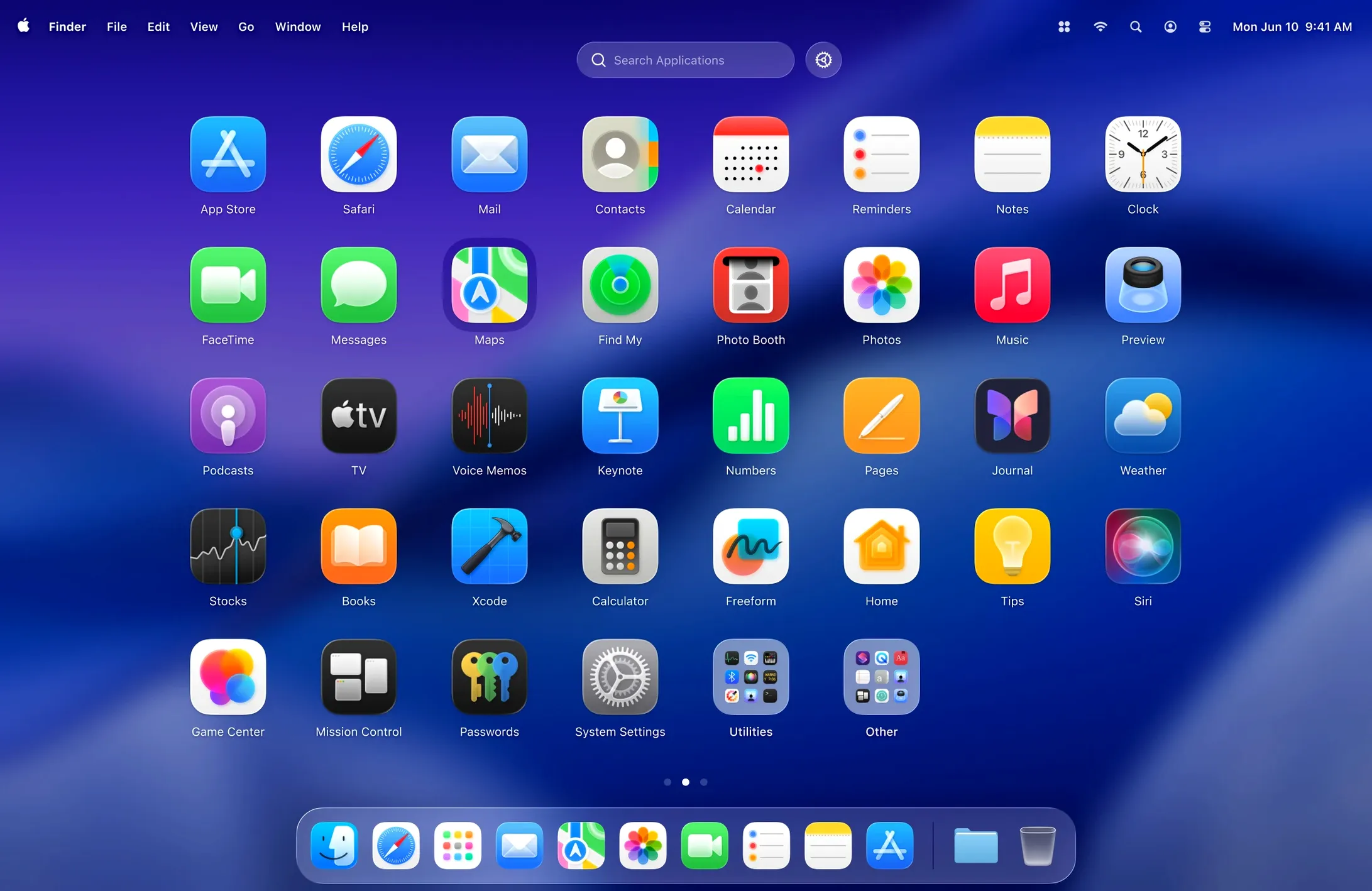
You copy an app to the Applications folder, open Launchpad, and there it is — but sorting through Apple’s grid gets tedious after a while. LaunchOS 1.2.4 is a Launchpad-style organizer that replaces that built-in workflow with something more direct.
What LaunchOS Gives You
- Hide selected apps to keep the grid tidy.
- Uninstall apps directly from the long-press or right-click menu.
- Restart an app from the status bar menu or right-click context menu — added in version 2.1.0.
- Supports macOS 26’s Liquid Glass design effect.
Runs on macOS 26 and Both Chip Types
LaunchOS requires macOS 26 or later and runs on both Intel and Apple Silicon Macs. That’s the whole compatibility story — if your Mac is on the current system, it works. The interface is available in English, Russian, German, Spanish, Italian, French, Japanese, Korean, and both Chinese variants, so language is rarely a barrier.
Common Questions People Ask Before Installing
Does LaunchOS replace the system Launchpad entirely? No. It runs as an independent application, not a system patch. The built-in Launchpad stays available — you just choose which one to use. You can launch LaunchOS from your dock, assign it a keyboard shortcut, or open it from Launchpad itself.
Will it conflict with other app launchers? Not in practice. LaunchOS manages its own grid and settings. If you also run something like a dock replacement or a separate launcher, they coexist without interference. Each app opens the same way it would anywhere else.
Can I undo app hiding if I change my mind? Yes. Hidden apps can be made visible again through the preferences panel. The grid reorganizes automatically, so there is no empty slot to worry about.
Does it remember my layout after a restart? LaunchOS saves grid positions and hidden app settings. After a reboot or a logout, everything returns as you left it.
Matches macOS Drag, Shortcuts, and Gestures
LaunchOS works alongside standard macOS features rather than replacing them. Dragging an app to the grid is the same action you already use in the system Launchpad. Keyboard shortcuts and gestures match the ones macOS understands, so there is no new muscle memory to learn.
For people who keep their Applications folder organized, LaunchOS reflects those changes when the grid refreshes. If you move an app out of the folder, it disappears from the launcher. If you install something new, it appears the next time the grid populates.
The right-click context menu integrates with the system. The Restart option, added in version 2.1.0, works with any app that supports macOS’s standard quit-and-relaunch flow. The uninstall command triggers the same removal process you would get from the Finder or the system Launchpad — nothing custom, nothing risky.
Grid Size and App Hiding for Many Apps
Users who migrated from older macOS versions and miss the original Launchpad layout will find LaunchOS familiar. The grid size adjustment and app hiding make it suited for people with many installed applications who want to surface only the ones they use daily.
It is also practical for anyone who works in a single display and wants a secondary launcher that stays out of the way. LaunchOS opens on demand, shows a full app grid, and closes when you pick an app. That pattern works well for people who keep their dock minimal and do not want to dig through folders.
Users on Apple Silicon Macs and Intel Macs are both supported equally. The same version runs on either architecture, so there is no need to check hardware before downloading.
Language Switch Without Restarting the Launcher
- The language menu inside the app lets you switch between ten interface languages without restarting the launcher. The change takes effect immediately.
- App icons retain their original macOS styling. Liquid Glass effects apply the same way they do in the system interface, so the grid looks consistent with the rest of the operating system.
- The uninstall option saves a trip to the Applications folder or the system settings menu. A long-press on any app icon or a right-click call offers the same choice — two gestures for the same action.
- The Restart command in the status bar menu works for any running app, not just the one you right-clicked. It is a small time-saver when you need to reload an app without hunting for its icon in the dock.
- Added app uninstallation via long-press and right-click triggers.
- Added Restart to the status bar menu and right-click context menu.
| macOS | macOS 26 or later |
|---|---|
| Processor | Apple Silicon, Intel 64-bit |
| Download | 9 MB |
- macOS 26 or later
- Intel or Apple Silicon
Questions about LaunchOS
Does LaunchOS work on older macOS versions?
No. LaunchOS requires macOS 26 or later, so it will not run on earlier versions of macOS.
How to install, in order
- Open the downloaded disk image.
- Drag the app into the Applications folder.
- Once copying finishes, launch LaunchOS from Launchpad.
Comments and corrections 0
Sign in or open a free account to leave a comment.
No comments or corrections yet.