
Gemini 2.10.2 — download for Mac
Utilities Intel processors only Updated
Finds and removes duplicate files with a smart preselection feature.
Screenshots
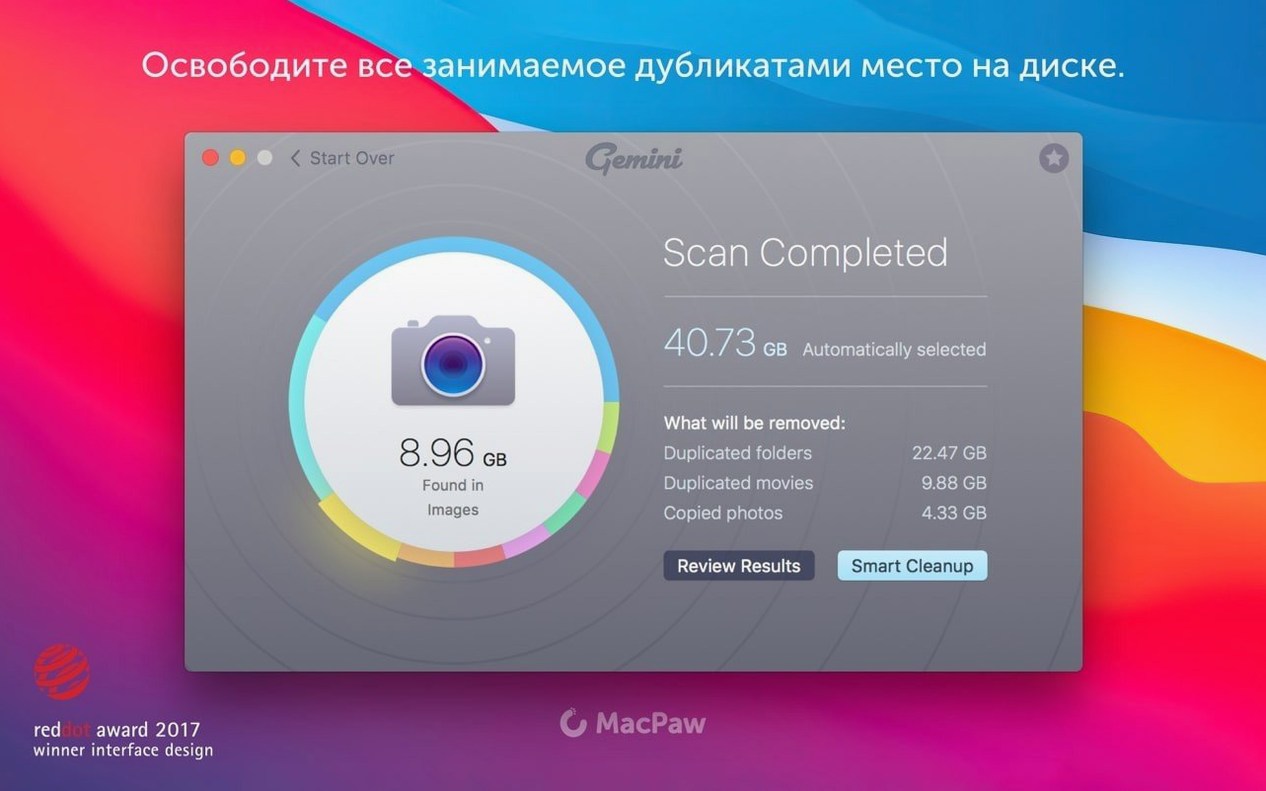
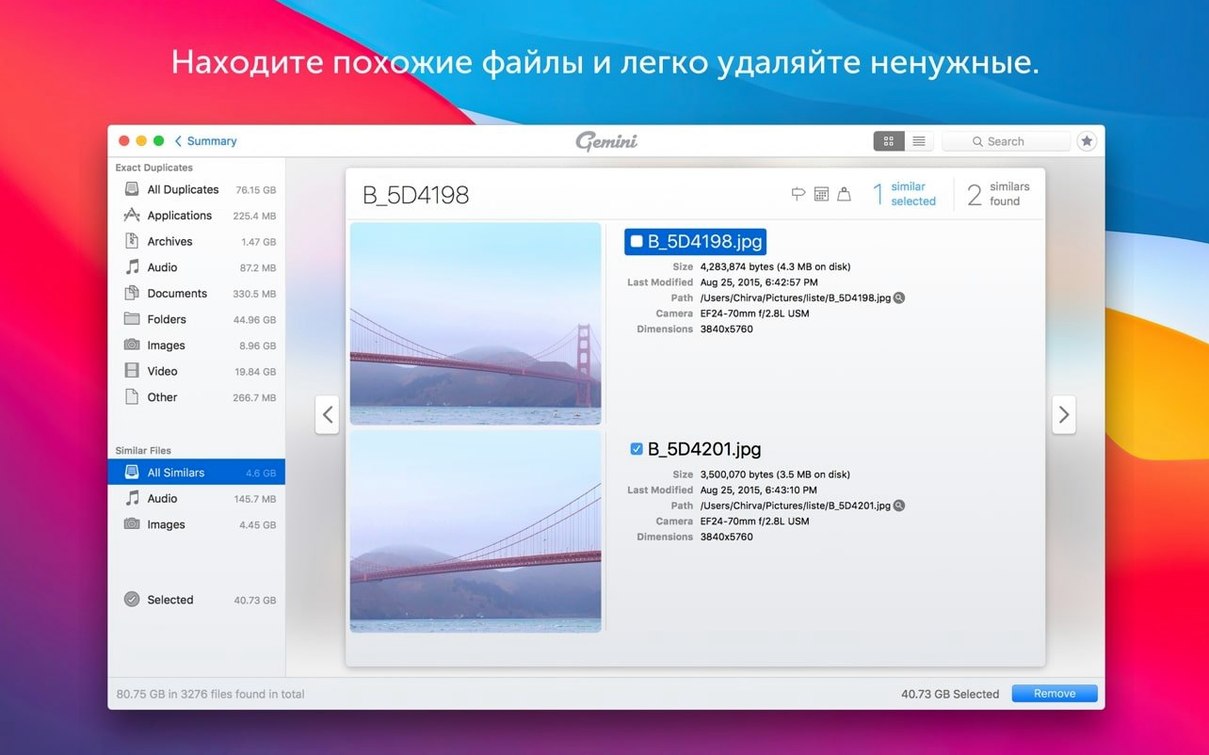
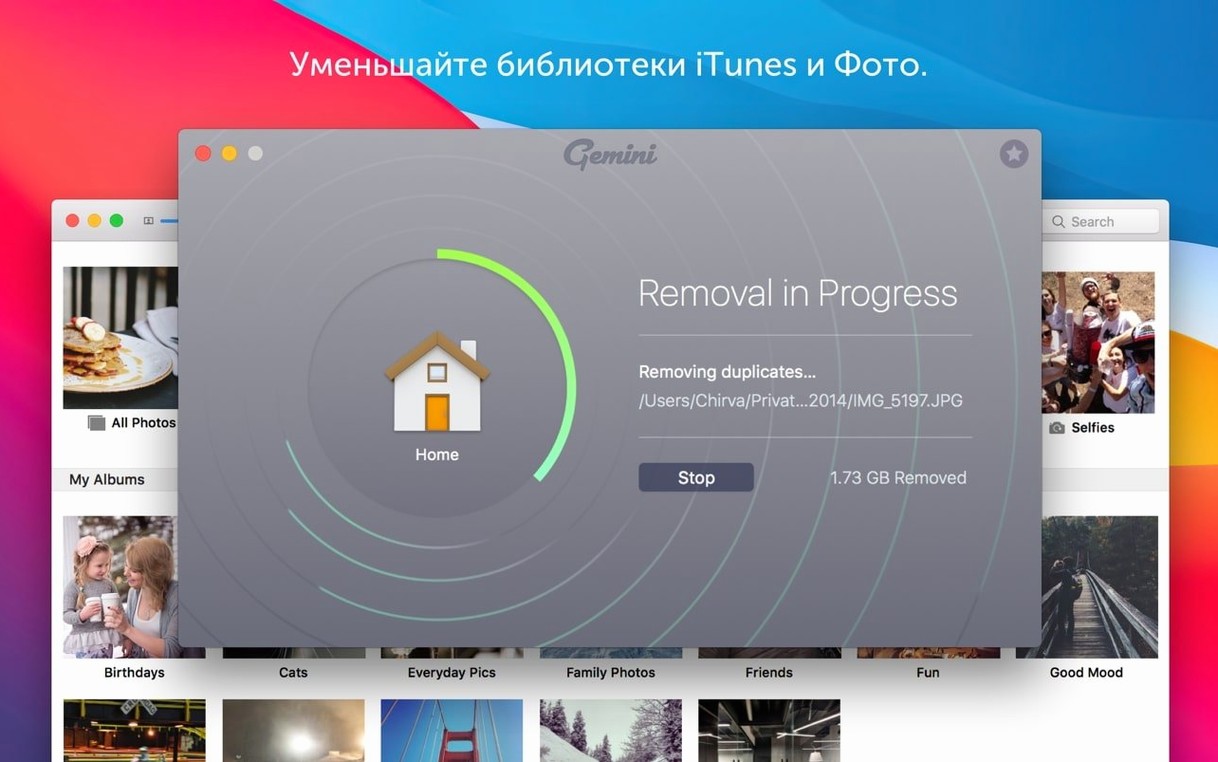
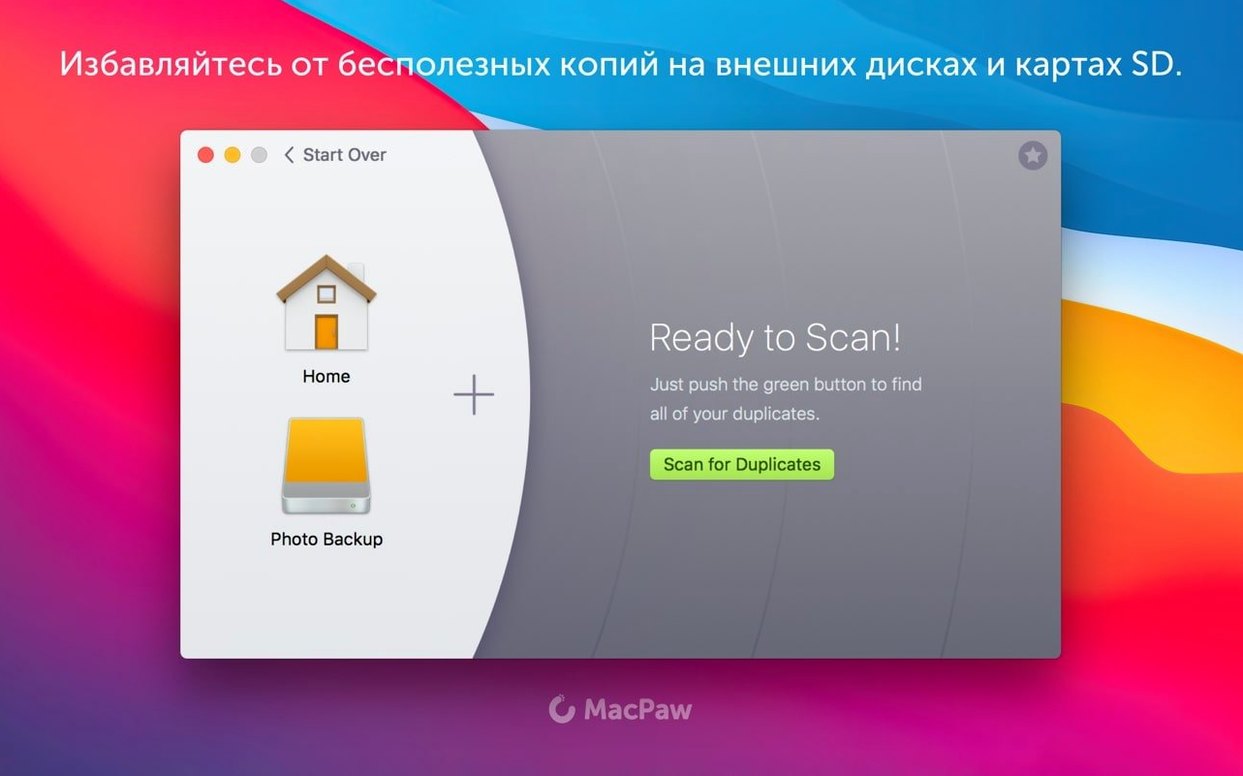
I’d been meaning to clean up my project folder for weeks. That’s when I opened Gemini 2 and saw its Smart Select feature — it preselects files you can remove without second-guessing. Here are the first three things a newcomer should try.
Scan a folder for duplicates
Drag any folder, library, or external drive into the window. Gemini 2 scans images, music, video, and even system-side folders. Groups that look alike or are nearly identical appear together, so you spot repeated project assets fast.
Review the results group by group
After the scan, browse the file groups. Each duplicate set is shown side by side. You can select individual files or entire groups and move them to Trash. The interface keeps everything visible, so you stay in control.
Let Smart Select handle the safe picks
When you are ready to clean, Smart Select highlights the files that can be removed safely — older copies, identical versions, leftovers. Confirm its choices or override them. It saves minutes of manual checking per cleanup session.
A real scenario: cleaning a designer’s archive
Maria runs a small design studio from her Mac. Her project folders contain layered PSDs, exported PNGs, and multiple revisions of the same mockup. After eight months of client work, her drive was nearly full, and finding the latest version of a file meant opening four folders. She ran Gemini 2 on her main project directory. The scan grouped nearly identical files and showed older drafts that she had already delivered. Smart Select marked the old exports and unused assets. In one pass, she freed 12 GB without touching current work.
For someone who manages many file revisions, the ability to see similar files grouped — not just exact duplicates — matters. Gemini 2, version 2.10.2, picks up files that differ only by a few pixels or a slightly different time stamp. That catches what a manual sweep misses.
Skip the full disk scan first
- Running a full disk scan first. The default scan covers the entire Mac. New users often start there, wait through a long scan, and then feel overwhelmed by thousands of results. Start with one folder or a specific library. That keeps the result list short and the cleanup quick.
- Trashing everything Smart Select suggests without a quick review. Smart Select is good at picking safe candidates, but it cannot know that you want to keep the older copy because it has notes you need. Always glance through the groups before confirming the deletion.
- Forgetting the Recently Deleted area. Gemini 2 keeps removed files in a Recently Deleted section so you can restore them. Beginners often assume deleted means gone. If you empty that area too quickly, you lose the safety net. Give yourself a week before clearing it.
- Skipping the learning feature. Every time you confirm deletions, Gemini 2 remembers your choices. The next scan applies the same logic. Beginners who manually re-select the same file types every week miss the automation that builds up over time.
Day one: scan one folder, not the whole Mac
Day one: pick one folder — your Downloads folder or Desktop. Run a scan there only. Review the groups. Let Smart Select make its picks, but double-check each group before you delete. Keep the Recently Deleted as is for the rest of the week.
Day two or three: scan your Music or Photos library. These tend to have duplicate tracks and identical images that accumulate from imports. The scan will group files that iPhoto or iTunes left as copies. Delete only what you recognize as leftovers.
Day four: enable the learning behavior by confirming several deletion sessions. The next scan, Smart Select will preselect files that match your previous pattern automatically. From that point, cleaning a new folder takes under a minute.
Day five: run a full Mac scan if you want, but first exclude system folders that you never edit. The interface lets you choose what to include. A targeted scan is faster and less cluttered.
How Gemini 2 compares with similar Mac apps
Duplicate file finders for macOS are not rare, but they differ in approach and polish. Here is how Gemini 2 sits next to three others.
DupeGuru. Open-source and free. It scans folders and shows duplicate pairs with a side-by-side preview. It does not have a Smart Select equivalent or a learning system. You select and delete manually. It works well for a one-time cleanup but does not speed up repeated scans. Gemini 2 is better suited for users who clean on a regular schedule.
Duplicate Cleaner for Mac. It offers similar group-by-size and group-by-name views. It also includes image comparison for near-duplicates. The interface is functional but less refined. It lacks the Recently Deleted safety net and the learning feature. If you want a safety buffer after deletion, Gemini 2 has that built in.
CCleaner for Mac. Known for system cleaning, it includes a duplicate finder as one module. The duplicate scan is basic — exact file matches only. It does not detect similar images or group nearly identical files. For pure duplicate removal, it does the job. For mixed file types and visual similarity, Gemini 2 is more capable.
None of these apps match the learning workflow that Gemini 2 builds over time. If you clean your drive more than once, that automation becomes the main difference.
No release notes filed for 2.10.2. They are added here when a build changes how the program behaves.
| macOS | macOS 10.13 or later |
|---|---|
| Processor | Intel 64-bit |
| Download | 47 MB |
- macOS 10.13 High Sierra or later
- Intel 64-bit Mac
Questions about Gemini
Does Gemini 2 work on Apple Silicon Macs?
Gemini 2 is built for Intel 64-bit Macs. The official support page says it runs on macOS 10.13 and later, but it is not listed as Apple Silicon native.
How to install, in order
- Mount the disk image and open Gatekeeper-friendly mode.
- Press Enter in Terminal to bypass Gatekeeper.
- Drag the app into your Applications folder.
- Open the app after installation.
Comments and corrections 0
Sign in or open a free account to leave a comment.
No comments or corrections yet.