iMazing 3.6.5 — download for Mac
Utilities Updated
Transfers and manages contacts, messages, and files between iOS devices and Mac.
Screenshots
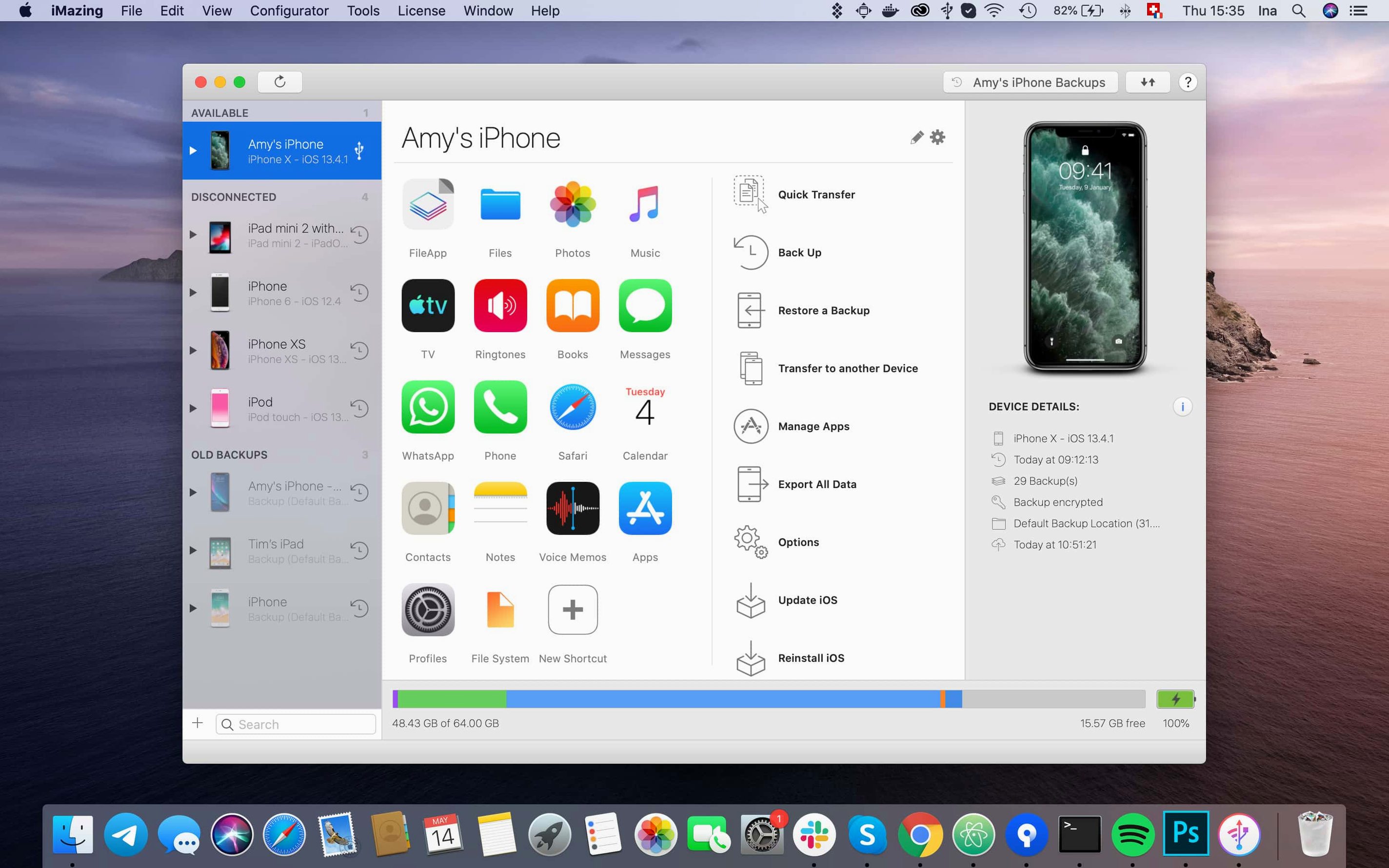
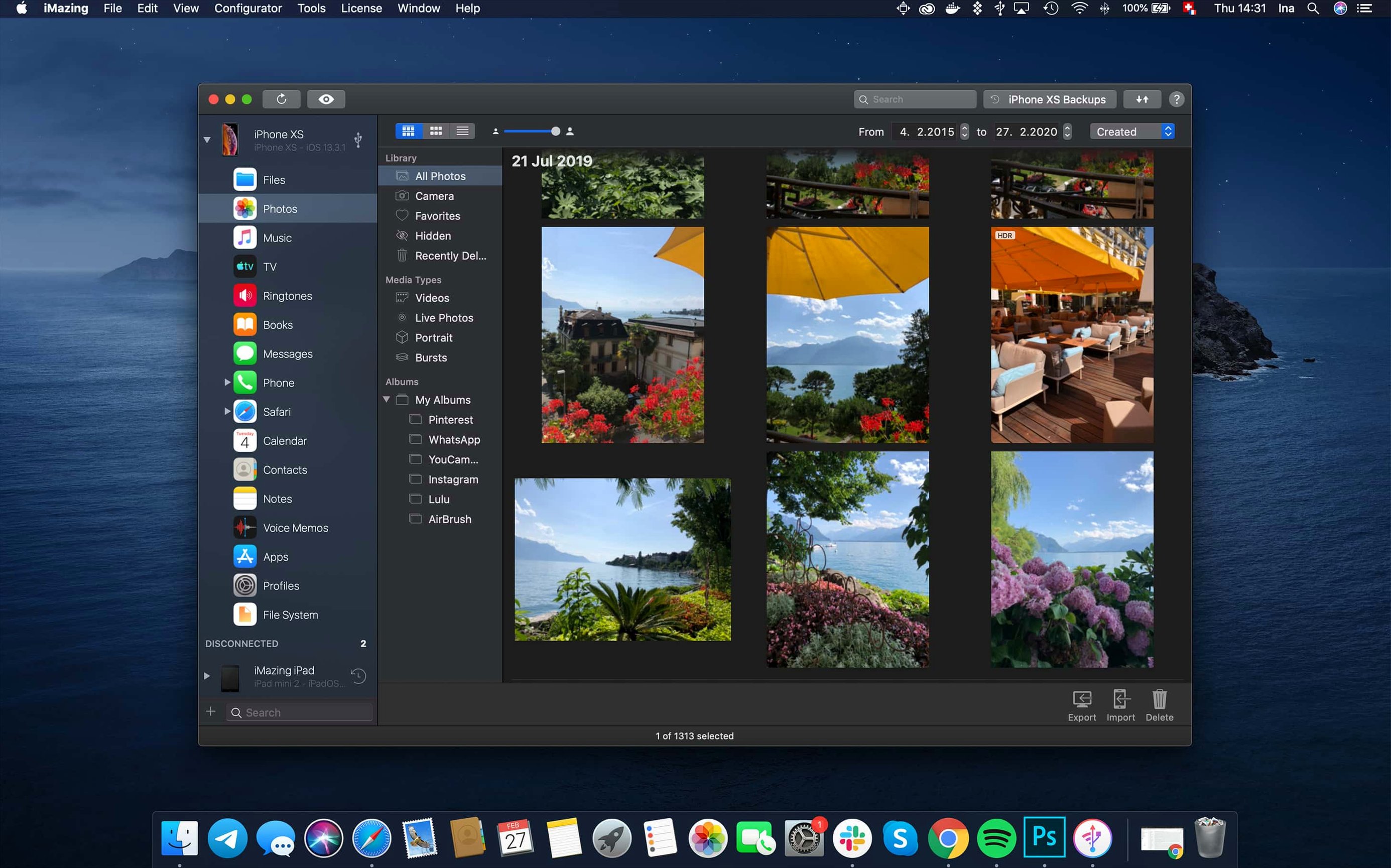
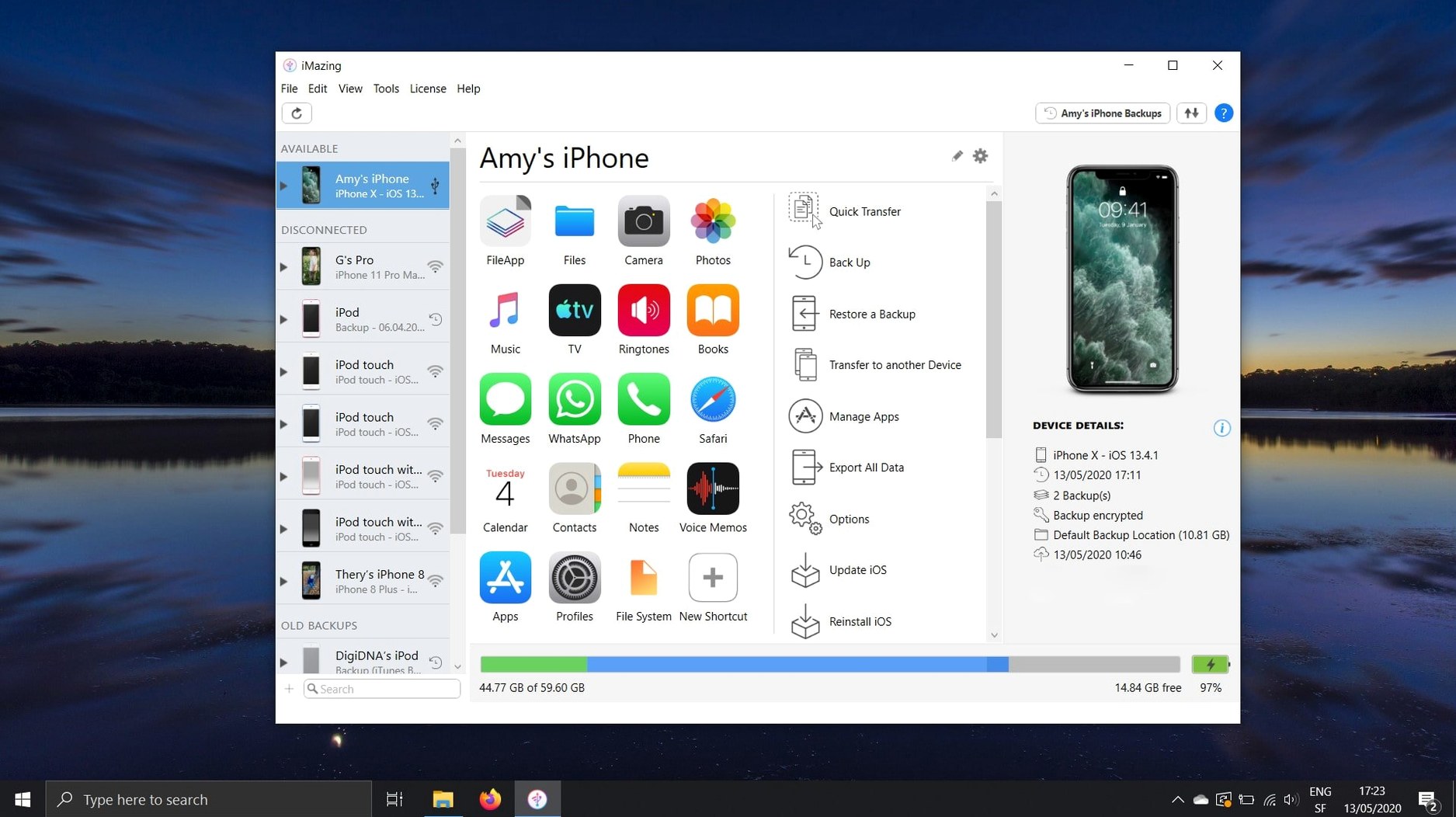
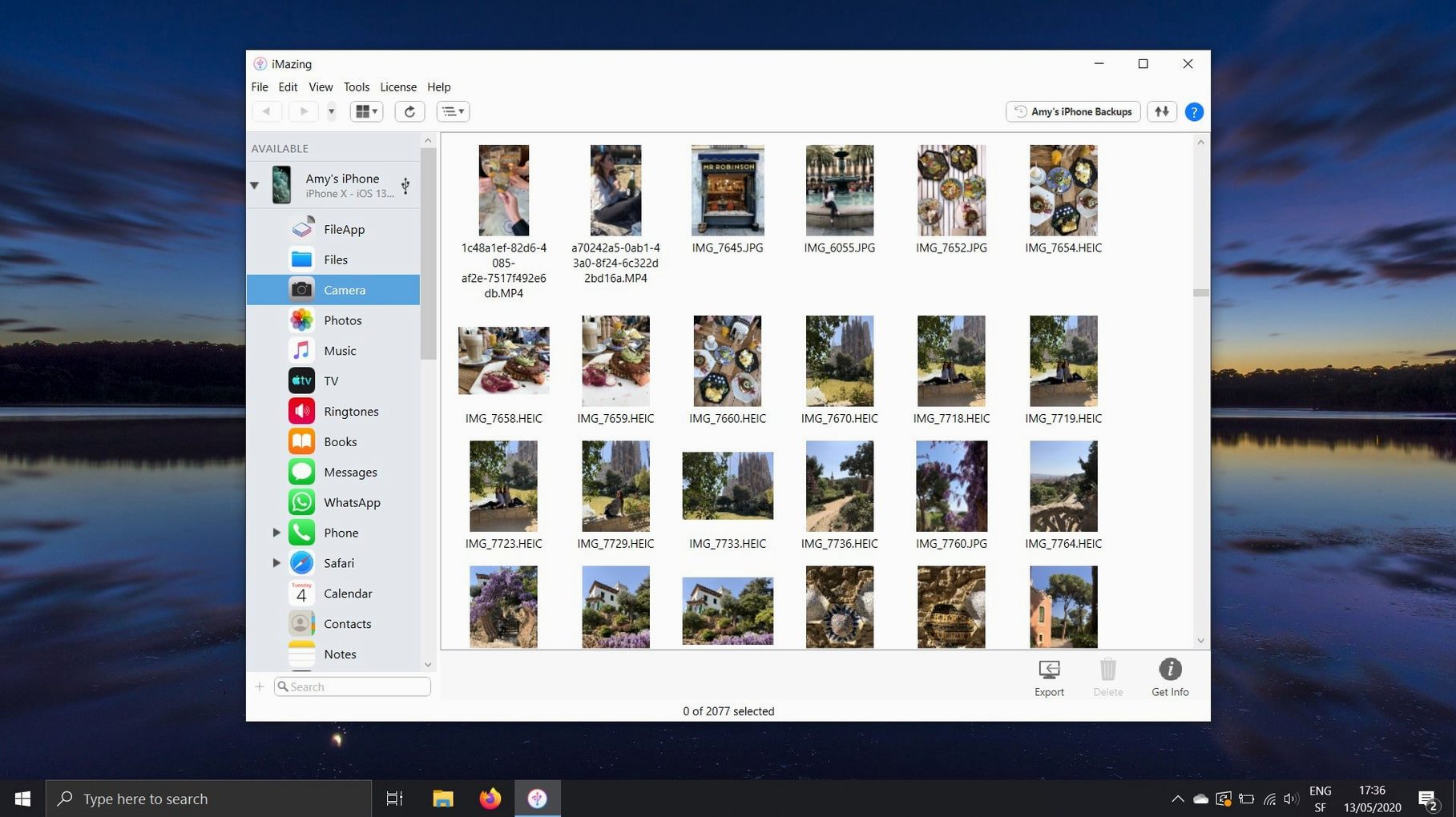
iMazing 3.5.5 runs on any Mac from macOS 10.11 onward, both Intel and Apple Silicon. That covers everything from old iMacs to the latest MacBook Air M2. No special hardware requirements — just plug in your iOS device and the app recognizes it.
What should a newcomer try first? Copy a contact from your phone to the Mac. iMazing handles that directly, no cloud sync or iTunes involved. Next, drag an ePub or PDF into the app and send it to Apple Books. It works the other way too — export any book from your device to the computer. Both steps take seconds and show you how the app thinks: direct file access, no middleman.
Dig deeper and you can grab .ipa files from installed apps, move music without iTunes, or restore game scores and app settings from backups. Version 3.5.5 adds support for the latest iPhone and Apple Watch models, plus a button to export complete log archives from the unified logs view. The chatbot link in the toolbar is helpful if you hit a snag.
For someone new to managing iOS data outside Apple’s ecosystem, iMazing gives you the controls iTunes left out. It is a utility that makes sense the first time you need to pull a file off an old iPad or back up an app’s data before a factory reset.
Catch Up on iPhone 18 and Watch Ultra 4 Support
The jump to 3.6.5 introduces support for the latest hardware — iPhone 18 Pro, iPhone 18 Pro Max, iPhone Duo, Apple Watch Series 12, and Apple Watch Ultra 4. If you upgraded your phone or watch recently, this version ensures iMazing sees it and can start transferring data. No more waiting for a future update to recognize a new device.
Beyond new device support, two changes affect daily work. First, the unified logs view now lets you export complete log archives. If you troubleshoot an app sync or a failed transfer, grab the full log set and send it to support — or keep it for your records. Second, a link to the iMazing Chatbot sits in the main window toolbar. When you need a quick answer about a feature, click the link instead of hunting through menus. The chatbot covers common questions, so you might not open the manual as often.
Two fixes matter in practice: scanned documents from iOS 26 now display correctly beyond the first page, and app downloads that failed with error code 429 are resolved. If you ever saw that error while transferring an app, it should no longer stop you.
Workflow: Transfer Contacts from an Old iPhone to a New iPad
This is a typical task for anyone replacing a phone with a tablet. No cloud accounts, no cables beyond the one you already use to charge.
- Connect the old iPhone to your Mac using a USB cable. iMazing detects it and shows the device in the sidebar.
- Click Contacts in the sidebar. The app displays every contact stored on the phone.
- Select all contacts — or pick individual ones. Use the export button and choose vCard format. Save the file to your desktop.
- Disconnect the iPhone. Connect the new iPad. iMazing now shows the iPad in the sidebar.
- Click Contacts on the iPad. Then drag the vCard file from your desktop into the iMazing window. The app imports the contacts within a few seconds.
- Check the iPad’s Contacts app to confirm everything arrived.
The same approach works for calendars (export as ICS or CSV) and text messages. You control which data moves and which device receives it.
Fills Gaps Apple Books and macOS Leave Open
iMazing does not replace your existing tools — it fills gaps. You still use Apple Books for reading ePub and PDF files, but iMazing moves them onto the device in the first place. Drag a book into iMazing and it lands in Apple Books ready to open.
macOS features that complement iMazing:
- Finder. After iMazing mounts an iOS device as a flash drive, you browse its contents in Finder. Copy files directly, no extra steps.
- Apple Books. Import books from iMazing, then use Apple Books for reading and organizing. Exports from the device go back to your Mac as files you can archive or email.
- Backups. macOS Time Machine backs up your computer, but it does not touch iOS device backups. iMazing creates and stores those separately, giving you a restore point for your phone or tablet.
- File formats. Contacts export as vCard, calendars as ICS or CSV, call logs as CSV. All open in macOS default apps — Contacts, Calendar, Numbers — or any spreadsheet tool.
- No cloud dependence. iMazing works offline. You transfer data over USB or Wi-Fi without uploading anything to iCloud, Google, or any other service.
For users who manage multiple iOS devices in one household, iMazing switches between them without logging in and out of cloud accounts. Each device appears in the sidebar, and you decide what moves where.
Expect to Manually Choose, Not Auto-Sync
New users often treat iMazing like iTunes and expect it to sync everything automatically. That is not how it works. iMazing waits for you to choose what to transfer. If you connect a device and see no files, you have not selected a category yet — click Contacts, Messages, or Music in the sidebar to see the data.
Another common error: forgetting to disconnect one device before connecting another. iMazing can only work with one iOS device at a time over USB. Unplug the first phone, then plug in the second, and the sidebar updates. If you plug both in, the app might show the wrong device until you disconnect one.
Beginners also assume backups are automatic. They are not. iMazing lets you create a backup manually or set up wireless automatic backups from iPhone and iPad to your Mac. But you need to configure that in the preferences first. Until then, nothing happens in the background.
Finally, users sometimes drag music files into iMazing and expect them to appear in the iPhone’s Music app immediately. The files transfer to the device, but you still need to open the Music app or a player to find them. iMazing handles the copy — the phone’s own apps handle playback.
- Adds support for iPhone 18 Pro, iPhone 18 Pro Max, iPhone Duo, Apple Watch Series 12, and Apple Watch Ultra 4.
- Adds export of complete log archives from the unified logs view.
- Adds a link to iMazing Chatbot in the main window toolbar.
| macOS | OS X 10.11 or later |
|---|---|
| Processor | Apple Silicon, Intel 64-bit |
| Download | 242 MB |
- macOS 10.11 or later
- Intel or Apple Silicon processor
Questions about iMazing
Does iMazing work with encrypted backups?
Yes, iMazing can modify and restore files, including files from encrypted iPhone and iPad backups.
What languages does iMazing support?
The interface is available in Russian, English, German, Arabic, Spanish, Italian, Chinese (Simplified), Korean, Portuguese, French, and Japanese.
What was fixed in version 3.5.5?
Version 3.5.5 fixed app downloads that were failing with error code 429, added support for new iPhone and Apple Watch models, and added a link to the iMazing Chatbot in the toolbar.
How to install, in order
- Open the downloaded disk image.
- Drag the app into the Applications folder shortcut.
- After copying finishes, launch the app from Launchpad.
Comments and corrections 0
Sign in or open a free account to leave a comment.
No comments or corrections yet.