Folx Pro 5.34 — download for Mac
Utilities Updated
Downloads files using multiple threads and handles magnet links and login credentials.
Screenshots
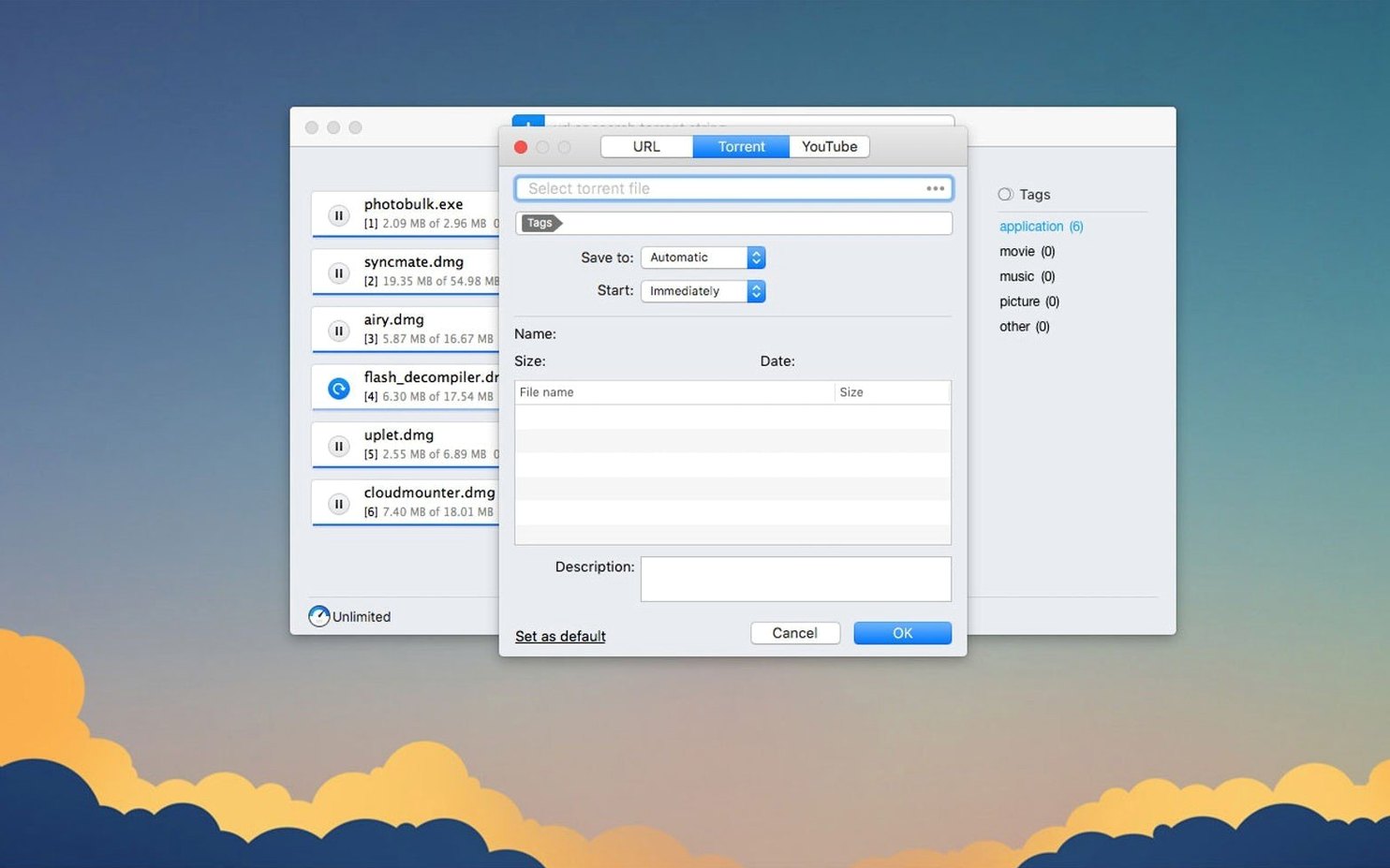
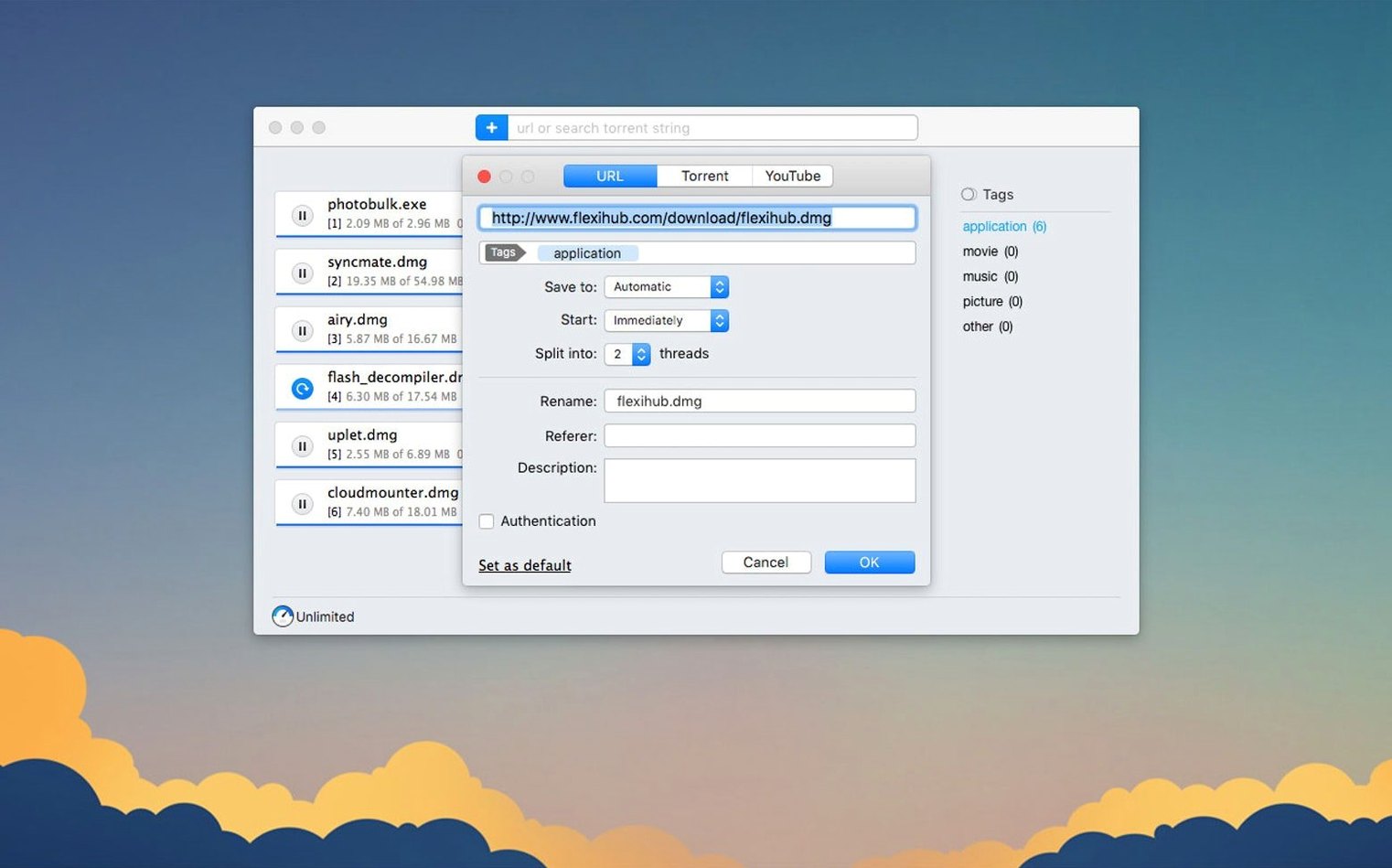
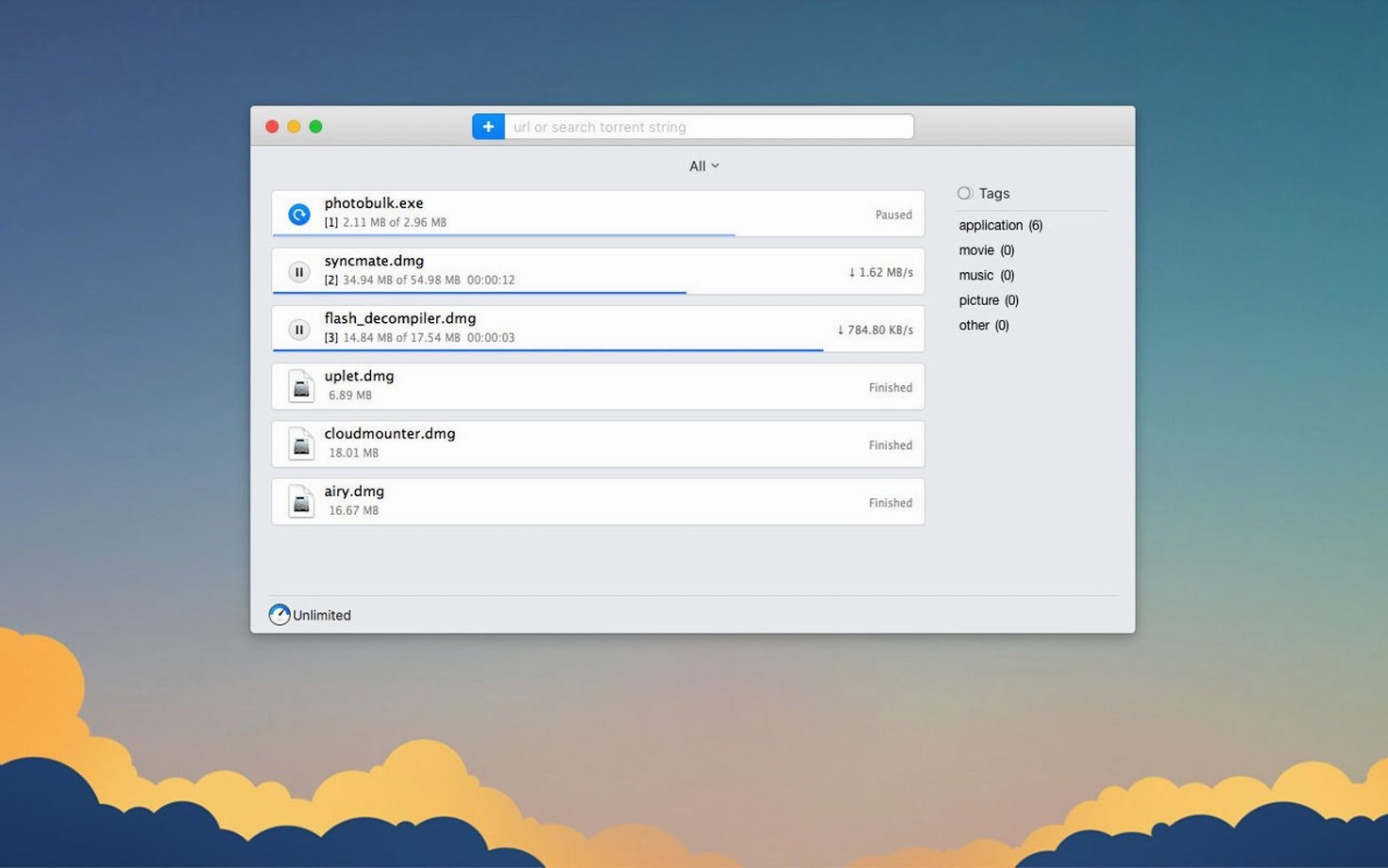
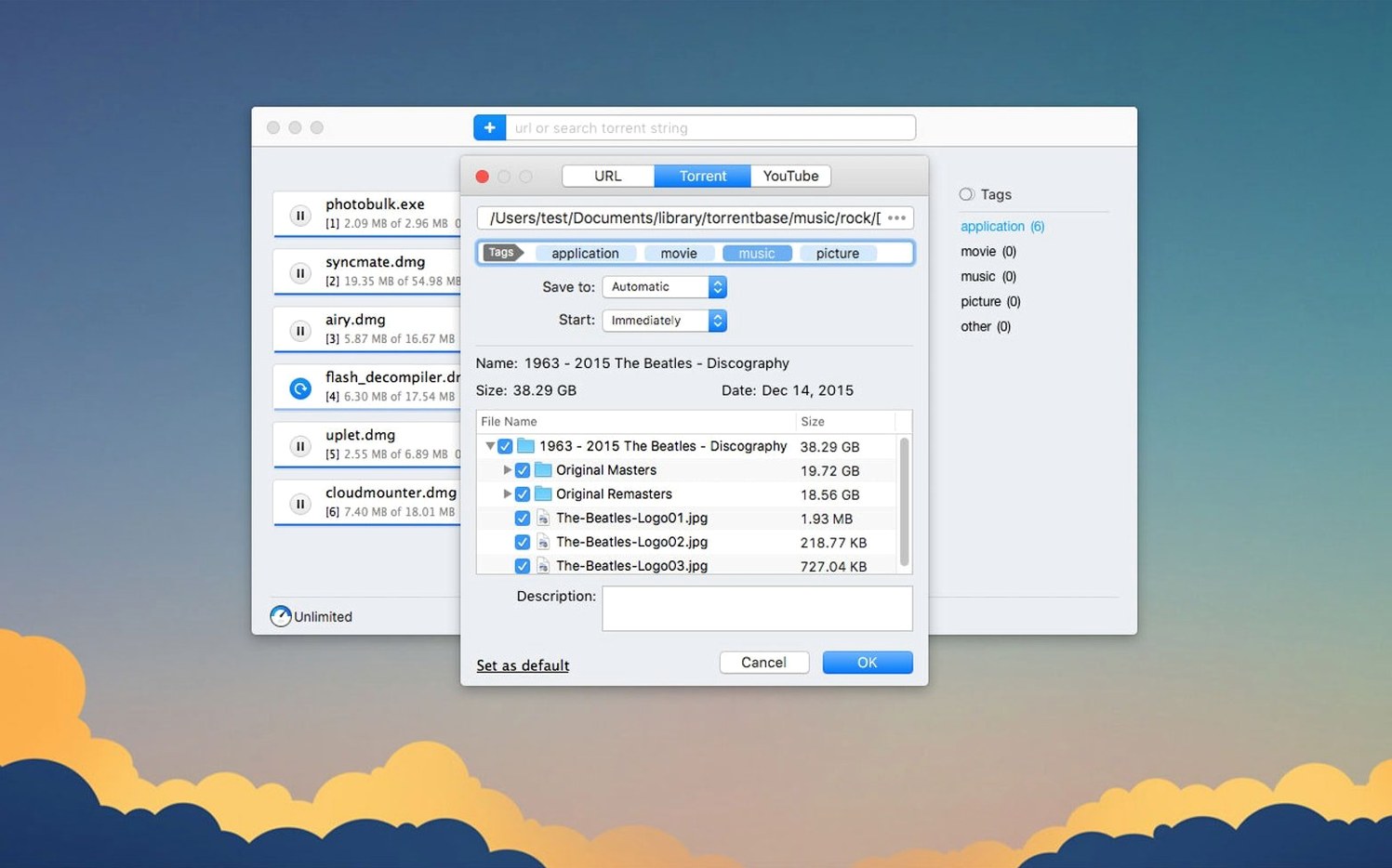
If you already use a browser's built-in downloader, Folx Pro feels like a step up: it splits files into up to 20 threads, handles magnet links, and remembers logins for sites that need them. The current version, 5.34, focuses on polishing the torrent side of things rather than adding new bells and whistles.
Torrenting Gets More Stable
Torrent downloading is more stable now, with better handling of downloaded tasks and improved selective file downloading inside a torrent. A couple of crashes are gone: one when adding magnet links, another during torrent search. Proxy users get a smoother experience too. The minimum system requirement moved up to macOS 10.13, so older Macs are out of the picture.
Using Folx Pro
- Open the app and paste a direct link or a magnet link into the main window.
- Set the number of threads (up to 20) and choose a save location.
- For YouTube videos, pick the quality you want when available.
- If the site requires a password, let Folx remember it once and it will handle future downloads automatically.
- Schedule heavy downloads for off-peak hours using the built-in scheduler.
Clipboard and Scheduler Integration
Folx Pro sits well in a typical Mac workflow. It works with the system clipboard, so you can copy a magnet link from any browser and paste it straight into the download window. The scheduler uses the Mac's sleep and wake settings — if your machine goes to sleep, Folx waits and resumes the next time the system wakes. No extra configuration needed.
The app also respects macOS notifications. When a download finishes or a torrent completes, you get a standard Mac notification. That means you can leave Folx running in the background while you work in other applications. The proxy support mentioned in 5.34 hooks into the same system proxy settings that apps like Safari and Mail use, so you don't need to configure a separate proxy inside Folx.
Drag-and-Drop from Finder
You can drag .torrent files directly from Finder into the Folx window. The app reads the file and presents the list of files inside the torrent. From there, you choose what to download selectively — useful when a torrent contains a mix of files and you only need a few. This matches how you'd handle files in macOS generally: select, drop, go.
Scenario: A Filmmaker Gathering Reference Material
Lena is a documentary editor working on a project about coastal infrastructure. She needs reference videos from YouTube, a handful of large PDF reports hosted on password-protected university servers, and a set of public-domain footage files shared via torrent. Before she found Folx Pro, she used three different tools: the browser for direct downloads, a separate YouTube downloader, and a torrent client.
With Folx Pro, she pastes the magnet links for the footage torrents, selects only the video files she needs from each torrent, and lets the 20-thread split handle the direct downloads from the university servers. She saves the YouTube clips at the highest available quality and renames them to match her project folder structure. The scheduler runs the heavy torrents overnight so they're ready when she arrives in the morning. No copy-paste between apps, no redundant files.
Three User Profiles That Fit Best
Folx Pro fits three kinds of Mac users best:
- Office workers handling large files regularly — designers, engineers, and project managers who receive big ZIP archives, CAD files, or raw media through direct links. The thread splitting and login memory save time on repetitive, slow downloads.
- Video editors and content researchers — people who pull reference clips from YouTube and other platforms, then organize them by renaming and setting quality upfront. The combination of YouTube download and torrent handling means one app, not three.
- Anyone who uses torrents as a distribution method for legal content — open-source software, Creative Commons media, public data sets. The built-in search and seed sorting make finding well-seeded files straightforward, and the scheduler keeps torrent traffic out of work hours.
The app supports ARM and Intel Macs equally, so it works on the latest Apple Silicon machines and older Intel models that still run macOS 10.13 or later.
All-in-One vs. Separate Tools
Compared to a dedicated torrent client like Transmission, Folx Pro adds direct download management and YouTube support in one interface. Transmission handles torrents well, but you still need a separate tool for direct downloads and another for YouTube. Folx Pro combines those three workflows.
Against a direct-download manager like DownThemAll (available through Firefox), Folx Pro offers torrent support and scheduler automation that DownThemAll lacks. DownThemAll focuses on browser integration; Folx Pro works as a standalone app that can run even when the browser is closed.
Compared to a browser's built-in download manager, Folx Pro gives you thread control, login storage, scheduling, and torrent handling that no browser provides natively. The trade-off is that you use a separate application rather than staying inside the browser, but for regular large downloads, the extra features justify the switch.
Built-in torrent search and support for both ARM and Intel Macs make it a practical choice for anyone who juggles direct downloads and torrents daily.
- Improved torrent downloading.
- Improved handling and storage of downloaded torrent tasks.
- Improved functionality with enabled proxy.
- Improved selective file downloading within torrents.
- Fixed a crash when adding some magnet links.
- Fixed a crash during torrent search.
- Minimum macOS requirement changed to 10.13 or later.
| macOS | macOS 10.13 or later |
|---|---|
| Processor | Apple Silicon, Intel 64-bit |
| Download | 30 MB |
- macOS 10.13 or later
- Apple Silicon or Intel (64-bit x86)
Questions about Folx Pro
What macOS versions does Folx Pro support?
Folx Pro requires macOS 10.13 or later and works on both Apple Silicon and Intel Macs.
How to install, in order
- Mount the downloaded disk image.
- Drag the app to the Applications folder alias.
- After copying finishes, open the app from Launchpad.
Comments and corrections 0
Sign in or open a free account to leave a comment.
No comments or corrections yet.