
Little Snitch 6.5 — download for Mac
Utilities Updated
Monitors and controls network connections per app and per rule.
Screenshots
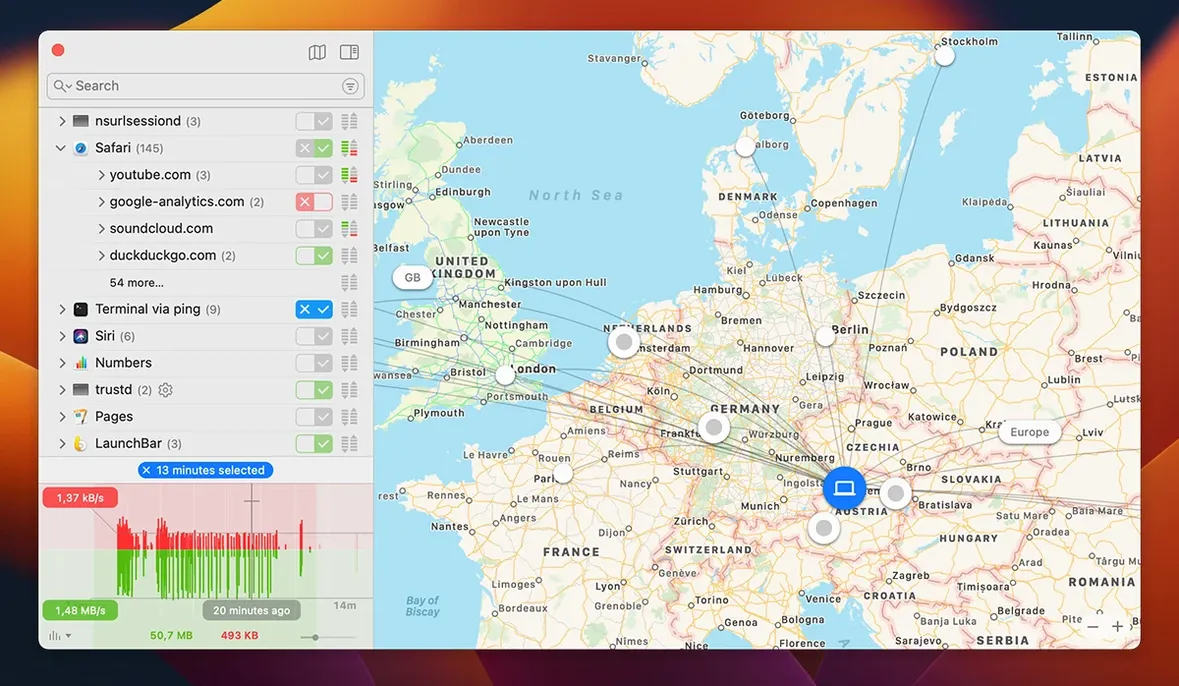
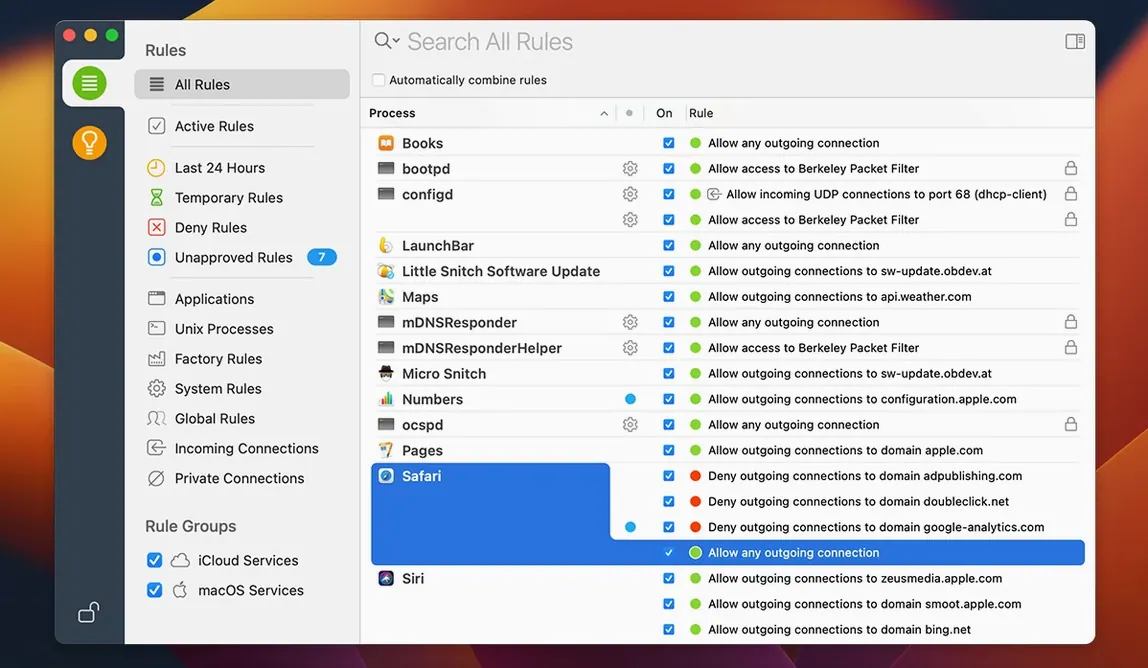
You know that pop-up from macOS asking if an app can accept incoming connections. Little Snitch works the same way but gives you more control — per-rule, per-app, per-server. Here is a realistic task: blocking an app you don't recognize from phoning home.
Click the Globe Icon to Start Monitoring
Open Little Snitch and click the globe icon in the menu bar. The main window shows all active connections as an app list and a world connection map. Find the app you want to inspect — it appears under the current connections tab.
How do I create a rule that blocks it permanently?
Click the app’s entry and choose “Deny” from the rule picker. Little Snitch remembers the chosen rule and applies it automatically later. You can also set it to block for a session, an hour, or permanently.
Block a Server Globally or via CLI
Use the server list view to find that IP address or hostname. Right-click it and create a global rule. The command-line tool can script this for repeated patterns.
How do I verify the block is active?
Check the Traffic History tab — the blocked connection shows up with a red indicator. The interactive world map also shows the server location crossed out if denied.
A Full Workflow: Checking a Suspicious App’s Connections
Say you installed a utility from a site you do not fully trust. Here is the sequence I walk through from the moment Little Snitch is open.
- Open Little Snitch from the menu bar and let the Network Monitor load. The connection list populates within seconds, showing every app that has sent or received data since the session started.
- Locate the app in the list. Sort by app name if needed. The entry shows the remote server, the protocol used, and the traffic volume so far.
- Right-click the app entry and select “Show on Map.” The interactive world map centers on the server’s location. A pin in an unexpected country is a strong signal to deny the connection.
- Choose “Deny” in the rule picker. For a first-time decision, I select “Deny once” to avoid locking out a legitimate update check. If the app retries repeatedly, I promote the rule to “Deny forever” from the Rules window.
- Switch to the Traffic History tab and check the hourly graph. A flat line with no red spikes means the block is holding. Denied connections appear as red marks.
- Open the Rules list and confirm the new rule is there. Little Snitch marks it with a status icon so you can see at a glance whether it is temporary or permanent.
The command-line tool can do steps 4 through 6 in a script if you need to apply the same pattern across multiple machines.
A Typical Session: Starting the Day with Network Monitor
I work with Little Snitch visible on a secondary monitor. At 9 AM, after the machine wakes from sleep, the Network Monitor already shows the connections from Mail, Slack, and a browser session that restored overnight. I glance at the app list to see whether anything unfamiliar is trying to reach out.
A calendar widget I do not use often appears in the list, connecting to a server I do not recognize. I check the world map — the location is a cloud provider in the Netherlands, which is plausible for a European service, but the app has no reason to connect at all. I right-click the entry and block it for the session. Quiet Mode is off, so Little Snitch would have shown an alert if the app tried again before I made the decision.
Mid-morning, a software update dialog appears. Little Snitch shows a pop-up asking whether to allow the update server. I check the server name against the developer’s documentation and allow it permanently. The rule is stored and will not prompt me again.
Before lunch, I review the hourly traffic history. The flat baseline tells me no unexpected bursts occurred. I then switch to the server list to see the top destinations for the morning — mostly CDN endpoints and the company VPN. Nothing stands out.
By the end of the day, the world map shows a dozen pins spread across the usual regions. The whole session required maybe four manual decisions. Quiet Mode handled the rest.
How Little Snitch Fits with macOS and Other Apps
Little Snitch works with macOS’s built-in firewall rather than replacing it. The application firewall layer sits above the system firewall, so you can set rules for individual apps without affecting system-level policies.
For scripting and automation, the command-line interface means you can integrate Little Snitch into deployment scripts or cron jobs. A system administrator can push a set of base rules to new machines using a shell script that calls the CLI tool. This works alongside tools like Ansible or a simple bash loop.
The interactive world map and traffic history export cleanly if you need to share activity reports. The data is available without third-party monitoring services.
Encrypted DNS handling in version 6.5 means Little Snitch can inspect DNS-over-HTTPS and DNS-over-TLS traffic. This improves accuracy when you block by hostname rather than IP address. The feature works with macOS’s native encrypted DNS settings.
Requires macOS 14, ARM and x86 Support
- macOS version: Little Snitch 6.5 requires macOS 14 or later. It runs on both ARM (Apple Silicon) and x86 (64-bit) architectures.
- Languages: English and German are available in the interface.
- Installation: Remove any previous Little Snitch version first, then follow the included installation and activation instructions. The activation is bundled with the download.
- New filtering engine: Version 6.5 replaces the older kernel-extension approach. The new engine handles app bundle integrity monitoring while the app is running — a feature that checks whether an application’s executable has been modified during use.
- Experimental NAT64: An experimental implementation of NAT64 (RFC 6052) is included for IPv6-to-IPv4 translation scenarios.
Check Expired Temporary Rules in Suggestions Tab
- Expired temporary rules: Rules you set to expire are listed under Suggestions > Expired. Version 6.5 fixed a bug where these rules were not appearing. Check this tab if you wonder why an old block suddenly lifted.
- App bundle integrity: The new integrity monitoring runs while the app is active, not just at launch. This catches changes that happen after you start working.
- Inbound connection handling: Hostnames are no longer used for inbound connections. This reduces noise from reverse-DNS lookups.
- Exact-match search in rules: A rare crash during process name search in the rules list has been fixed. The search now returns exact matches reliably.
- Traffic volume label: The label changed from “traffic amount” to “traffic volume” in version 6.5. The data is the same, but the naming aligns with standard networking terminology.
For anyone running a small office setup, these conveniences mean fewer false positives and less time investigating why a rule did not apply as expected. The command-line tool extends the same reliability into scripts and remote management.
- Compatibility with macOS 27 Golden Gate.
- App bundle integrity monitoring while running.
- Experimental NAT64 implementation.
- Improved encrypted DNS handling.
| macOS | macOS 14 or later |
|---|---|
| Processor | Apple Silicon, Intel 64-bit |
| Download | 39 MB |
- macOS 14
- Intel or Apple Silicon
- Languages: English, German
- Activation included
Questions about Little Snitch
Does Little Snitch require macOS 14?
Yes, version 6.5 requires macOS 14 and adds compatibility with macOS 27 Golden Gate. It works on both Intel and Apple Silicon Macs.
How to install, in order
- Remove the previous version of Little Snitch before installing the new one.
- Follow the included installation and activation instructions.
Comments and corrections 0
Sign in or open a free account to leave a comment.
No comments or corrections yet.