MacDroid Pro 2.10.0 — download for Mac
Utilities Updated
Transfers and edits files between a Mac and Android devices directly.
Screenshots
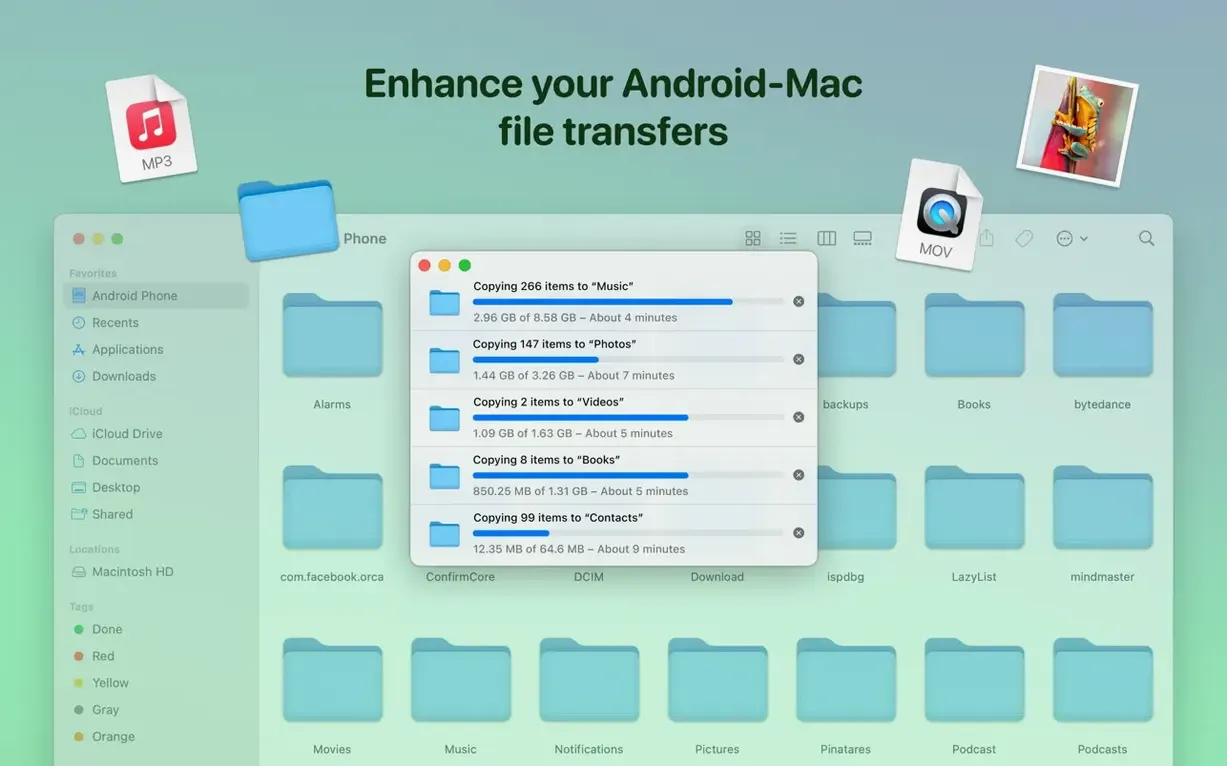
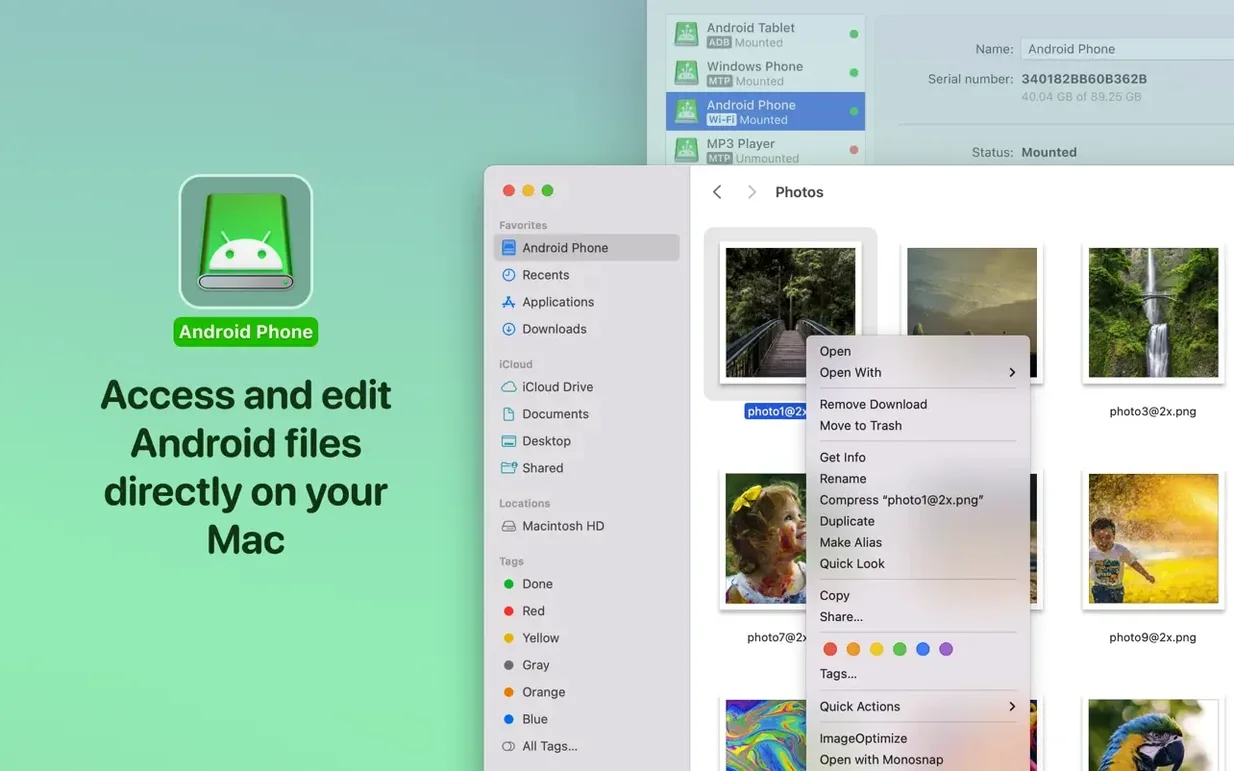
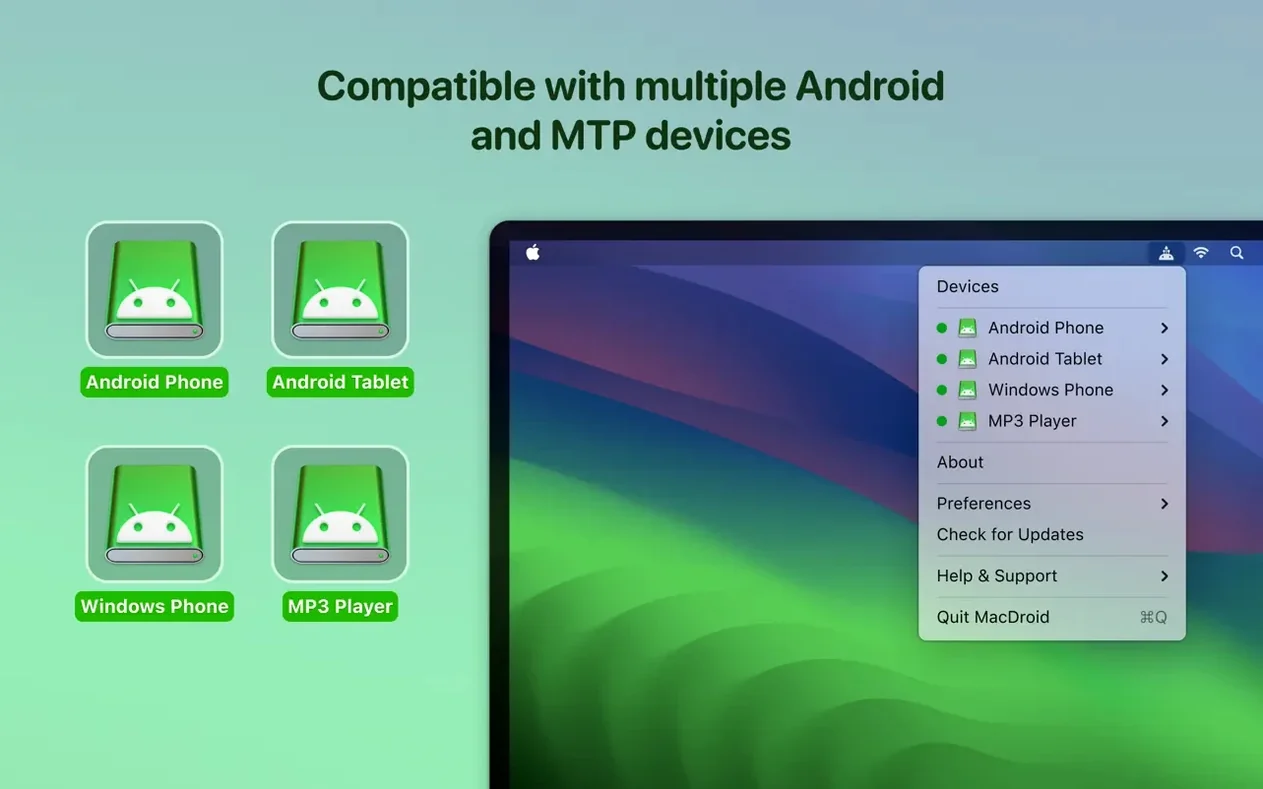
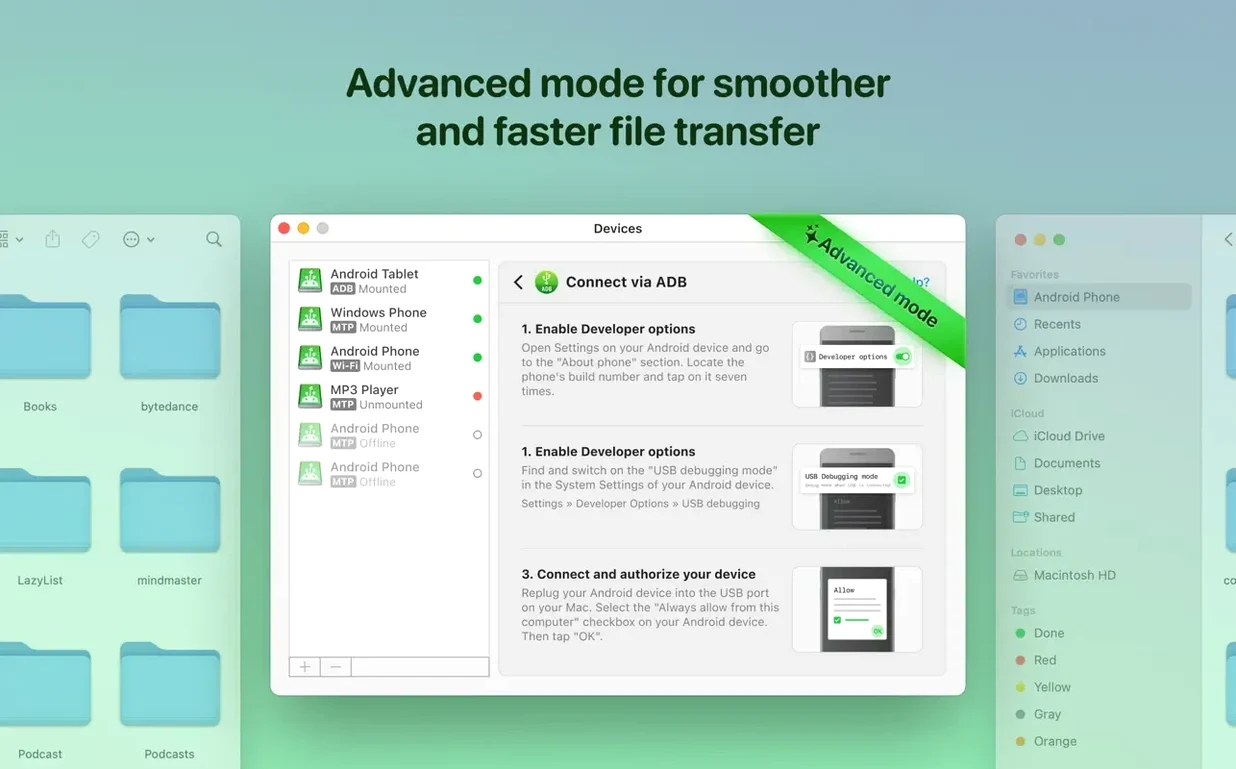
People who move files between a Mac and an Android phone or tablet more than once a week are the audience for MacDroid Pro. This isn’t a one-off drag-and-drop utility; it’s a tool for someone who keeps multiple Android devices around, needs to edit files directly, or prefers ADB over MTP because it finds devices that don’t mount otherwise.
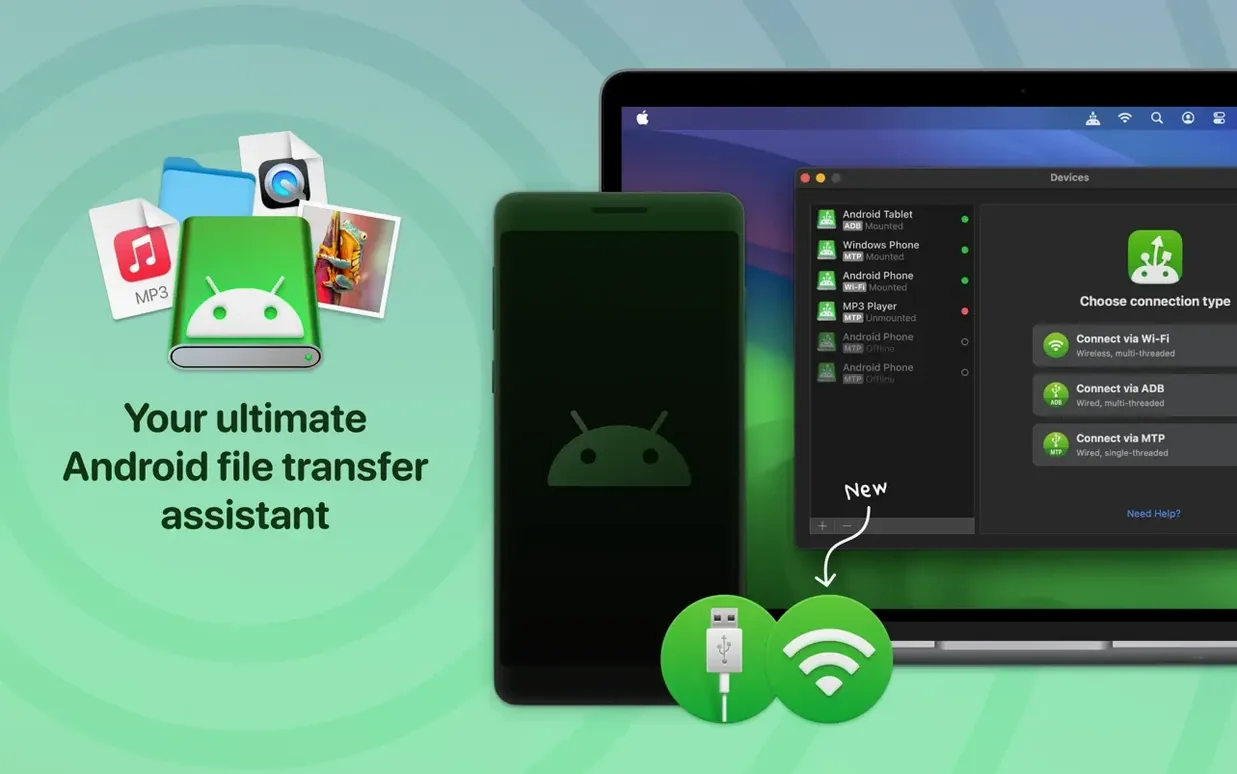
Mount Android as a disk drive in Finder
- Mounting an Android device as a disk drive on the Mac, so you can browse it in Finder like any external volume.
- Moving entire folders—not just individual files—between Mac and Android, which saves time on project handoffs or media backups.
- Using three connection modes (MTP, ADB, Wi‑Fi) depending on the device and situation; ADB especially helps with older or developer-oriented phones.
- Accessing internal storage and external SD cards on the Android side without extra steps.
Faster folder listings for thousands of files
- Version 2.10.0 (released June 30, 2026) added Traditional Chinese localization and improved MTP connection stability.
- File and folder listings load faster in this release, which matters when you have thousands of photos or project files on the device.
- Requires macOS 11.5 or newer; works on both Intel and Apple Silicon Macs.
Lighter MTP setup than Commander One
MacDroid Pro sits in a small category. The alternatives I see most often are Commander One and the free Android File Transfer for Mac. Commander One is a dual-pane file manager that also handles Android connections via MTP, but its focus is general file management across all volumes. You get the Android transfer as a feature inside a larger app. MacDroid Pro is built for one job and does it through three connection methods. It mounts the device as a disk, which Commander One does not do natively. Android File Transfer for Mac is free and handles basic drag-and-drop, but it lacks ADB and Wi‑Fi modes, and it cannot edit files in place. You have to copy files to the Mac first, edit, then copy back. For casual transfers it works, but if you deal with project files or media batches every week, the extra steps add up.
Connect wirelessly on the same network
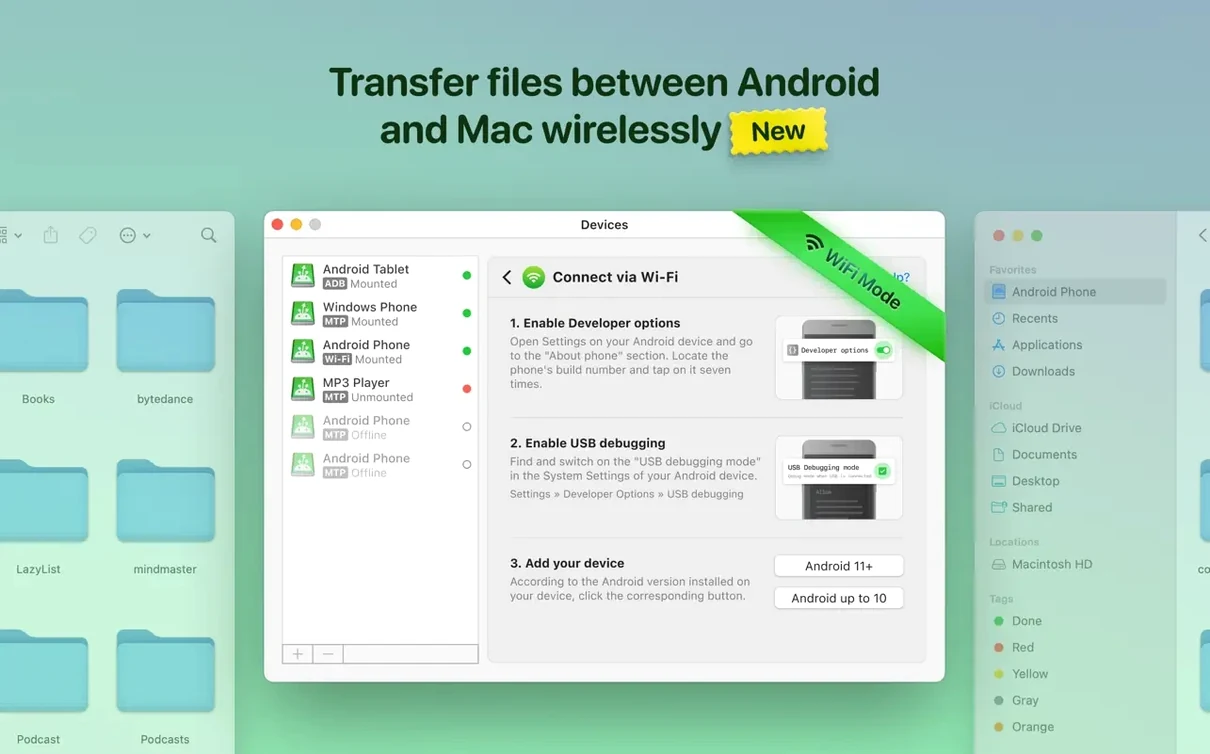
Can I connect wirelessly without a cable? Yes, MacDroid Pro supports Wi‑Fi mode. Both devices need to be on the same network, and you pair them through the app. File transfers over Wi‑Fi are slower than USB, but convenient for small files or when the cable is not handy.
Will it work with an Android tablet that uses only MTP? Yes, MTP is one of the three modes. Version 2.10.0 improved MTP connection stability, so devices that disconnected mid-transfer in earlier versions should stay connected now.
Do I need to install anything on the Android side? No additional Android app is required. MacDroid Pro handles the connection from the Mac end. For ADB mode, developer options need to be enabled on the phone, but no separate download is needed.
Can I edit a document that sits on the Android device without moving it? Yes, that is one of the core features. You open the file directly through the mounted volume, edit it, and save. The changes write back to the Android device. This saves time when you only need to fix a spreadsheet or a photo caption.
Best for field photo & inspection workflows
Project managers who also handle field photos or inspection docs on a personal Android phone benefit most. You snap photos on site, plug the phone into the Mac, and copy them into the project folder without digging through DCIM directories. The mount-as-disk feature makes this feel like working with a USB drive. Developers who flash Android devices or need ADB access for testing will use the ADB mode regularly. Media editors who move music or video files between Mac and an Android tablet for review also save time with folder transfers and in-place editing. Casual users who transfer a photo once a month can get by with a free tool, but MacDroid Pro becomes useful when the volume or frequency increases.
Fix device not appearing after USB cable swap
One snag people hit: the device does not appear in MacDroid Pro after connecting via USB. Usually this is a cable issue. Not all USB-C cables support data transfer. Try a cable that came with the phone or one rated for data. Another snag: MTP mode connects but the file listing is empty or shows only partial folders. This was improved in version 2.10.0, but if you still see issues, switch to ADB mode. Enable developer options and USB debugging on the Android device, then reconnect. A third snag: Wi‑Fi mode is slow or drops mid-transfer. Check that both devices are on a 5 GHz network and not far from the router. If the connection is unstable, switch to USB for large transfers and use Wi‑Fi only for small files or quick checks. If you downloaded a version from a torrent and the app asks for an activation key, the release you have may be pre‑activated by the TNT team; check the included instructions. No extra steps should be needed once the app is placed in the Applications folder and launched.
- Traditional Chinese localization added.
- Connection and operation with devices via MTP improved.
- Loading of file and folder listings made faster.
| macOS | macOS 11.5 or later |
|---|---|
| Processor | Apple Silicon, Intel 64-bit |
| Download | 28 MB |
- macOS 11.5 or later
- Intel or Apple Silicon
How to install, in order
- Mount the disk image and run Open Gatekeeper friendly.
- Press Enter in Terminal to bypass Gatekeeper.
- Drag the app into the Applications folder.
- Open the app when installation is complete.
Comments and corrections 0
Sign in or open a free account to leave a comment.
No comments or corrections yet.