MacBooster 8.3.0 — download for Mac
Utilities Updated
Cleans junk, secures, and optimizes a Mac to restore speed.
Screenshots
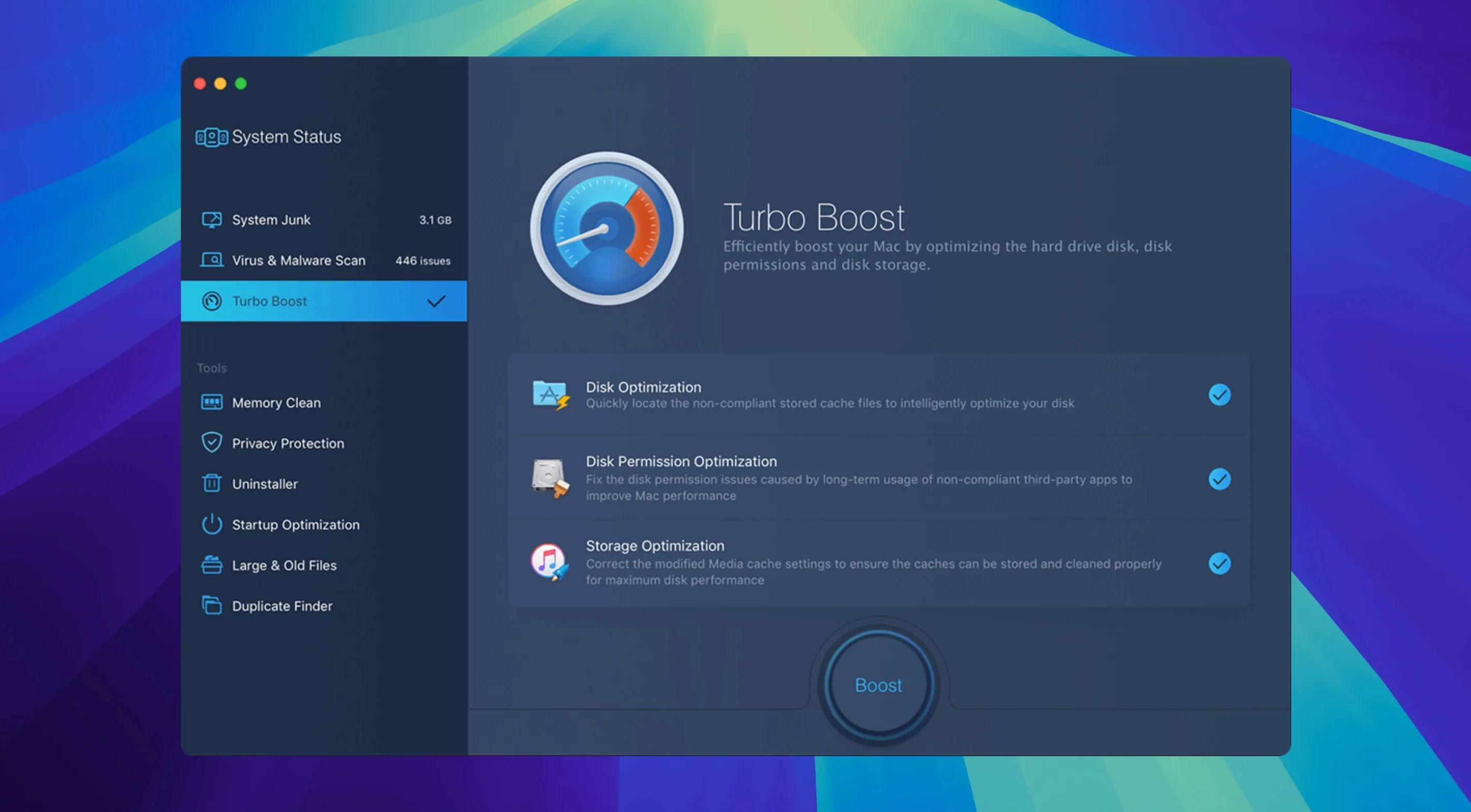
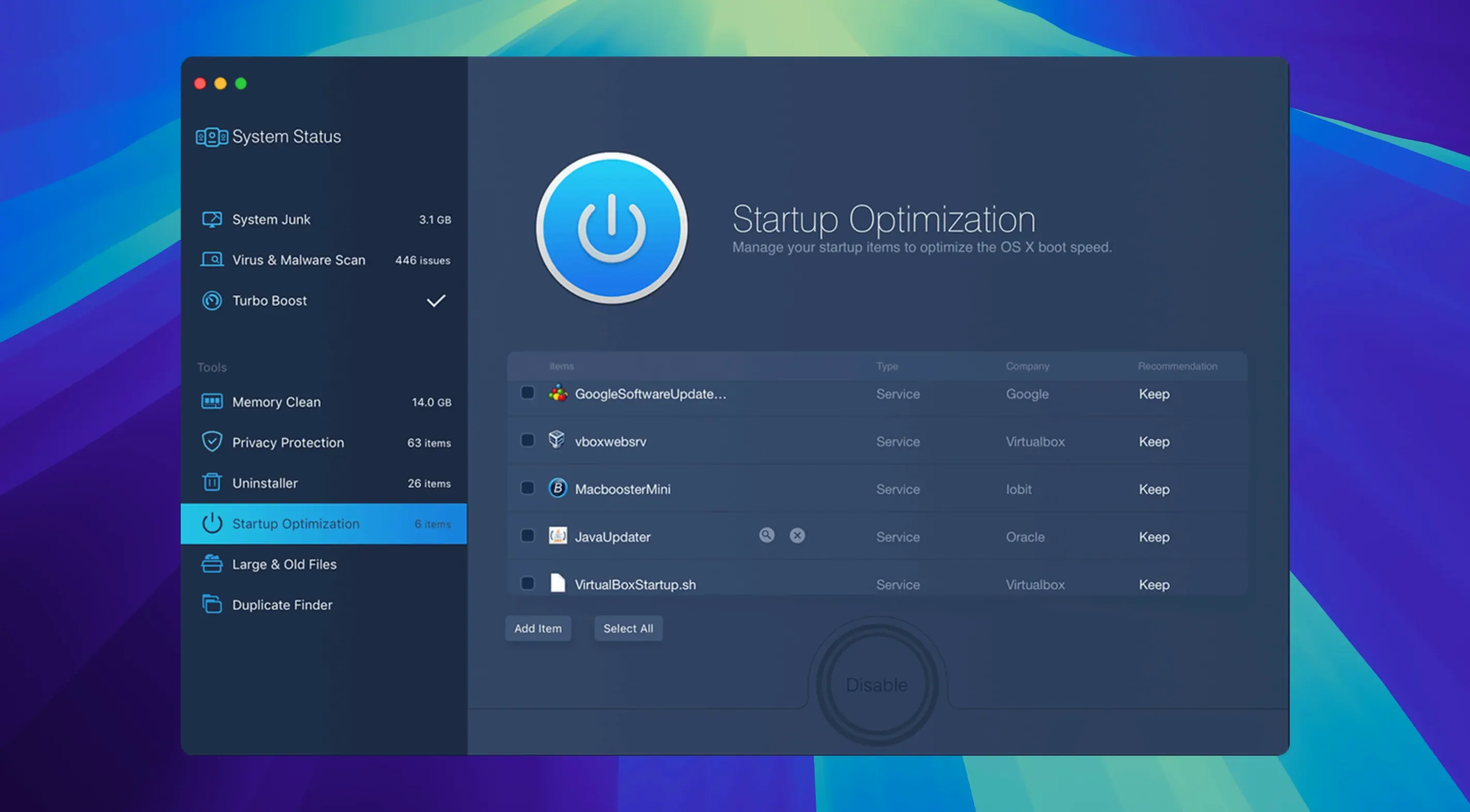
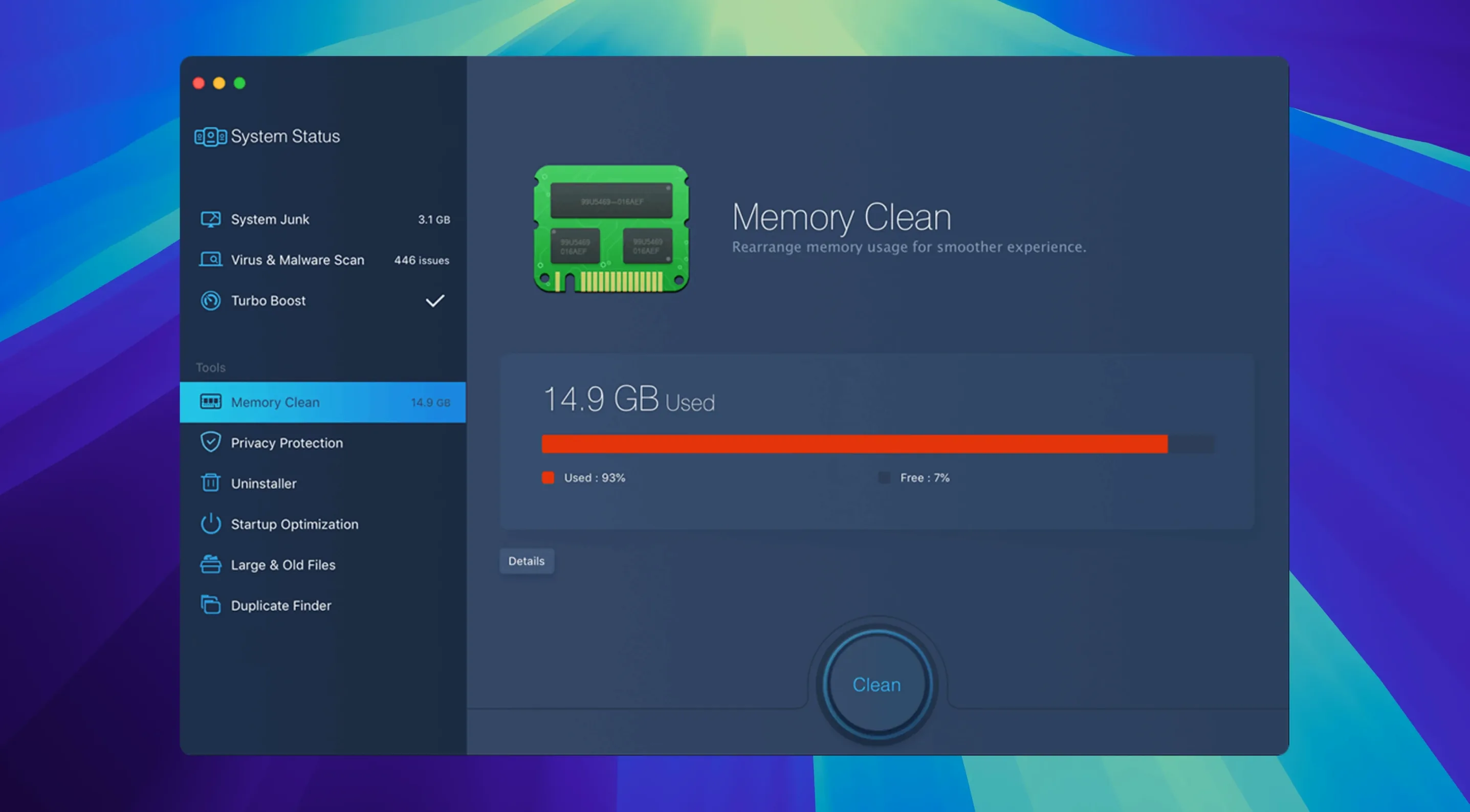
Office workers, creative teams, and anyone managing a Mac that has slowed down over time can use MacBooster 8 to regain space and speed. This utility bundles cleanup, security, and optimization into one app.
Standout features by job
- System Junk Cleaner — removes cache, logs, and temporary files that accumulate during daily work.
- Malware Removal — scans for viruses and adware that can sneak in through downloads or email attachments.
- Memory Cleaner — frees up RAM when you’re running several apps at once.
- Startup Optimizer — controls which apps launch at login so your Mac boots faster.
- App Uninstaller — removes leftover files from partially deleted applications.
- Duplicate & Large File Finder — finds redundant photos, downloads, and documents that eat disk space.
- Privacy Protector — clears browsing history, chat logs, and recent item lists.
Single-Tool Maintenance for Any Mac
MacBooster 8 suits anyone who wants a single tool for regular maintenance instead of running separate cleaners, antivirus scanners, and disk utilities. It runs on Apple Silicon and Intel Macs with macOS 11.5 or later, and supports fourteen interface languages.
Doesn’t Interfere With Existing Software
Most people ask whether MacBooster 8 will interfere with software they already use. The short answer is no — it operates as an on-demand utility, not a background service that conflicts with other apps. You launch it, run a scan, apply fixes, and close it. It does not replace your existing antivirus or system monitor; it complements them by handling cleanup and optimization tasks those tools often miss.
Another frequent question is about safety. MacBooster 8 targets junk files, not system-critical data. The cleaner identifies cache folders, logs, temporary downloads, and leftover installer files. If you are unsure about a category, you can review items before deletion. The malware scanner looks for known threats and adware without modifying your system files.
People also ask how long the first scan takes. That depends on how full your drive is and how many apps you have installed. A typical first scan runs in a few minutes. Subsequent scans are faster because the tool learns which areas to check.
Finally, some users wonder if they need to run every tool every week. You do not. A good rhythm is to run the System Junk Cleaner and Memory Cleaner weekly, the Malware Removal scan monthly, and the Duplicate & Large File Finder every few months or when space gets tight.
Outpaces CCleaner on Malware and Junk
MacBooster 8 sits alongside a few well-known Mac maintenance utilities. Here is how it stacks up against three of them.
CCleaner for Mac focuses on browser cache, download history, and application temp files. It does not include a malware scanner, memory cleaner, or duplicate file finder. MacBooster 8 covers those areas, so you get a broader set of tools in one install. CCleaner’s interface is simpler, but you trade depth for that simplicity.
CleanMyMac offers a polished interface and modules for cleanup, privacy, and optimization. Its malware scanner is a separate paid add-on, while MacBooster 8 includes it in the same package. CleanMyMac also has a larger file size and more background processes. MacBooster 8 is lighter and stays out of the way until you call it.
BleachBit is an open-source alternative that cleans temp files, cache, and logs. It lacks a graphical Mac-native installer, a malware scanner, and startup optimization. For users comfortable with command-line tools, BleachBit works well for basic cleanup. MacBooster 8 provides a guided, visual experience that requires no terminal knowledge.
Workflow: weekly maintenance session
Here is a step-by-step routine that takes about ten minutes and keeps a Mac running cleanly.
- Open MacBooster 8 and select System Junk Cleaner. Run a full scan. Review the list of junk files — system cache, app cache, logs, and temporary files — then click Clean. This usually frees up hundreds of megabytes.
- Switch to Memory Cleaner. Click the scan button. The tool will show how much RAM is in use. Click Optimize to release memory that apps are holding but not using. Your system will feel more responsive immediately.
- Open Startup Optimizer. Look at the list of apps set to launch at login. Disable anything you do not need every day — chat clients, updaters, media players. This shaves seconds off boot time and reduces background load.
- If you installed new software during the week, run App Uninstaller. It detects leftover files from apps you already deleted. Remove those to prevent clutter from building up.
- Close MacBooster 8. Your Mac is now cleaner, has more free RAM, and starts faster.
Free Up Gigabytes With Your First Scan
After installing MacBooster 8, run the System Junk Cleaner first. On a machine that has not been cleaned in months, this single step can free up several gigabytes. Do not skip reviewing the file list — you may spot something you want to keep.
Next, run the Malware Removal scan. It does a thorough check of your system and browser extensions. If it finds anything, quarantine it. You can delete the quarantined items after a day of normal use to confirm nothing breaks.
Use the Duplicate & Large File Finder once, but set aside time for it. Scanning a full drive takes longer than the other tools. Focus on your Downloads folder and Desktop first — those are where duplicates accumulate fastest.
Set a reminder every two weeks to run the Memory Cleaner and Startup Optimizer. These two tools give the most noticeable day-to-day improvement. The Junk Cleaner can run weekly, but every two weeks is fine if your disk has plenty of free space.
Finally, if you share the Mac with others, turn on Privacy Protector and run it after each session. It clears browser history, recent documents, and chat logs so the next user sees a clean slate.
No release notes filed for 8.3.0. They are added here when a build changes how the program behaves.
| macOS | macOS 11.5 or later |
|---|---|
| Processor | Apple Silicon, Intel 64-bit |
| Download | 38 MB |
- macOS 11.5 or later
- Apple Silicon or Intel 64-bit processor
- 70+ MB of free disk space
Questions about MacBooster
Does MacBooster 8 repair disk permissions?
Yes, it can repair disk permission problems as part of its maintenance tools.
What macOS versions does MacBooster 8 support?
MacBooster 8 requires macOS 11.5 or later and works on both Apple Silicon and Intel 64-bit Macs.
How to install, in order
- Mount the disk image and run the Gatekeeper-friendly installer.
- Press Enter in the Terminal window to bypass Gatekeeper.
- Drag the app to the Applications folder.
- Launch the app when installation is complete.
Comments and corrections 0
Sign in or open a free account to leave a comment.
No comments or corrections yet.