Paragon NTFS LAST — download for Mac
Utilities Updated
Reads and writes NTFS drives on a Mac for file exchange with Windows systems.
Screenshots
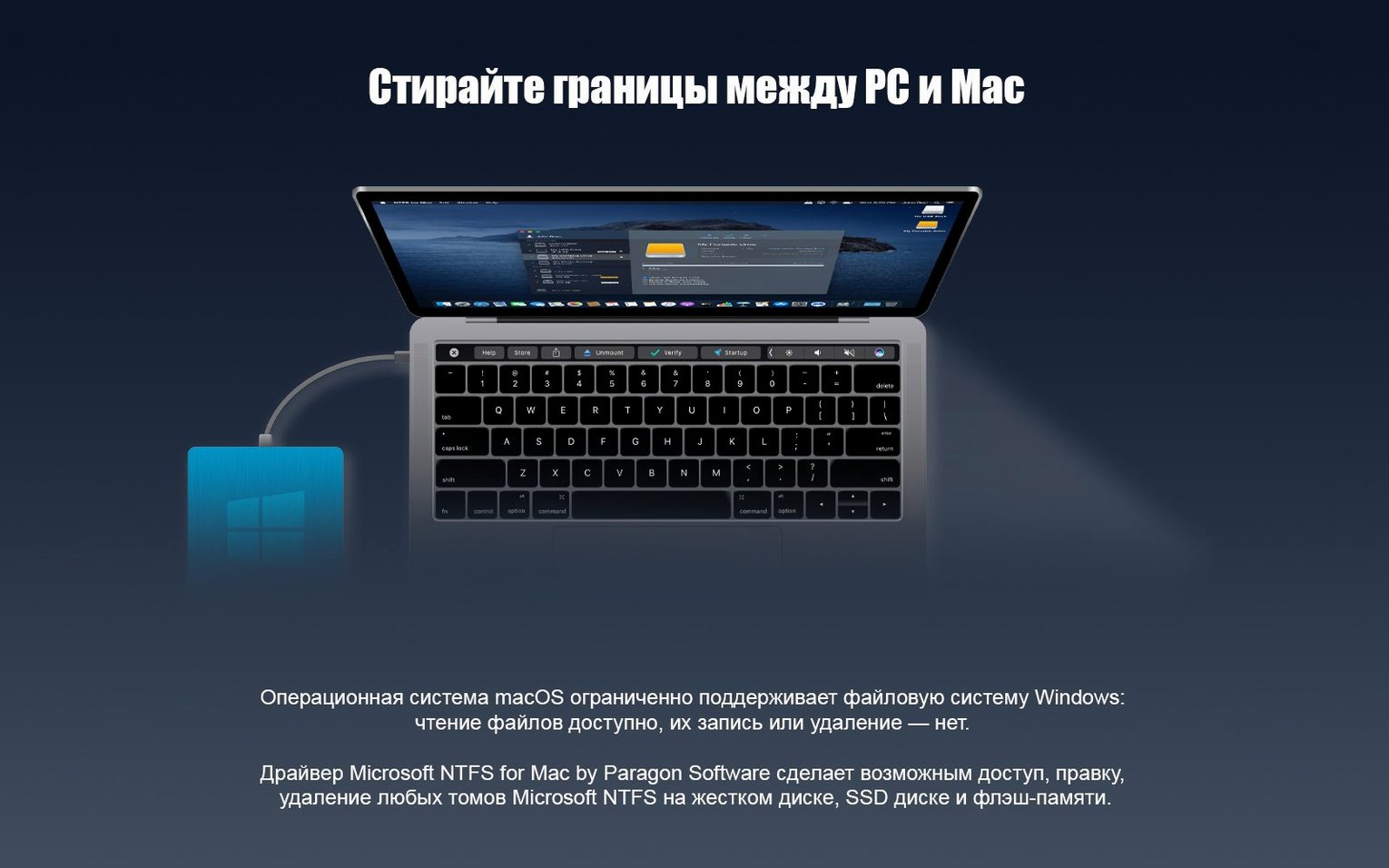
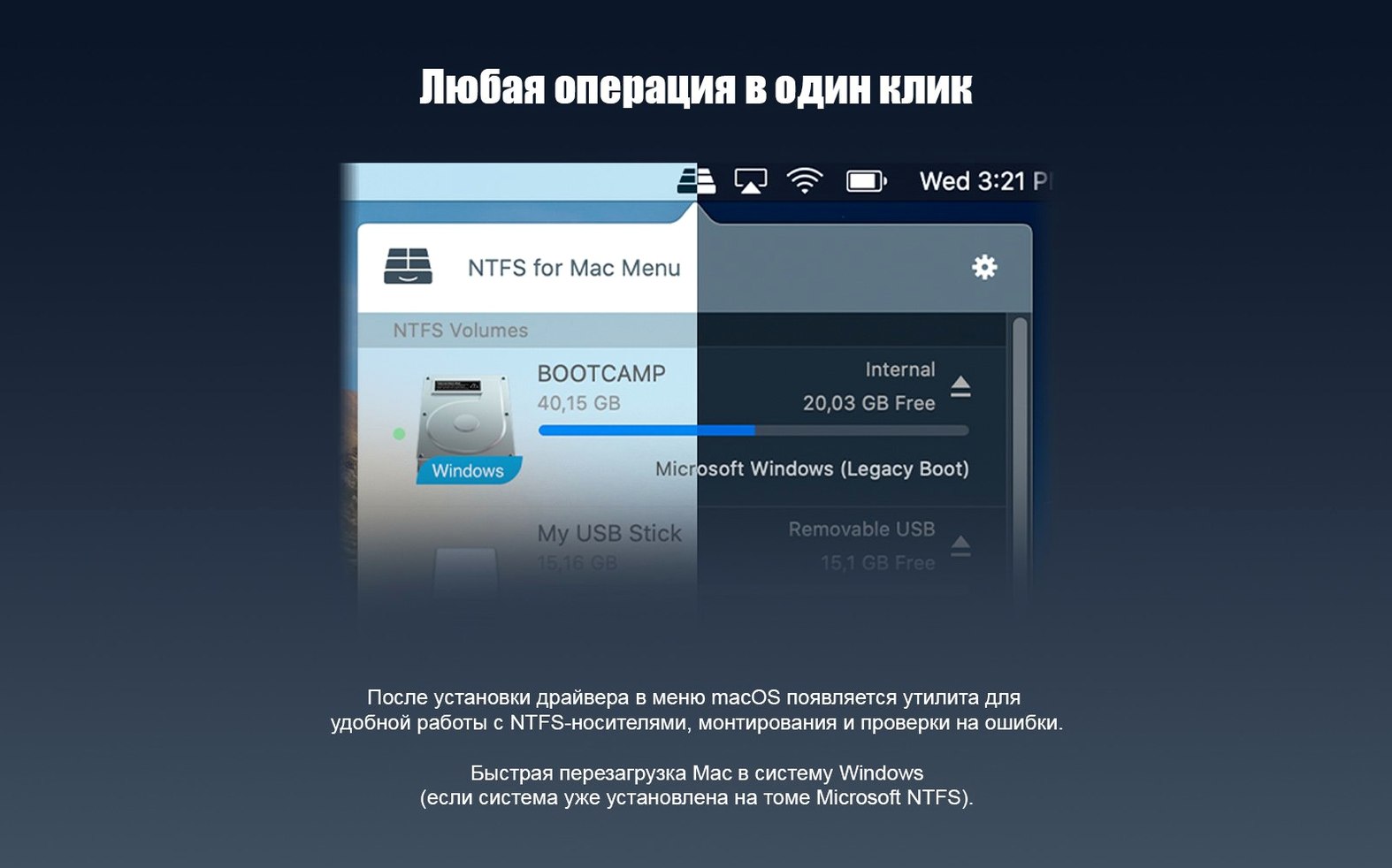
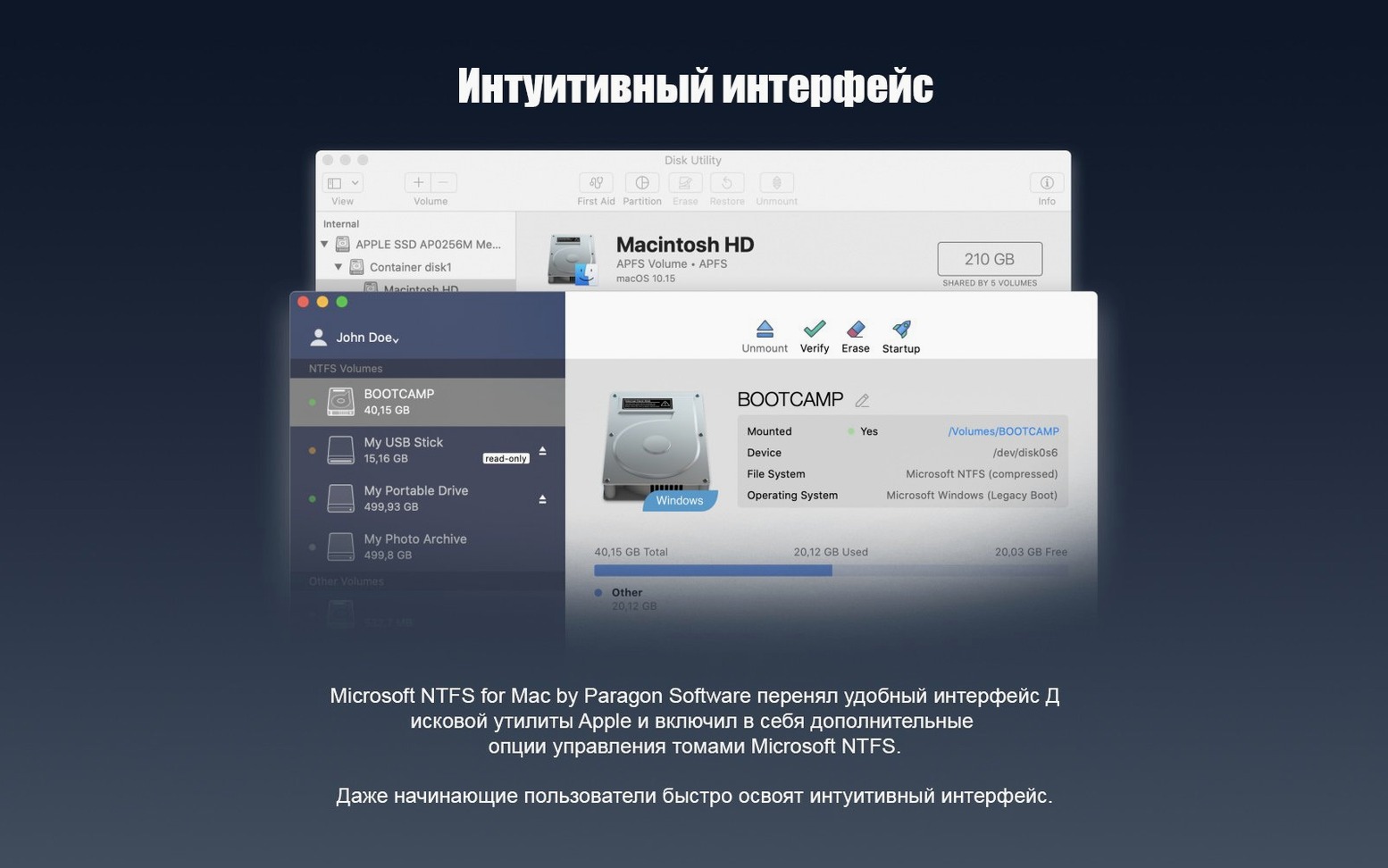
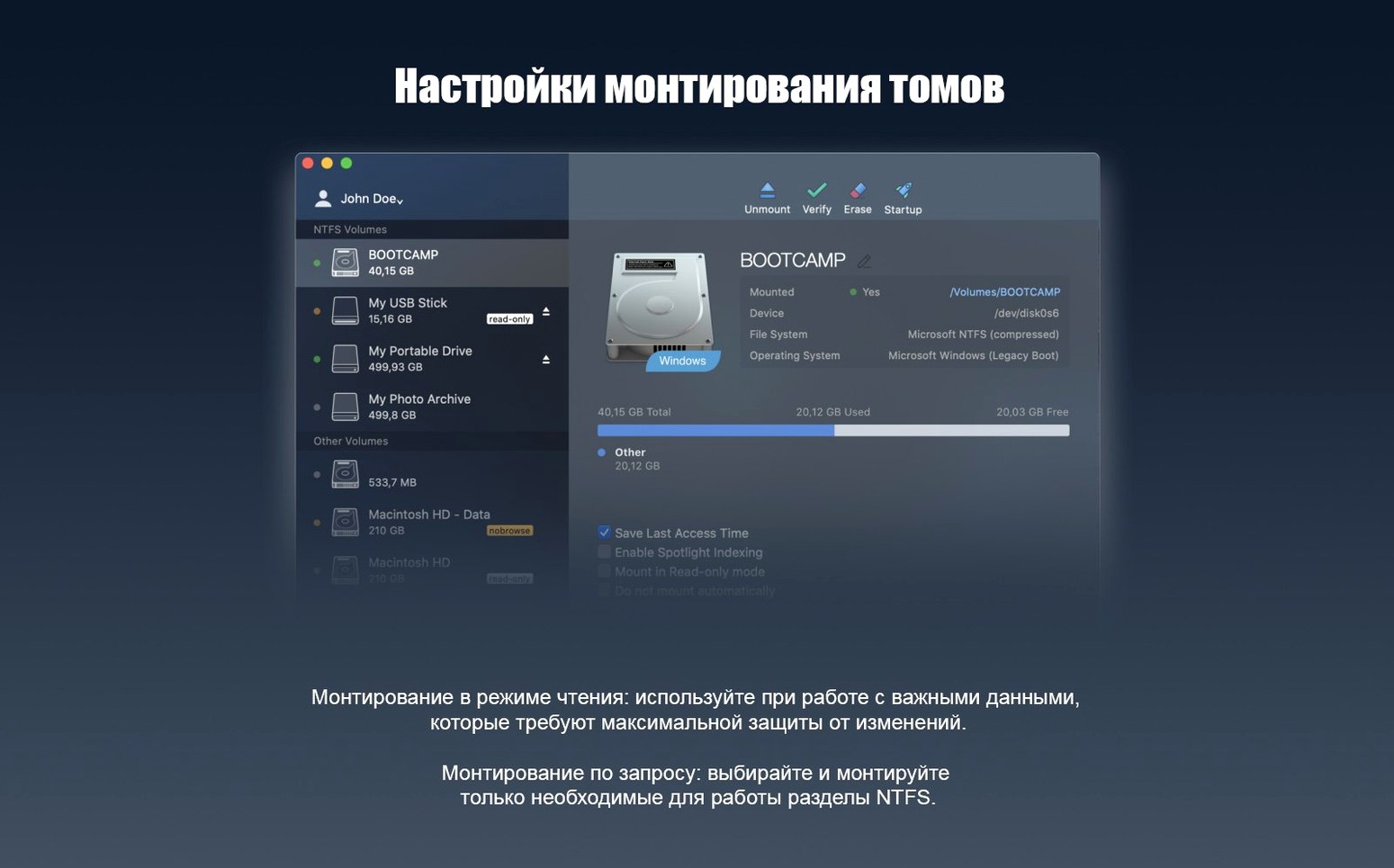
Paragon NTFS 15, released June 2, 2017, introduced a new driver core designed for faster and more reliable handling of NTFS volumes under macOS. It also added support for Windows 10 system compression. Later renamed Microsoft NTFS for Mac by Paragon Software, the utility now supports Apple Silicon Macs as well.
Gives Full Read and Write on NTFS Drives
macOS offers read-only access to NTFS drives out of the box. Paragon NTFS installs a driver that gives full read and write capabilities. After connecting a Windows-formatted disk or other NTFS media, you can edit, copy, and create files and folders without any extra steps. The software works for anyone in an office who regularly swaps drives between Windows and Mac machines.
Speed and Reliability
The version 15 driver core improves transfer speeds and stability compared to earlier releases. Support for Windows 10 system compression means drives formatted on newer Windows machines are handled correctly. The driver integrates into macOS so that NTFS volumes appear in Finder just like any other drive. For project managers or IT staff moving large files between platforms, this removes a common friction point.
Forgetting macOS Can't Write Without the Driver
The most common error is forgetting that macOS can see the drive but not write to it without the driver. New users plug in an NTFS disk, see it in Finder, and assume everything works. They try to save a file and get a permissions error — then they search for a solution. Paragon NTFS fixes that, but you have to install it first.
Another mistake is not checking the drive format before connecting. Some external drives sold as "Mac compatible" ship with exFAT or FAT32. Paragon NTFS handles only NTFS volumes. If you plug in a drive that isn't NTFS, the driver does nothing. Right-click the drive in Finder, choose Properties, and verify the format under the General tab before troubleshooting.
People also sometimes disconnect an NTFS drive without ejecting it properly. macOS is lenient about this, but writing to an NTFS volume and then yanking the cable mid-transfer can produce a corrupted file system that the driver cannot mount. The fix is to eject from Finder or use the disk utility in macOS. It adds two seconds and saves a headache.
The reset is there for a reason — use it.
Plugging an NTFS Drive into a MacBook Air M2
Imagine it is Tuesday morning. You walk into the office with a Windows laptop from the site office and a portable USB drive formatted as NTFS containing updated construction drawings. Your MacBook Air M2 is on the desk.
You plug the USB drive into the Mac. Nothing special happens — the drive appears in Finder under Devices in about five seconds, labeled "WINDOWS_DRIVE." You open it, see the folder structure, and drag a PDF from your Downloads folder onto the drive. The file copies without a dialog or a warning. That is the whole session: plug, copy, eject.
Later that day, a colleague hands you an NTFS memory card from a Windows tablet used for inspections. You insert the card reader, the volume mounts in Finder, and you can rename a mislabeled survey report directly on the card. No reformatting, no booting into a virtual machine, no emailing the file to yourself. The driver sits in the background and does not ask for attention.
At the end of the week, you connect an external SSD formatted as NTFS that holds a shared project folder. You move a folder of subcontractor invoices from the Mac onto the SSD, then hand the drive to the Windows user in accounting. They open it and see every file. That is the point of the software.
Compatibility with Apple Silicon and Intel Macs
Works on Both ARM and x86 Architectures
Yes. Paragon later brought the driver to Apple Silicon Macs. The current version runs on both ARM and 64-bit x86 architectures. You do not need to check your processor type before installing.
No Reboot Needed After Installation
The standard installer handles the driver installation without a required restart. After the setup finishes, you can immediately connect an NTFS drive and access it. If the drive was already connected, eject it and reconnect so macOS recognizes it with the new driver.
Will this break my existing macOS setup?
No. The driver only extends macOS, it does not replace any system files. If you later decide you do not need it, you can drag the application to the Trash and the driver is removed. Your other drives and volumes stay untouched.
Supports Windows 10 System Compression and Older NTFS
Version 15 added support for Windows 10 system compression, so drives formatted on Windows 7 through 11 are handled correctly. Older NTFS versions from the Windows XP era also work. If the drive mounts on a Windows PC, it mounts on the Mac with this driver.
Can I boot macOS from an NTFS drive?
No. The driver provides read and write access for storage only. You cannot install macOS or boot from an NTFS volume.
Driver Not Running Shows Drive as Read-Only
Drive mounts but shows as read-only. The driver did not activate. Open the Paragon NTFS application from the Applications folder and check the driver status. If it shows "not running," click the Start button. Disconnect and reconnect the drive afterward.
Drive does not appear in Finder at all. Check that the drive is formatted as NTFS. Open Disk Utility (Applications > Utilities), select the drive and look at the volume format listed below the drive name. If it says NTFS, the driver should see it. If the format is different, you are connecting a non-NTFS volume and the software cannot help.
Files copy slowly. The driver core in version 15 was redesigned for better speed, but slow transfers are often caused by the drive itself or the connection. Try a different USB port or cable. If the drive is a spinning hard disk, write speeds are limited by the hardware, not the software.
It resets the ten-day evaluation counter.
Drive was working and suddenly stopped. This usually happens after a macOS update that reinstalls or overwrites third-party drivers. Re-run the installer from the disk image you downloaded. The update does not remove your files, only the driver component.
- New driver core for faster and more reliable NTFS volume handling.
- Support for Windows 10 system compression.
| macOS | macOS 10.12 or later |
|---|---|
| Processor | Apple Silicon, Intel 64-bit |
| Download | 70 MB |
- macOS 10.12 or later
- Intel or Apple Silicon
How to install, in order
- Open the downloaded disk image and run the standard installer.
- Start the trial period if needed.
- Reset the trial period every 10 days using Trial Reset.
Comments and corrections 0
Sign in or open a free account to leave a comment.
No comments or corrections yet.