
Path Finder 26.1.10 — download for Mac
Utilities Updated
Navigates file systems entirely with keyboard shortcuts, skipping the trackpad.
Screenshots
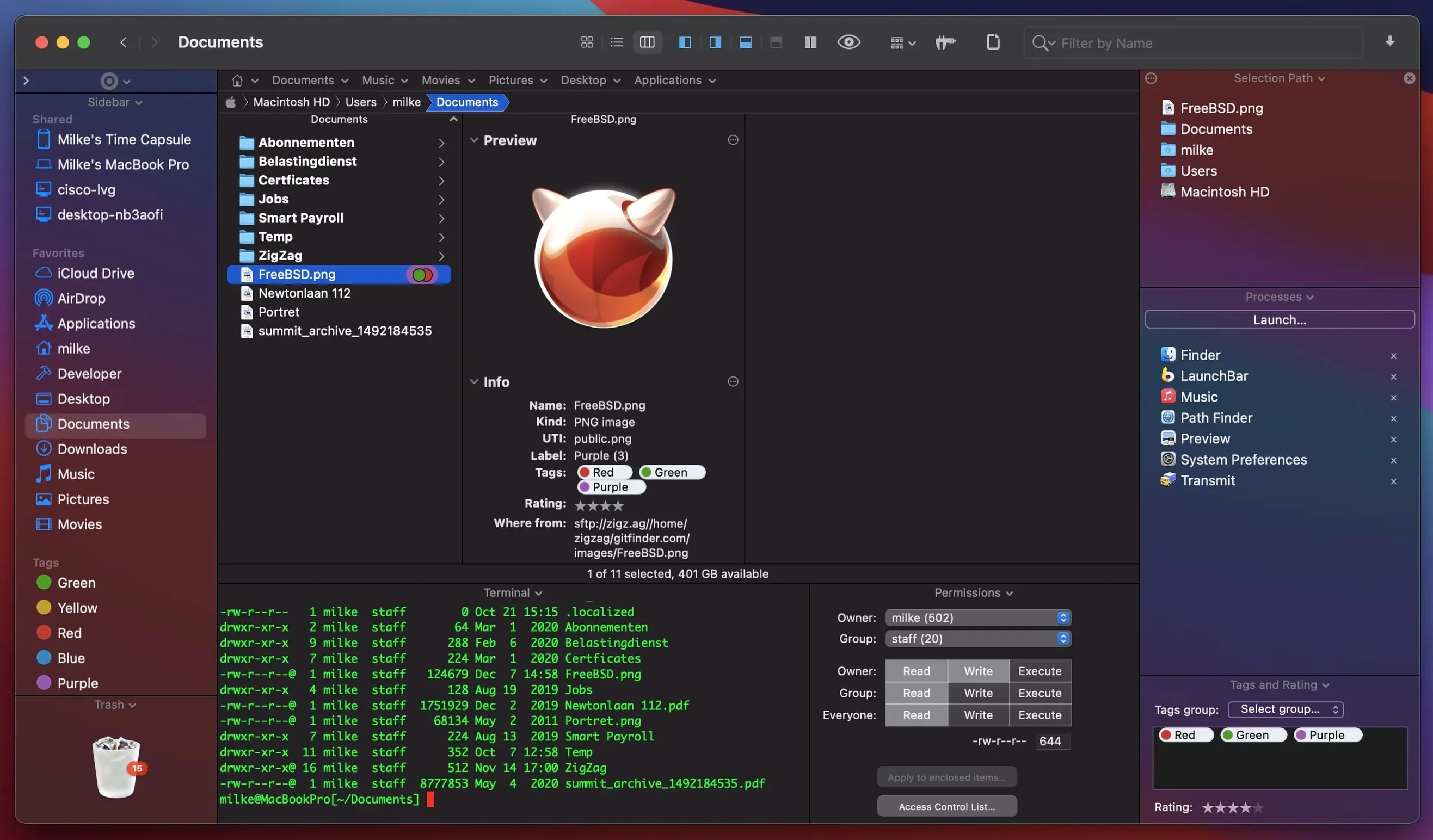
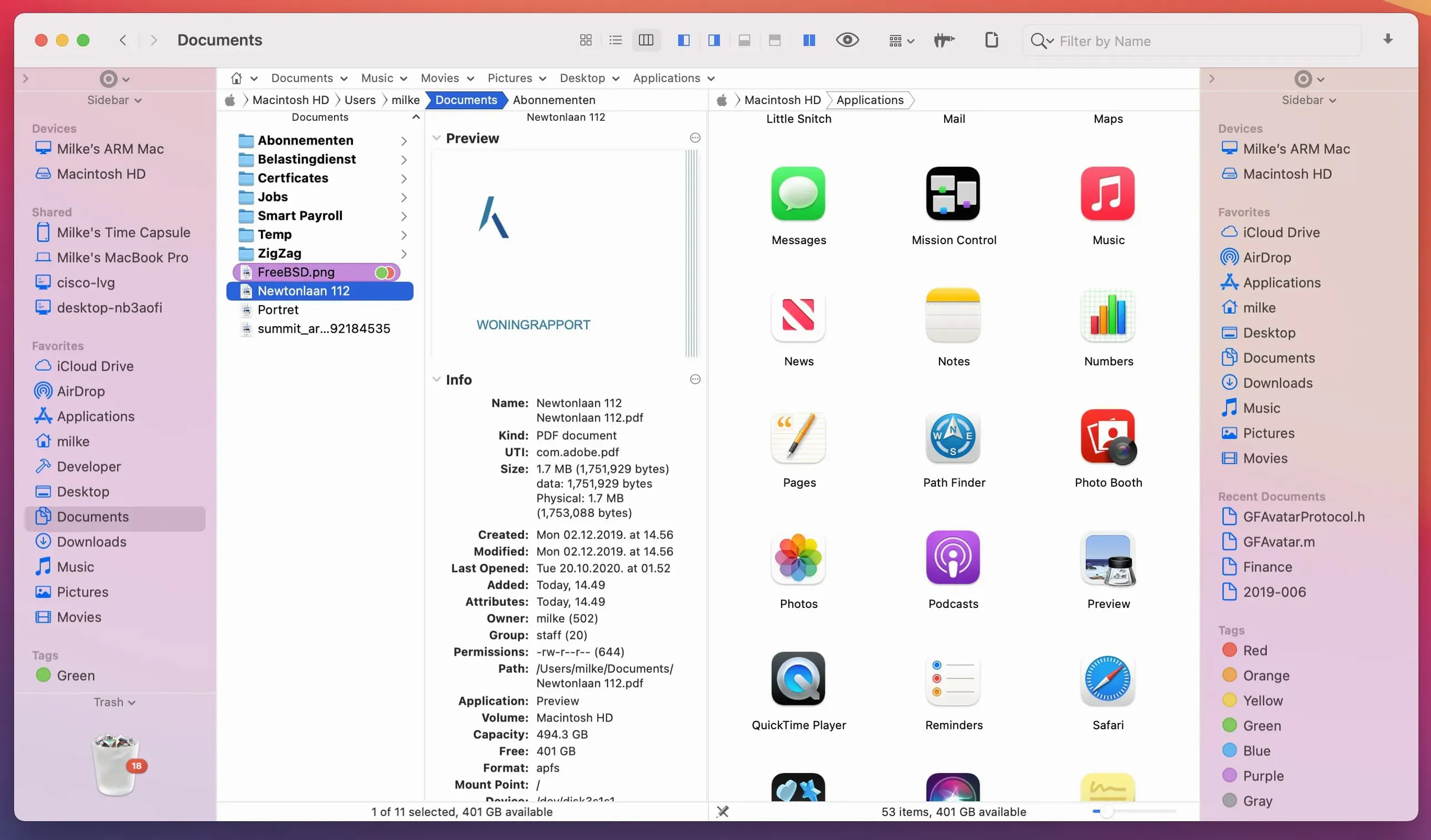
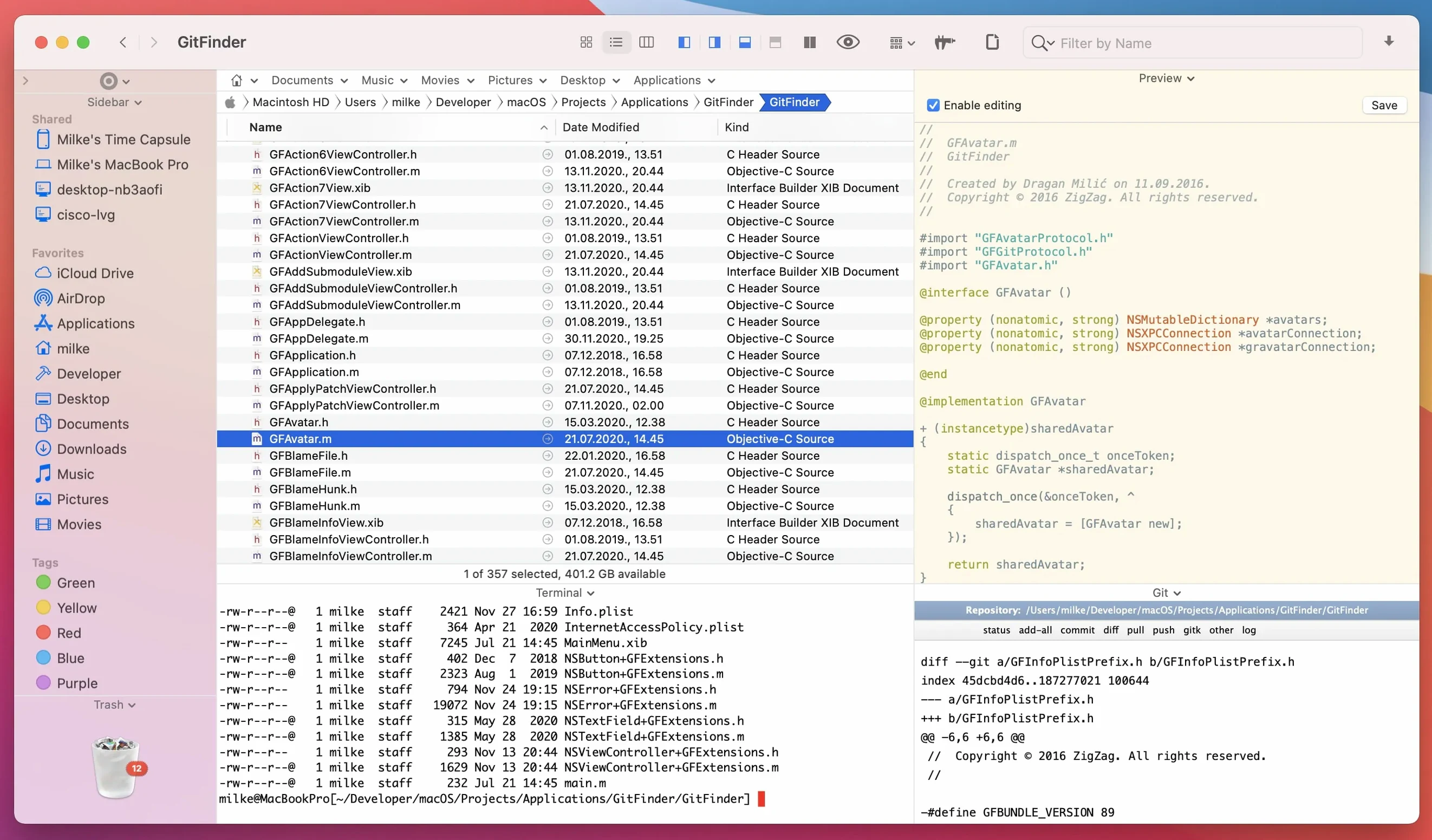
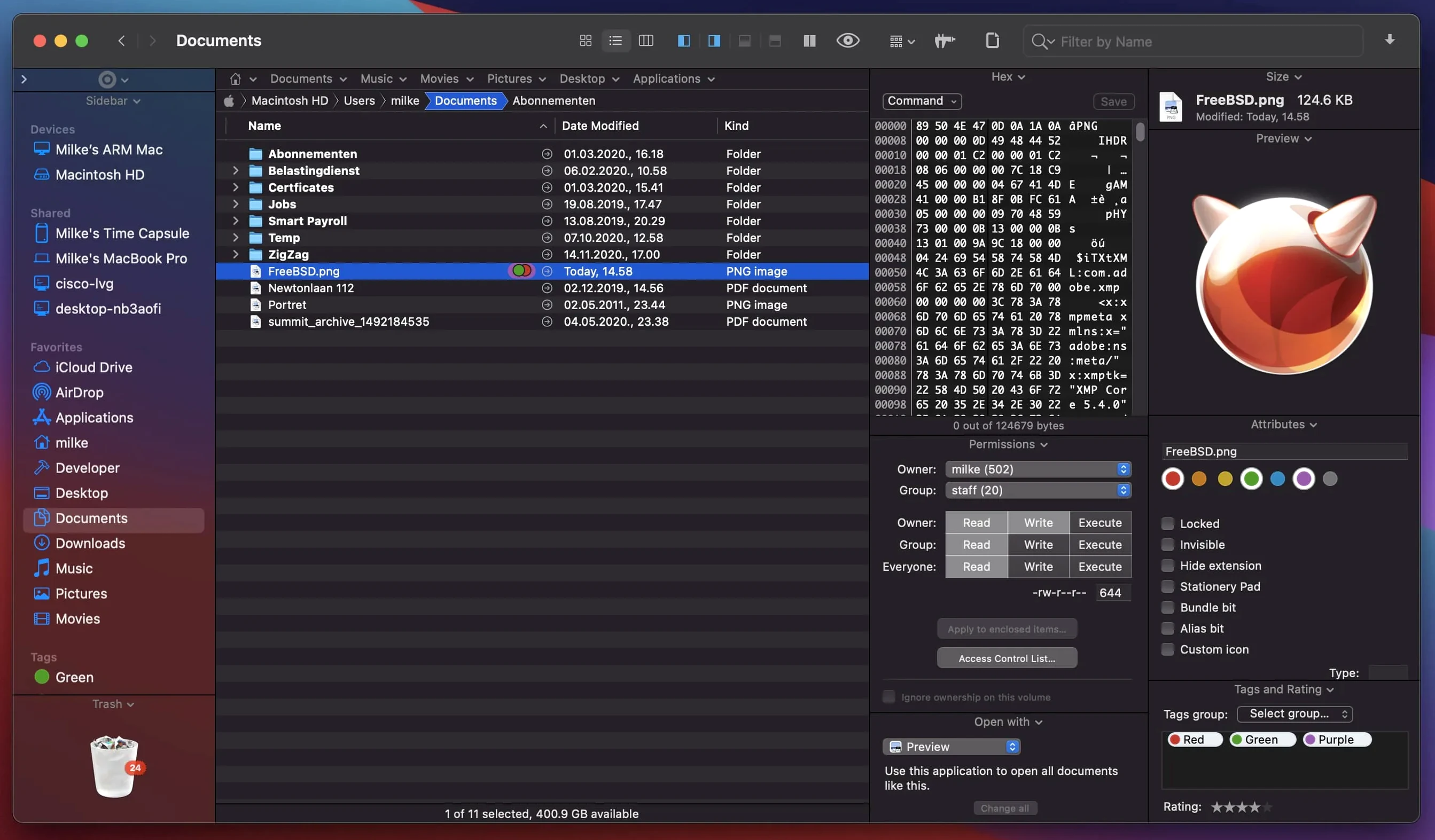
Path Finder supports 19 interface languages, from Russian to Japanese. That number alone signals this is a tool built for a global audience of experienced Mac users who work across teams and file systems.
Good for
- Browsing files entirely with the keyboard, skipping the trackpad.
- Working in a dual-pane layout — copy or move between two folders without opening a second window.
- Managing archives, running an internal FTP client, or installing and uninstalling applications from one place.
- Searching by keyword, extension, or type when the built-in search slows you down.
- Process management for killing stuck tasks without launching Activity Monitor.
Keep in mind
- Version 26.1.9 requires macOS 13 Ventura or later. No Catalina or Monterey support.
- Runs on both Intel and Apple Silicon machines.
- Recent fixes addressed batch rename limits, drag-and-drop animation glitches, and label badges in Icons and List views.
- The same update patched compatibility issues with macOS 27 Golden Gate.
What the latest versions changed in everyday use
Version 26.1.9 didn't introduce new features — it cleaned up the details that slow you down. The batch rename fix is the one I notice most. Previous builds stopped renaming after 31 files; now you can rename a folder of 200 assets in one pass. No second pass, no workaround.
List view users benefit from the double-click fix. In earlier versions, clicking an icon in List view sometimes opened the wrong file or did nothing. That's gone. Drag-and-drop in Icons view now draws the selection box correctly, and the slide-back cancellation animation works across all view types — small polish that keeps file operations predictable.
The label and tag color badges were inconsistent in Icons, List, and Columns views before 26.1.9. Now they display correctly, and iCloud status and download icons show up where they should. If you use tags to organize project folders, this matters more than it sounds.
For anyone running macOS 27 Golden Gate, the patch fixed menu item icons and other minor UI issues. Path Finder works on that system without visual glitches now.
How it compares with similar Mac apps
Path Finder vs. Commander One
Commander One offers dual-pane browsing and archive handling, much like Path Finder. The difference is in depth. Path Finder includes process management, a text editor, an image editor, and an app launcher — tools Commander One keeps separate or omits. If you want a file manager that also handles app installs and system hotkeys, Path Finder is more integrated.
Path Finder vs. muCommander
muCommander is lighter and cross-platform, but its macOS integration is thin. No keyboard browsing, no label badges, no iCloud status. Path Finder feels native to macOS. It reads the system's file metadata and renders it in Columns view the way Finder does, but faster. muCommander is good for quick transfers between servers. Path Finder is better for managing the local machine.
Path Finder vs. the default Finder
Finder has improved over the years, but it still lacks tabs, dual-pane layouts, and batch rename without a third-party plug-in. Path Finder adds all three without sacrificing keyboard shortcuts. The built-in terminal connection in Path Finder also replaces the need for a separate FTP client for quick file transfers.
Workflow: Organize a project folder from start to finish
I use Path Finder daily for this exact scenario. Here is the workflow.
- Open Path Finder to a dual-pane view. Set the left pane to the project source folder and the right pane to the destination folder.
- Browse the source with keyboard arrows. Press Space to preview files without opening them. Preview covers documents, audio, and video.
- Select multiple files using Shift-click or Command-click in List view. Drag them to the right pane to copy. Hold Option to move instead of copy.
- Rename the batch. Select all files in the destination pane, open the batch rename tool, and apply a pattern — for example, append a date or a version number. Version 26.1.9 handles any number of files here.
- Search for leftover files by extension. Use the built-in search to find all .psd or .indd files across subfolders. Move them to an Assets subfolder.
- Check for duplicates. Use the search by type to locate files that shouldn't be there. Delete or archive them.
- Archive the final folder. Select the folder, use the archive tool, and create a .zip or .tar. Done.
This workflow replaces five separate Finder windows and a terminal session. All in one app.
Settings worth changing first
When you first open Path Finder, a few defaults are worth adjusting.
- Set dual-pane mode as default. Go to View and enable dual pane. This becomes your main layout. It saves the time of switching later.
- Enable keyboard browsing. Turn on keyboard navigation in Preferences. This lets you move through the file tree without touching the mouse.
- Configure the preview panel. Set it to open on selection or on Space. I prefer Space; it keeps the main window clean until I need to see a file.
- Adjust the toolbar. Remove buttons you never use — like disc image conversion if you don't work with CDs or Blu-rays. Add the batch rename button and the search button. Keep the toolbar lean.
- Set default archive format. The archive tool defaults to .zip. If your team uses .tar.gz or .7z, change it in Preferences before your first archive.
- Turn off iCloud sync icons if they distract you. In View options, toggle iCloud status icons off. They are useful for some workflows but add visual noise when you only work with local files.
These changes take two minutes and make the interface match how you actually work.
- Fixed double-click behavior when clicking an icon in List View.
- Fixed a batch rename limitation affecting 31 renamed files.
- Fixed multiple-item selection in List View.
- Fixed label/tag color badges and iCloud status/download icons in Icons, List, and Columns views.
- Fixed drag-and-drop selection drawing in Icons View.
- Fixed drag-and-drop cancellation slide-back animation in all view types.
- Fixed menu item icons on macOS 27 Golden Gate.
- Fixed minor UI and compatibility issues on macOS 27 Golden Gate.
| macOS | macOS 13 or later |
|---|---|
| Processor | Apple Silicon, Intel 64-bit |
| Download | 26 MB |
- macOS 13 Ventura or later
- Intel or Apple Silicon processor
Questions about Path Finder
Does Path Finder support keyboard-only navigation?
Yes. You can browse and manage files using the keyboard, which speeds up repetitive folder work.
Can I connect to a remote server from inside Path Finder?
Yes. It includes an internal FTP client for transferring files without leaving the app.
How to install, in order
- Mount the disk image and run Open Gatekeeper friendly.
- Press Enter in Terminal to bypass Gatekeeper.
- Drag the app to the Applications folder.
- Open the app when installation is complete.
Comments and corrections 0
Sign in or open a free account to leave a comment.
No comments or corrections yet.