Parallels Desktop 27.1.0 — download for Mac
Utilities Updated
Runs Windows or Linux virtual machines alongside macOS without rebooting.
Screenshots
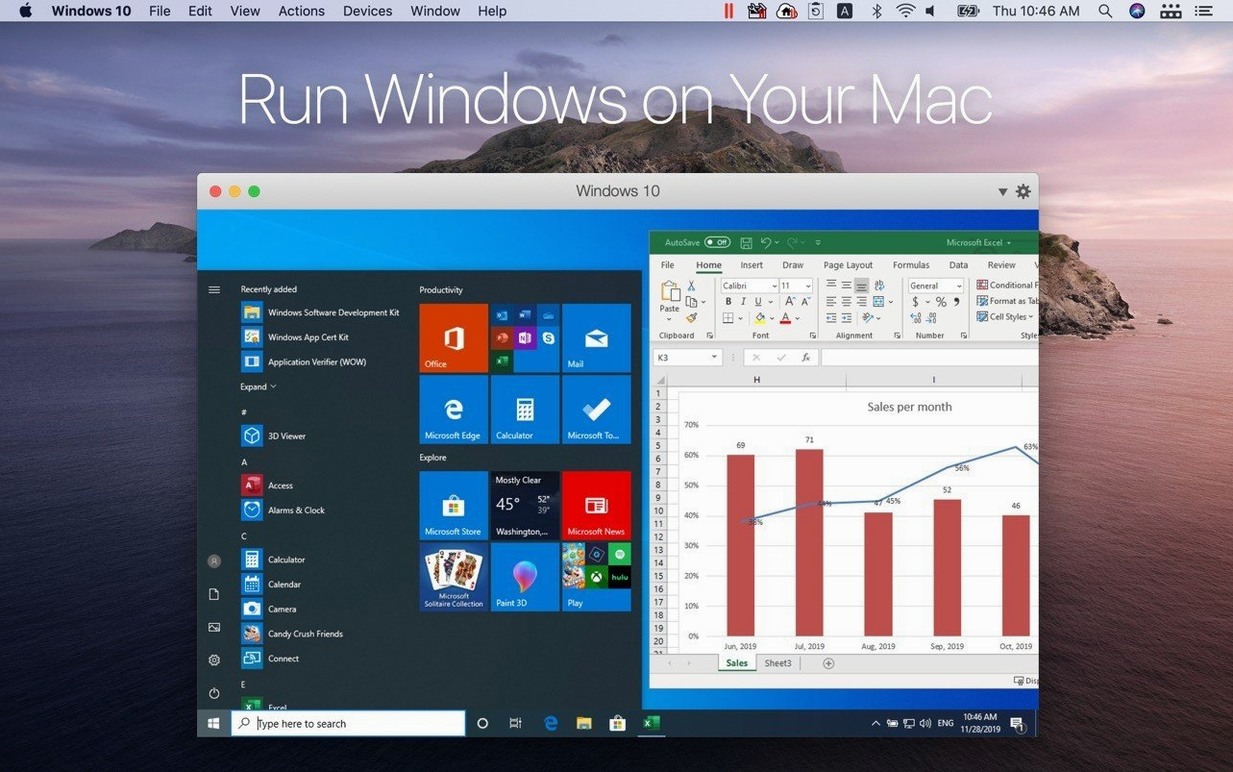
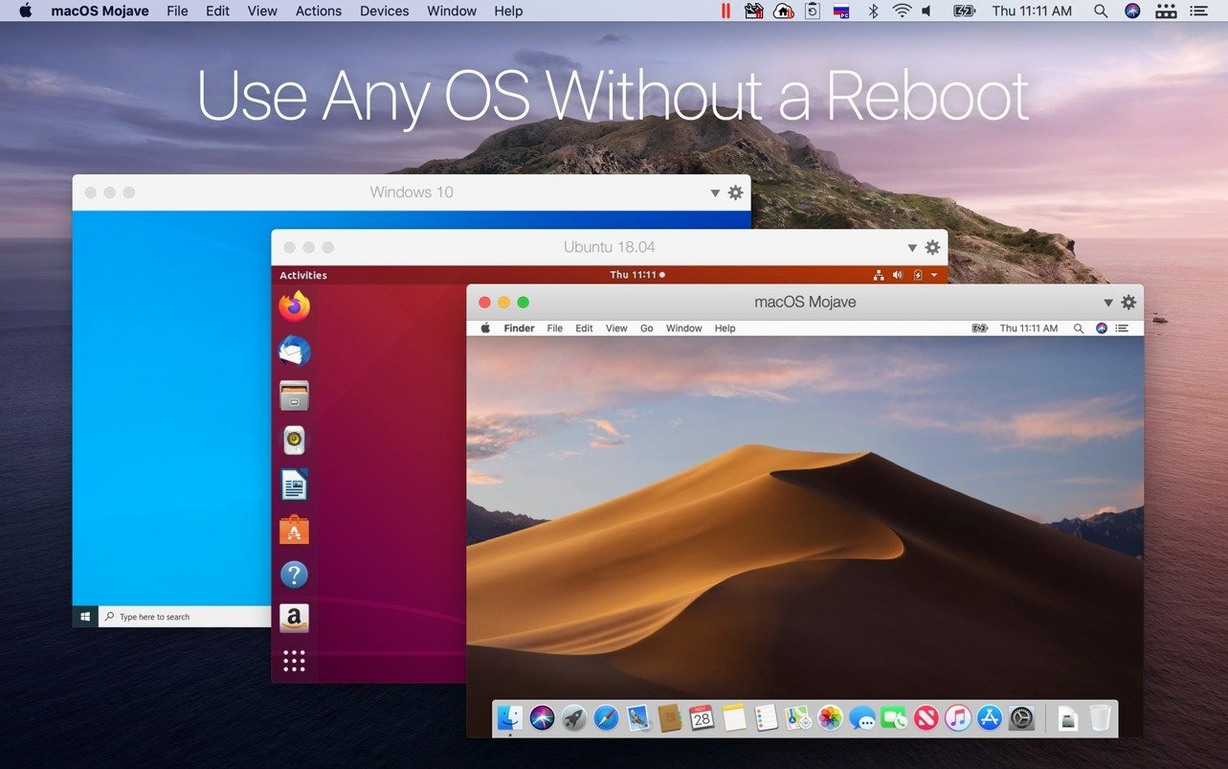
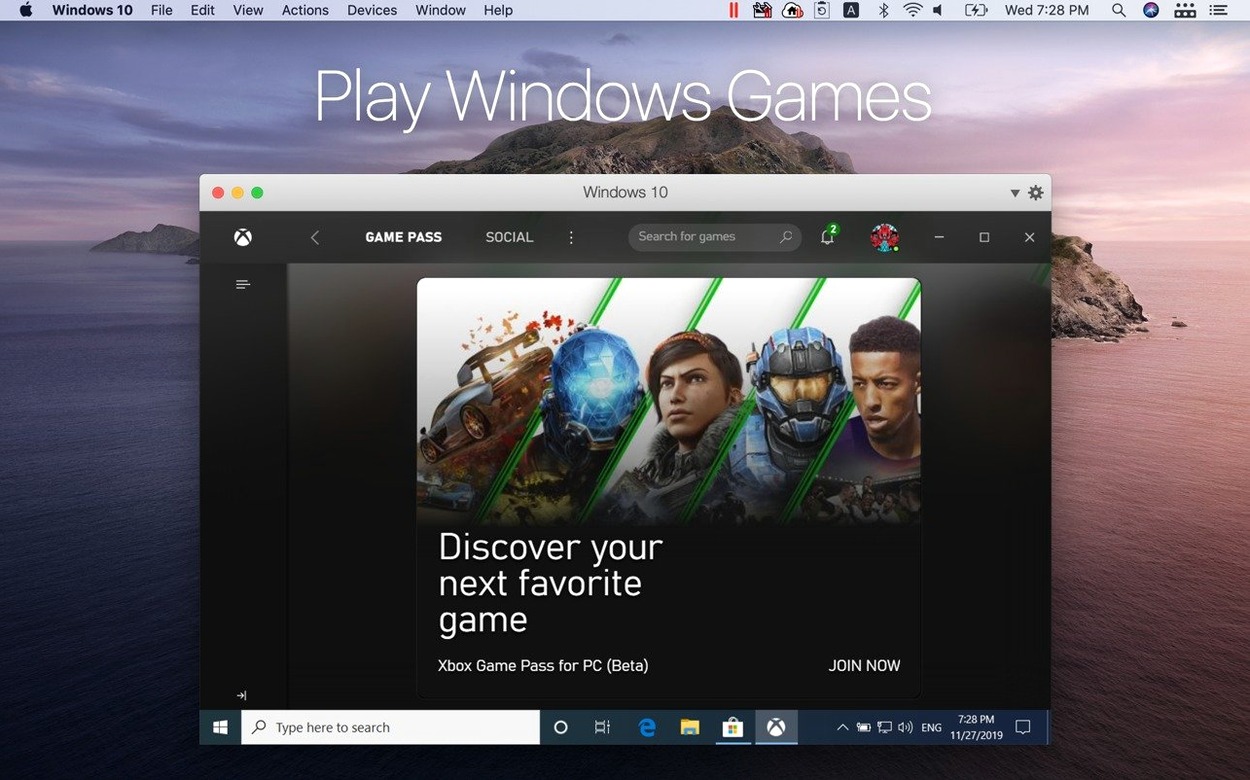
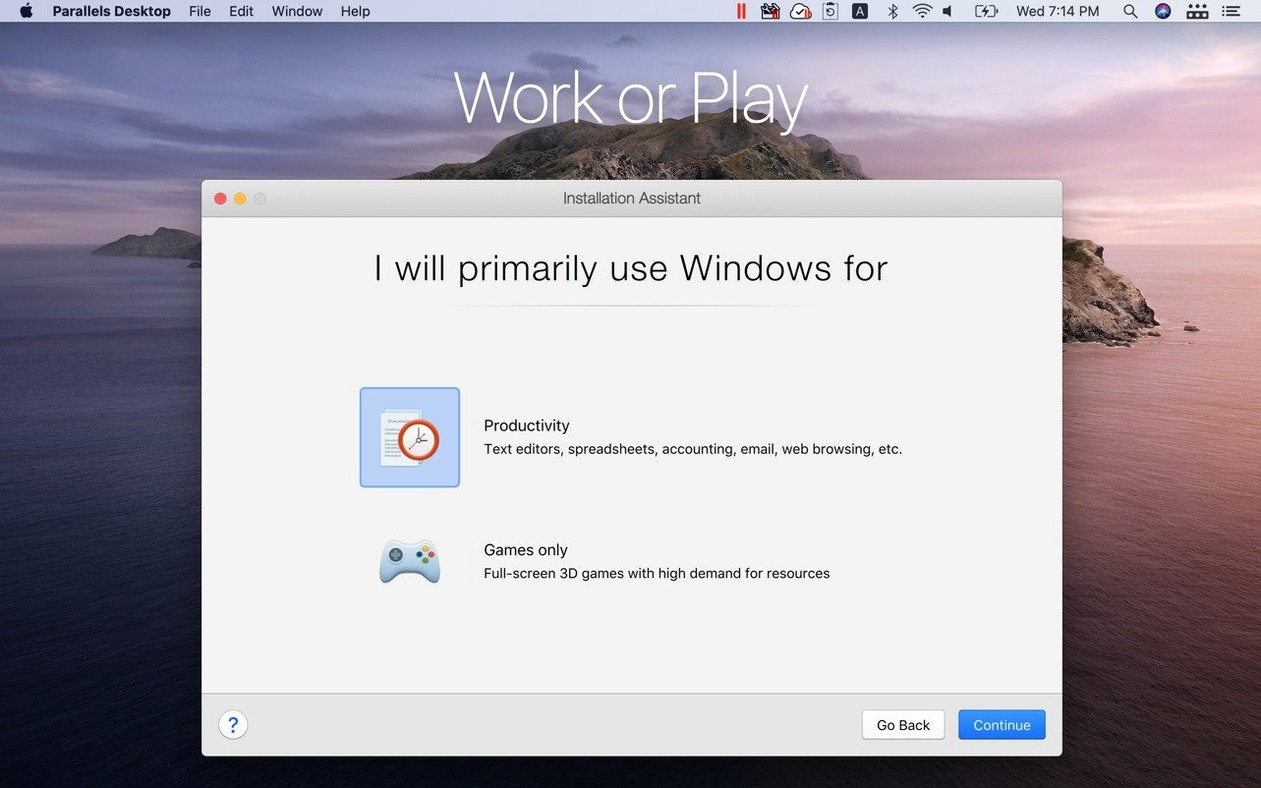
For anyone who keeps a Windows or Linux VM on their Mac, Parallels Desktop stays the most practical way to run those systems without rebooting. Version 27.0.2 keeps the core workflow — launch a virtual machine, run Windows apps alongside macOS ones, switch to Coherence mode when you want the Windows interface hidden — but drops Intel Mac support entirely. You need an Apple Silicon Mac running macOS 26.
What changed in this update is mostly under the hood. It adds out-of-the-box support for Ubuntu 26.04 LTS, Ubuntu 26.04 LTS x86_64 emulation, Fedora 44, Debian 13.6, and Kali Linux 2026.2. The software is now certified as ARM SystemReady SR 3.1 (VE band), and the release addresses overall stability and security issues. If you keep multiple Linux distros for testing or development work, this version covers the latest releases without extra configuration.
Parallels Desktop remains the only Microsoft-authorized solution for running Windows on Apple Silicon Macs. That part hasn't changed. For project managers or developers who rely on Windows-only tools alongside their Mac workflow, it still does what it always did — just on a newer set of guest systems.
Keeps macOS Open Alongside Windows or Linux
Parallels Desktop does not ask you to choose between operating systems. You keep your daily Mac applications — email, project management boards, PDF markups, Slack — open while a Windows or Linux guest runs in a window or in Coherence mode. The integration with the Mac environment is direct: you can copy text from a Windows Outlook email and paste it into a macOS task list, or drag a screenshot from a Windows testing tool onto a Mac folder. The shared clipboard and drag-and-drop work without extra configuration after the initial setup.
For file management, Parallels Desktop supports sharing folders between the host and guest systems. You can point a Windows application to a macOS directory and save files there directly. This means your project documents, spreadsheets, or design assets live in one place and are accessible from both operating systems without duplication. If you use a cloud sync service like Dropbox or Google Drive on the Mac side, those files are available in Windows through the shared folder as well.
Parallels also integrates with macOS printer and peripheral detection. USB devices such as external drives, smart card readers, or YubiKeys can be assigned to the guest system when needed and released back to macOS when you are done. For someone who needs to access a corporate VPN through a Windows client while keeping macOS for personal browsing, the network adapter configuration in Parallels handles that split cleanly.
Runs Windows-Only Tools Without Dual-Booting
Project managers in mixed-OS environments. If your company uses Windows-only project scheduling tools, resource management software, or client portals that require Internet Explorer or Edge, Parallels Desktop lets you run them without dual-booting. You keep your Mac workspace for notes, calendars, and communication while the guest runs the necessary Windows applications in the background.
Developers testing across platforms. The added support for Ubuntu 26.04 LTS, Fedora 44, Debian 13.6, and Kali Linux 2026.2 makes this version especially useful for developers who need to validate builds or run deployment scripts in multiple Linux environments. You can allocate CPU cores and RAM per virtual machine and snap back to macOS for writing code or managing version control.
Business users with legacy software. Accounting packages, custom line-of-business applications, or older database clients that never had a macOS version still run inside the virtual machine. The Coherence mode makes these apps appear as if they are native Mac windows, reducing the cognitive friction of switching between desktop environments.
IT and support staff. Running a lab of VMs for testing configurations, applying patches, or reproducing client issues is straightforward with Parallels. You can clone a VM, test a change, and discard it without affecting your host system.
Rita Checks Three Client Environments from One Mac
Rita works as an independent ERP consultant. Her main tools are Microsoft Project for scheduling, a Windows-based configuration tool for the ERP backend, and a browser for client portals.
On a Monday morning, she has three client environments to check. She starts Parallels Desktop, launches her Windows 11 VM in Coherence mode, and keeps the ERP tool open in the background. The client portal requires Internet Explorer compatibility mode, which the VM provides. She copies configuration logs from the Windows tool and pastes them into a macOS spreadsheet for a status report. When a new client sends a file in a proprietary format that only opens with a Windows utility, she drags it from a macOS shared folder into the VM, processes it, and saves the output back to the shared folder for upload. No reboot, no carrying a second laptop.
For her, the value is not in running a single Windows app but in mixing environments fluidly. She closes the VM at the end of the day without shutting down macOS, and the next morning the VM resumes in seconds.
Broader Guest Support Than VMware Fusion
VMware Fusion is the closest competitor for running x86 or ARM operating systems on Apple Silicon Macs. Like Parallels, it supports shared folders, drag-and-drop, and Unity mode (the equivalent of Coherence). The difference is mostly in guest support breadth and release cadence. Parallels tends to add support for new Linux distros earlier, and its Coherence mode has been refined over more years. Fusion has a slightly smaller footprint on disk, but Parallels offers tighter integration with macOS features like macOS disk encryption and Apple Silicon driver support for Windows.
QEMU is a free, open-source option for users comfortable with the command line. It supports a wide range of guest architectures and can be scripted for automated testing. The trade-off is setup time and interface polish. There is no shared clipboard, no drag-and-drop, no Coherence mode out of the box. You configure networking and storage manually. For a project manager or business user who wants to install Windows and start working in under an hour, Parallels is the pragmatic choice. For a developer who needs a specific ARM Linux kernel version for a CI pipeline, QEMU offers more flexibility at the cost of convenience.
UTM is another free option built on QEMU with a more modern macOS interface. It supports Apple Silicon acceleration and can run Windows ARM, Linux, and macOS guests. The feature gap with Parallels is in integration: no Coherence mode, no automatic USB passthrough, no shared clipboard by default. UTM is a solid choice for lightweight testing, but it lacks the polish and one-click setup that makes Parallels Desktop the go-to for office-oriented workflows.
Set Up Shared Folders Before Installing Guest Apps
- Configure shared folders before installing productivity apps in the guest. Set up a macOS folder for your project files and share it with the VM. Then install your Windows apps and point their save locations to that folder. This avoids having to move files later.
- Try Coherence mode on the second day. After you have Windows and apps installed, switch the VM view to Coherence. Windows applications appear in the macOS dock and on the desktop. It takes a few minutes to get used to the mixture, but it reduces screen clutter when you only need one or two Windows windows open.
- Allocate CPU and RAM conservatively at first. Give the VM half your Mac's cores and about half its memory. You can increase both later if the guest feels slow. Starting too high can make macOS sluggish while you are still figuring out your balance.
- Snap a restore point before making major changes in the guest. Parallels Desktop lets you take snapshots of the VM state. Before installing a large update or a new piece of software, take a snapshot. If something breaks, you roll back in a few seconds instead of reinstalling.
- Set the VM to suspend instead of shut down. When you close the Parallels window, choose suspend rather than shutdown. The VM returns to the same state in seconds, and you do not lose open documents or unsaved work in Windows apps.
- Check the guest resolution after switching between full screen and windowed mode. Parallels adjusts the resolution automatically most of the time, but occasionally a Windows app will stay at a fixed size. A quick resolution change in Windows display settings or a toggle of the full-screen mode usually fixes it.
- Keep the Parallels Tools up to date inside the guest. When Parallels Desktop updates, the Tools package that handles clipboard, drag-and-drop, and performance may need reinstallation. A pop-up in the VM usually prompts for it. Running the latest Tools prevents integration glitches.
The 27.1.0-58756 update for Parallels Desktop has arrived. The full list of changes is published in the developer's knowledge base.
| macOS | macOS 26 or later |
|---|---|
| Processor | Apple Silicon |
| Download | 190 MB |
- macOS 26 or later
- Apple Silicon Mac
Questions about Parallels Desktop
Does Parallels Desktop 27 support Intel Macs?
No. Intel Mac support was removed starting with Parallels Desktop 27.
Which Linux distributions are supported out of the box in version 27.0.2?
The release adds support for Ubuntu 26.04 LTS, Ubuntu 26.04 LTS x86_64 emulation, Fedora 44, Debian 13.6, and Kali Linux 2026.2.
Can I run Windows apps without seeing the Windows interface?
Yes. Coherence mode hides the Windows desktop and lets you use Windows applications as if they were native Mac windows.
How to install, in order
- Mount the downloaded disk image.
- Run the standard installation procedure.
Comments and corrections 0
Sign in or open a free account to leave a comment.
No comments or corrections yet.