
Sensei 2.1.2 — download for Mac
Utilities Updated
Monitors performance, cleans system, and checks hardware status in one app.
Screenshots
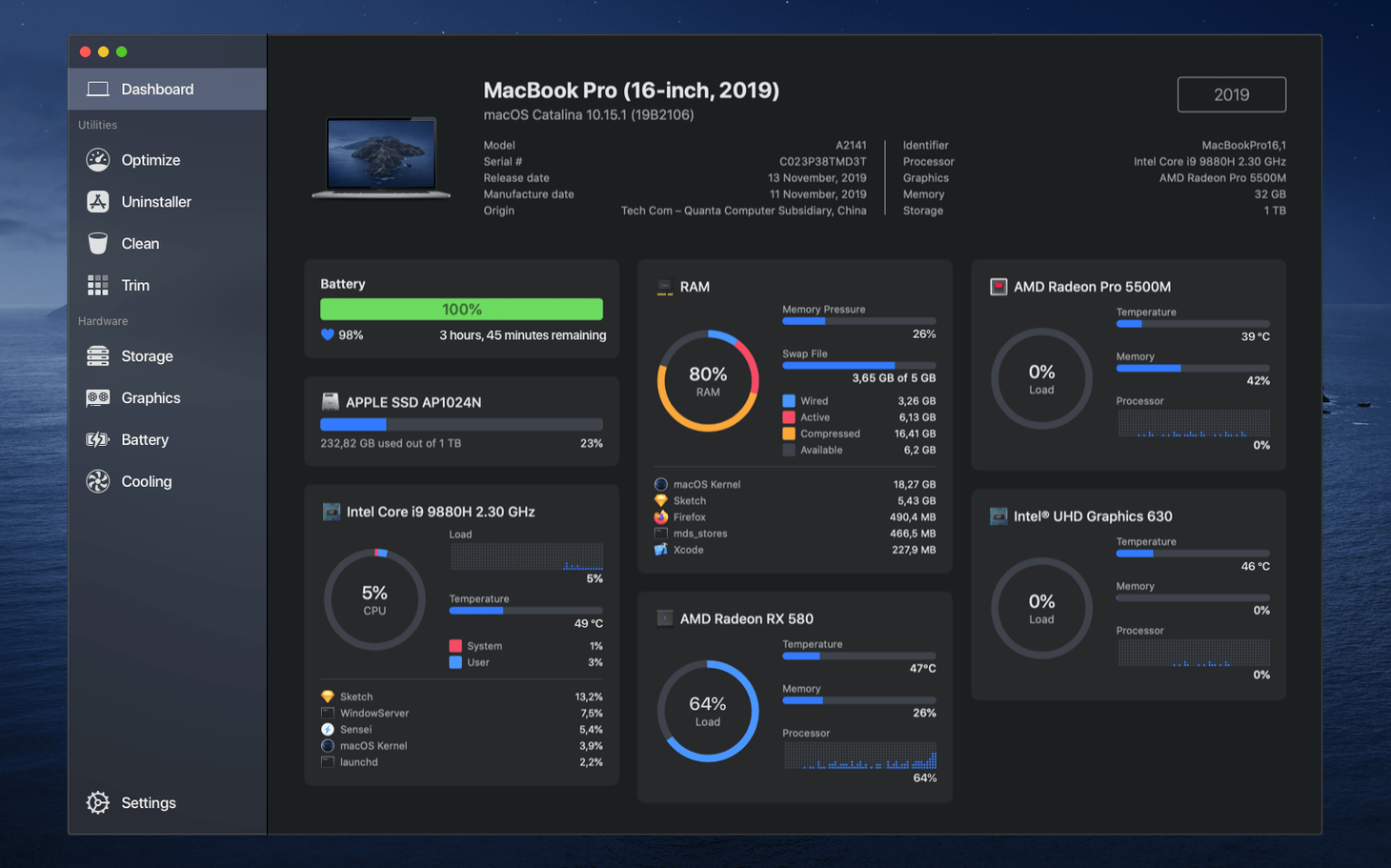
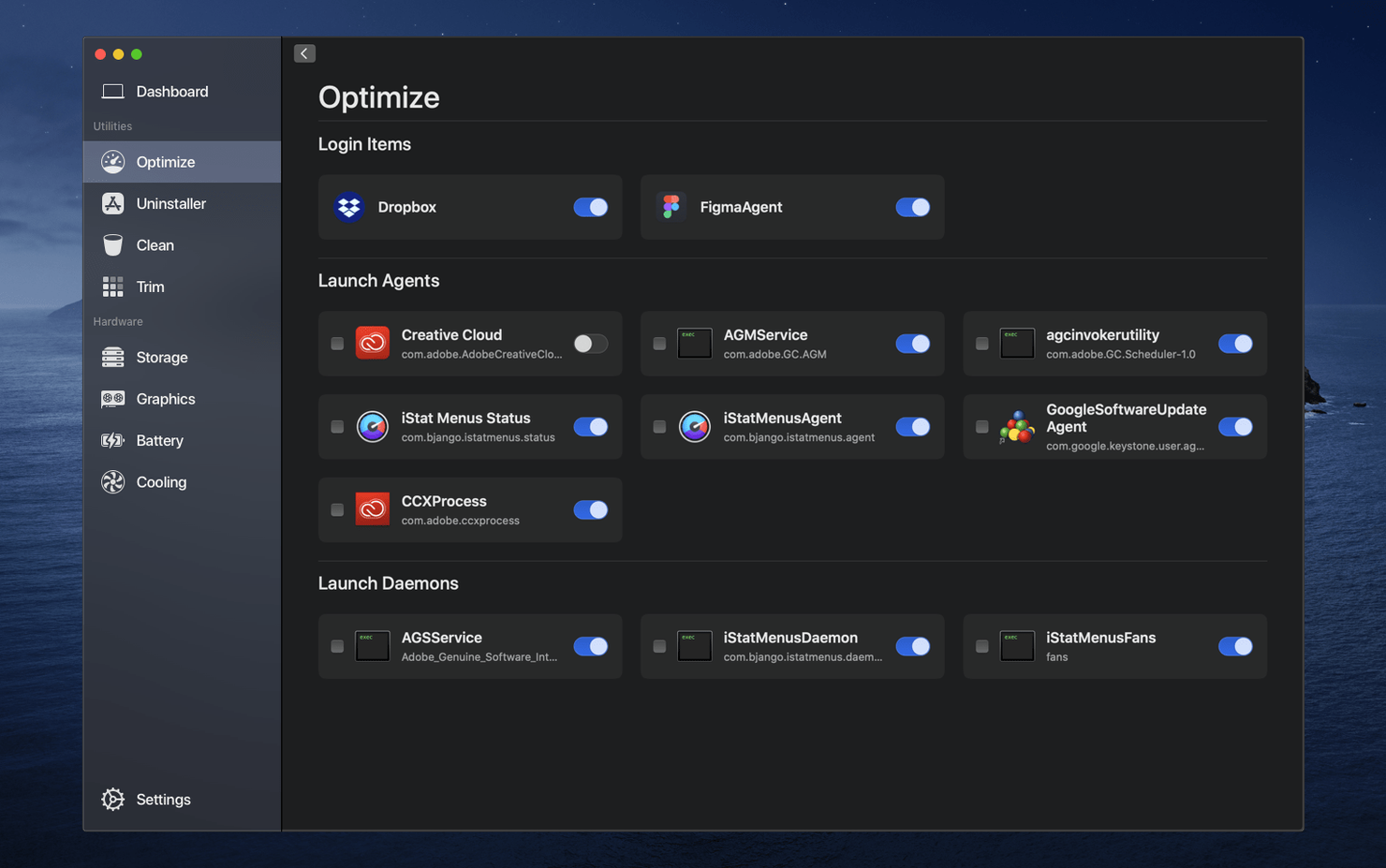
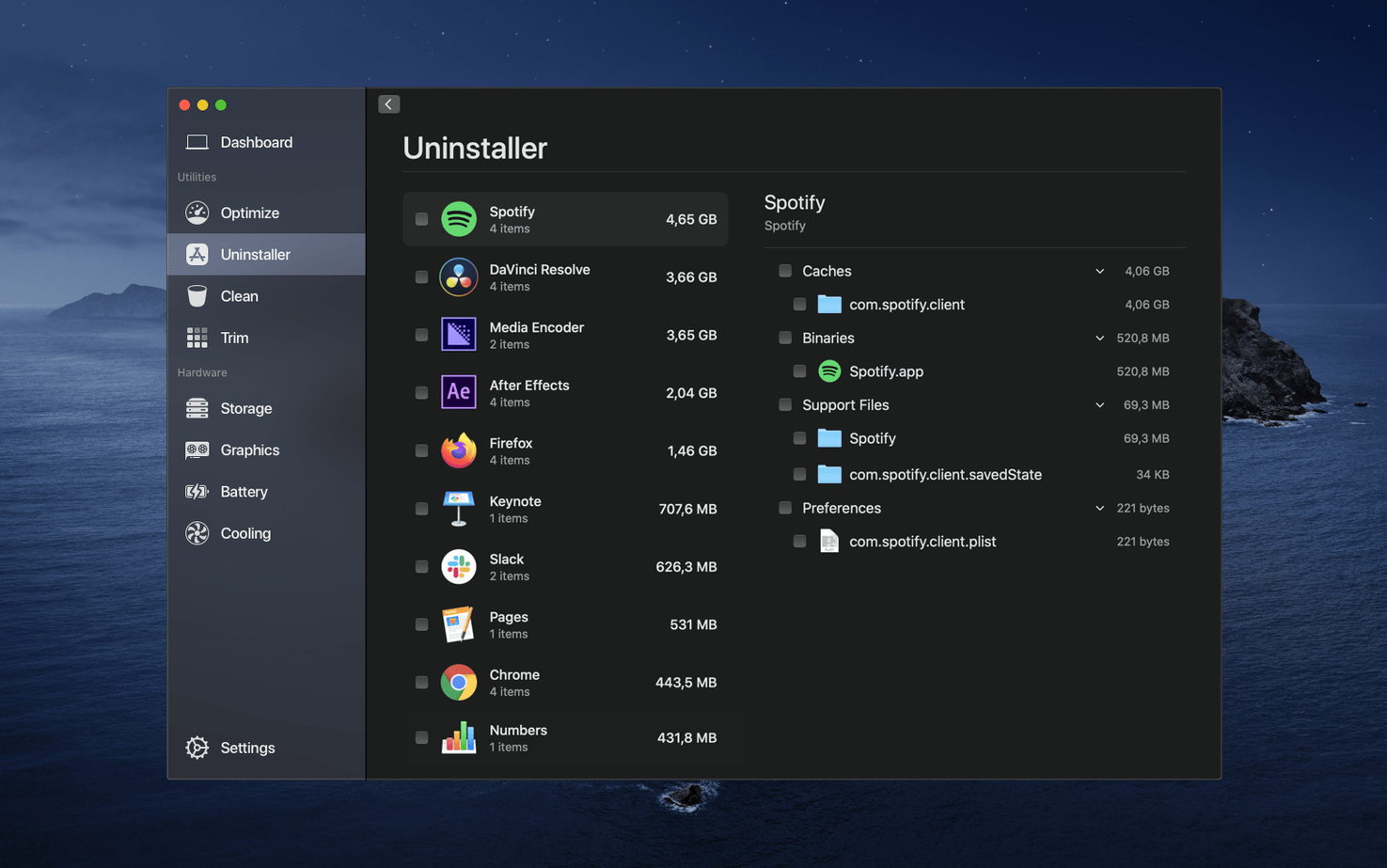
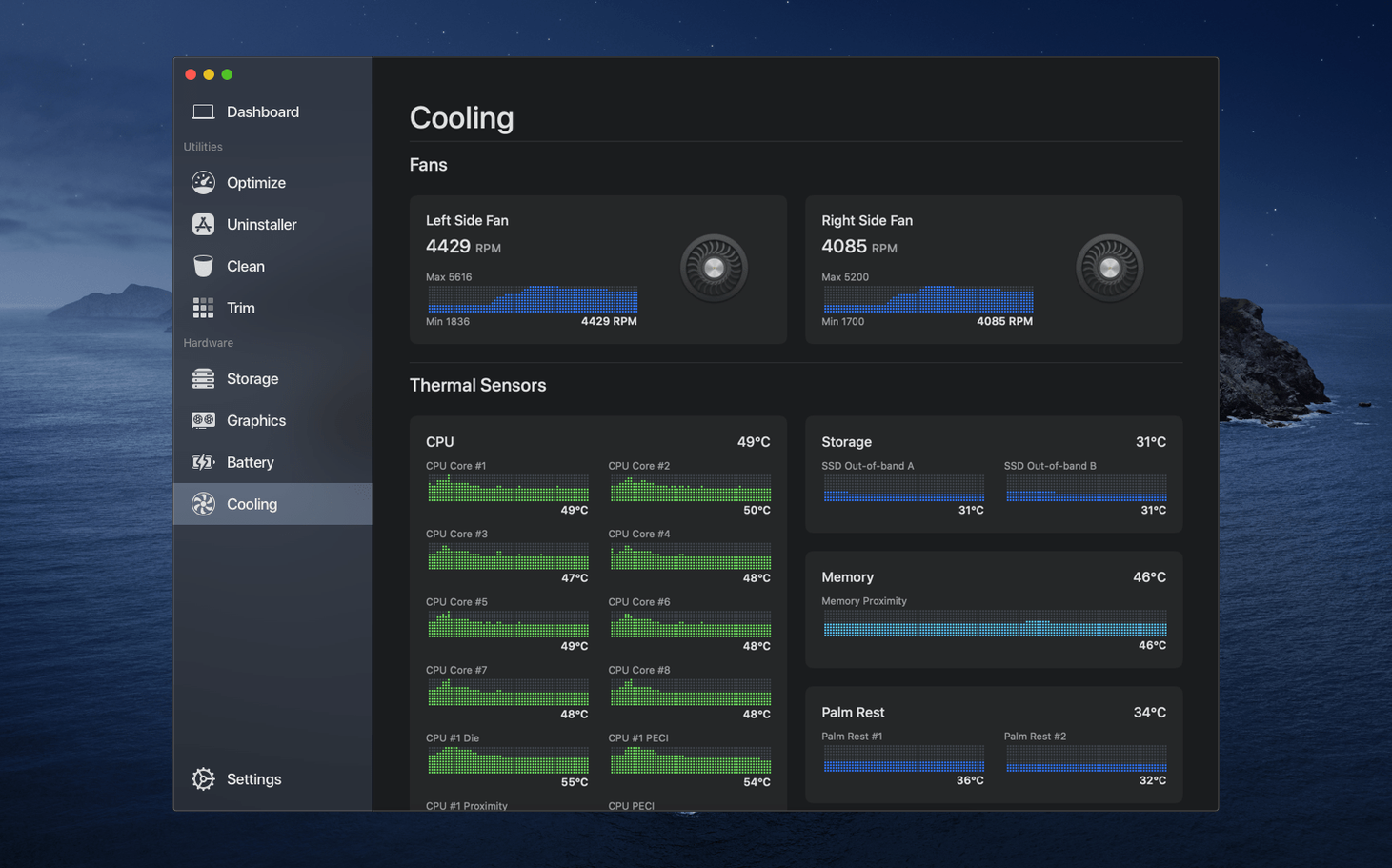
Sensei for Mac combines performance monitoring, system cleaning, and hardware status into a single app. Here is a look at the tools an experienced user will reach for.
TRIM Support
Sensei can enable TRIM on SSDs that do not have it active by default. This helps maintain write performance over time, particularly for third-party drives.
System Monitor
An always-available menu bar monitor tracks CPU, memory, disk, and network usage. It integrates directly with the main app, so clicking it opens the full interface.
Application Uninstaller
Removes apps and their leftover files — preferences, caches, and support data — in one pass. Useful for clearing out trialware or old project tools.
Disk Cleanup
Scans for temporary files, logs, language packs, and other reclaimable space. The interface shows exactly what will be removed before you confirm.
Clean Interface
Catches More macOS Temp Files Now
Version 2.1.2 refines the tools that Sensei already had rather than adding new modules. The disk cleanup engine now identifies a wider range of temporary files generated by recent macOS releases, so the scan catches items that older builds might have missed. The system monitor in the menu bar refreshes data more consistently when the Mac wakes from sleep, which matters for anyone who closes a laptop at lunch and checks CPU load right after opening it.
The application uninstaller handles a few more categories of leftover data — specifically, cache folders that some Adobe and Microsoft apps scatter outside the main Applications directory. The TRIM toggle now reports the exact state of each internal drive before you activate it, which saves an extra trip to Terminal.
Under the interface layer, the team at Cindori AB brought the code signing certificate up to date. For project managers and office workers, this means no security warnings during launch on newer Mac systems.
Needs macOS 14 and a 3-Step Install
Sensei requires macOS 14 or later and runs on both Apple Silicon and Intel-based Macs (64-bit). The installer is delivered as a standard disk image. Installation takes three steps: open the disk image, drag the app into the Applications folder alias, and launch it from Launchpad once the copy finishes.
The app itself is a single window with a dashboard, cleaning tools, and the menu bar monitor. No background services are installed separately — everything runs from the single application file. The interface language adapts to Russian, English, Spanish, Simplified Chinese, Dutch, French, Swedish, or Japanese, which makes it usable across mixed-language office environments.
Because it merges monitoring and maintenance into one tool, you keep one window open instead of switching between Activity Monitor and separate cleaner utilities. The menu bar monitor stays visible even when the main window is closed, so a glance at the top of the screen shows current CPU and memory load.
Sits Between CleanMyMac, iStatistica, and MacBooster
Three other Mac utilities commonly enter the conversation alongside Sensei: CleanMyMac, iStatistica, and MacBooster. Each overlaps with some of Sensei's features, but none cover the same combination.
CleanMyMac focuses heavily on disk cleanup and app removal. Its scanning engine finds more temporary file types than Sensei does, and its interface is polished. Users who want both cleaning and real-time sensor data end up running CleanMyMac alongside a separate monitor tool.
iStatistica is a pure system monitor. It shows CPU and GPU temperatures, memory usage, and disk activity in a dashboard. It does not clean disks, uninstall applications, or manage TRIM. For an office worker who needs to free up space, iStatistica provides only half the picture.
MacBooster offers cleaning and some system optimization, but it does not include a menu bar monitor or integrated sensor readouts. Its approach is closer to a one‑time tune-up app, whereas Sensei is designed for ongoing monitoring — the dashboard stays open on a second monitor or you keep the menu bar widget visible as a daily habit.
For a project manager's workflow, the practical difference is fewer apps running on the Mac. Instead of installing one tool for cleanup and another for temperatures, Sensei covers both with one menu bar entry and one window layout. The trade‑off is that its cleaning engine is not as deep as CleanMyMac's, but for routine office maintenance — clearing temporary files, removing old apps, and keeping an eye on disk temperature — it holds its own.
The layout keeps monitoring data and cleaning tools side by side. No clutter, no unnecessary animations.
No release notes filed for 2.1.2. They are added here when a build changes how the program behaves.
| macOS | macOS 14 or later |
|---|---|
| Processor | Apple Silicon, Intel 64-bit |
| Download | 30 MB |
- macOS 14 or later
- Intel or Apple Silicon
How to install, in order
- Open the downloaded disk image.
- Drag the app into the Applications folder alias.
- After copying finishes, launch the app from Launchpad.
Comments and corrections 0
Sign in or open a free account to leave a comment.
No comments or corrections yet.