
Shadowrocket 2.2.92 — download for Mac
Utilities Updated
Routes HTTP, HTTPS, DNS, and TCP traffic through rule-based proxy rules.
Screenshots
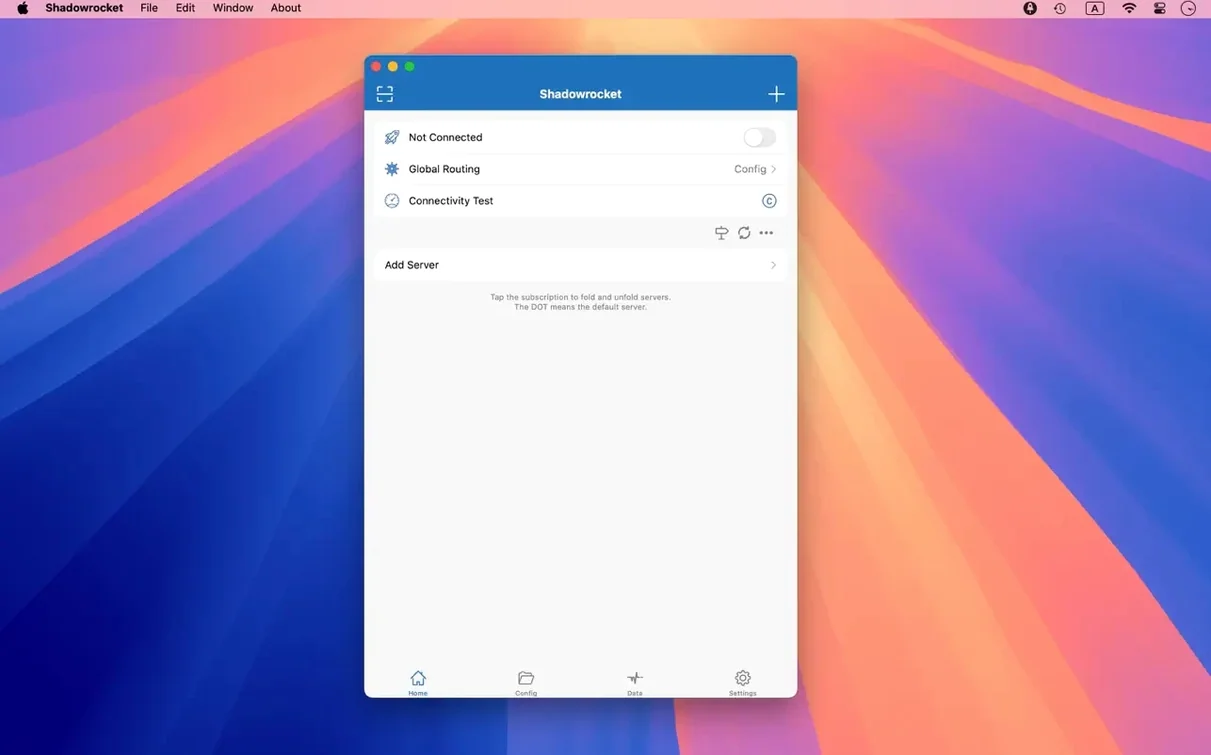
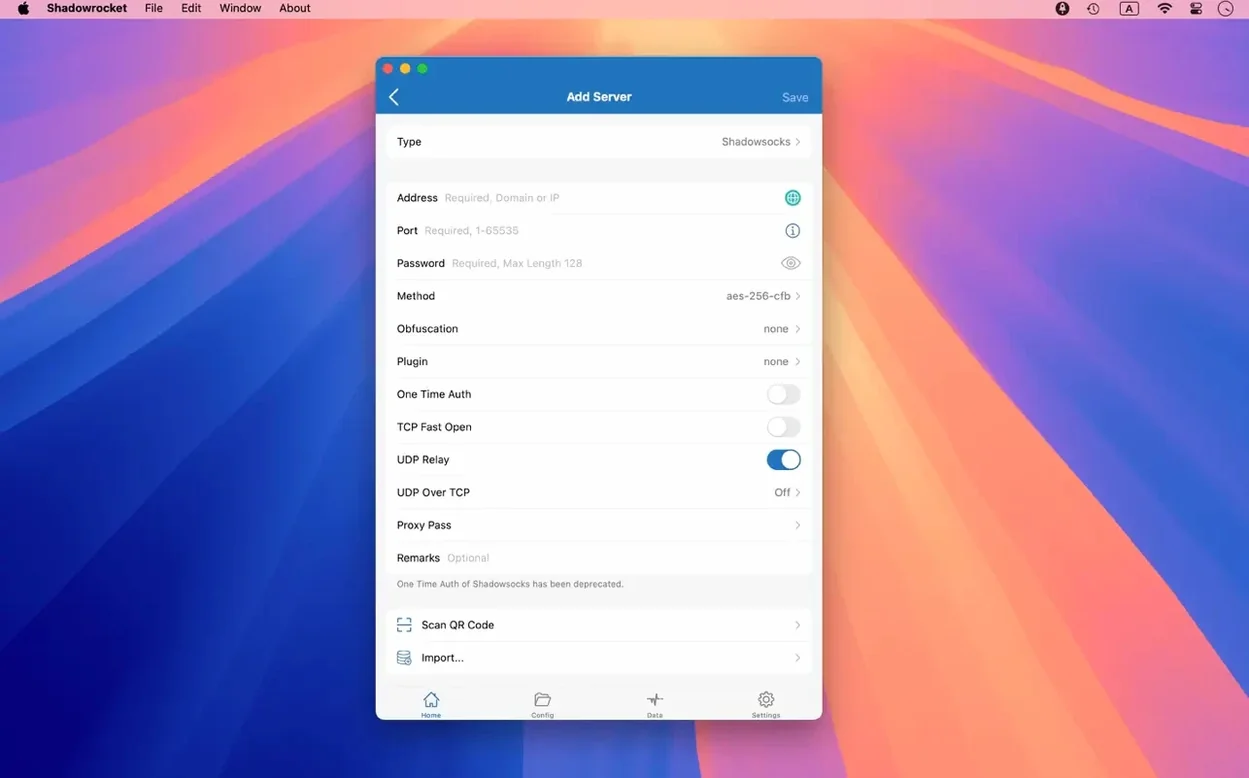
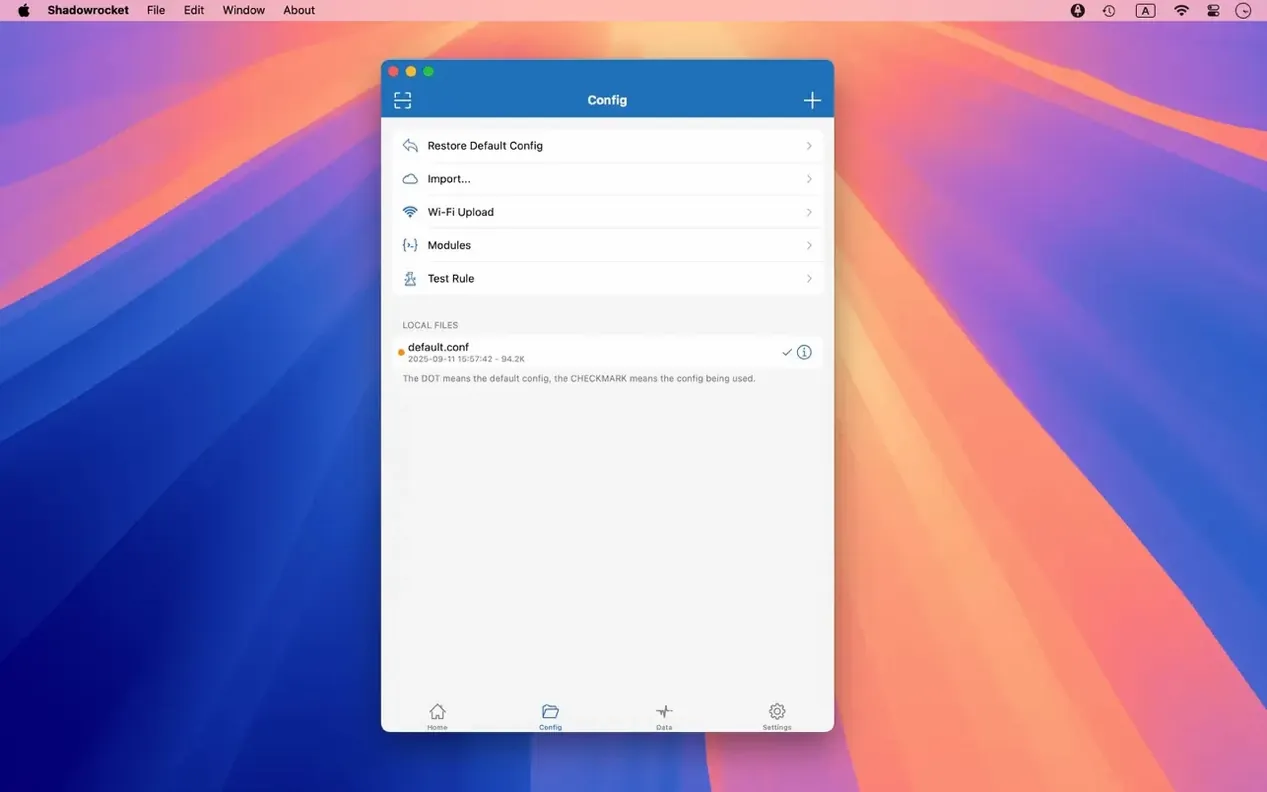
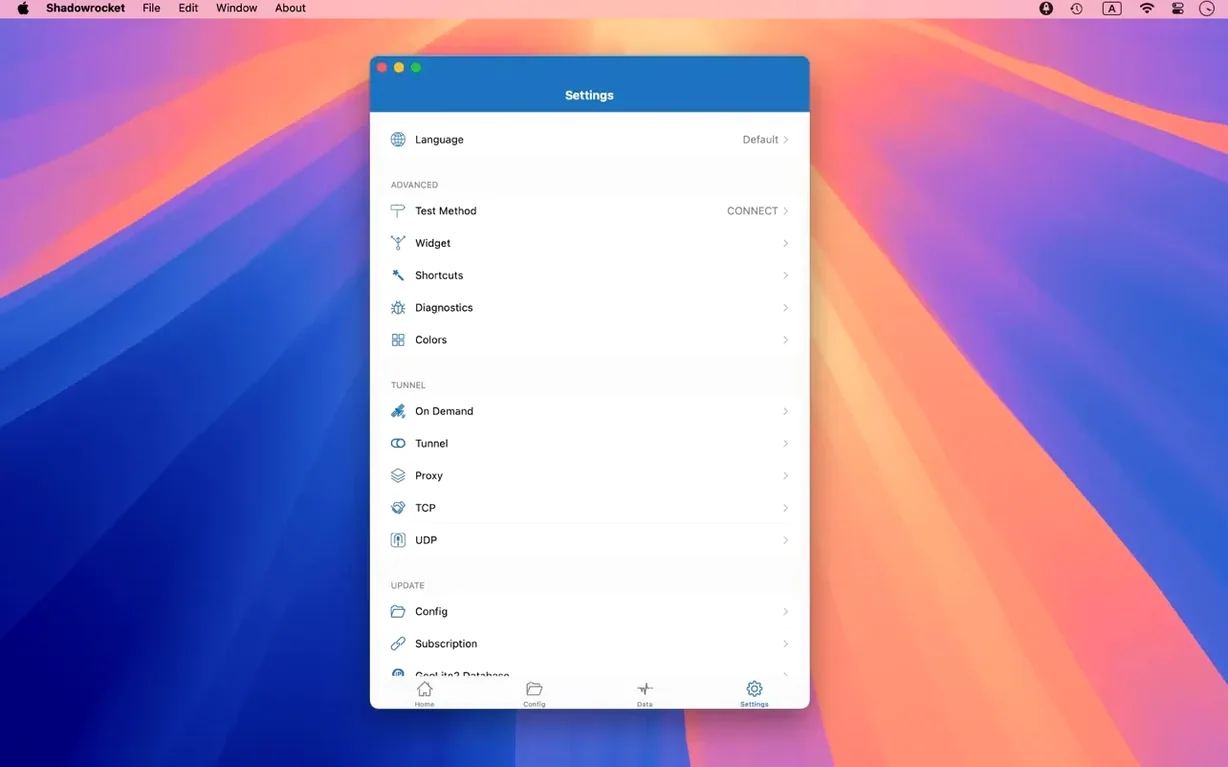
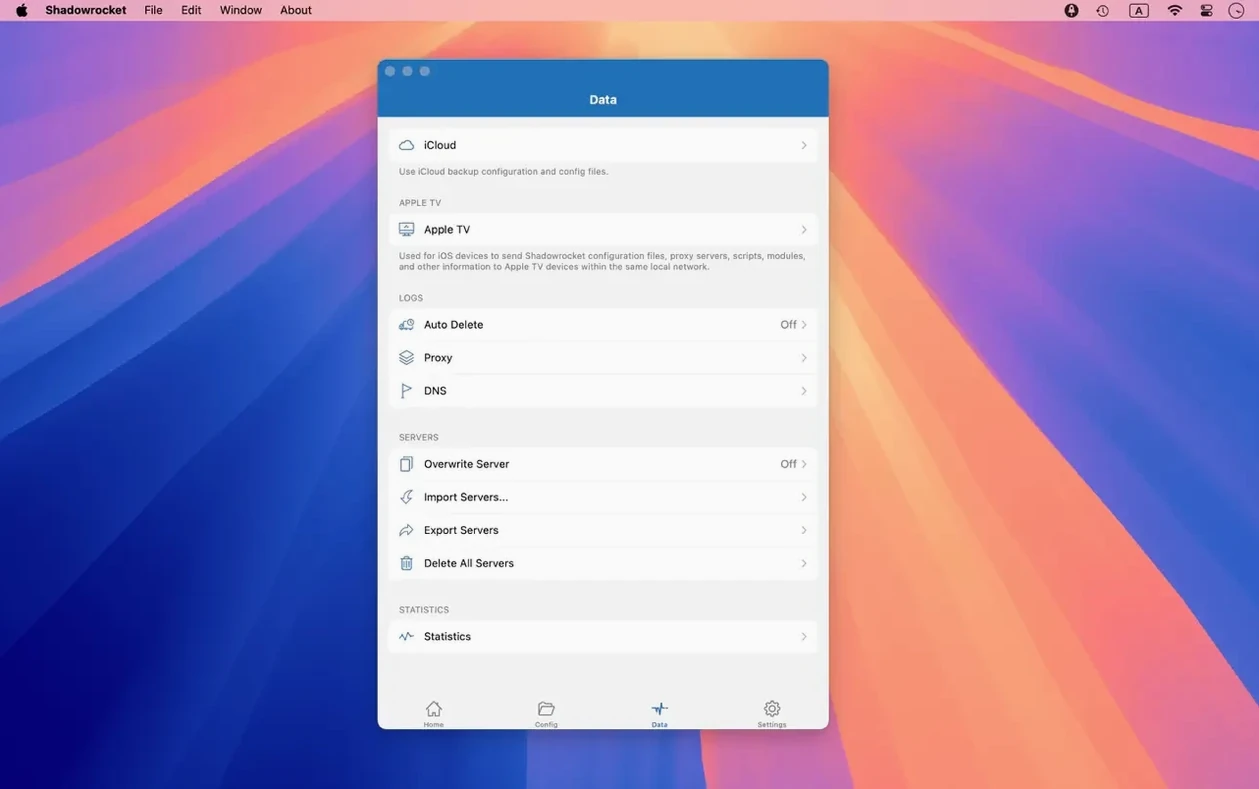
Most Mac users who route traffic through a proxy eventually hit the same wall: the client is either too simple to handle real-world rules or too complex to set up in five minutes. Shadowrocket sits in the middle. It is a rule-based proxy utility that handles HTTP, HTTPS, DNS, and TCP traffic from applications on your Mac and forwards it to a proxy server — but the real value is in how you control that routing.
The rule engine lets you match traffic by domain matches, domain suffixes, domain keywords, CIDR IP ranges, or GeoIP lookups. That means you can send work traffic through one route, personal browsing through another, and local addresses nowhere. It also supports local DNS mapping and DNS over HTTPS, TLS, or QUIC, so you are not leaking lookups while the proxy does its job. For deeper control, there are script filters and plugins for kcptun, cloak, gost, and v2ray.
On a day-to-day basis, the app sits in the menu bar and logs HTTP, HTTPS, and DNS requests from your Mac. You can inspect what went where, and if needed, decrypt HTTPS traffic to see inside the connection. The current build runs on both Intel and Apple Silicon Macs and ships in English, Russian, Chinese, Korean, Japanese, and Vietnamese. It does not try to replace every tool in your networking stack — it just fits next to them and does the routing part cleanly.
Network engineers who manage multiple routing profiles
Network engineers and system administrators who manage multiple routing profiles get the most out of it. If your workday involves switching between a corporate VPN, a personal proxy, and direct connections for local development, Shadowrocket’s rule engine saves you from manually toggling settings in macOS network preferences. The multi-level proxy server support means you can chain routes without running separate daemons for each hop.
Developers working with API integrations, web scraping, or geolocation testing also gain from the traffic inspection panel. Instead of guessing whether a request reached the right endpoint, you read the log. The ability to decrypt HTTPS traffic on the Mac makes it useful for debugging mobile app backends or verifying that third-party libraries respect your proxy settings.
Users who travel frequently or work from co-working spaces benefit from the import-rule-from-URL feature. You can keep a single rule file on a cloud drive or internal server and pull it onto each machine without re-entering server addresses or domain lists. The same approach works for teams that standardize proxy configurations across several Macs without relying on a central management console.
Set local DNS mapping to avoid slow LAN routing
After installation, open the preferences panel and check two items before adding any servers. First, set Local DNS Mapping to match your local network’s subnet. Without this, the app may try to route LAN traffic through the proxy, which slows file transfers to printers or NAS devices. Second, turn on Log HTTP Requests only for the first day or two. The logs help you verify that your rules fire correctly, but leaving them on permanently fills disk space faster than you expect.
If you work behind a corporate firewall that blocks common DNS ports, switch the DNS transport from the default to DNS over HTTPS. The app supports DoH, DoT, and DoQ, so pick whichever the local network allows. Testing one rule at a time with a small domain list before importing your full production set keeps things predictable.
Test one server on five site categories before adding rules
Start with a single server and no custom rules. Connect to it and browse five or six sites across different categories — a search engine, a streaming page, a banking portal, and an internal company tool if you have one. Open the request log and check that the traffic appears under the proxy route and not the direct route. This confirms the basic connection works before you complicate it with domain splits.
Day two, add one domain-based rule. For example, route all traffic to example.com through the direct connection while everything else uses the proxy. Verify in the log that the rule fires correctly. Then add a GeoIP rule to send local country traffic direct and foreign traffic through the proxy. Move gradually. Beginners often import a full rule pack from a URL on the first day and lose the ability to troubleshoot when something breaks, because they do not know which rule caused the problem.
Keep a text file of your server entries and rule snippets outside the app. If you ever need to reinstall or switch machines, dragging the app from the disk image into Applications again takes ten seconds, but re-entering a dozen servers from memory wastes time. The iCloud Drive import works well for this — save one file there and reuse it across machines.
Global Mode without rules breaks local network traffic
The most common error is enabling Global Mode before setting any rules. This sends all traffic through the proxy, including local network services, DNS lookups, and system updates. The result is either a broken internet connection or a proxy server that gets hammered by traffic it should not handle. Stick to rule-based mode until you confirm the server handles the load.
Another mistake is ignoring the DNS leak indicator. Even with a proxy active, macOS can send DNS queries directly to the ISP’s resolver if the proxy client does not intercept them. Shadowrocket supports DNS over HTTPS, TLS, and QUIC specifically to prevent this. If you see direct DNS queries in the log, switch the DNS transport setting immediately — otherwise the proxy provides little privacy benefit.
New users also tend to pile domain rules from external sources without reviewing them first. Many rule packs contain entries for ad blocking, CDN bypasses, and country-specific redirects that conflict with each other. Importing a rule set and applying it without understanding its structure makes debugging impossible when a single site stops loading. Instead, import the rule file, read the first twenty lines to understand its format, then test one section at a time.
A final frequent error is not updating the app when macOS updates appear. Version 2.2.92 includes fixes for the menu bar, Dock icon, and server table behavior on current macOS releases. Running an older build from a disk image you downloaded months ago introduces UI glitches that are already solved. The install steps are simple enough — open the disk image, drag the app to Applications — that updating takes less than a minute.
- Fixed macOS UI bugs in server tables, the menu bar, and the Dock icon.
| macOS | macOS 10.15 or later |
|---|---|
| Processor | Apple Silicon, Intel 64-bit |
| Download | 36 MB |
- macOS 10.15 or later
- Intel or Apple Silicon
How to install, in order
- Open the downloaded disk image.
- Drag the app into the Applications folder alias.
- Launch the app from Launchpad after copying finishes.
Comments and corrections 0
Sign in or open a free account to leave a comment.
No comments or corrections yet.