SyncMate Expert 8.10.575 — download for Mac
Utilities Intel processors only Updated
Keeps files, calendars, and contacts in sync across Mac, phone, and cloud.
Screenshots
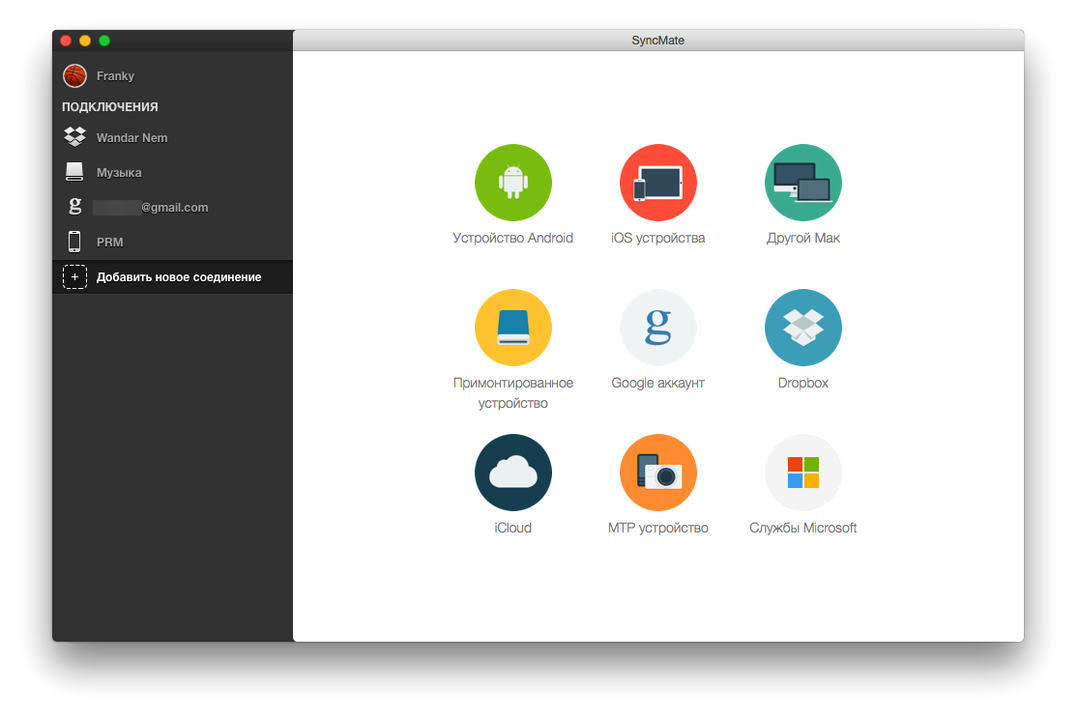
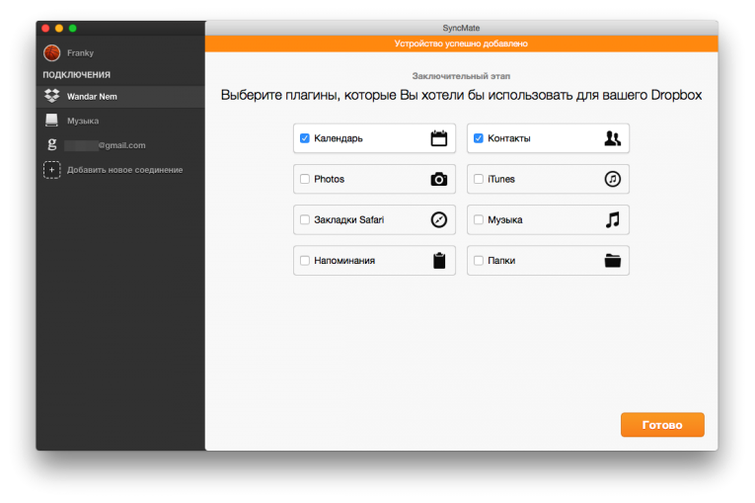
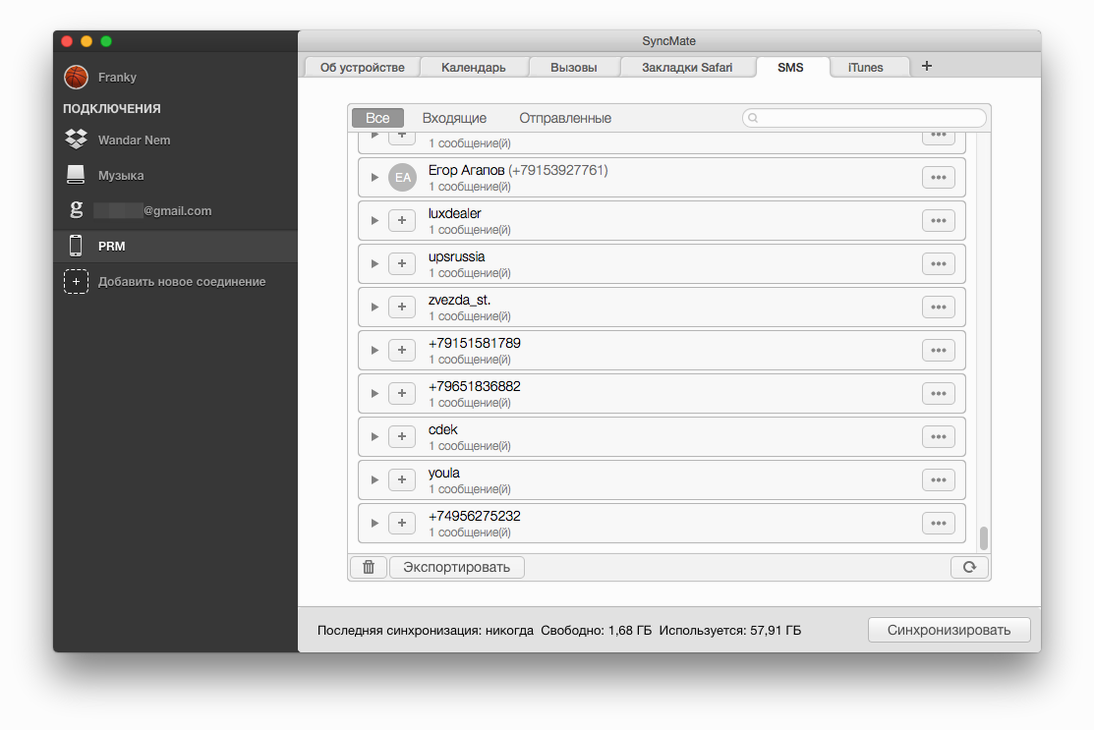
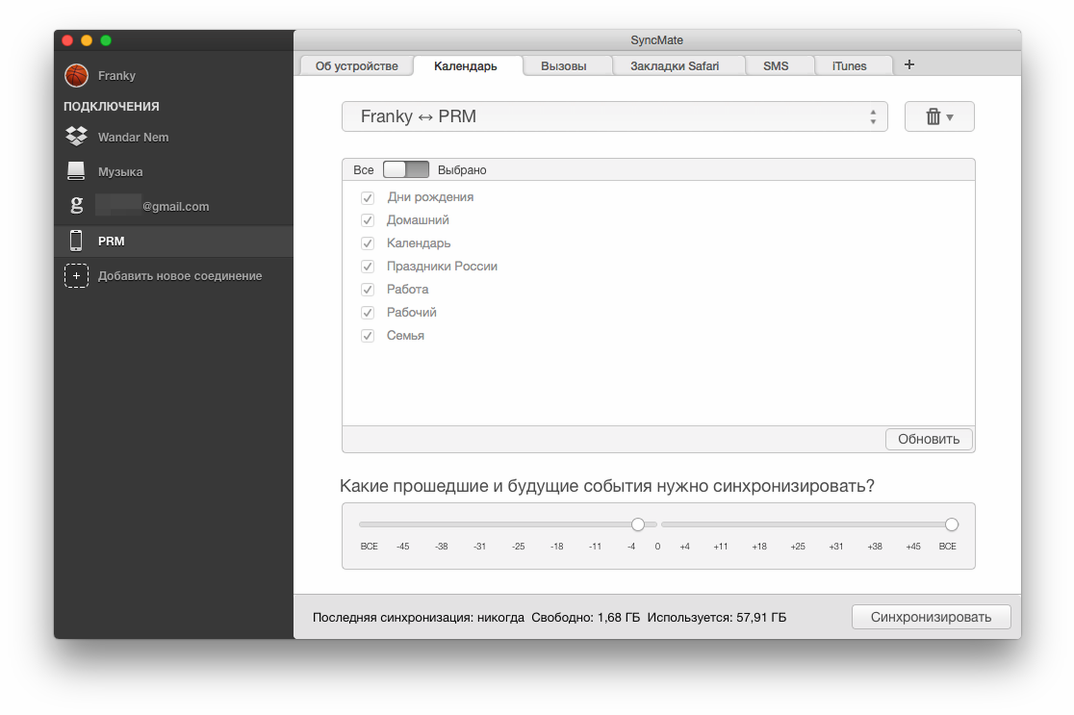
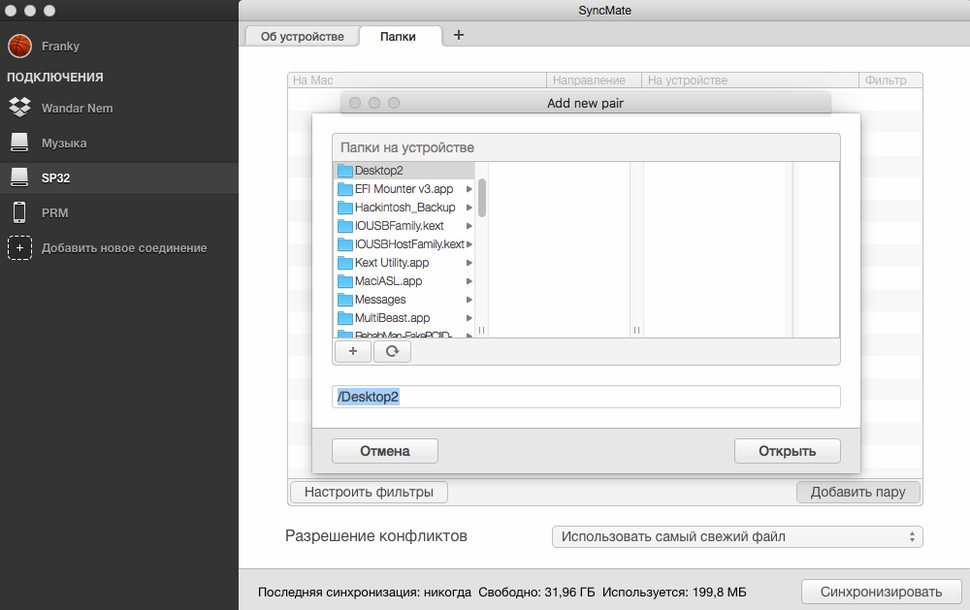
SyncMate Expert is for office workers who need to keep files, calendars, and contacts in sync across a Mac, a phone, and cloud services without extra cables or manual transfers. A newcomer should start with the device connection panel: plug in an MTP phone or mount a disk image, and SyncMate lists what it can sync — music, photos, messages. Next, add an online account: Office 365 or a cloud storage account. The app handles calendar sync noticeably faster than dragging files around, and it supports macOS 10.10 through Tahoe. The interface is available in English, German, French, Italian, Japanese, Korean, Czech, and other languages. For a first test, sync a single calendar event and a folder of documents — that covers the two main use cases.
Two Features Worth Setting Up First
Cloud storage sync is the most practical start. Connect a Dropbox or Google Drive account, then pick which folders on your Mac mirror to the cloud. No file-by-file decisions. The second feature is device mounting: SyncMate lets you browse an Android phone or a connected MTP device from the Finder, so you can drag files out without extra software. After those two are running, you can explore calendar sync with Office 365 or iCloud.
Not a Replacement for iCloud or Google Drive
People often ask whether SyncMate Expert replaces iCloud, Google Drive, or a dedicated backup tool. It does not. It syncs data between devices and accounts, but it is not a cloud storage service itself. You still need the account you connect to. Another frequent question is whether it works with a USB-C to Lightning cable for iOS devices. Yes, as long as macOS recognizes the device, SyncMate can connect to it. For Android phones, the standard USB connection or Wi-Fi pairing works. Some ask if the app slows down the machine when idle. It only syncs when you tell it to or on a schedule you set — it does not scan drives in the background constantly.
Start with One Device and One Account
Start with one device and one account. If you connect two phones and a cloud drive on the same day, you will spend more time troubleshooting which sync direction is correct. Set the sync direction to "Mac to Device" for your first test. That way, if something goes wrong, your source files stay on the Mac. After you confirm the transfer works, switch to two-way sync. Use the preview panel before confirming a sync — it shows exactly which files will be added, updated, or deleted. That preview alone prevents most accidental overwrites.
That keeps your meetings current without hammering the server.
Bypassing the Gatekeeper Prompt on Installation
The most common snag is the Gatekeeper prompt during installation. When you mount the disk image and macOS blocks the app, you need to open Terminal and press Enter to bypass it. The release notes for version 8.10.575 mention improved compatibility with macOS Tahoe, so newer Macs should have fewer issues here. Another snag: a device shows up in the list but sync fails immediately. That usually means the cable is charge-only, not data. Swap to a cable that transfers data and try again. A third snag is calendar events that sync but show the wrong time zone. Check that your Mac's time zone settings match the account you are syncing to. SyncMate pulls the system time, so a mismatch shifts every event.
If cloud storage sync seems slow, check whether the account has a sync limit or if your Mac is on a metered connection. The app respects the system's network settings. For Android devices that disconnect mid-sync, reboot the phone and reconnect — most MTP issues resolve after a fresh mount.
No release notes filed for 8.10.575. They are added here when a build changes how the program behaves.
| macOS | OS X 10.10 or later |
|---|---|
| Processor | Intel 64-bit |
| Download | 70 MB |
- macOS 10.10 or later
- 64-bit Intel processor
- Interface languages: Russian, English, German, Spanish, Italian, Korean, Norwegian, French, Czech, Japanese
How to install, in order
- Mount the disk image and launch Open Gatekeeper friendly.
- Press Enter in Terminal to bypass Gatekeeper.
- Drag the app into the Applications folder.
- Start using the app.
Comments and corrections 0
Sign in or open a free account to leave a comment.
No comments or corrections yet.