
Transmit 5.11.7 — download for Mac
Utilities Updated
Transfers files to servers with fixes for drag-and-drop and large uploads.
Screenshots
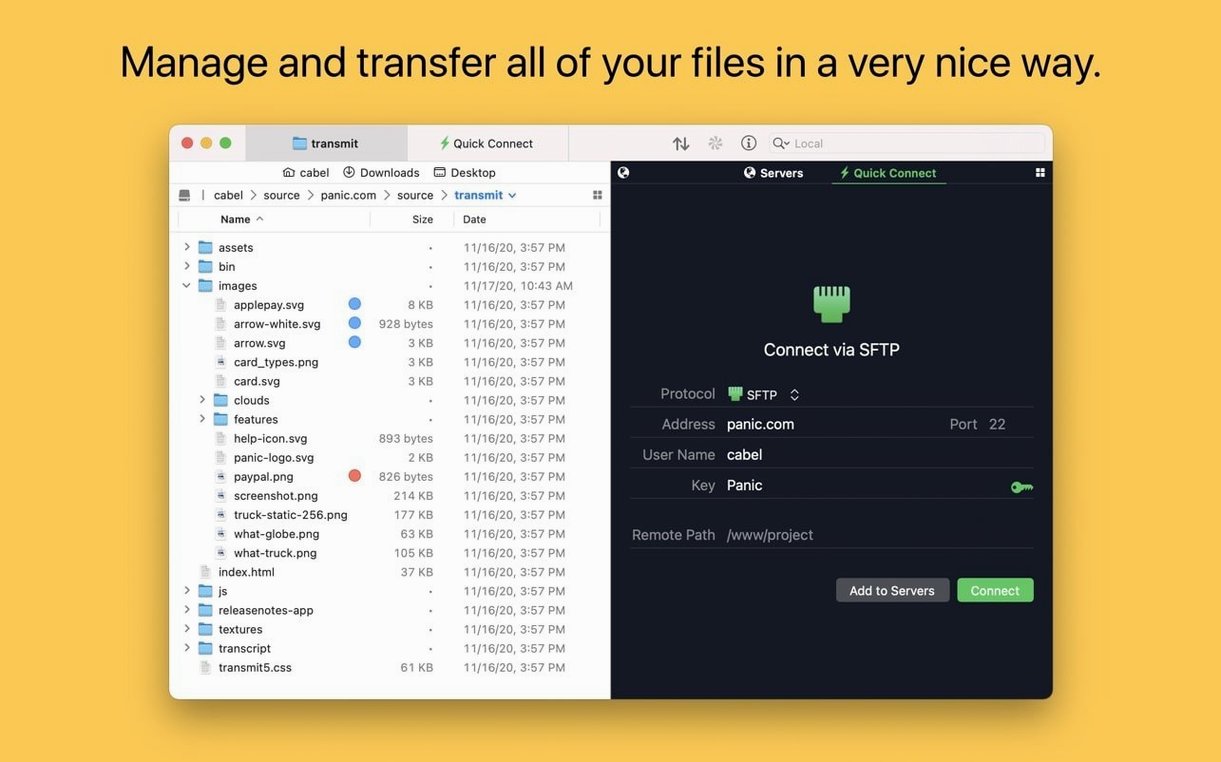
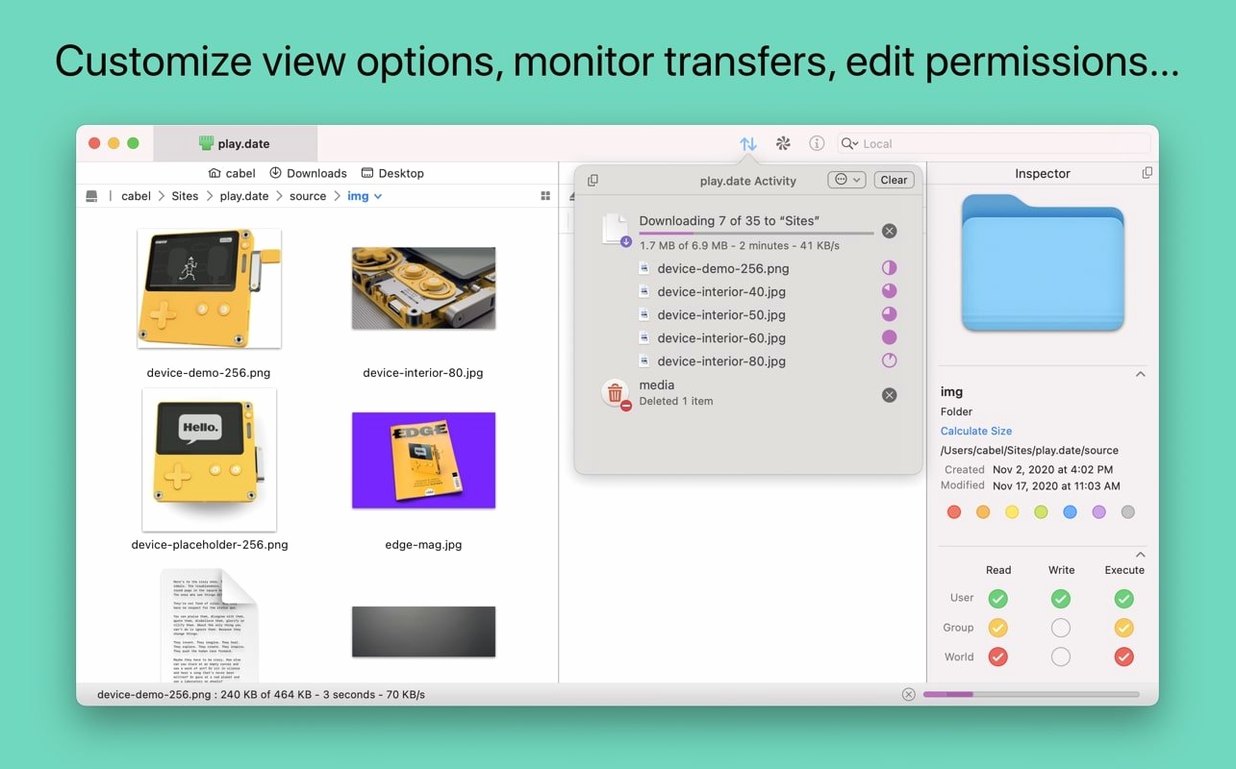
Version 5.11.6 of Transmit brings a few specific fixes while the core workflow stays unchanged. The latest release resolves a crash when dragging files into IntelliJ and improves error reporting for files that are too large to upload to S3. German users will find larger text entry fields on the File Rename sheet, and the Get Info toolbar button now activates immediately after launch.
Still Handles FTP, SFTP, S3, WebDAV and a Dozen Cloud Services
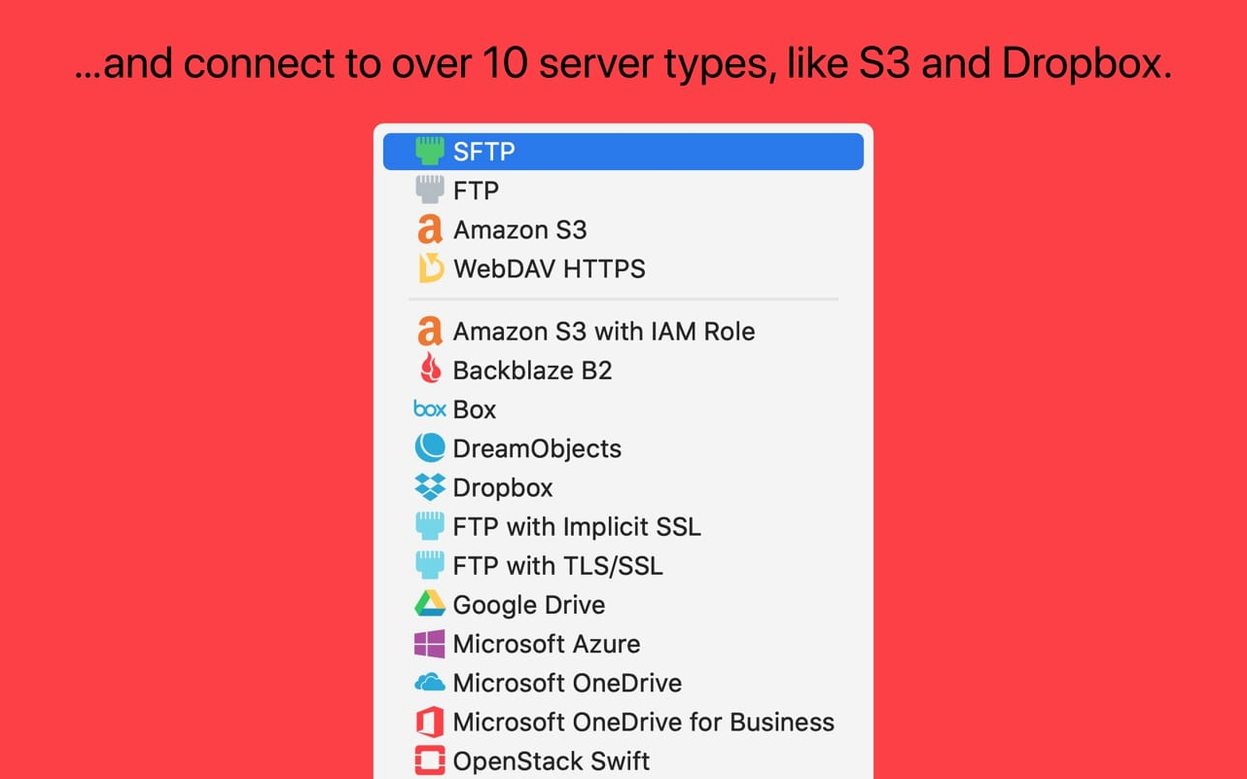
Beyond the fixes, this is still the same Transmit that handles FTP, SFTP, S3, WebDAV, and a dozen cloud services including Backblaze B2, Box, Google Drive, and Dropbox. Batch renaming works on both local and remote items. Panic Sync keeps sites in sync across machines. Two-factor login and the ability to open the current location in Terminal are still there. For anyone who works with large S3 files regularly, the error reporting improvement alone makes this update worth having.
What Trips Up Migrators from Other Clients
A few things trip people up when they start using Transmit, especially if they are migrating from another client. Knowing these saves time.
Connection Refused or Timed Out
This usually means the server address, port, or protocol is wrong. Double-check that you selected SFTP (port 22) for SSH connections and not plain FTP (port 21). If you are behind a corporate firewall, ask your network team whether port 22 or 443 is open for outbound connections. Transmit does not guess ports, so entering them correctly is on you.
Key Authentication Fails
Transmit can manage and generate secure keys inside the app, but if you import an existing key, ensure the private key is in OpenSSH format. Older formats from PuTTY or other tools need conversion before they work. Use the built-in key manager to regenerate or re-import the key rather than trying to paste raw text into the site settings.
Files Too Large for S3
Version 5.11.6 improved the error reporting here. If you see an upload fail, the message now tells you the file exceeds the S3 bucket limit. The fix is to split the file locally before uploading or to use a different transfer method for oversized files. No point retrying the same file five times.
Drag-and-Drop Into IntelliJ Crashes
That specific crash is fixed in 5.11.6. If you are on an earlier build and hit this, update. If it still happens after updating, check that both Transmit and IntelliJ are running on the same macOS version and that you are dragging from a local folder, not a remote server panel.
A Complete Workflow: Sync a Static Site Folder to a Server
Here is a step-by-step task using Transmit to push a local static site folder to an SFTP server.
- Set up the site. Open Transmit and click the + button to add a new site. Choose SFTP as the protocol. Enter the server hostname, your username, and the port (22). Load or generate your SSH key in the Security tab.
- Connect. Click Connect. Transmit authenticates and shows the remote folder structure in the right panel. The left panel shows your local machine.
- Navigate to the target folder. On the remote side, go to the web root, for example
/var/www/mysite. On the local side, navigate to your project folder, for example~/Projects/mysite/_site. - Add the remote folder to the Places Bar. Drag the remote folder icon to the Places Bar at the top of the window. Next time, you can click it to jump straight there.
- Batch rename local files if needed. Before uploading, select all local HTML files and use the batch rename tool to strip unwanted suffixes or correct filenames. The German text entry field improvement in 5.11.6 applies here if you work in German.
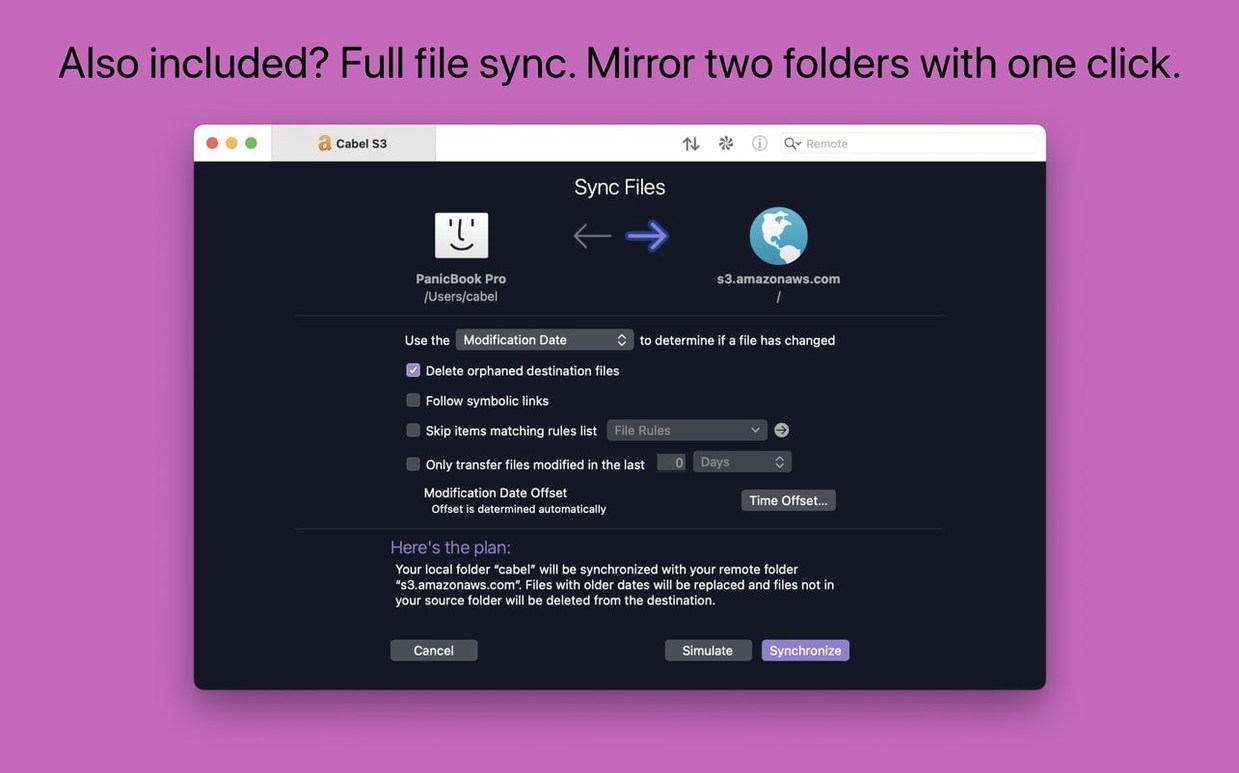
- Upload. Select the local files or the whole folder and click Upload. Transmit transfers only changed files if you use the sync option. For a full refresh, use Upload All.
- Verify. Use Get Info on a remote file to check timestamps and sizes. The toolbar button is active immediately after launch in 5.11.6, so you do not need to click a file first to enable it.
- Open Terminal in the remote folder. If you need to run server-side commands, right-click the remote folder and select Open in Terminal. Transmit opens a Terminal window already
cd’d to that path.
This whole routine takes about two minutes once the site is saved. The Places Bar and the sync option cut down repetitive navigation and manual compares.
How Transmit Compares with Similar Mac Apps
Transmit is not the only file transfer client on macOS. Here is how it stacks up against two common alternatives.
Transmit vs. Cyberduck
Cyberduck is free and open-source. It supports the same core protocols — FTP, SFTP, S3, WebDAV — plus a few extras like OpenStack Swift. Cyberduck’s interface is simpler, but it has no batch rename tool, no Places Bar, and no Panic Sync. If you need to sync site configurations across multiple Macs without manual setup, Transmit wins. If you only transfer files occasionally and want zero cost, Cyberduck is enough.
Transmit vs. FileZilla Pro
FileZilla Pro runs on macOS and supports the same protocol list plus Google Cloud Storage and Microsoft Azure. Its interface is tab-based, which some people prefer for multitasking. FileZilla Pro also has a site manager with export/import. Transmit feels more polished in visual design and integrates better with macOS — the Places Bar, the info sidebar, and the ability to open the current location in Terminal feel native. FileZilla Pro has more granular transfer queue settings, but Transmit is faster to set up for a common cloud storage connection.
Transmit vs. ForkLift
ForkLift is another Panic-like tool with dual-pane browsing and cloud support. ForkLift adds a built-in file editor and a queue manager that Transmit lacks. ForkLift also supports Amazon S3, Backblaze B2, and Google Drive. The main difference is that ForkLift is geared toward power users who edit files directly on the server, while Transmit is cleaner for people who just need to upload and sync without editing remote files. If you edit code on the server, ForkLift might suit you better. If you push builds from your local machine, Transmit is the simpler choice.
Turn On Panic Sync in Preferences for Multi-Mac Use
When you open a fresh Transmit install, a few defaults are worth adjusting right away.
- Panic Sync. Turn it on in Preferences if you use more than one Mac. It syncs your saved sites and bookmarks across machines. Do this before you add your first site so you do not have to re-enter credentials later.
- Default transfer mode. Set it to Binary for most work. ASCII mode is only needed for old text files. Binary avoids corruption of images, PDFs, and archives.
- Show hidden files. Enable this in the View menu. Many servers store
.htaccess,.env, or.gitignorefiles that you will need to find. By default, Transmit hides
- Fixed a crash when dragging files into IntelliJ.
- Improved error reporting for files too large to upload to S3.
- Get Info toolbar button is active immediately after launch.
- Larger German text entry fields on the File Rename sheet.
| macOS | macOS 13 or later |
|---|---|
| Processor | Apple Silicon, Intel 64-bit |
| Download | 34 MB |
- macOS 13 Ventura
- Intel or Apple Silicon
Questions about Transmit
What cloud services does Transmit support?
Transmit connects to Backblaze B2, Box, Google Drive, DreamObjects, Dropbox, Microsoft Azure, and Rackspace Cloud Files, in addition to standard FTP and SFTP.
Does Transmit support two-factor authentication?
Yes, Transmit includes support for two-factor login for supported services.
How to install, in order
- Open the downloaded disk image.
- Drag the app to the Applications folder alias.
- Launch the app from Launchpad after copying finishes.
Comments and corrections 0
Sign in or open a free account to leave a comment.
No comments or corrections yet.