SwitchResX 4.14.2 — download for Mac
Utilities Updated
Sets display resolutions that macOS does not offer for older projectors.
Screenshots
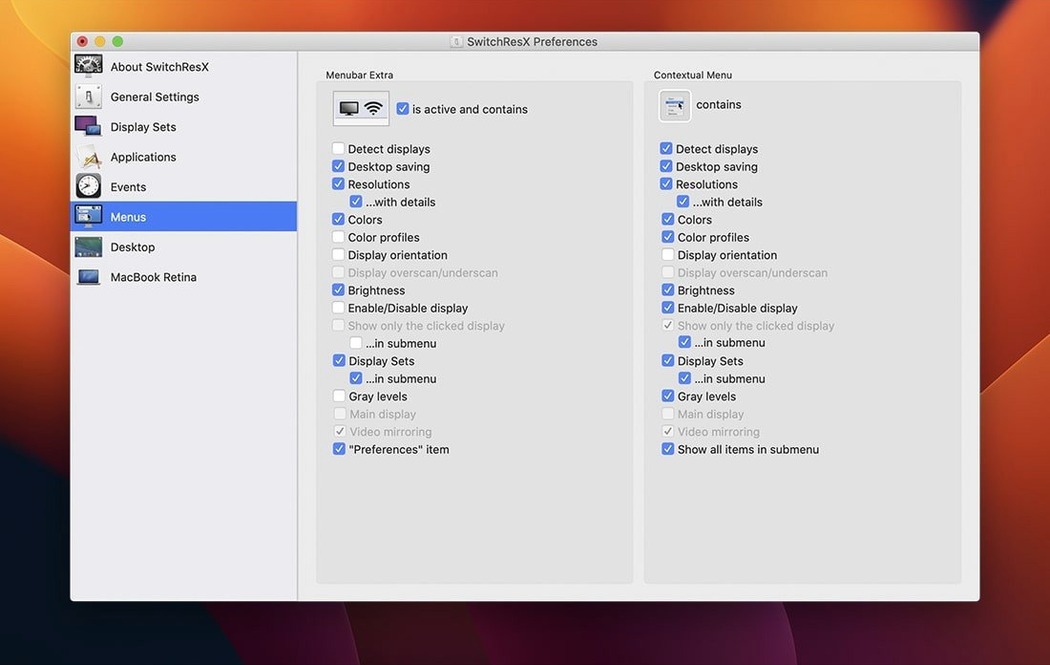
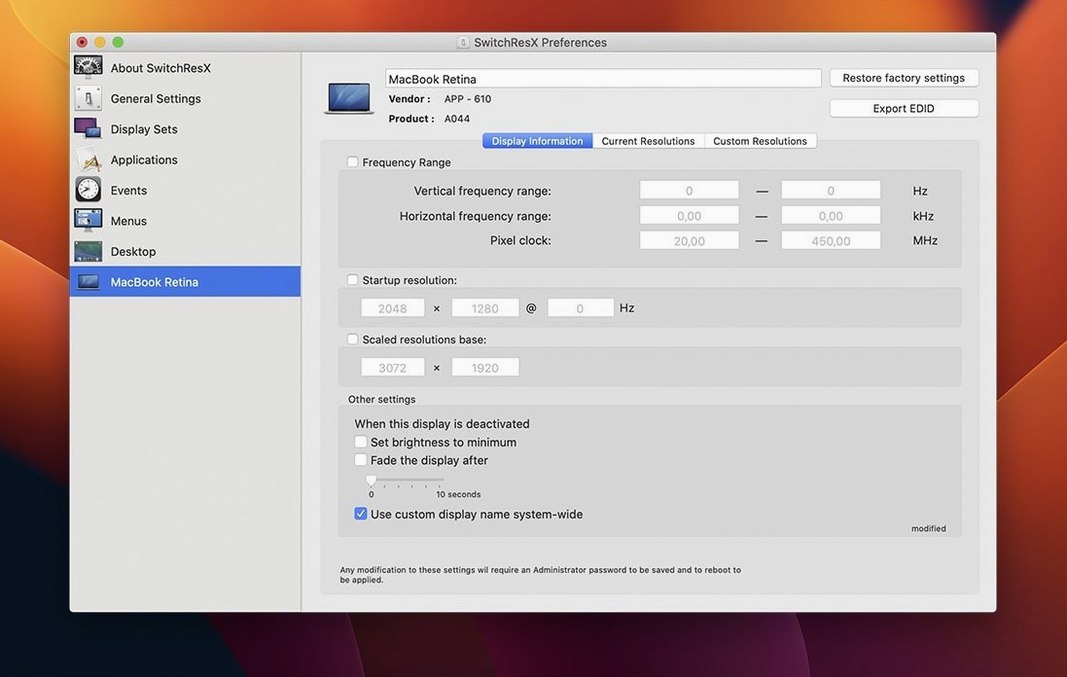
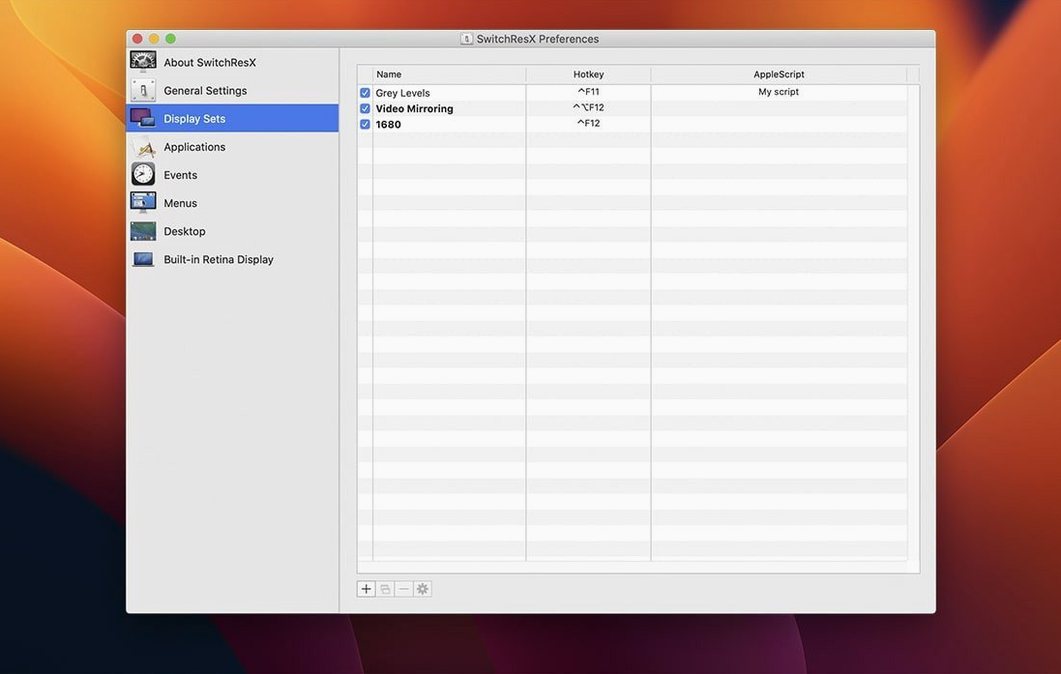
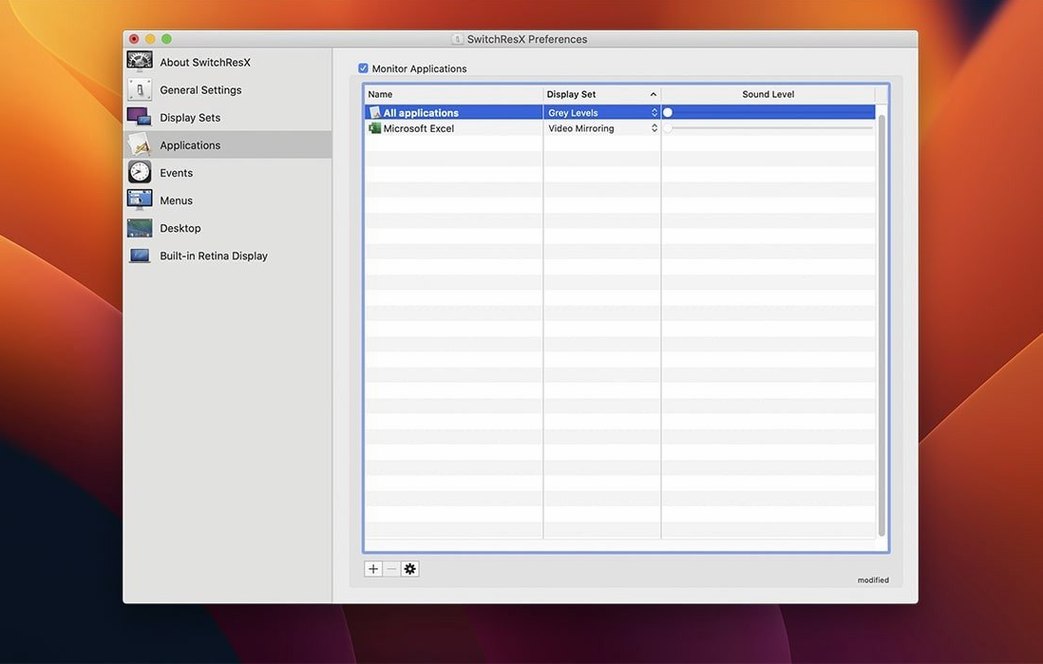
A project manager sets up two external monitors for a client presentation, only to find macOS won't let him set the right resolution for the older projector. SwitchResX gives him back that control.
What Does SwitchResX Do That macOS Can't?
macOS limits display resolutions to what the system thinks your monitor supports. SwitchResX lets you create custom resolutions, adjust color depth, rotation, and even mirror your main display to a second monitor. It works with Retina screens and external displays, and you can control everything through AppleScript if you want to automate setups for different rooms or meetings.
Before Installing: Fix for Self-Updating Settings Bug
The latest release fixes a bug where the app kept updating its own settings when no display was connected, and it now handles displays without a proper macOS name. On Apple Silicon Macs, you can quit the Dock icon after disabling a display, which older versions couldn't do. Requirements are macOS 10.10 or later on Intel or Apple Silicon. Interface is English.
Working with a Projector That Doesn't Match Your Laptop
One typical scenario: you walk into a conference room, plug your MacBook Air into the ceiling projector, and macOS picks 1920x1080. The image stretches or crops in a way that cuts off your Gantt chart columns. Here is how to fix it start to finish with SwitchResX.
- Open SwitchResX and look at the left panel. It lists every connected display, including the projector.
- Select the projector from the list. The right panel shows its current resolution, refresh rate, and color depth.
- Click "Add a new mode" below the resolution dropdown. A window opens where you enter width, height, and refresh rate manually. For a typical projector that needs 1280x720 at 60 Hz, type those numbers in.
- Name the mode something like "Conference Room 720p" so you can find it next time.
- Apply the mode. The projector switches to your custom resolution immediately. If the image looks wrong, adjust the numbers and try again.
- Save a profile for that location. Under "Display Sets," create a set called "3rd Floor Conference" that includes the projector mode and your laptop's own display settings. Next time you plug in, you switch to that set with one click.
This whole process takes about two minutes the first time. After that, it is one click per meeting.
Tuesday Morning: Auto-Resize External Monitor on Dock
Tuesday morning. I arrive and dock my MacBook. The external monitor at my desk is a 27-inch panel that macOS recognizes, but I want it at a non-standard resolution to match the text size on my laptop screen. SwitchResX opens from my menu bar. I click the icon, see my two displays listed, and select the external monitor. I pick the custom mode I saved last week. The screen refreshes and both my displays match in scale.
Midday, I move to a meeting room with a television mounted on the wall. The TV reports its native resolution as 3840x2160, but macOS scales everything too small for the people at the far end of the table. I open SwitchResX from the Dock, choose the TV, and select a 2560x1440 mode I created for that room. Text becomes readable from the back row.
After the meeting, I disconnect and my MacBook returns to its laptop-only profile automatically. SwitchResX remembers the last configuration for each display, so I never have to reset anything when I go back to my desk.
Start at Login to Beat macOS Resolution Grab
- Enable "Start at login" from the General preferences. You want SwitchResX running before you connect a second display, or macOS grabs the resolution first.
- Set a default display set for your primary monitor. If you always use the same external screen at your desk, save that as a set and assign it as the default. The app applies it automatically when that display connects.
- Turn off "Show confirmation dialog" after you are confident in your custom modes. It saves a click every time you switch.
- Create a keyboard shortcut for switching between display sets if you move between rooms often. Use the System Preferences > Keyboard > Shortcuts tab to assign a key combination to "Switch to next Display Set."
Monitor Damage Risk: Blank Screen Fallback Safety
Can SwitchResX damage my monitor?
Creating a resolution the monitor physically cannot handle will usually result in a blank screen for a few seconds, then macOS falls back to a safe mode. Stick to resolutions within the monitor's specification range. SwitchResX does not override hardware limits — it only offers resolutions macOS would otherwise hide.
Will it work with a switchresx download from a third-party site?
The utility itself is the same software regardless of where you get it. The version number matters more. Version 4.14.2 includes the fixes for display naming and the Apple Silicon Dock behavior, so that is the one to look for.
Does it interfere with macOS updates?
No. I have used it through several macOS releases. When Apple changes how it handles displays, Stéphane Madrau releases a new version to match. Check for updates after a major macOS upgrade.
Can I use it with a switchresx cracked copy and still get the same fix for unnamed displays?
The fixes are part of the application code itself, not a license check. Version 4.14.2 contains the unnamed-display fix and the Apple Silicon Dock fix regardless of how it was activated. The software either runs or it does not.
Do I need to keep it running all the time?
Only if you switch displays frequently. You can set your custom modes, save them as display sets, and quit the app. The modes stay active until you change them, but you lose the one-click switching and the automatic display detection until you relaunch.
- Fixes repeated self-updating of settings when no display is attached.
- Fixes an issue with displays that have no name in macOS.
- Fixes an issue deleting a Display Set used after another Display Set.
- Allows quitting the Dock when disabling a display on Apple Silicon Macs.
| macOS | OS X 10.10 or later |
|---|---|
| Processor | Apple Silicon, Intel 64-bit |
| Download | 6 MB |
- macOS OS X 10.10 or later
- Intel or Apple Silicon processor
- Interface language: English
How to install, in order
- Mount the downloaded disk image.
- Run the standard installation procedure.
- Use the included serials file for activation.
Comments and corrections 0
Sign in or open a free account to leave a comment.
No comments or corrections yet.