TG Pro 2.105 — download for Mac
Utilities Intel processors only Updated
Adjusts fan speeds manually or automatically from the menu bar.
Screenshots
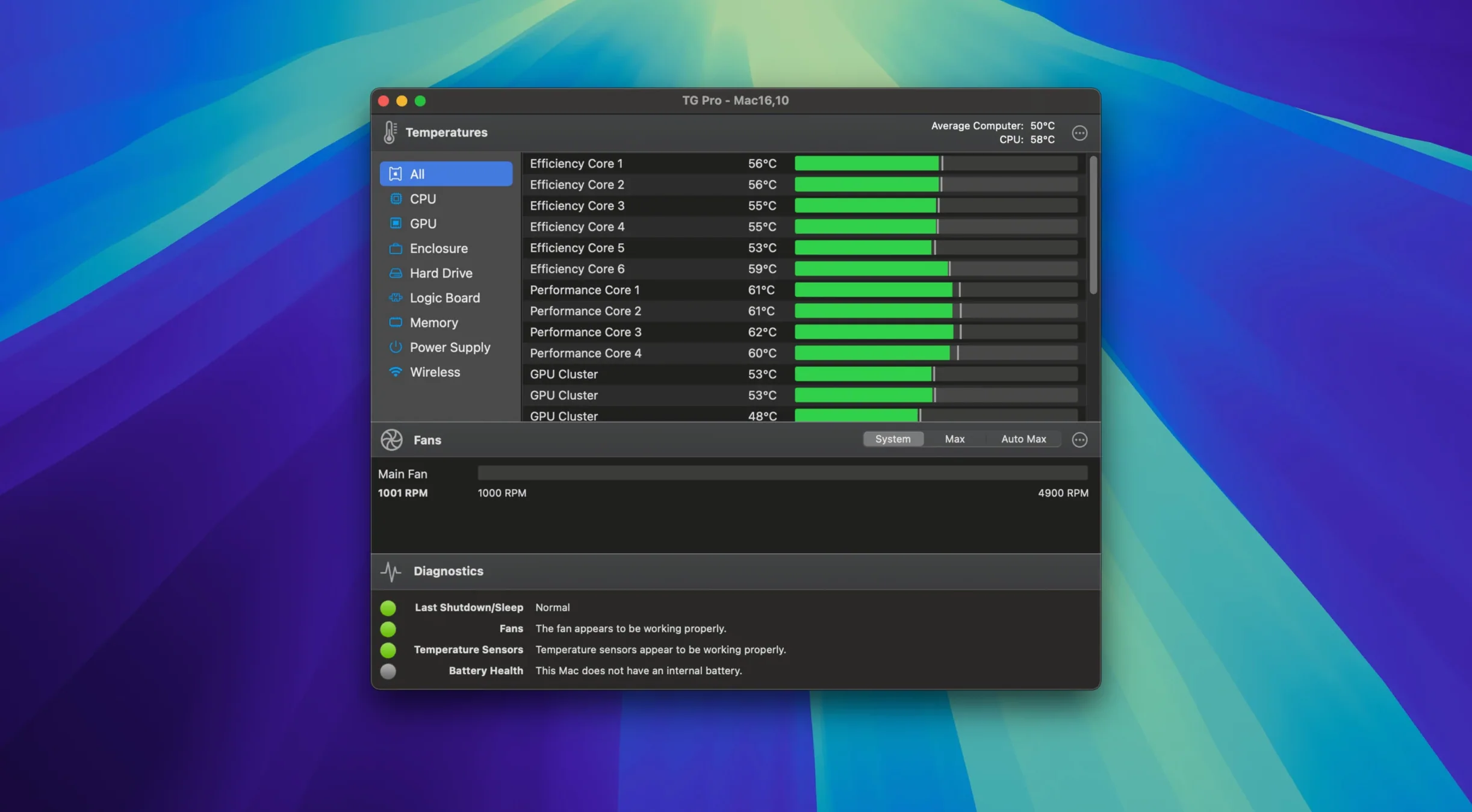
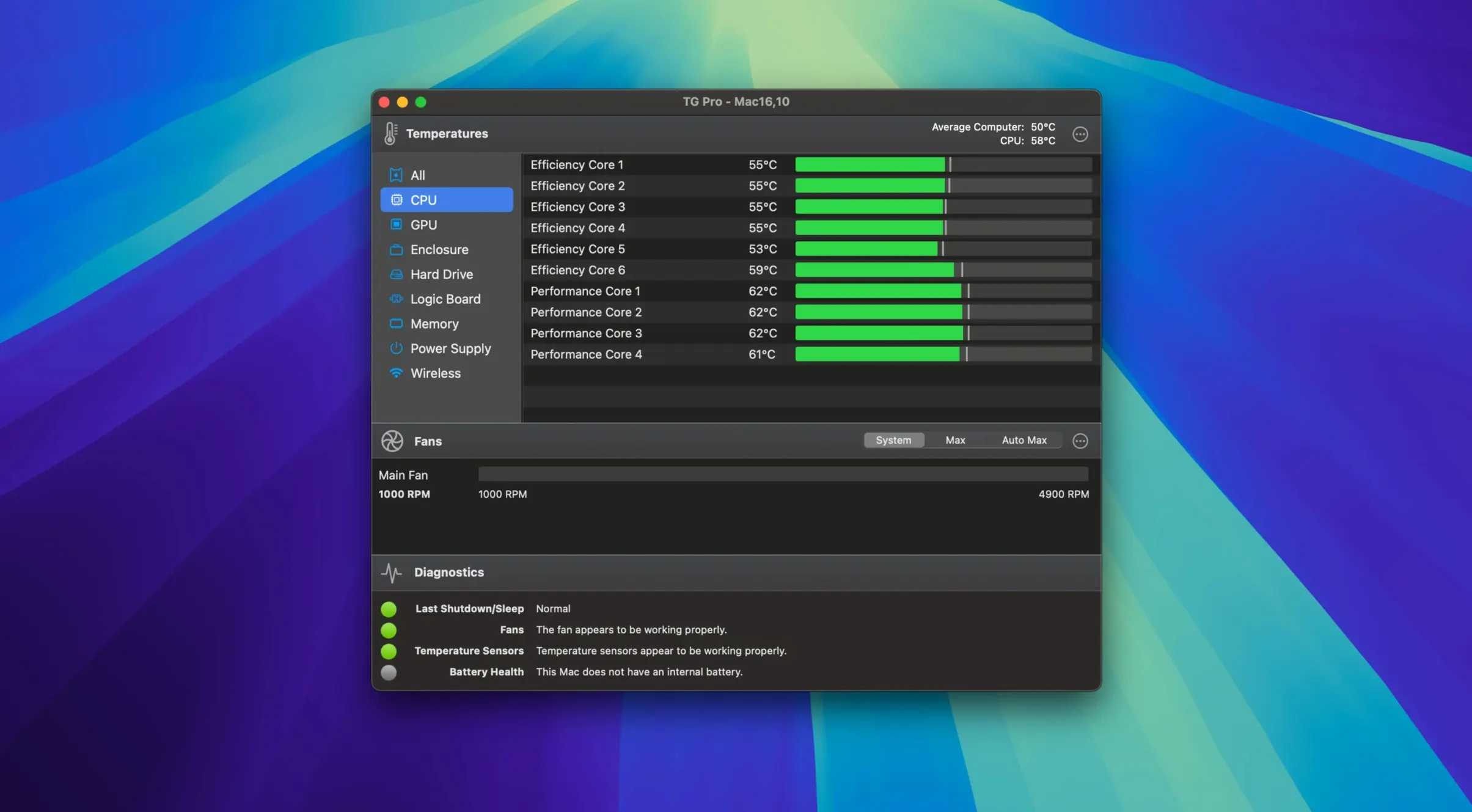
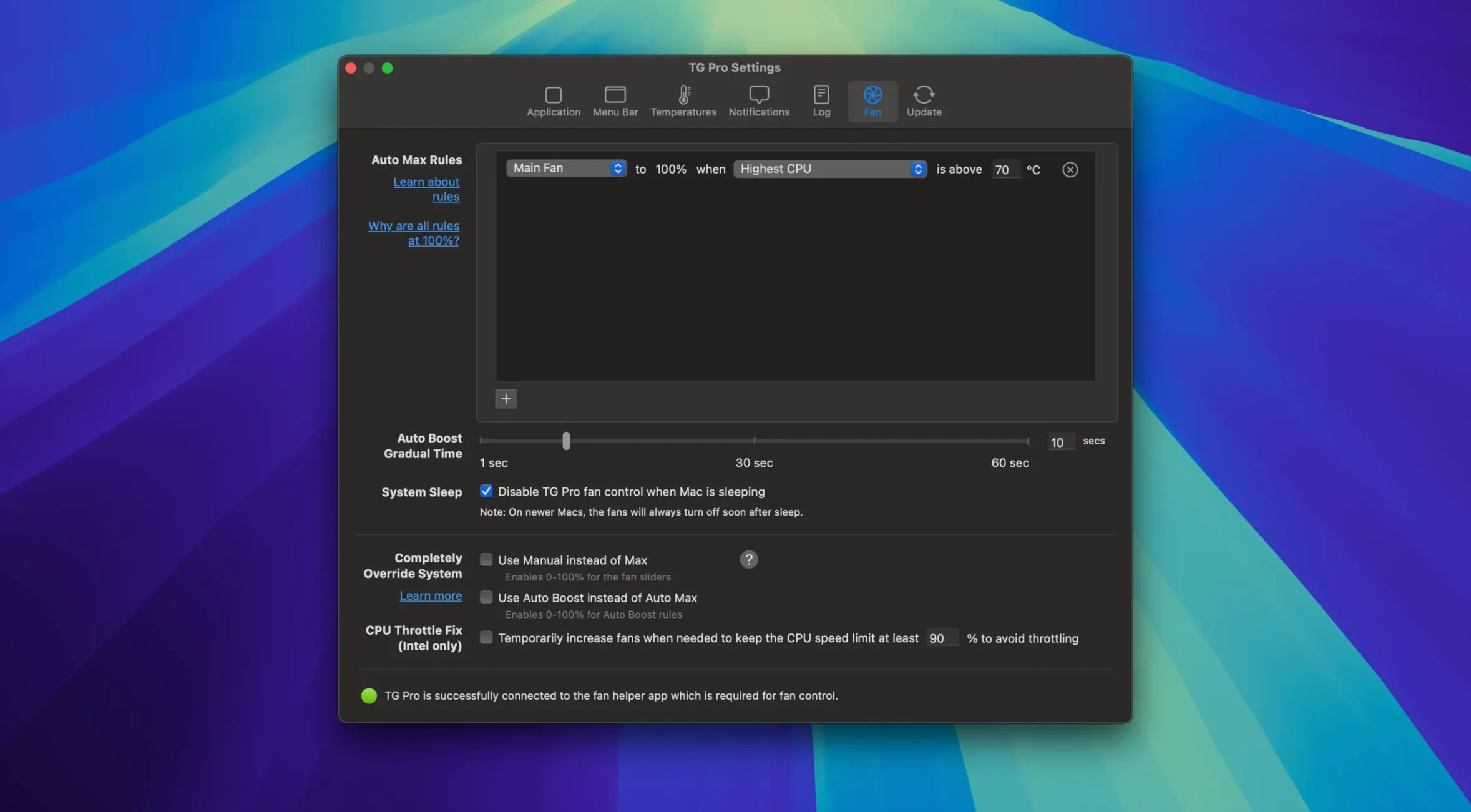
Version 2.103 of TG Pro now handles fan control on M4, M4 Pro, and M4 Max Macs, and fixes a bug where Siri or voice dictation would reset fan speeds. TG Pro runs as a low‑CPU background utility, showing temperature and fan data from the menu bar. It can adjust fan speeds manually or automatically using rules you set, and it logs temperature events with alerts when thresholds are crossed.
Hardware Data Missed by Activity Monitor
If you keep Activity Monitor or iStat Menus open, TG Pro adds the hardware‑specific data those tools don’t show — per‑sensor temperatures and direct fan control. The diagnostic tests can surface a failing sensor or a clogged fan before it causes a shutdown.
What’s Covered and What’s New
Supports macOS 10.13 High Sierra through macOS 26. Intel and Apple Silicon both work. The current version fixed Auto Boost rules that could break when switching power sources, and improved the first‑run setup. For anyone who keeps a Mac under load — renders, exports, long compiles — TG Pro is the tool that tells you when the hardware needs attention.
Workflow: Quieting a Mac Under a Long Render
You have a video export running that will take forty minutes. Here is how TG Pro handles that session from start to finish.
- Open TG Pro from the menu bar icon. The main window shows an immediate temperature readout for the CPU, GPU, and logic board. Fan speeds in RPM appear next to each sensor.
- Switch to the Fans tab. The current curve is the system default — aggressive, aimed at keeping everything cool regardless of noise.
- Set a manual fan speed to 60 percent. The noise drops immediately. Keep an eye on the CPU temperature in the menu bar graph.
- For a set‑and‑forget approach, create a custom fan rule. The rule runs without further input.
- When the export finishes, switch back to Auto.
The whole process takes about thirty seconds of setup. You do not need to keep TG Pro in the foreground — the menu bar icon and optional alerts handle the monitoring.
A Typical Session: Diagnosing a Hot Laptop
Wednesday afternoon. A colleague’s MacBook Pro runs hot while doing nothing obvious.
Install TG Pro. Open it. The menu bar graph confirms the temperature holds steady, not spiking. That rules out a stuck background process.
Run the diagnostic test from the Tools menu. TG Pro checks the temperature sensors one by one. The test finishes in under a minute. The log shows the system board sensor is five degrees higher than the CPU sensor. That points toward restricted airflow rather than a software fault.
Check the fan speed tab. The single internal fan is running at 2200 RPM — well below its maximum. Raise it to 4000 RPM manually. The system board temperature drops six degrees in two minutes. Save the rule. The laptop stays quiet at desk duty and only ramps up when it needs to.
The whole session takes ten minutes, including the diagnostic run. TG Pro logs the temperature data, so if the problem returns you have a record to compare.
Fan Override Without System Modifications
The Mac’s firmware still controls fans by default. TG Pro simply lets you override that control when you want to. Switching back to Auto returns everything to the factory curve. The utility does not patch or modify system files — it talks to the fan controller through the normal macOS interfaces.
Can it damage the hardware by running fans too fast or too slow?
The manual fan control lets you set any speed the fan supports. Running at maximum speed for long periods is safe — the fans are designed for that. Running too slow for the current load can cause heat buildup, but the menu bar graph and alerts give you real‑time feedback. Most people settle on a speed or rule that balances noise and temperature within a few minutes.
Does it work on Hackintosh systems?
Yes. A preference toggle in TG Pro enables Hackintosh support. The developer acknowledges that sensor and fan data on non‑Apple hardware can be incomplete, so the diagnostics may report fewer sensors. Fan control still functions if the hardware exposes the right interfaces.
Will it slow down my Mac?
TG Pro runs in the background with low CPU usage. The developer states that CPU usage is minimal. The interface uses standard system calls — no constant polling that would eat cycles. You can leave it running for days without noticing it in Activity Monitor.
Is there a reason to keep it running all the time?
The logging and alert features are useful for tracking long‑term hardware health. The menu bar graph also gives you a quick read of system temperature without opening any window.
Temperature Monitoring Added to RPM Control
Macs Fan Control focuses entirely on fan speed. You set RPM values per fan and that is it. TG Pro adds temperature monitoring, diagnostics, and alert logging in the same window. Macs Fan Control has a smaller footprint — literally fewer features — and no Hackintosh toggle. If you only need to quiet a fan once, Macs Fan Control is enough. If you want to understand why the fan is loud, TG Pro gives you the sensor data and test tools to answer that.
iStat Menus shows a broad system overview — CPU load, memory, network, disk activity — with temperature as one part of that display. It does not control fans at all. You can see the temperature rise, but you cannot do anything about it from within the app. TG Pro covers temperature and fan control only, but it handles both in detail. For a team member who manages several Macs, iStat Menus provides the overview and TG Pro provides the action.
HWMonitor for macOS (the Mac port of the Windows tool) reads sensor data and displays it in a table. It does not offer fan control or rule‑based automation. The interface is a single static window — no menu bar graph, no logging. TG Pro is the more complete tool for anyone who needs to change fan behavior, not just read sensors.
TG Pro 2.105 is now available, bringing the app up to date for current macOS versions with the usual under-the-hood optimizations.
| macOS | macOS 10.13 or later |
|---|---|
| Processor | Intel 64-bit |
| Download | 15 MB |
- macOS 10.13 or later
- Intel 64-bit processor
Questions about TG Pro
Does TG Pro work with Apple Silicon Macs?
Yes, TG Pro runs on both Intel and Apple Silicon Macs. Version 2.103 added complete fan control for M4, M4 Pro, and M4 Max models.
Can I set automatic fan speeds?
Yes. TG Pro supports manual fan speed adjustment and automatic rules based on temperature thresholds. You can configure Auto Boost rules that respond to power source changes.
How to install, in order
- Open the downloaded disk image.
- Drag the app into the Applications folder alias.
- Once copying finishes, launch the app from Launchpad.
Comments and corrections 0
Sign in or open a free account to leave a comment.
No comments or corrections yet.