VideoByte BD-DVD Ripper 2.1.6 — download for Mac
Utilities Intel processors only Updated
Reads Blu-ray and DVD discs and outputs standard digital video and audio.
Screenshots
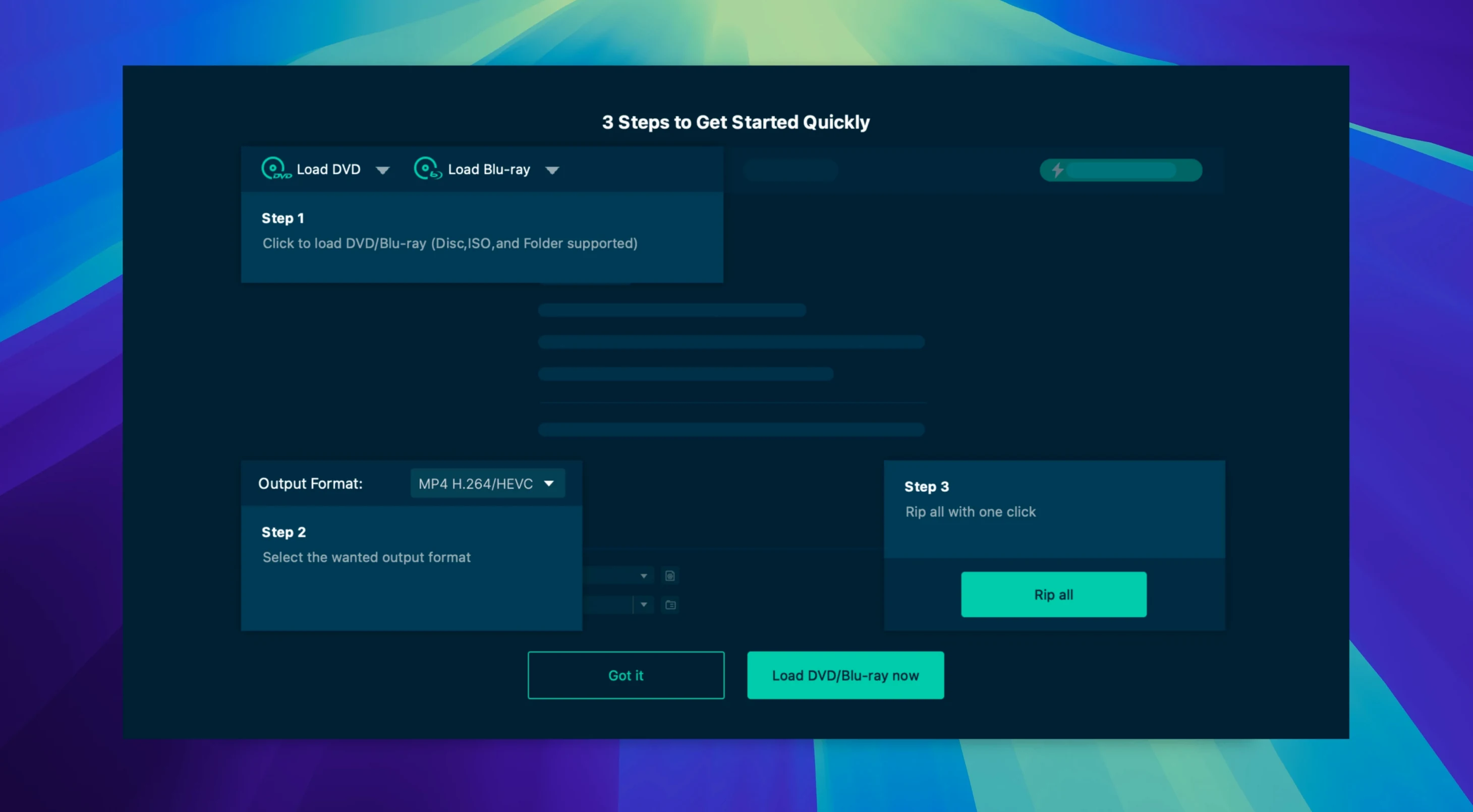
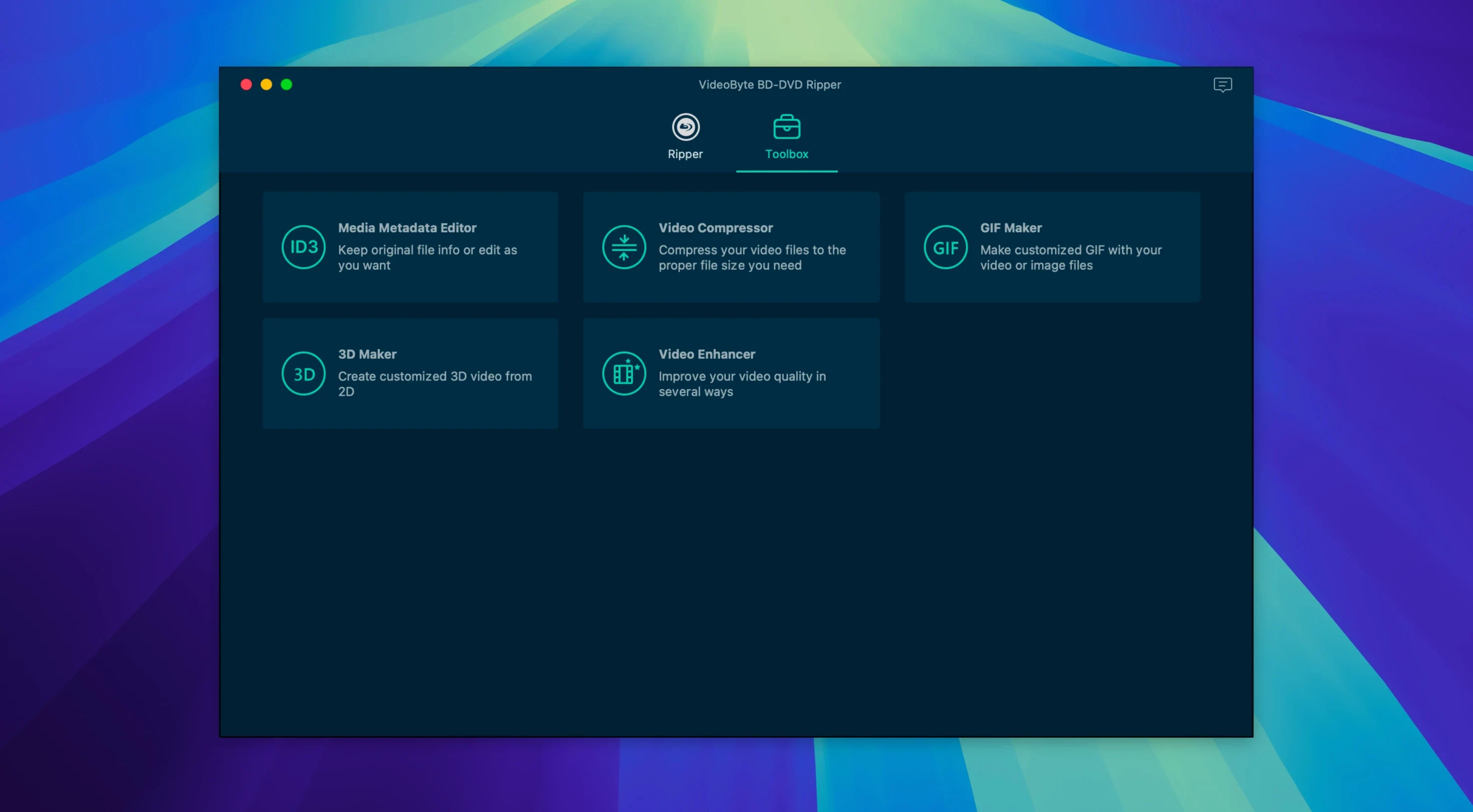
The same way you use a file converter to repackage a video from one format to another, VideoByte BD-DVD Ripper takes that idea and applies it to physical discs and disc images. It reads Blu-ray and DVD discs, BDMV/VIDEO_TS folders, and ISO files, then outputs them as standard digital video and audio files.
Disc-to-digital conversion — Rips from disc, folder, or ISO to more than 300 output formats.
Audio and subtitle passthrough — Original audio tracks and subtitle streams can be carried into the output file.
Device presets — Preconfigured profiles for Apple, Samsung, and Sony gear.
Built-in editor — Trim, rotate, crop, add a watermark, apply filters and effects before you export.
System notes — Runs on Intel Macs with OS X 10.10 or later. Interface in English, German, French, Japanese.
Working with Other Mac Apps and OS Features
Once VideoByte BD-DVD Ripper produces your files, they land as standard MP4, MKV, MOV, or other common formats. That means they open directly in QuickTime, VLC, or iTunes without any intermediate conversion. If you keep a media library in Plex, Emby, or a simple folder structure, the output files join the collection as-is.
The app reads ISO files and BDMV/VIDEO_TS folders from your hard drive, so you can rip discs in bulk, keep the images on an external drive, and process them later. This workflow fits well with macOS file management: drop an ISO onto the desktop, point the app at it, and export to your Movies folder. No need to keep the optical drive spinning for each conversion.
Because the output formats are standard, you can drag finished files straight into iMovie or Final Cut Pro for further editing. The built-in trim and crop tools handle rough cuts before export, but the clean MP4 or MOV output gives you a ready source for more complex projects.
Conveniences That Are Easy to Miss
VideoByte BD-DVD Ripper includes hardware acceleration support for NVIDIA, Intel, and AMD technologies. On compatible Macs, this can reduce the time spent waiting for a full disc to convert. The option is part of the settings, not something you have to hunt for.
The subtitles and audio language selection is straightforward — the app lists available tracks from the disc or folder, and you pick which ones to include. If you only want the English audio and forced subtitles, you do not have to extract everything and sort it later.
Preset profiles for Apple, Samsung, and Sony devices are preloaded. If you regularly transfer movies to a tablet or a media player, you can set the format and resolution once and reuse that profile for every disc. No need to guess bitrates or frame sizes each time.
Default Output Folder Clutters Your Drive
Before you run a full disc rip, open the preferences and set the output folder to a location you actually use — the default might be the same folder as the input, which can get cluttered with large files. Pick a dedicated Movies or Converted folder instead.
Check the hardware acceleration toggle if your Mac has a compatible GPU. It is usually enabled by default, but it is worth verifying so longer rips take advantage of the hardware.
Set your preferred output format and resolution. If you mostly watch on a laptop screen, there is no point exporting at full 1080p for every disc. A 720p MP4 preset saves space and time for casual viewing, while the full-resolution MKV preset keeps everything for archive purposes.
HandBrake Lacks Built-In Blu-ray Decryption
HandBrake — The open-source standard for video conversion, HandBrake handles DVD and Blu-ray sources with libdvdcss and libaacs. It is free and powerful, but it does not include a built-in disc opener for encrypted Blu-rays on its own — you often need a separate library or a decryption tool. VideoByte BD-DVD Ripper bundles the decryption layer (CSS, AACS, BD+, Cinavia, APS, CPRM) into the app, so you can insert a disc and start without extra setup. HandBrake also lacks the device-specific presets for Samsung or Sony hardware; you configure those yourself.
MakeMKV — This app focuses on creating MKV files from discs and folders, preserving all audio and subtitle tracks. It handles encryption well and works fast. But it outputs only MKV — no MP4, MOV, WMV, or audio-only options. VideoByte BD-DVD Ripper gives you more than 300 output formats and the built-in editor for trimming or cropping before export. If your workflow ends with MP4 for mobile devices, MakeMKV requires an additional conversion step.
DVDFab — A full-featured suite that includes ripping, copying, and converting, DVDFab covers the same ground but with a steeper learning curve and a larger install footprint. VideoByte BD-DVD Ripper is a single-purpose tool that does the disc-to-digital job with fewer panels and options to navigate. For someone who wants to rip a disc, trim a few scenes, and move on, the simpler interface may be the better fit.
No release notes filed for 2.1.6. They are added here when a build changes how the program behaves.
| macOS | OS X 10.10 or later |
|---|---|
| Processor | Intel 64-bit |
| Download | 124 MB |
- macOS OS X 10.10 or later
- Intel (x86 64-bit) processor
- Interface languages: English, German, French, Japanese
Questions about VideoByte BD-DVD Ripper
Can I rip a Blu-ray disc directly on a Mac?
Yes — the app reads Blu-ray discs, DVD discs, BDMV/VIDEO_TS folders, and ISO images.
Does this keep the original subtitles from the disc?
Yes, it preserves original audio tracks and subtitle streams in the output file.
What Macs are supported?
It runs on Intel-based Macs with OS X 10.10 or later.
How to install, in order
- Mount the disk image and run the Gatekeeper-friendly launcher.
- Press Enter in Terminal to bypass Gatekeeper.
- Drag the app to the Applications folder.
- Open the app from Applications after installation.
Comments and corrections 0
Sign in or open a free account to leave a comment.
No comments or corrections yet.