Aiarty Video Enhancer 3.9 — download for Mac
Video Updated
Rebuilds clarity in old footage by upscaling standard-definition video to 4K resolution.
Screenshots
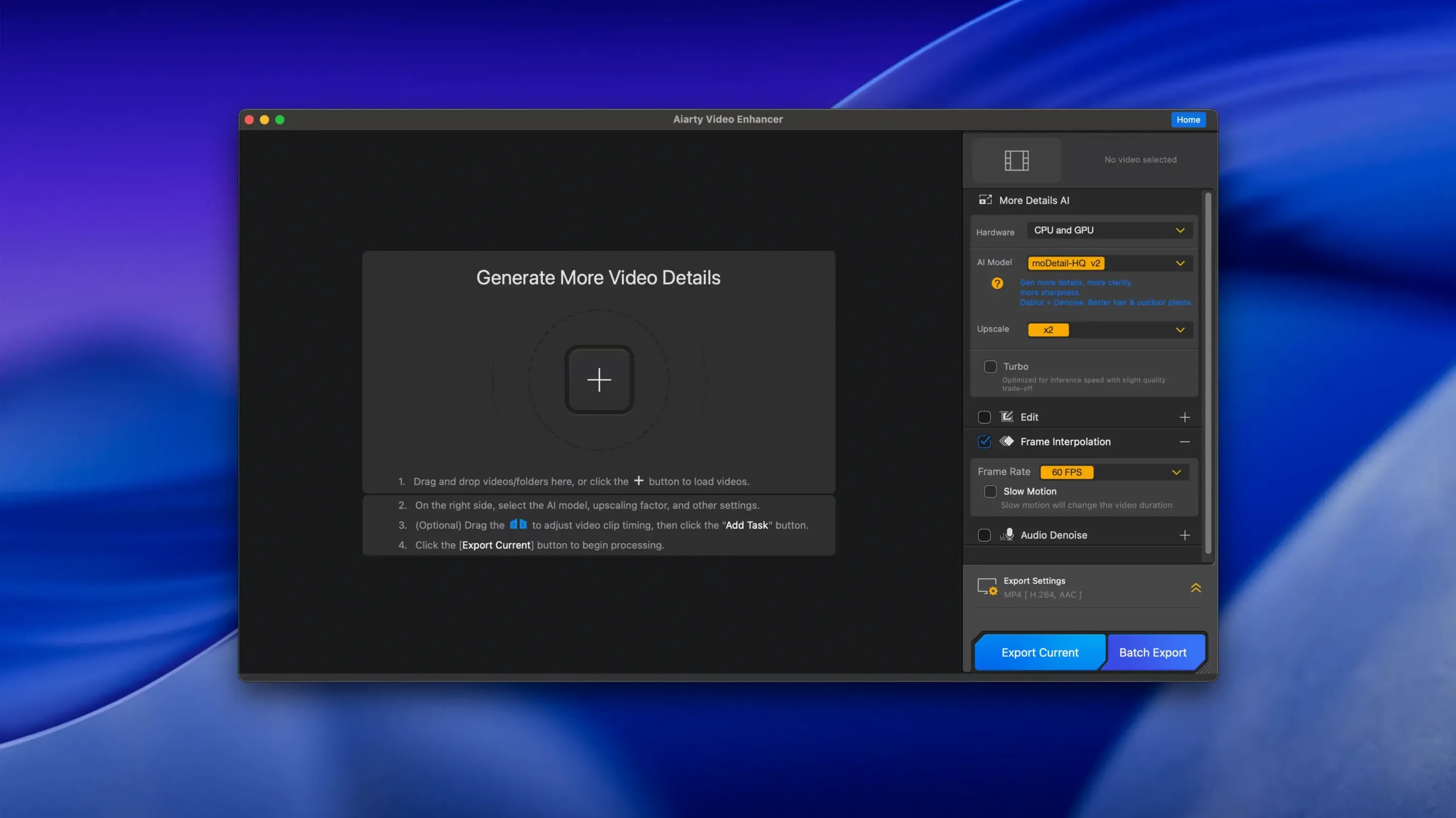
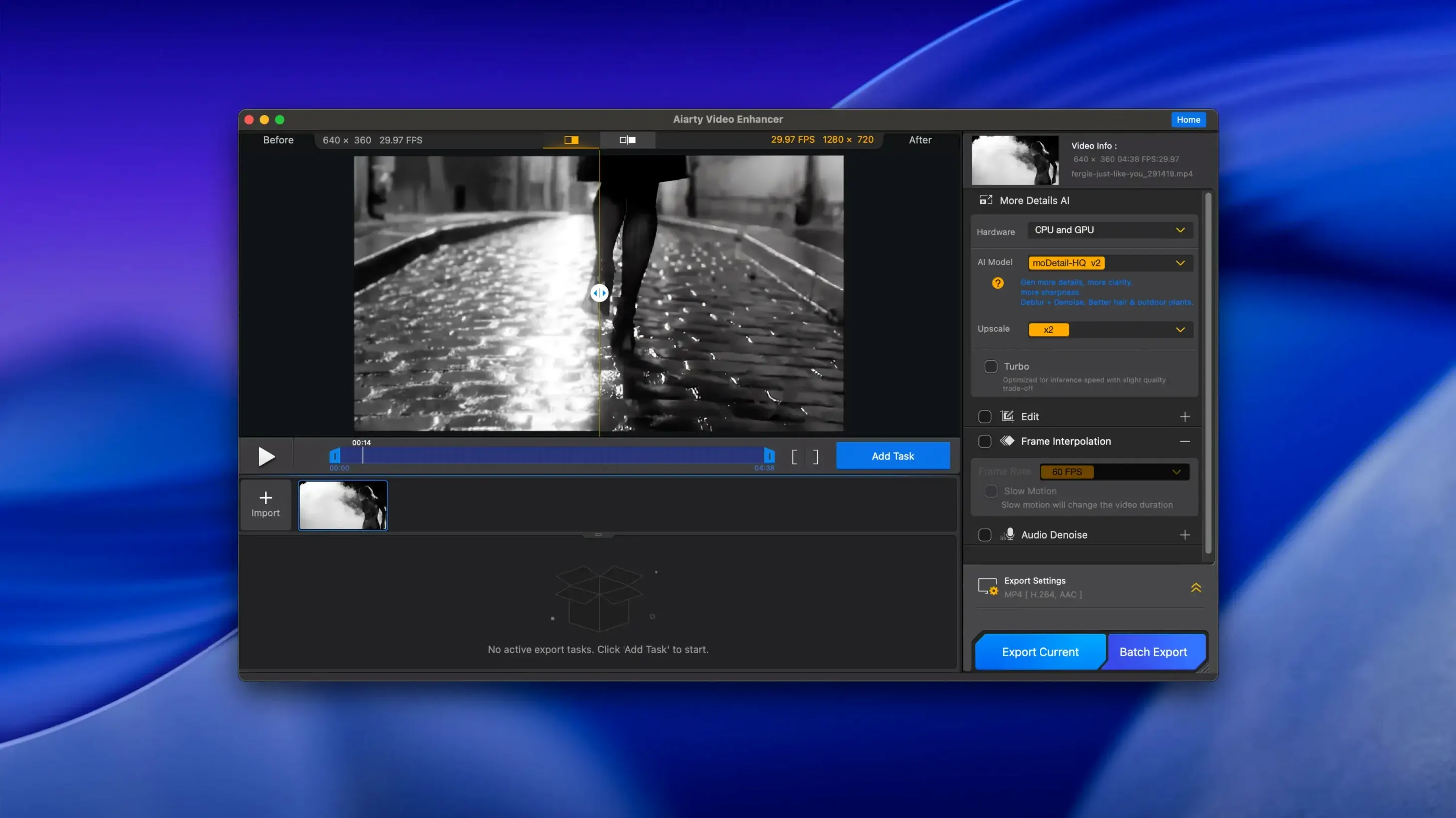
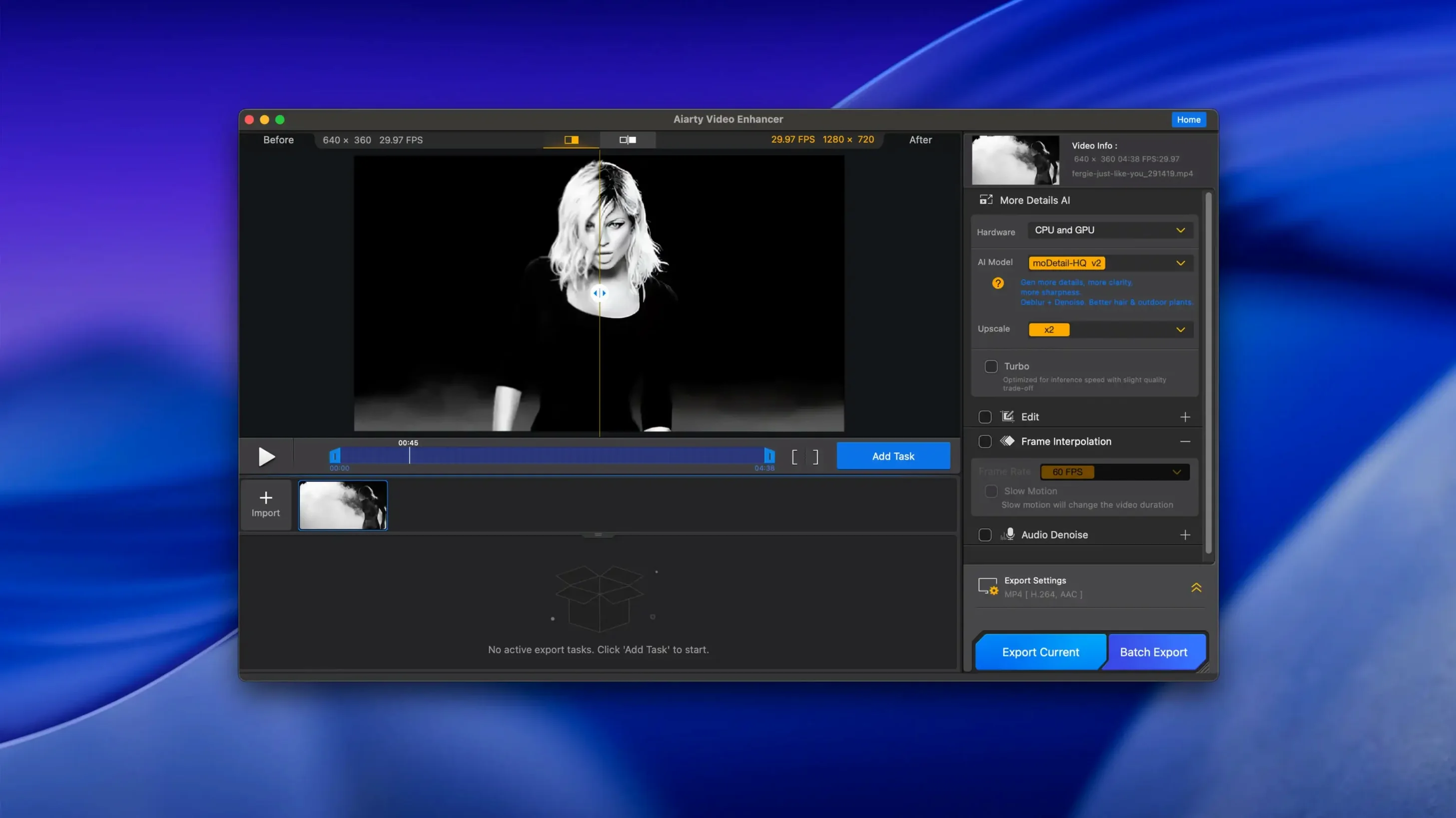
Video editors and archivists repairing old footage use Aiarty Video Enhancer to rebuild clarity with AI models instead of manual masking passes.
How the core tools work
Upscaling — Reconstructs standard-definition video to 4K resolution by generating missing pixel data through trained models, not simple stretching.
Denoising — Strips grain and sensor noise from low-light clips while preserving edge contrast, so faces and textures stay sharp.
Deblurring — Recovers focus from motion-blurred frames and soft lenses, tightening outlines that were lost during capture.
Frame interpolation — Synthesizes intermediate frames to create smooth 8X and 16X slow motion without stutter or ghosting artifacts.
Audio cleanup — Reduces background hum and hiss in the same pass, aligning sound clarity with the restored picture.
Test With a 30-Second Clip First
After you mount the disk image, bypass Gatekeeper, and drag Aiarty Video Enhancer into your Applications folder, take a moment to set things up before diving into a full project.
Start with a short test clip. Choose a 30‑second piece of footage — something with a mix of motion, faces, and some background noise. Run it through the denoising tool first. This gives you a baseline: you see how the AI handles your source material without committing hours to a long export. If the result looks oversharpened or too soft, adjust your approach before touching the main project.
Organize your source files. Aiarty Video Enhancer works with the files you point it at, so keep originals in a dedicated folder. Name them clearly — clipl_basement_camera.mov rather than video_01.mov. When you are running multiple passes on different clips, clear naming saves time locating the right source.
Understand the resumable export feature. One of the additions in version 3.8 is that exports can be paused and resumed. If your Mac needs to restart for updates or you run out of time mid‑render, the job picks up where it left off. Test this with your short clip: start an export, interrupt it, and verify that the resumed file plays correctly.
Check your storage. The requirements note 512 GB of disk space. Processed 4K files can be large, especially with frame interpolation enabled. An external SSD for storing exports is a practical addition if you work with long recordings.
How Aiarty Video Enhancer fits with other apps and macOS features
MacOS users often have a workflow that spans multiple tools. Aiarty Video Enhancer slots in between capture and final editing.
Import pipeline — You can drag clips directly from Finder or from a memory card into the app. No special import dialog needed. The app recognizes common formats, and with version 3.8 now handles MKV files, which are common for screen recordings and some camera systems.
Export for editing — The enhanced video can be saved in formats that DaVinci Resolve, Final Cut Pro, or Premiere Pro can import. You do not need to convert again. The AI processing happens inside Aiarty Video Enhancer; your editing app receives a cleaner, upscaled file ready for cuts, color grading, and effects.
macOS features that help — Apple Silicon Macs run the app natively, so you do not lose performance through emulation. If you are on an Intel Mac with a dedicated GPU of 4 GB VRAM or more, the CUDA memory optimizations in version 3.8 help keep longer processing sessions stable. The Gatekeeper bypass step during installation is a one‑time action; after that, the app behaves like any other macOS application.
File management — You can use macOS tags and smart folders to track your original and processed files. For example, tag all source clips with "raw" and exports with "enhanced_4K." This keeps your project folder organized without relying on the app itself for cataloging.
Rosetta and VPN — The install steps note that Rosetta and a VPN may be needed. If you are on an Intel Mac running an ARM‑targeted version, Rosetta translates instructions. A VPN can be useful if your network restricts certain downloads during the installation phase. After setup, neither is required for daily use.
Fix Gatekeeper Launch Issues
New users sometimes hit a few predictable issues. Here is what to look for:
App does not launch after installation. The Gatekeeper bypass is the usual cause. Open Terminal, press Enter after mounting the disk image, and make sure you drag the app into the Applications folder. If the app still does not open, check that your macOS version is 11 or later — older releases are not supported.
Export stops partway. Before version 3.8, you might need to restart the entire export. With resumable exports, you can simply reload the same project and the app continues from the last saved point. If the export fails repeatedly, check that your system drive has enough free space and that the source file is not corrupted.
Audio denoise is too aggressive on certain clips. The one‑click Audio Denoise module is designed for common background noise. If your clip has specific sounds — like wind rumble or electrical hum — you may prefer to run the audio cleanup separately in a dedicated audio editor. The video enhancement itself is not affected; you can choose to skip the audio pass entirely.
Frame interpolation produces artifacts in fast motion. The AI does well with predictable motion, but very fast or erratic movement can cause occasional ghosting. For those scenes, try applying interpolation only to the sections that need it, rather than the whole clip. You can split the video into segments and process each separately.
Slow performance on Intel Macs without dedicated GPU. The requirements mention a dedicated graphics card with 4 GB VRAM for Intel Macs. If you are running on integrated graphics, the AI models will process, but expect longer export times. Consider working with shorter clips or lowering the output resolution for preview passes.
No Extra Models or Downloads Needed
Do I need to install additional AI models or download extra data? No. The app includes everything needed. After installation, you open it and start working. No separate model downloads or library updates are required.
Can I process multiple files in a batch? Aiarty Video Enhancer processes one clip at a time. You load a file, apply the enhancements you want, and export. For batch work, you set up each clip individually. The resumable export in version 3.8 helps if you need to step away between clips.
Will it work with 4K input? Yes. The app accepts high‑resolution source files. The upscaling tool is primarily for SD to 4K, but you can also apply denoising and deblurring to already‑sharp 4K footage to clean it up further.
Is the audio denoise separate from the video processing? It is integrated into the same workflow. When you select a clip, you can enable Audio Denoise in the same pass as upscaling. You do not need to export the video first and then process audio separately.
Does the app support subtitles or embedded metadata? It processes the video and audio tracks. Subtitles and metadata are not preserved in the export. If you need to keep subtitles, add them after enhancement in your editing software.
What if my Mac has 8 GB of RAM? That meets the minimum requirement. For longer clips or heavy use of frame interpolation, 16 GB or more helps keep the system responsive while processing.
Rescuing 1990s MiniDV Family Tapes
Ana runs a video production company in Braga. A client brought her a box of MiniDV tapes from the 1990s — family weddings, birthday parties, holiday trips. The tapes had been digitized years ago at standard definition, but the resulting files were grainy, slightly blurry, and carried a constant hiss from the camera microphone.
She used Aiarty Video Enhancer to process the clips one by one. For each file, she applied denoising to remove the grain, deblurring to tighten the soft focus, and upscaled to 4K. The Audio Denoise module cut the hiss without making voices sound hollow. The client received restored videos that looked and sounded far cleaner than the originals, ready for a family reunion screening.
Ana appreciated the resumable export feature. Some of the longer clips took over an hour to process, and she could pause the export when she needed to attend meetings. The MKV support in version 3.8 let her handle a few files that had been saved in that format by the digitization service. No extra conversion steps were needed.
No release notes filed for 3.9. They are added here when a build changes how the program behaves.
| macOS | macOS 11 or later |
|---|---|
| Processor | Apple Silicon, Intel 64-bit |
| Download | 182 MB |
- macOS 11 or later
- Apple Silicon or Intel 64-bit processor
Questions about Aiarty Video Enhancer
Does Aiarty Video Enhancer run on Intel Macs?
Yes, it supports Intel processors. A dedicated GPU with 4 GB VRAM or more is required on Intel Macs.
What disk space does the Mac version need?
The listed requirement is 512 GB or more of disk space, along with 8 GB of RAM.
Which version added MKV support?
MKV support was added in version 3.8, alongside resumable exports and CUDA memory optimizations.
How to install, in order
The installer arrives at roughly 182 MB and requires macOS 11 or later on an Intel 64‑bit or Apple Silicon Mac. Four steps take it from disk image to application.
- Mount the disk image and open the Gatekeeper bypass utility.
- Press Enter in the Terminal window that appears to handle the Gatekeeper check.
- Drag the application into your Applications folder.
- The app is ready to use. You might need to open it once with Rosetta and use a VPN connection.
Comments and corrections 0
Sign in or open a free account to leave a comment.
No comments or corrections yet.