
Elmedia Player Pro 8.24 — download for Mac
Video Updated
Plays nearly any video format with loop and frame controls on screen.
Screenshots
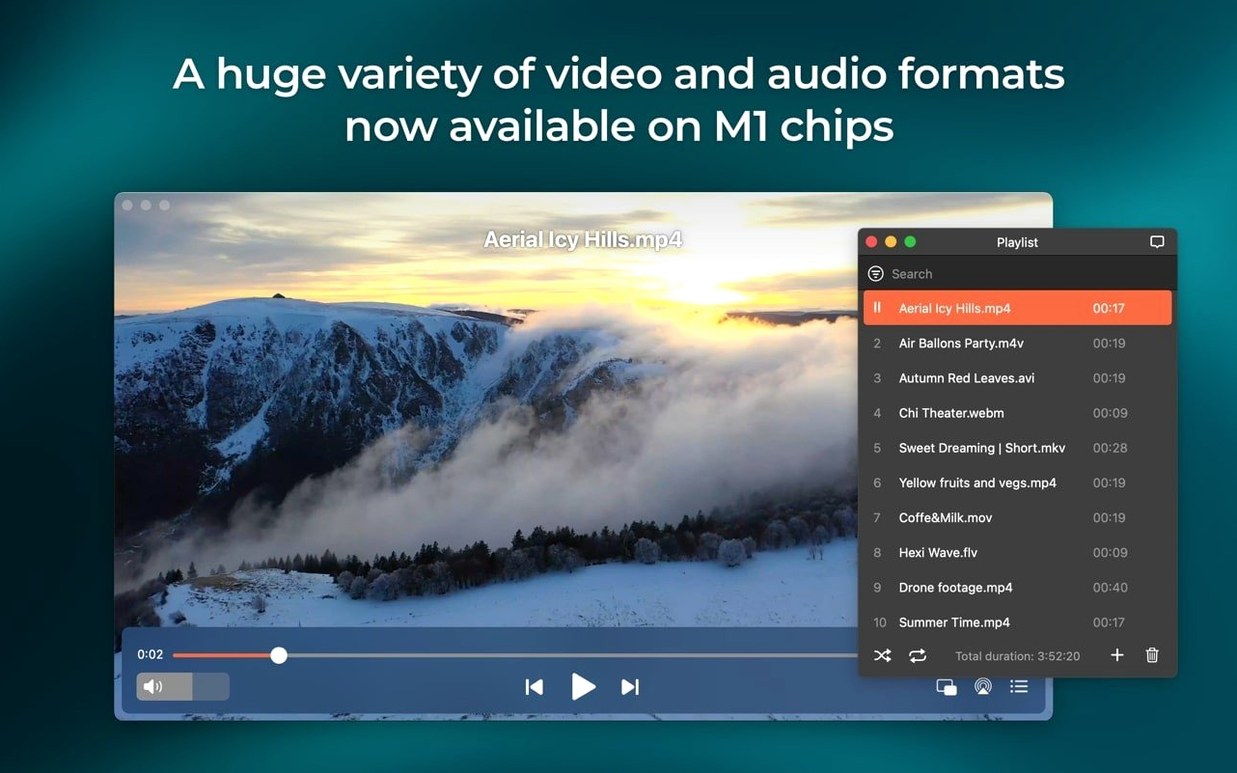
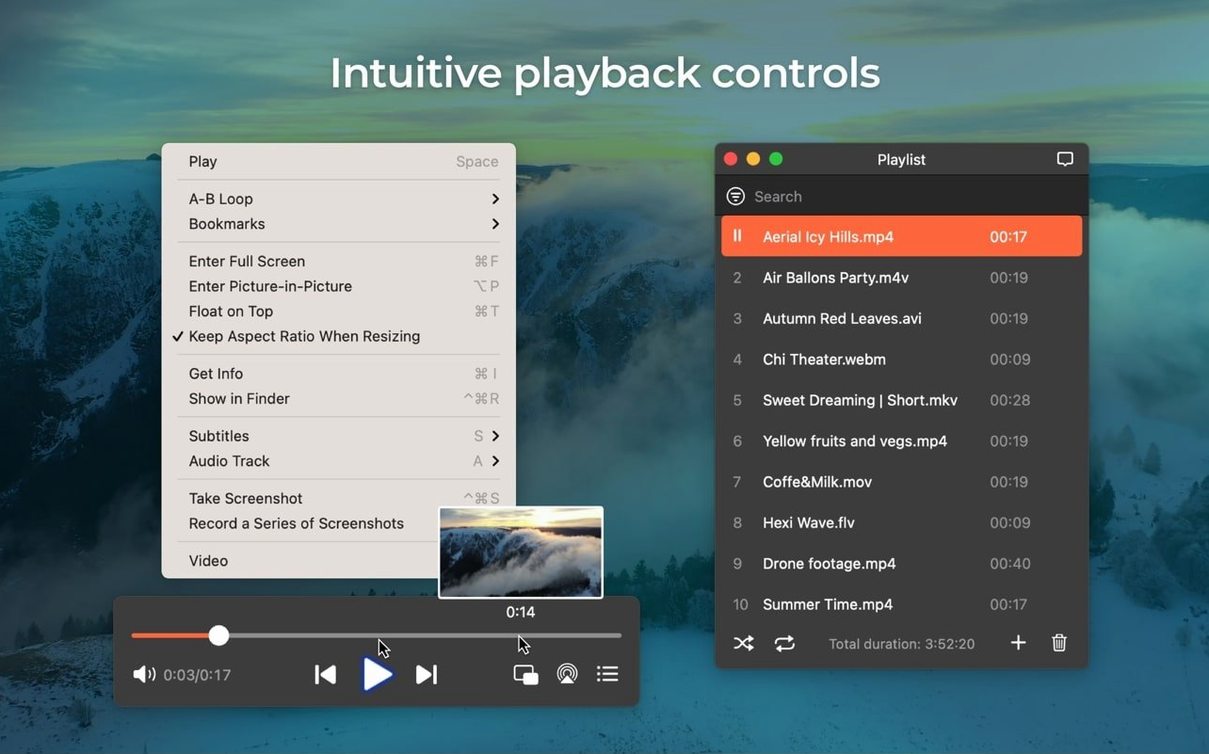
Start with the loop feature. It is a small toggle, but for reviewing a scene in an AVI or checking a frame in an MKV, it saves clicking back every few seconds. Elmedia Video Player Pro for Mac puts that and a dozen other controls right on the screen without burying them in menus.
Play virtually any file
The player handles FLV, SWF, WMV, AVI, MOV, MP4, MKV, and a dozen more formats. Hardware-accelerated decoding keeps HD playback smooth even on older Macs. Audio output can be routed to headphones, speakers, or another device without messing with system settings.
Download and play online video
A built-in browser lets you play online video inside the player. You can also download the video or just the audio track from RTMP streams. Version 8.24 fixed streaming to certain devices and improved the Mac sleep prevention while streaming.
Convert old Flash files
If you have EXE files from the Flash era, Elmedia can convert them to SWF. It is a narrow feature, but if you maintain a library of older training materials or animations, it means you can still open them on a modern Mac.
Drag-and-drop mixed-format playback
Monday morning, I have a folder of project walkthroughs shot on site. They came in as MOV and AVI files, mixed in with a WMV that a subcontractor sent. I drag the whole folder onto the player window. Elmedia reads the directory and lists the files on the left panel. I double-click the first MOV file and it starts playing within a second. No codec search, no “converting” dialog.
Halfway through, I notice a measurement I need to check. I pause the video and use the screenshot tool to capture the frame. The app asks where to save it and lets me pick between TIFF, PNG, or GIF. I set it to PNG so I can paste it into a project note later. That takes about three seconds total.
Next, I need to review an online training video that our office streams from a private server. Instead of opening Safari, I use the built-in browser inside the player. The video loads and plays in the same window. I do not need to switch apps or copy URLs. While it plays, I adjust the audio output to my headphones because the office is getting noisy. The setting is a drop-down in the player toolbar, not hidden in system preferences.
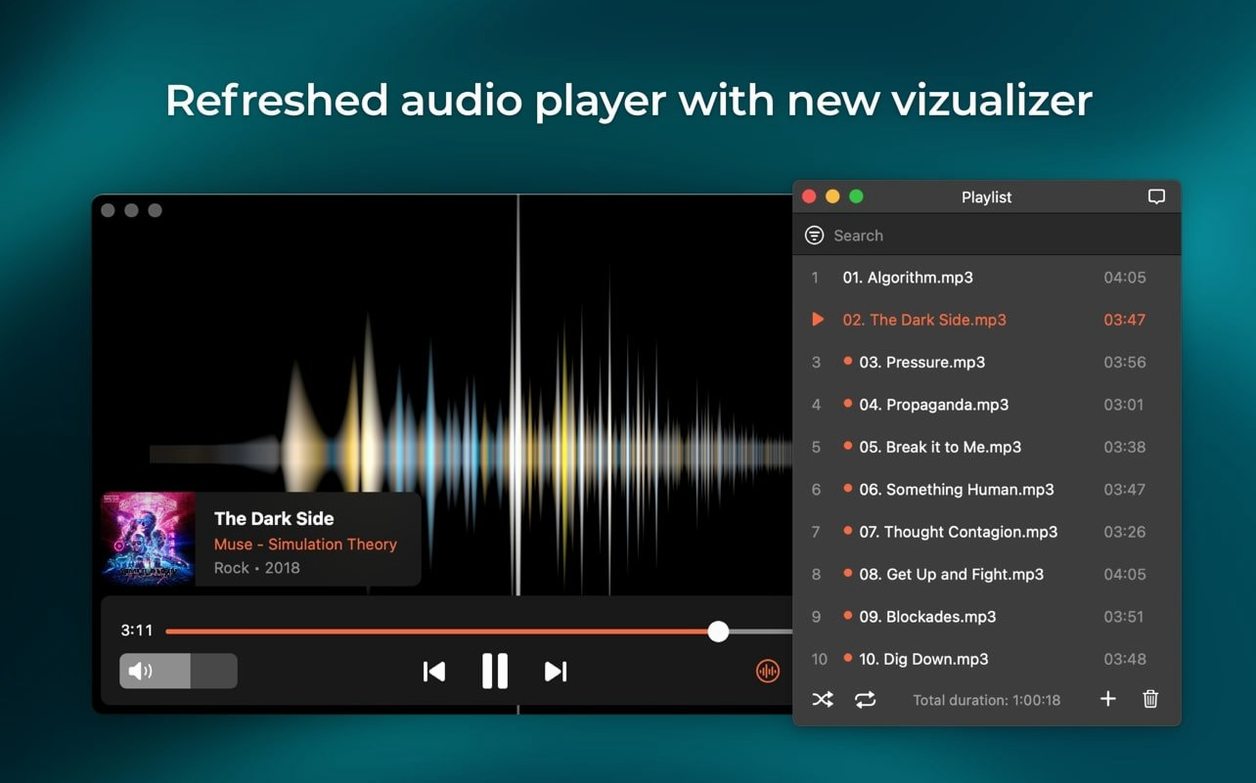
Later, a colleague asks me to check an M4B audiobook file he recorded for a client. Version 8.24 added M4B support, so I open it directly. The player remembers my spot from earlier, picks up where I left off, and I can skip chapters without any lag.
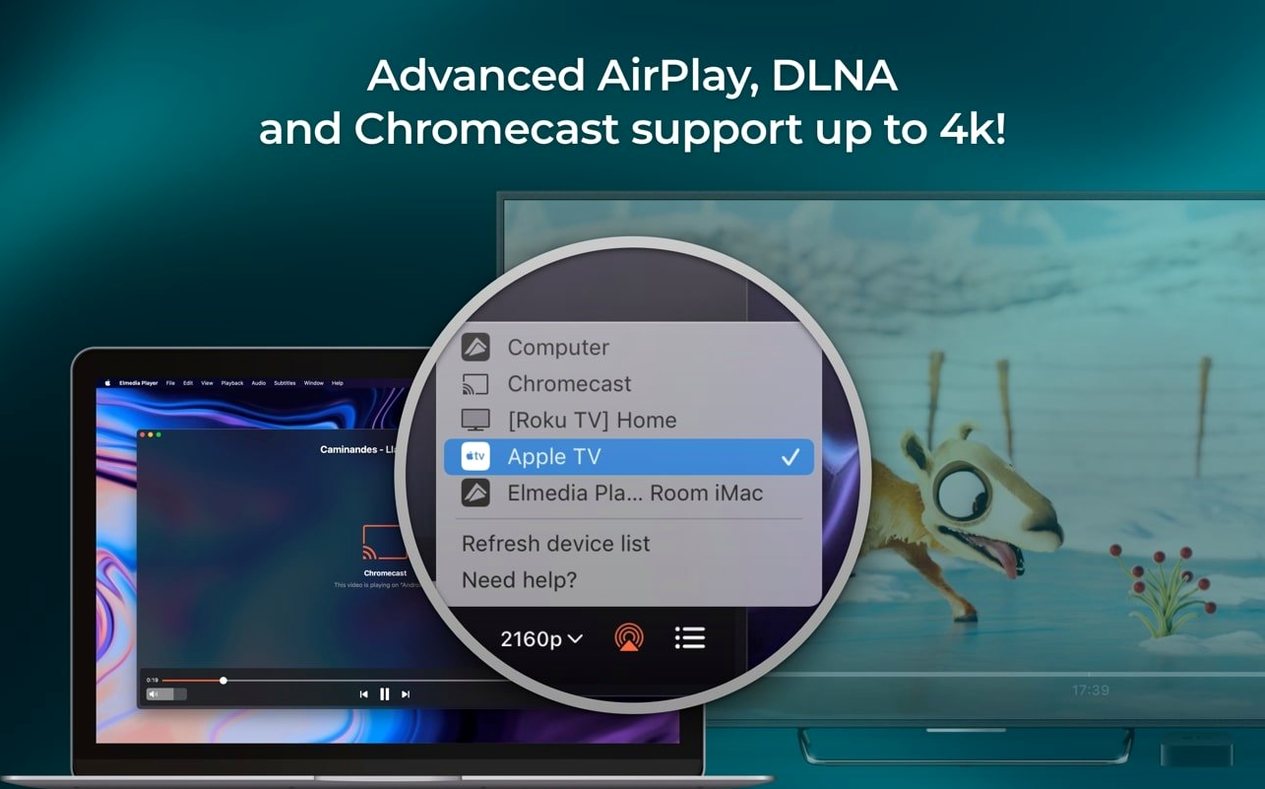
At the end of the day, I stream a MKV movie from my Mac to a TV in the break room using AirPlay. Elmedia finds the device on the network, and I click the stream button. The Mac stays awake during playback — the 8.24 update fixed that — so the stream does not cut out halfway.
M4B chapter navigation and resume
- M4B audiobook support. You can open .m4b files directly. This is useful if you work with audiobooks or long-form spoken audio. The player handles chapter navigation and remembers where you stopped.
- macOS 26 compatibility. The player now runs on the newest macOS without breaking. If you update your system, Elmedia still works.
- Stream sleep fix. Earlier versions let the Mac go to sleep during a long stream, which interrupted playback. Version 8.24 keeps the system awake while streaming.
- Device list fix. Opening the list of streaming devices no longer throws an error. This matters if you stream to multiple TVs or receivers.
These changes are small, but each one removes a frustration that turned up in daily use. The M4B addition alone saves a separate app install for anyone handling audiobooks.
Toggle hardware decoding for black-screen fixes
File does not play or shows a black screen. Check that hardware-accelerated decoding is turned on in the player settings. If it is already on and the file still does not play, try switching to software decoding. Some older video files from legacy cameras do not like GPU acceleration.
Streaming device not showing up. Make sure both your Mac and the target device are on the same network. If they are and the device still does not appear, restart Elmedia and reopen the device list. Version 8.24 fixed the error that sometimes blocked the list from loading.
Audio passthrough not working for AC-3 or DTS. This only works if your audio path uses S/PDIF or HDMI. Check that your receiver or soundbar supports these formats and that the output device is set correctly in the system sound settings. Elmedia can pass the signal through, but the hardware has to accept it.
Screenshot saves but the file is blank. The screenshot tool captures the video output. If the video is paused on a frame with heavy DRM or a corrupted segment, the capture may be empty. Try moving forward or backward a few frames and taking the shot again.
Set PNG as default screenshot format
- Set the default screenshot format to PNG. TIFF files are larger than needed for quick notes, and GIF limits color depth. Open the preferences and pick PNG for a good balance of quality and file size.
- Test the built-in browser with one known URL. Before you rely on it for a presentation, open a short online video you know works. That way you confirm the player can access your network and the video source.
- Organize your media folder before opening it in the player. Elmedia reads the directory structure. If you dump all files into one folder, the player shows a long unsorted list. Use subfolders by project or format to keep the left panel clean.
- Try the AirPlay stream with a short file. Stream a two-minute video first. If the connection works, move to longer files. This saves you from troubleshooting a stream issue in the middle of a movie.
- Check the audio channel setting for multichannel files. If a video sounds hollow or voices are quiet, open the audio output settings and confirm you are using the correct number of channels — two for stereo, more for surround. The player supports two, four, or eight channels.
These steps take about ten minutes total. They prevent the small problems that usually show up when you are in a hurry. After the first week, the player behaves predictably and you stop thinking about the settings.
| macOS | macOS 10.12 or later |
|---|---|
| Processor | Apple Silicon, Intel 64-bit |
| Download | 157 MB |
- macOS 10.12 or later
- Intel or Apple Silicon Mac
Questions about Elmedia Player Pro
What formats does Elmedia Player Pro support?
It plays FLV, SWF, WMV, AVI, MOV, MP4, MP3, DAT, FLAC, M4V, MPG, MKV, and M4B audiobooks.
Can Elmedia Player Pro download online videos?
Yes. The built-in browser lets you play and download online video, including RTMP streams, and you can save just the audio track if needed.
How to install, in order
1. Mount the disk image and run the app. Gatekeeper-friendly mode is active by default. 2. Press Enter in the Terminal window to bypass Gatekeeper. 3. Drag the app into the Applications folder. 4. Launch the app after installation.Comments and corrections 0
Sign in or open a free account to leave a comment.
No comments or corrections yet.