FotoMagico 6.11.0 — download for Mac
Video Updated
Builds high-resolution slideshows for large displays and HDTVs.
Screenshots
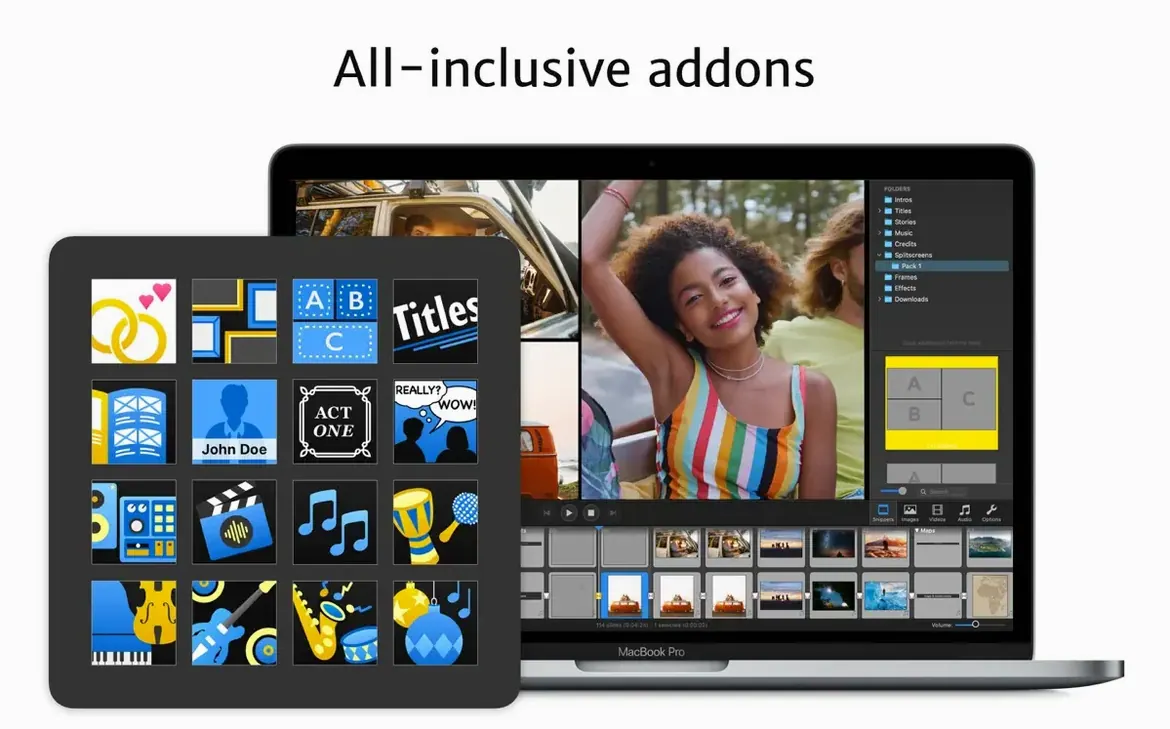
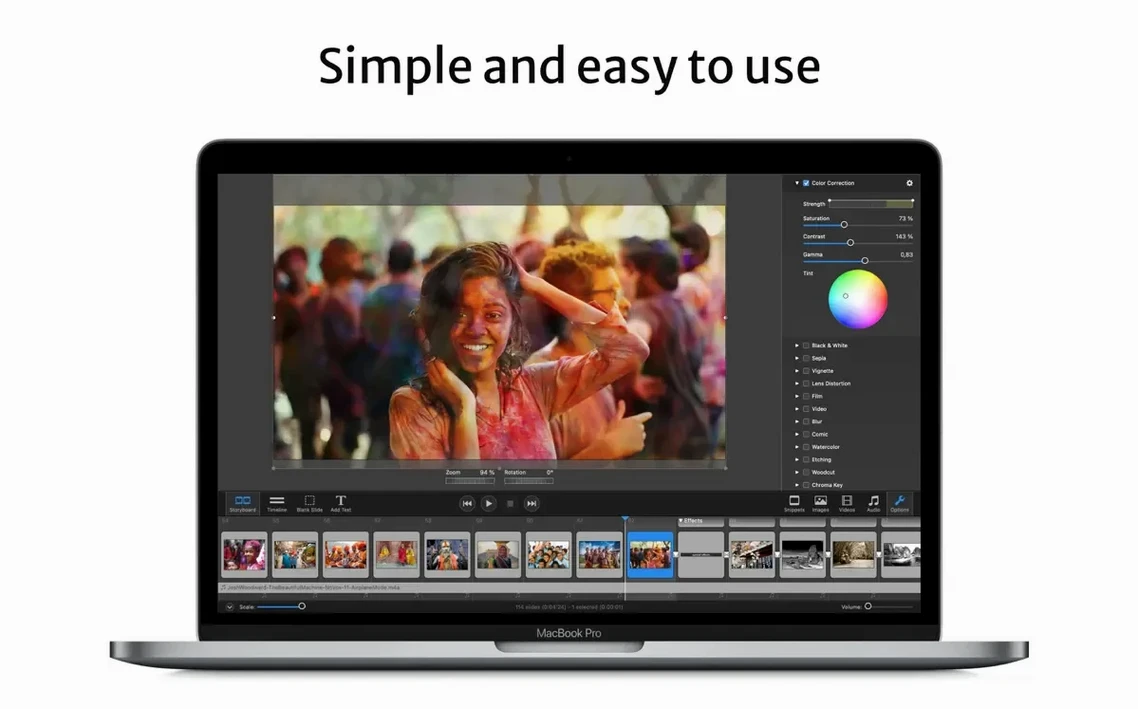
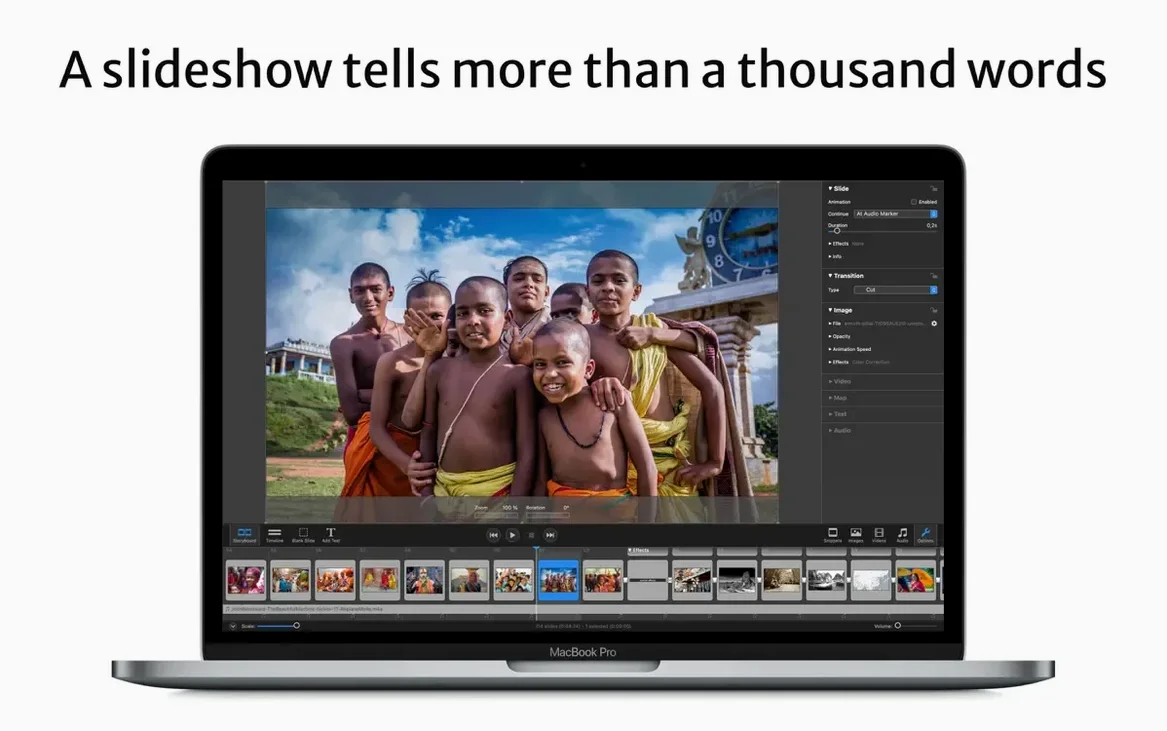
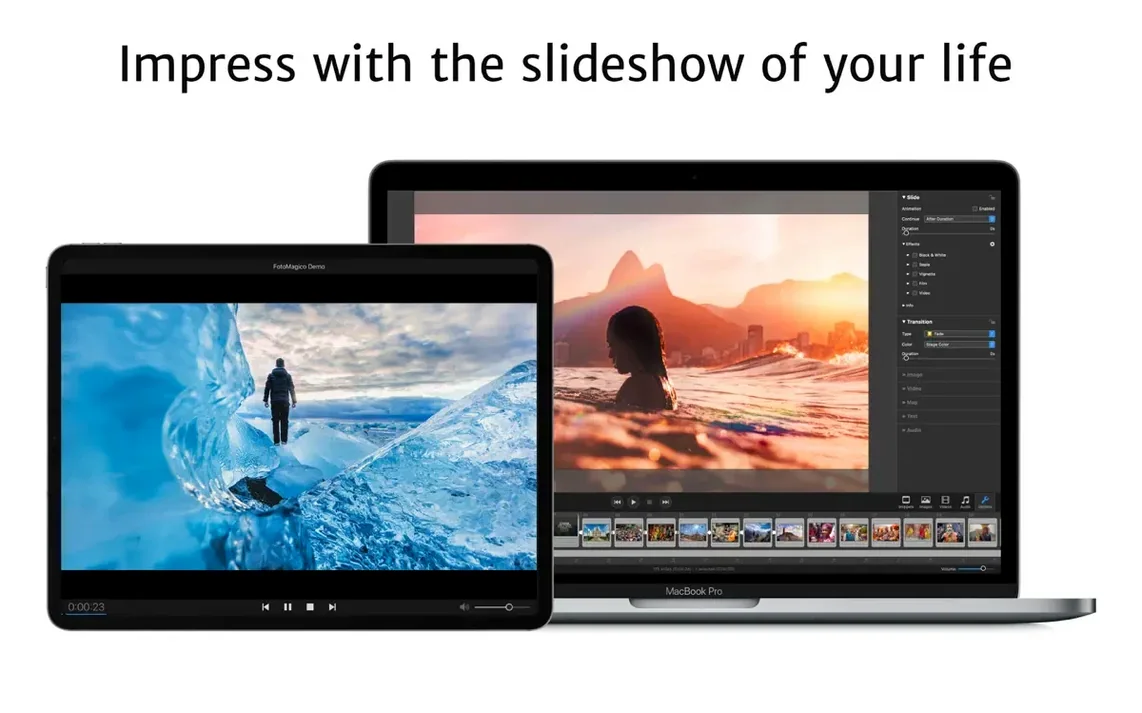
FotoMagico 6.10 requires macOS 14 Sonoma and is optimized for Apple Silicon Macs, using Metal, Swift, and Swift UI. It works on 64-bit Intel Macs too, but the performance gain on Apple Silicon is noticeable when handling high-resolution slideshows on large displays or HDTVs.
Works with the apps and services you already use
Projects can live on iCloud Drive, syncing between Mac and iPad without extra steps. Export uses any QuickTime-compatible format, so the output fits into workflows already built around Apple’s ecosystem. The separate player lets you share finished slideshows with colleagues or clients who don’t have FotoMagico installed, and you can limit view counts or expiry dates — useful for delivering work samples without leaving files behind.
Social media presets and watermarking built in
Addons for music, titles, frames, and visual storytelling guides are included. The Instagram vertical story presets are ready for social media output, and watermarking gives control over shared previews. New in this version is macOS 27 Golden Gate support, plus fixes for a crash on quitting and better snippet alignment on unusual stage sizes. Older macOS versions from Catalina through Ventura are no longer supported.
Photographers and event pros as ideal users
Photographers and graphic designers building client portfolios are the obvious fit — the real-time playback means you can show a sequence of high-res images in a meeting without waiting for renders. Wedding and event photographers who deliver slideshows as part of their package will find the watermarking and view-limiting player useful for sending proofs. Marketing teams producing social media content can use the Instagram vertical presets directly, cutting out the step of reformatting for Stories afterward. Corporate presenters who need a clean, repeatable slideshow for trade show displays or lobby screens benefit from the screensaver export option. Casual users get value from it too, but the investment in learning the tool pays off fastest when you regularly compose image sequences under deadline pressure.
Plugins for Final Cut, Aperture, and iCloud Drive sync
FotoMagico integrates with Final Cut and Aperture through plugins, so images you’ve already organized or edited in those apps can be brought in without re-exporting. iCloud Drive keeps projects synced between Mac and iPad, which is useful if you start a sequence on the iPad during a shoot and refine it on the Mac in the office. For DVD delivery, the app hands off to iDVD or Roxio Toast — it handles the slideshow composition, then lets the disc-authoring tool handle the burn. QuickTime-compatible exports mean the final video plays back in any media player that supports the format, and exporting for iPod or iPad covers mobile viewing without extra transcoding. The separate player is worth noting: it runs on computers without FotoMagico installed, and you can set an expiration date or a play count, which is a clean way to share previews with clients who shouldn’t keep the file indefinitely.
Rendering before previewing misses the point
The most frequent error is treating FotoMagico like a traditional video editor and trying to render every frame before previewing. The real-time playback is the point — you can adjust, play, and adjust again without waiting. Beginners also tend to overload slides with too many images or effects, which works against the clean storytelling the presets are designed for. Another slip is ignoring the aspect ratio setting at the start of a project; changing it later can shift elements in unexpected ways, especially with the snippet alignment that was improved in 6.10. Some users forget to set the view limit or expiry date on the player export when sharing with clients, leaving the slideshow accessible indefinitely. And when syncing via iCloud Drive, a few overlook that both the Mac and iPad need the same version of FotoMagico installed — version mismatches cause sync hiccups.
40 corporate images to a three-minute lobby slideshow
I have a set of 40 images from a corporate event — product shots, team candids, venue details. The deadline is tomorrow morning, and the client wants a three-minute slideshow to run on a lobby display. I open FotoMagico 6.10 on the MacBook Air, create a new project, and set the aspect ratio to 16:9 for the lobby screen. The images are already in a folder on the desktop. I drag the whole folder into the stage area; the app arranges them in sequence, each as a separate slide. The first playback shows the default transition is a simple crossfade, which feels too slow for the upbeat mood. I select all slides and change the transition to a faster dissolve, then adjust the slide duration to four seconds each.
For the opening slide, I add a text caption with the company name and event date using one of the title addons. The font and position are fine, but the background image needs a slight zoom to fill the frame — I resize and zoom it in the stage view, and the change shows instantly in full resolution. Halfway through the sequence, there is a group of low-light shots that look darker than the rest. I adjust the brightness and contrast per slide, no render needed. The client wants background music. I pick a track included with the addons, drag it to the timeline, and trim it to match the slideshow length. The music fades in and out automatically at the ends.
I play through the whole sequence once — everything syncs, no stutter. For the final export, the client does not have FotoMagico installed. I use the separate player option, set the view limit to five plays and an expiry date of two weeks from today, then export the player file. I also save a QuickTime-compatible version as backup. The entire session, from folder drag to export, takes under an hour. The lobby screen runs the player file on a standard PC — no compatibility issues.
- macOS 27 Golden Gate support added.
- Support dropped for macOS 10.15 Catalina through macOS 13 Ventura.
- Fixed a crash on quitting the app.
- Snippets now match stage aspect ratio more reliably on unusual stage sizes.
- Some Map Assistant controls were localized.
- Various stability improvements.
| macOS | macOS 14 or later |
|---|---|
| Processor | Apple Silicon, Intel 64-bit |
| Download | 75 MB |
- macOS 14 Sonoma or newer
- Apple Silicon or 64-bit Intel processor
- Interface languages: English, German, French
How to install, in order
- Mount the disk image and run Open Gatekeeper friendly.
- Press Enter in Terminal to bypass Gatekeeper.
- Drag the app to the Applications folder.
- Open the app when installation is complete.
Comments and corrections 0
Sign in or open a free account to leave a comment.
No comments or corrections yet.