Infuse Pro 8.5.5 — download for Mac
Video Updated
Plays nearly any video file without conversion or extra codecs.
Screenshots
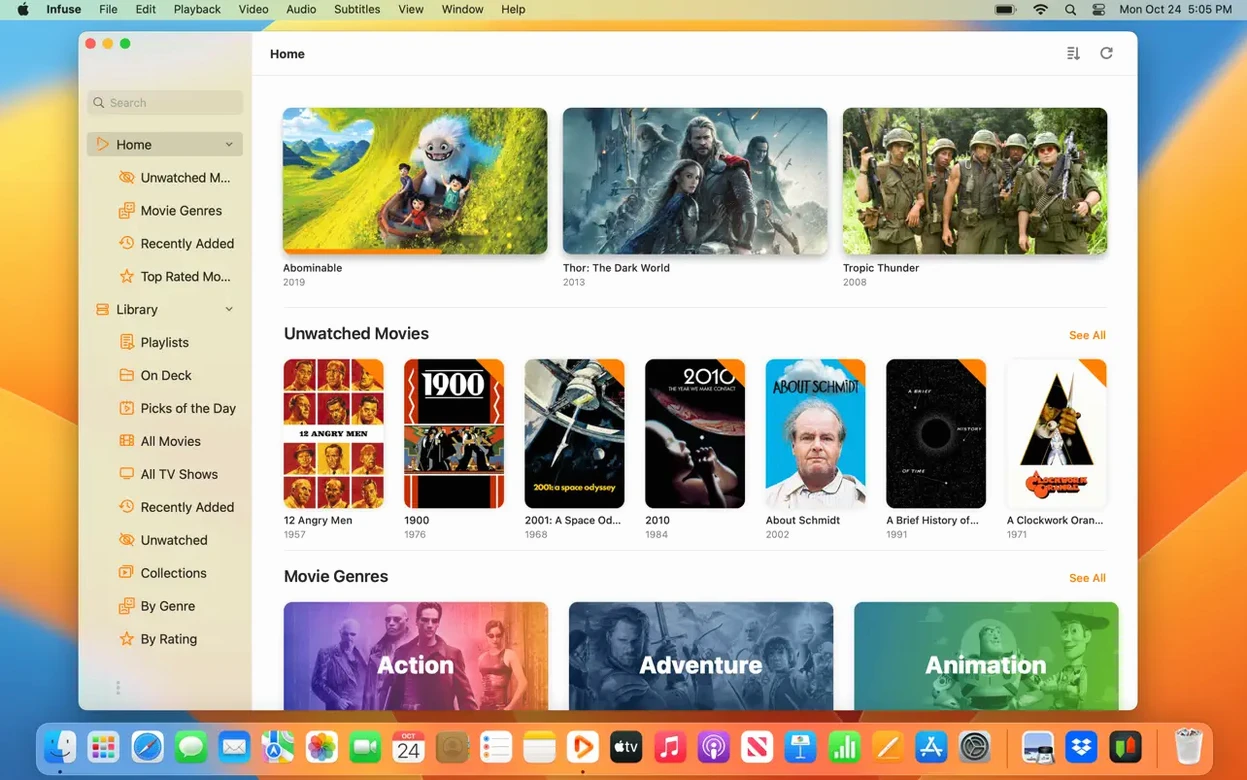
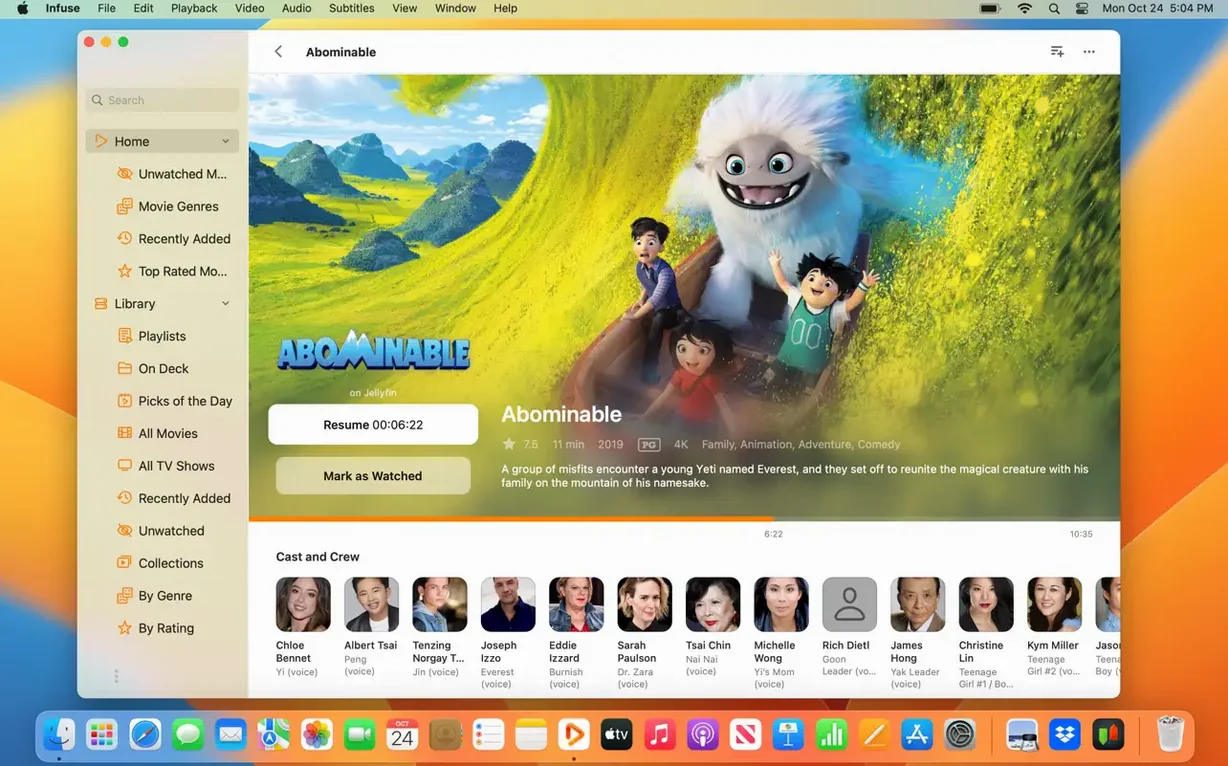
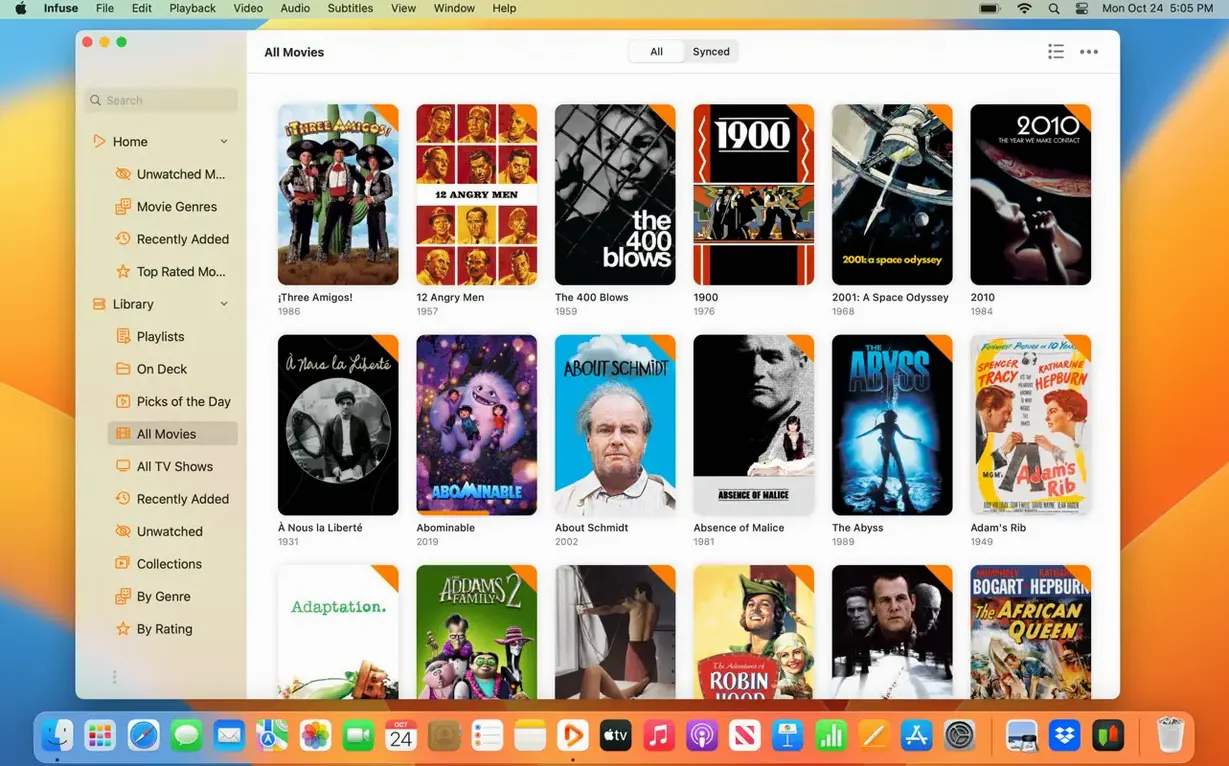
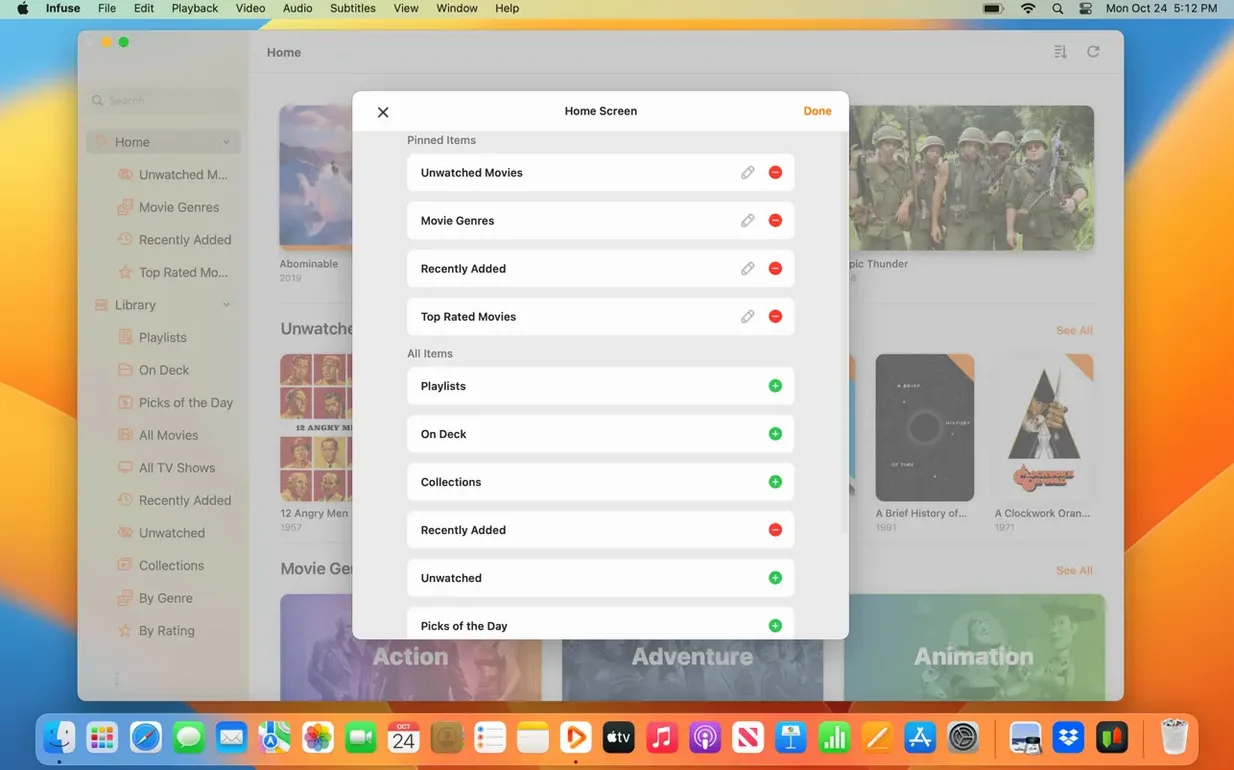
Infuse Pro is a video player for macOS and other Apple devices that plays nearly any file you throw at it without conversion.
Plays Dolby Digital Plus and DTS Without Extra Codecs
- Playing local video files with Dolby Digital Plus, DTS, and DTS-HD audio without extra codecs.
- Loading subtitles from OpenSubtitles or adding your own .srt or .ass files on the fly.
- Syncing your library, watched status, and in-progress queue across iPhone, iPad, Apple TV, and Mac via native iCloud.
- Skipping the need to transcode files for Apple TV playback — Infuse handles them natively.
37 Interface Languages on macOS 12+
- Interface languages cover 37 options including English, German, Spanish, French, and Japanese.
- Optimized for macOS 12 or later, running on Apple Silicon and Intel hardware.
Resumes Playback Where You Left Off on iPad
Friday evening, I’m sitting down to watch the week’s episode of a series I follow. I pick one episode, and the playback starts on the frame I stopped at on my iPad two days ago. The audio is DTS, no transcoding needed, and the subtitles load from OpenSubtitles automatically because I linked my account in the settings once.
Halfway through, I pause and walk away. When I come back, I swipe up the file info panel to check the codec details — something I do out of habit after dealing with mismatched files on other players. Then I close the laptop and finish the episode later on my phone. The watched status syncs back to the Mac library through iCloud, so next time I open Infuse on the Mac, that episode is marked done and the next one is queued.
That continuity is the main reason I use it day to day. I never convert files, I never search for the right subtitle track, and I don’t remember where I stopped — the app keeps track across devices.
Turn on iCloud Sync for Watched Status
The defaults work, but a few tweaks make the experience smoother from the start. Here’s what I adjust on a fresh install:
- Library sync — turn on iCloud sync for watched status and progress. Without it, Infuse works fine locally, but you lose the cross-device continuity that makes Pro worth having.
- Subtitle language — set your preferred language for OpenSubtitles lookups. If you watch mixed-language content, pick the one you use most, then download individual tracks per file when needed.
- Audio passthrough — if you output to a receiver or soundbar, enable passthrough for DTS and Dolby so the app sends the raw stream instead of decoding it. This matters most for surround setups.
- Playback resume — confirm that “remember position” is on. It’s usually enabled by default, but checking avoids the frustration of starting a two-hour movie from the beginning every time you open it.
These take about two minutes to configure, and after that the app behaves predictably.
Dated Interface vs. Modern Design Trade-Offs
I’ve used a few video players on macOS, and each has trade-offs. Here’s how Infuse Pro stacks up against three common alternatives:
- VLC — handles a huge range of formats and is free, but its interface feels dated and it has no library management. If you just need to play a file and close it, VLC works. If you want a browsable collection with artwork, metadata, and sync, Infuse Pro is a different category entirely.
- IINA — modern interface, good format support, and built for macOS. It’s lighter than Infuse and free. But it lacks Trakt sync, cloud streaming, and native iCloud progress sync. IINA is a good local player; Infuse Pro is a media hub.
- Plex — strong server-client model, but you need a Plex server running somewhere. Infuse Pro connects directly to your NAS, SMB shares, or cloud storage without a separate server app. That’s simpler if you manage your own files and don’t want another service in the middle.
For someone with a local library spread across a NAS and cloud drives, Infuse Pro saves the step of maintaining a server or syncing manually. For single-file playback, the other options are fine.
Point Infuse to Your Media Folder First
If you just installed Infuse Pro, here’s what to do in the first few sessions to get the most out of it:
- Point it at your media — open the app and add a folder from your Mac, a mounted NAS, or a cloud account. Let it scan once. The library view will populate with cover art and metadata automatically.
- Play a few different file types — an MP4, an MKV, an ISO, and a DVD folder if you have one. This confirms playback works without codec errors, and you see how the app handles menus and chapter markers.
- Test subtitle sync — play a file and search for subtitles from OpenSubtitles. Adjust the delay if needed. This is the fastest way to learn where the controls are.
- Enable Trakt — if you track your viewing history, link your Trakt account from the settings. It syncs ratings, comments, and watched status alongside the iCloud sync.
- Stream from a cloud service — link one cloud account (Dropbox or Google Drive, for example) and play a file from there. This verifies network streaming works and shows you the interface for remote files.
After those steps, the app is ready for daily use. Most settings can stay as they are — only tweak audio output or subtitle defaults if your setup needs it.
- Version 8.5.5 released September 16, 2026.
- Release notes page covers Infuse 8.5.5 for iOS and iPadOS.
| macOS | macOS 12 or later |
|---|---|
| Processor | Apple Silicon, Intel 64-bit |
| Download | 90 MB |
- macOS 12 or later
- Apple Silicon or Intel processor
Questions about Infuse Pro
What audio formats does Infuse Pro support?
Infuse Pro supports Dolby Digital Plus (AC3/E-AC3), DTS, and DTS-HD audio.
Can I sync my library between devices?
Yes, Infuse Pro adds native iCloud syncing for your library, watched status, and in-progress queue across Apple devices.
What macOS version does Infuse Pro require?
Infuse Pro requires macOS 12 or later and works on both Apple Silicon and Intel Macs.
How to install, in order
- Open the downloaded disk image.
- Drag the app into the Applications folder shortcut.
- Launch the app from Launchpad after copying finishes.
Comments and corrections 0
Sign in or open a free account to leave a comment.
No comments or corrections yet.