Motion 7.0 — download for Mac
Video Updated
Creates motion graphics and visual effects for video post-production workflows.
Screenshots
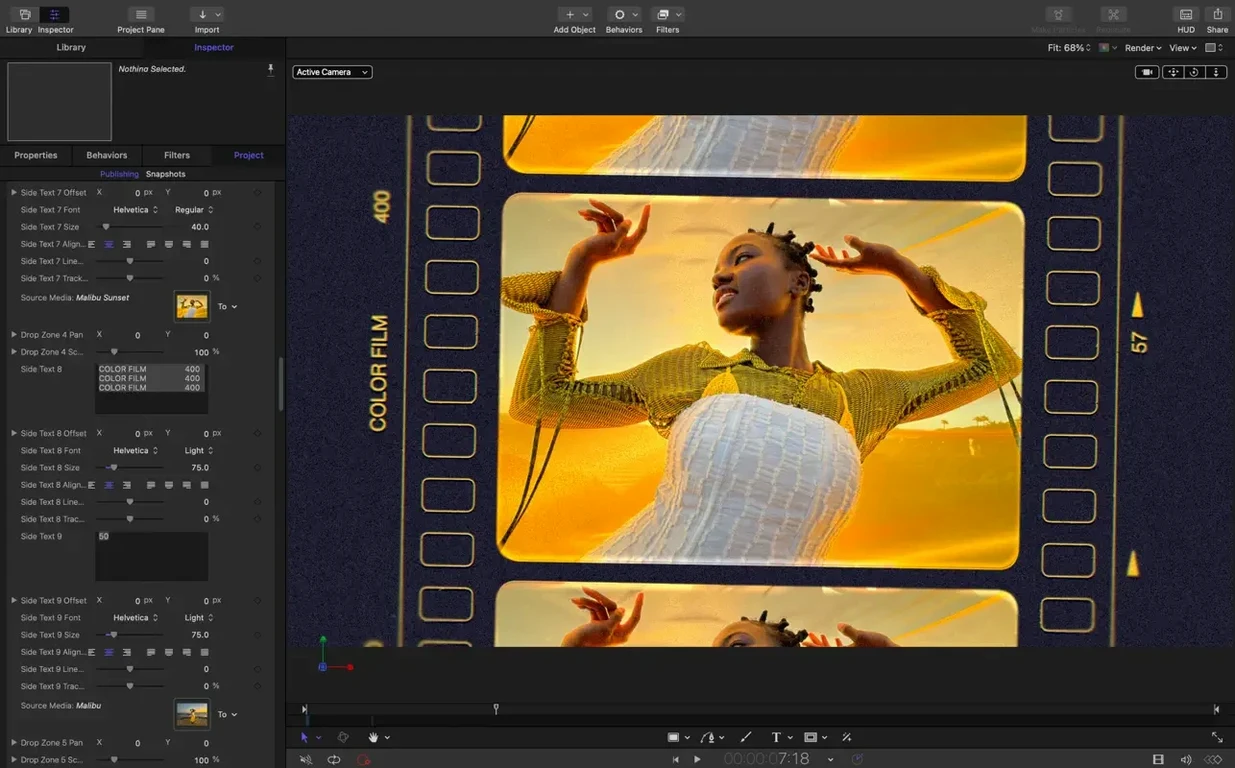
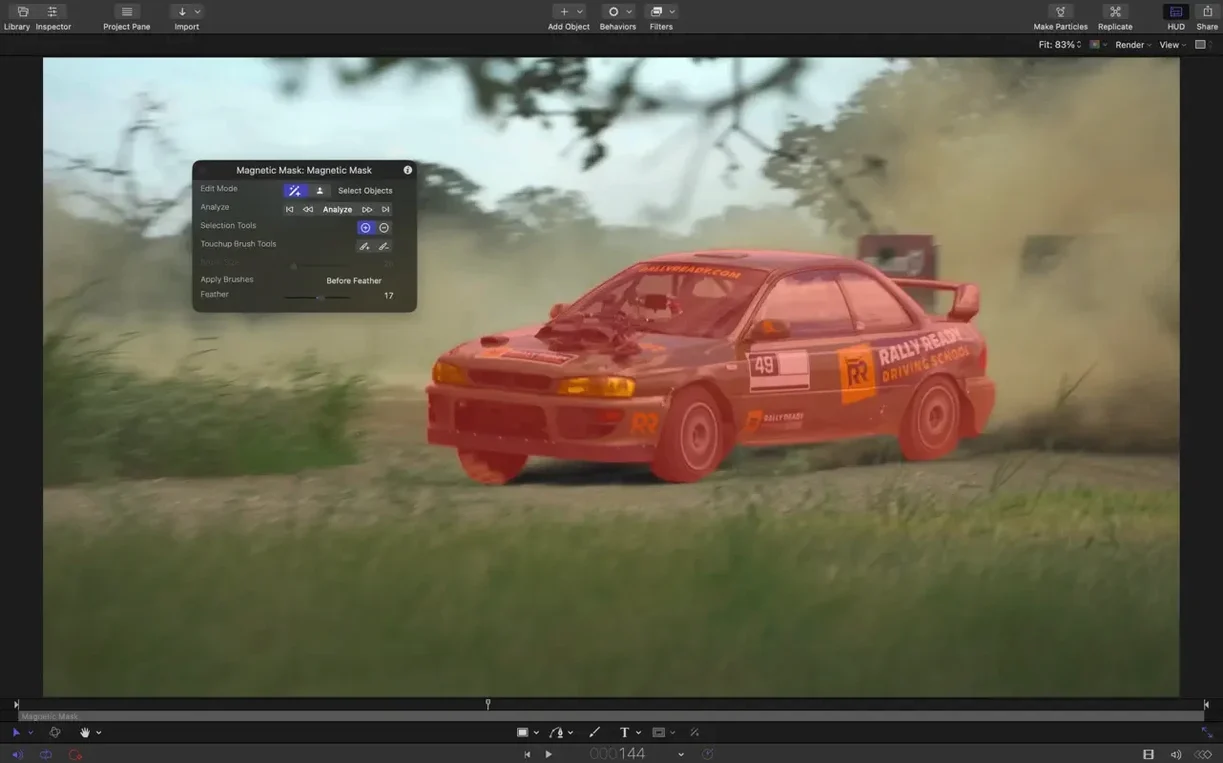
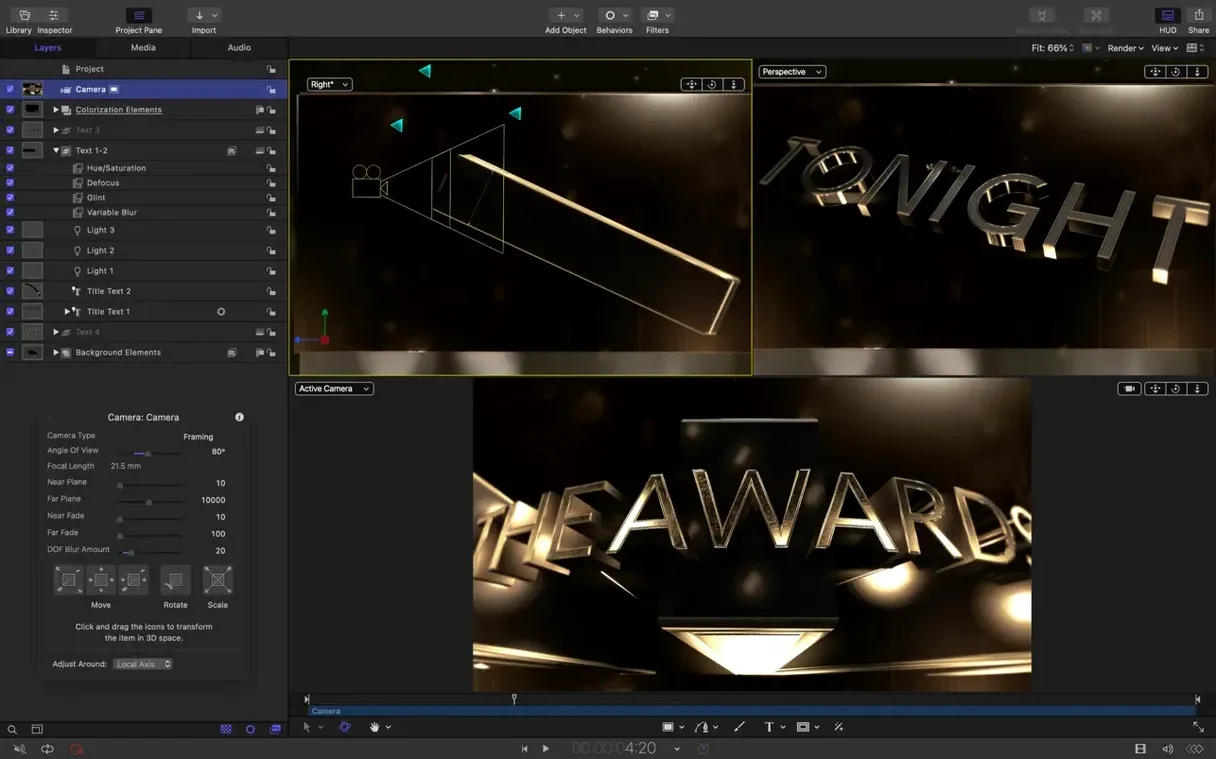
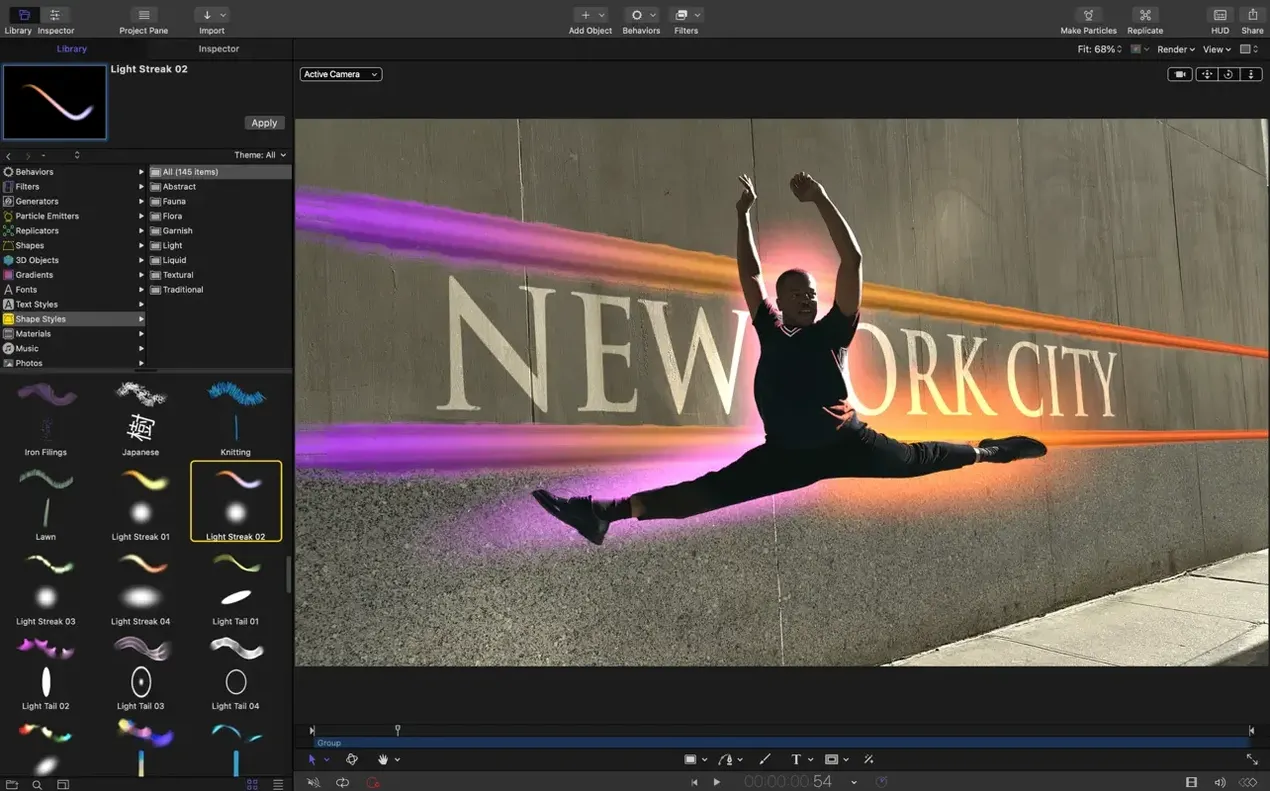
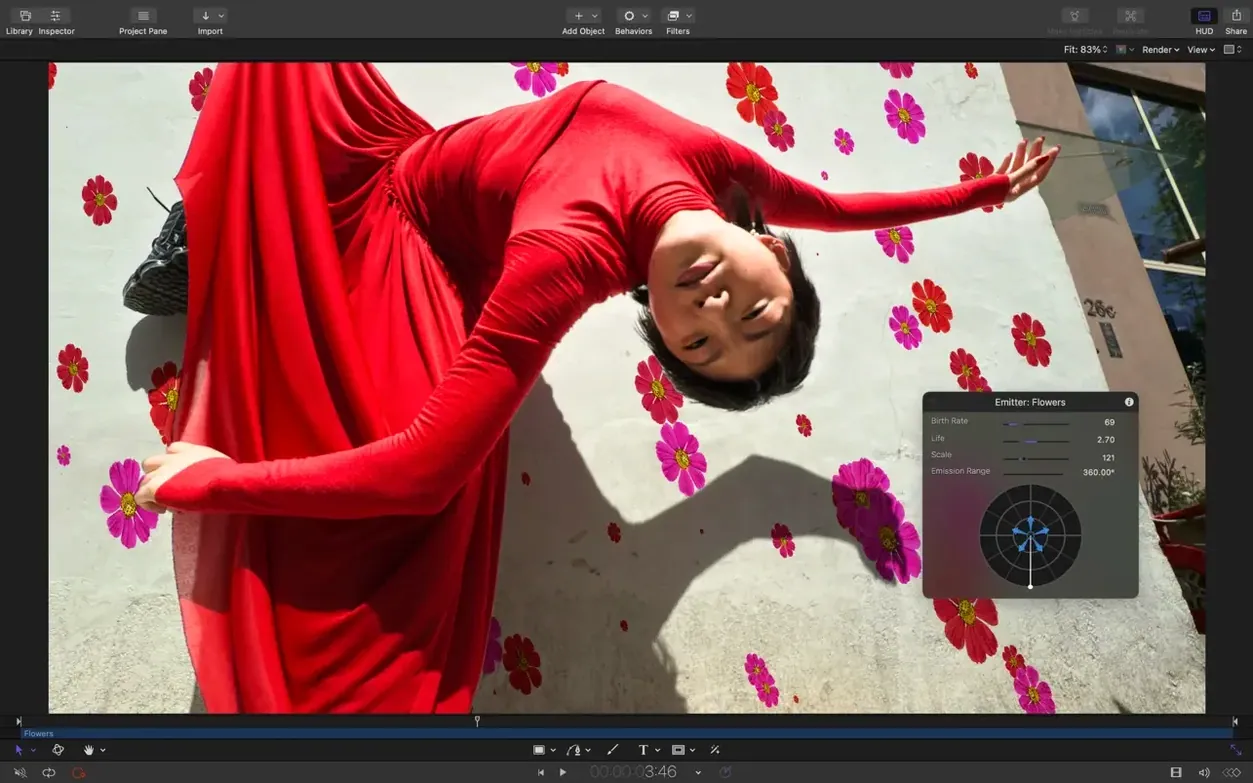
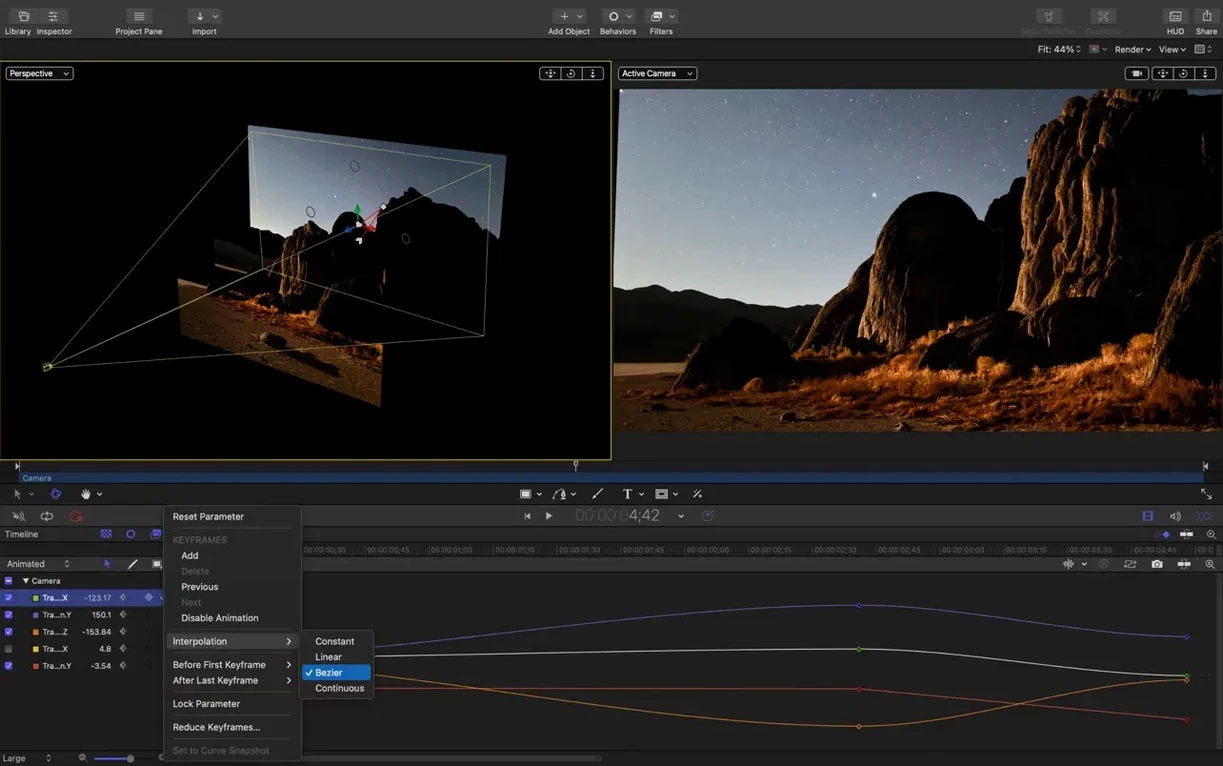
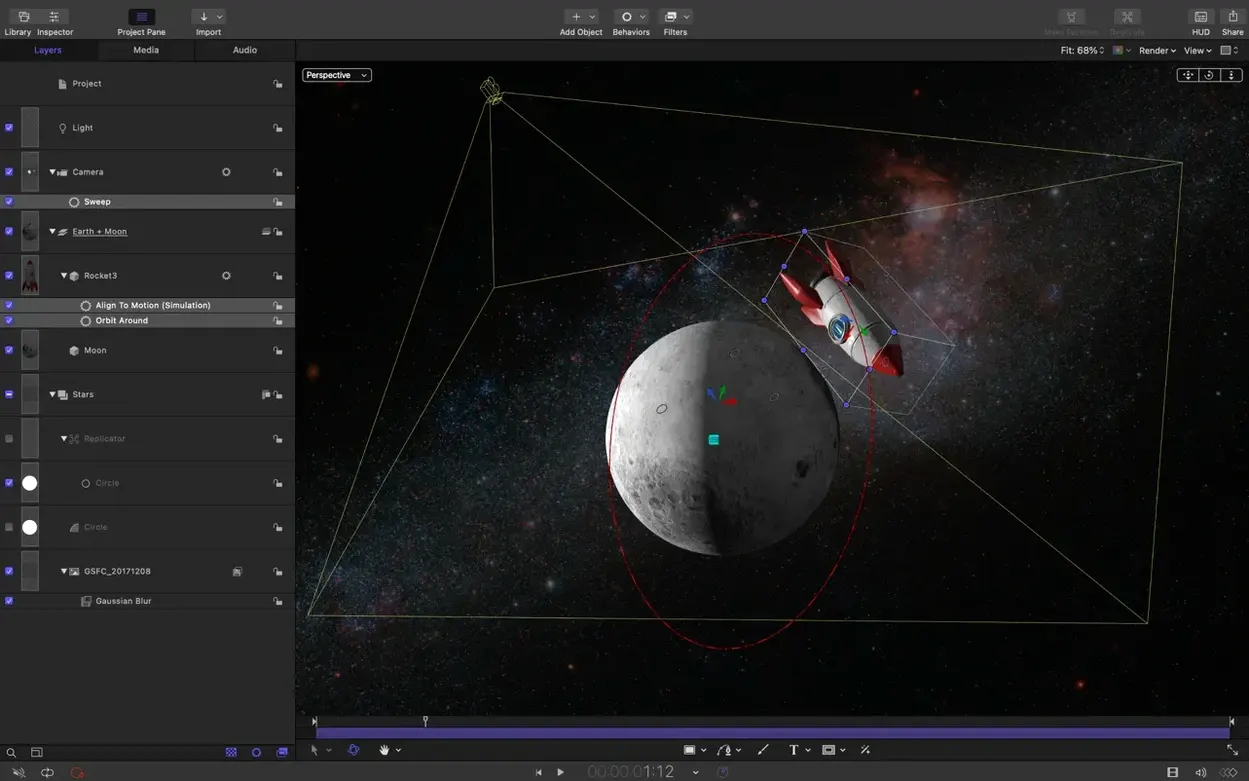
Motion 6.3 runs on any Mac with macOS 15.6 or later, supporting both Apple Silicon and Intel 64-bit architectures. That includes the latest M2 and M3 machines, as well as older Intel-based Macs still on current software.
Where Motion fits best is alongside Apple Compressor and Final Cut Pro X. Import an SVG file—scalable to any size, sharp at any resolution—and use it directly inside a title animation or transition. The same project can then move into Final Cut Pro or be exported through Compressor. It is a workflow that stays inside the Apple ecosystem without forcing you to learn a separate file pipeline.
The new controls for staggering, cascading, or reversing clips make timeline work faster when you are adjusting multiple elements at once. Bug fixes address Bezier Mask vertex selection and a playback issue with 3D text and particle emitters that sometimes pulled the wrong texture media. Color correction filters on macOS 26 now render correctly.
Interface languages cover English, German, Spanish, Simplified Chinese, French, and Japanese. Use it for presentations, film titles, or television program graphics—any scenario where you need clean 2D or 3D motion without leaving the Mac platform.
Auto-Save Interval to Five Minutes
Before you start your first project, open the preferences and adjust a few defaults. The auto-save interval is set to a generous period out of the box, so shorten it to every five or ten minutes. That alone has saved me more than once when a complex particle emitter crashed during a client preview.
Next, check the timeline display units. Motion defaults to frames, but if you work in broadcast, switch to timecode. It makes aligning titles to a specific second or frame of a television program much more predictable. The grid and snapping options are worth enabling from the start, especially if you import SVG files that need precise positioning within a composition.
Set the cache location to a fast internal SSD if you have one. Motion writes temporary render files during playback, and keeping them on a slow external drive can introduce hesitation when scrubbing through a project with multiple 3D text layers. Finally, review the keyboard shortcut set and export a copy—you can always restore it if you customize too aggressively later.
Direct Integration with Final Cut Pro
Does Motion work with Final Cut Pro without any extra plugins? Yes. The integration is direct. You can launch Motion from within Final Cut Pro, create a title or transition, and it appears back in your timeline automatically. No plug-in installation or file conversion step is needed.
Can I open Adobe After Effects files in Motion? Not natively. Motion uses its own project format. However, SVG import gives you a bridge for vector assets. If you have logos or illustrations saved as SVG files from Illustrator or similar tools, you can bring them in at any resolution. For raster images, standard formats like PNG and TIFF work without issue.
Will an older Intel Mac run version 6.3 acceptably? It will run. The minimum requirement is macOS 15.6, and both architectures are supported. The performance updates in this version help keep the interface responsive, but complex projects with many particle emitters or 3D layers will feel slower on older hardware compared to Apple Silicon machines. That is a hardware limitation, not a software one.
Is Motion still updated? Yes. Version 6.3 is current, and the fixes applied in this release show that development continues. The color correction filter issue on macOS 26 and the Bezier Mask vertex selection problem were both user-reported bugs that Apple addressed.
Weekly Show Lower-Third Titles
A colleague of mine edits a weekly magazine show that airs on a regional television network. Every episode needs new lower-third titles identifying interview subjects, and the producers change the graphic style every quarter. He used to build these in After Effects, export them as ProRes files with alpha channels, and import each one into Final Cut Pro. That pipeline took about forty minutes per episode.
He switched to Motion 6.3 and cut that time in half. He keeps a master Motion file with placeholder text and a linked SVG logo. When a new episode comes in, he duplicates the file, changes the name and title text, and renders directly from within Final Cut Pro. The cascade control lets him fade three or four lower-thirds in sequence with one click. The SVG import means the network logo stays sharp whether the graphic is on a 1080p feed or a 4K master.
For him, the biggest gain is not having to leave the editing timeline. He opens Motion from inside Final Cut Pro, makes the change, and it is done. No intermediate exports, no alpha channel issues.
Workflow from Start to Finish: Creating a 3D Title Sequence
Import your background footage or a static image onto the timeline. Below that, add a text layer and type your main title. Apply a 3D extrusion from the object properties panel—this gives the text depth and allows you to rotate it in three-dimensional space.
Position the text in front of the background, then adjust the camera angle. Motion treats the project space as a 3D environment, so you can move the camera through the scene over time. Set a keyframe at the start of the timeline for the camera position, move forward a few seconds, and reposition the camera. The interpolation creates a smooth traveling shot behind your text.
Add a second text layer for a subtitle or credit line. Use the stagger controls under the timeline to delay its appearance by half a second. Cascade the two layers so the subtitle trails the main title into view rather than appearing simultaneously.
Import an SVG graphic, such as a production company logo, and place it at the end of the sequence. Scale it to fill the screen—SVG files keep their sharpness at any size, so there is no pixelation even at 4K. Apply a simple dissolve transition from the library.
Preview the sequence in real time. If any color correction filter looks off, remember that version 6.3 fixed the macOS 26 rendering issue for those filters. When everything looks right, export the completed title sequence using Apple Compressor or hand it off directly to Final Cut Pro.
SVG Import Stays Sharp at Any Resolution
Version 6.3 brought three practical improvements to daily work. First, SVG import now supports scalable vector graphics that remain sharp at any resolution. If you work with logos, diagrams, or illustrations, you no longer need to worry about resolution limits. A single SVG file works equally well for a small social media graphic and a large broadcast canvas.
Second, the new timeline controls for staggering, cascading, and reversing clips simplify multi-element adjustments. Previously, aligning a row of animated titles meant adjusting each clip's start time manually. Now you select the group, pick a stagger pattern, and Motion spaces them automatically. The cascade option applies a sequential delay, and reverse flips the order.
Third, the performance updates make the interface feel more responsive. Combined with the bug fixes for Bezier Mask vertex selection, texture playback for 3D text and particle emitters, and color correction filter brightness on macOS 26, version 6.3 is a stable point release that addresses the most common pain points from earlier iterations.
Motion 6.3 is the most polished release yet for daily motion graphics work on a Mac.
No release notes filed for 7.0. They are added here when a build changes how the program behaves.
| macOS | macOS 26.6 or later |
|---|---|
| Processor | Apple Silicon, Intel 64-bit |
| Download | 3.6 GB |
- macOS 26.6 or later
- Apple Silicon or Intel 64-bit processor
Questions about Motion
Does Motion work with Final Cut Pro?
Yes, Motion integrates with Final Cut Pro X, so you can send projects between the two applications.
Can I import SVG files into Motion?
Yes, Motion 6.3 supports SVG import. Files scale to any size and keep graphics sharp at any resolution.
What Macs are supported?
Motion runs on macOS 15.6 or later and supports both Apple Silicon and Intel 64-bit architectures.
How to install, in order
A 3.6‑gigabyte download that runs on Apple Silicon and Intel 64‑bit Macs, as long as macOS 26.6 is already installed.
- Open the downloaded disk image and drag the application onto the Applications folder alias.
- After the copy finishes, launch the app from Launchpad.
Comments and corrections 0
Sign in or open a free account to leave a comment.
No comments or corrections yet.