DaVinci Resolve Studio 21.2 — download for Mac
Video Updated
Grades color, edits audio, and adds visual effects inside one professional video application.
Screenshots
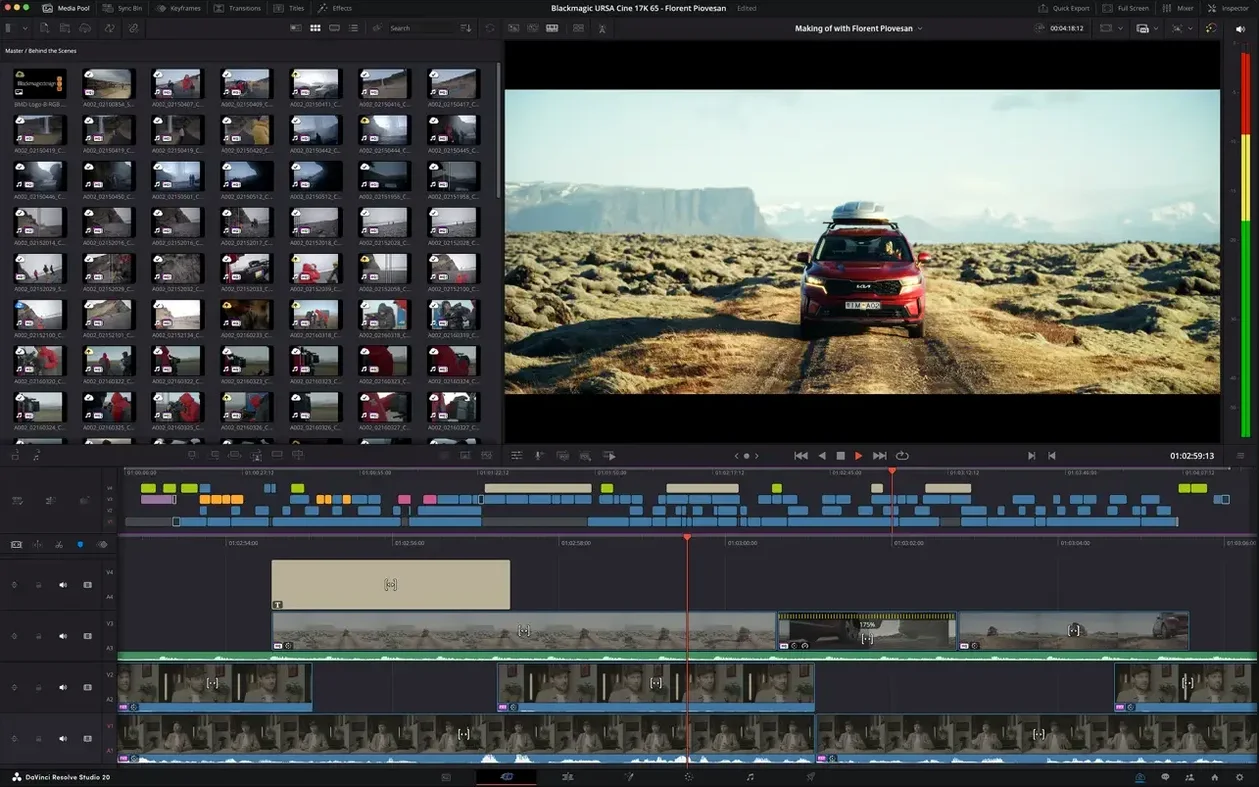
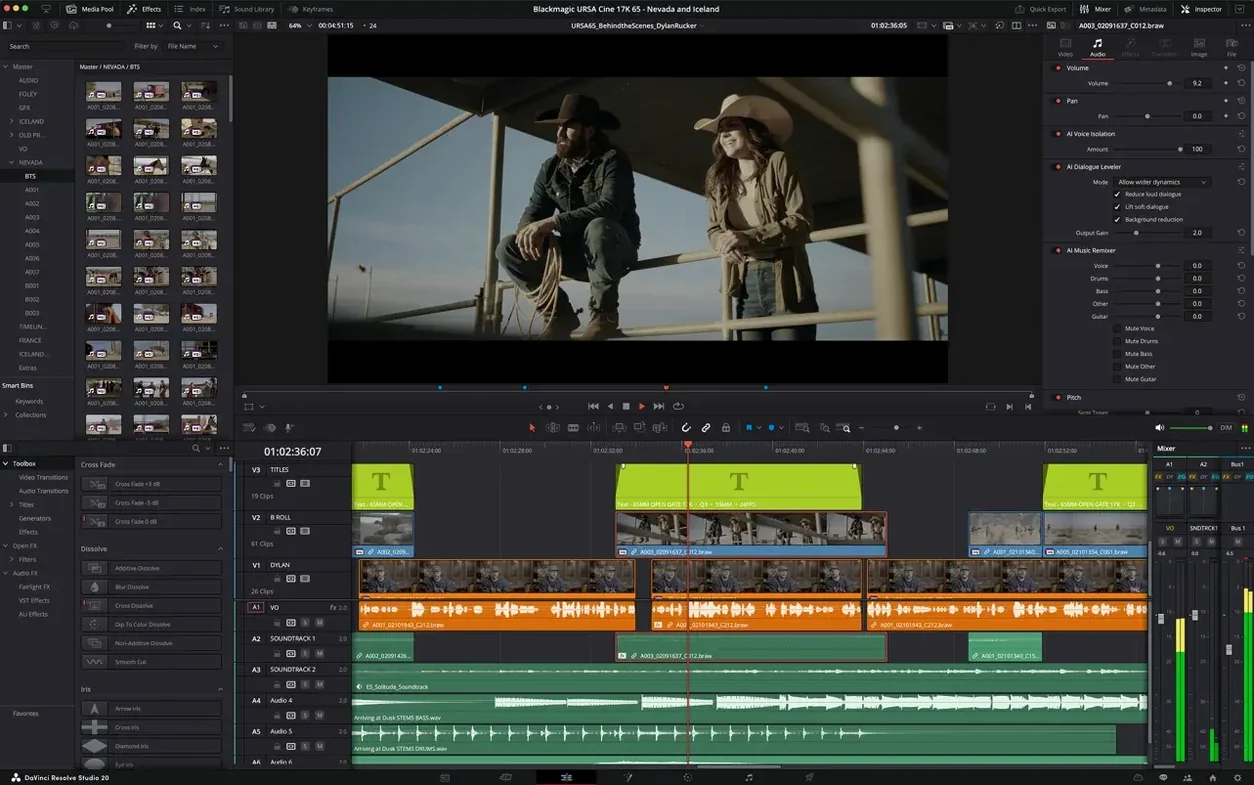
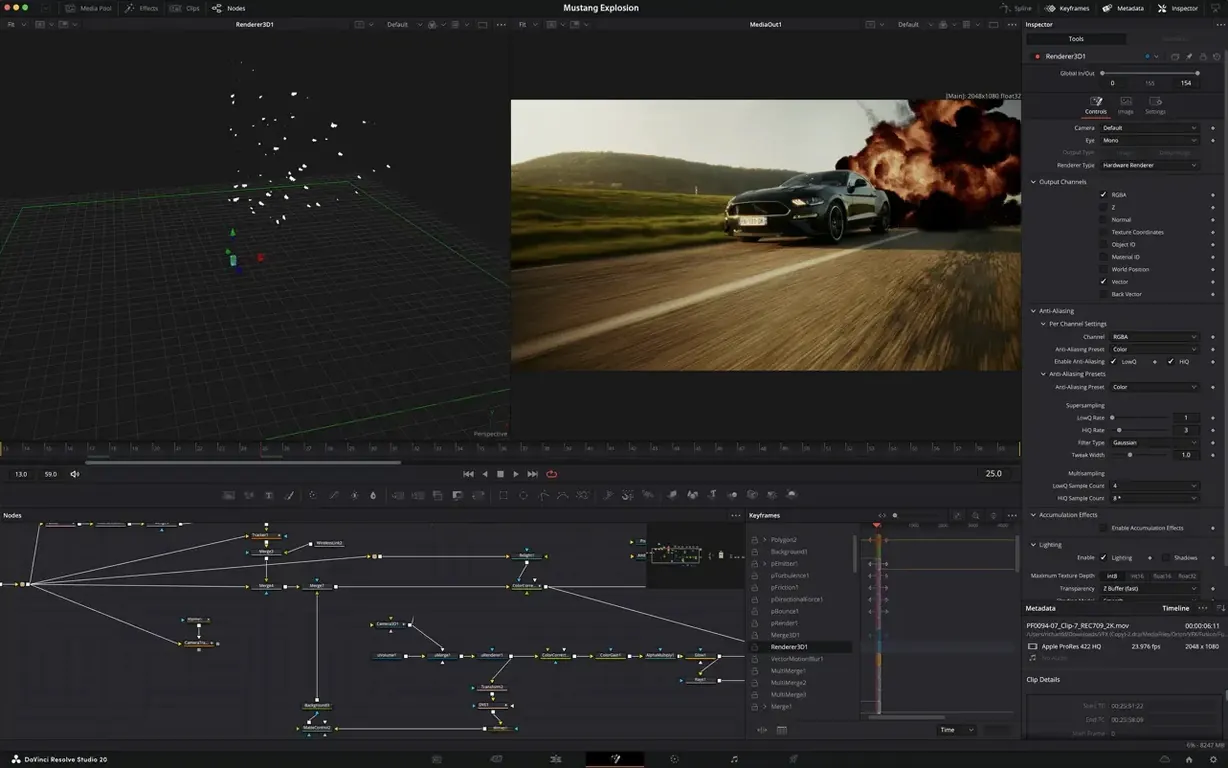
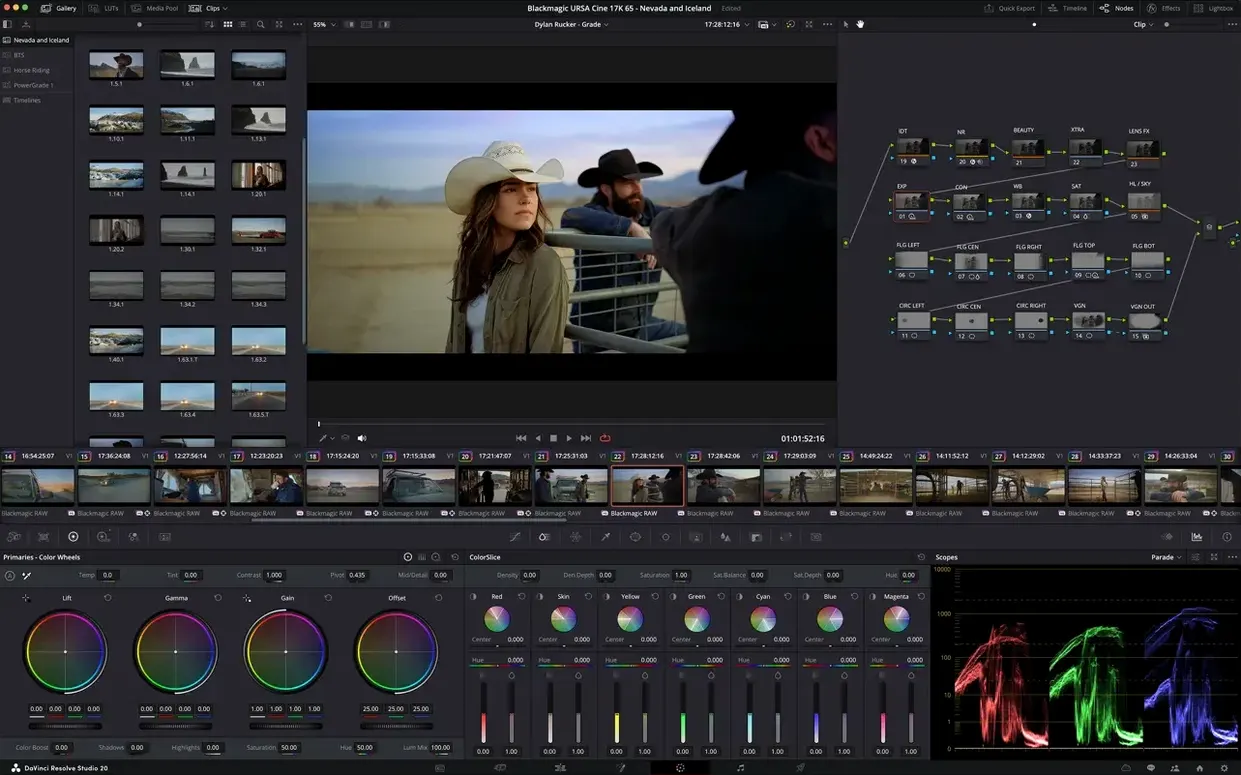
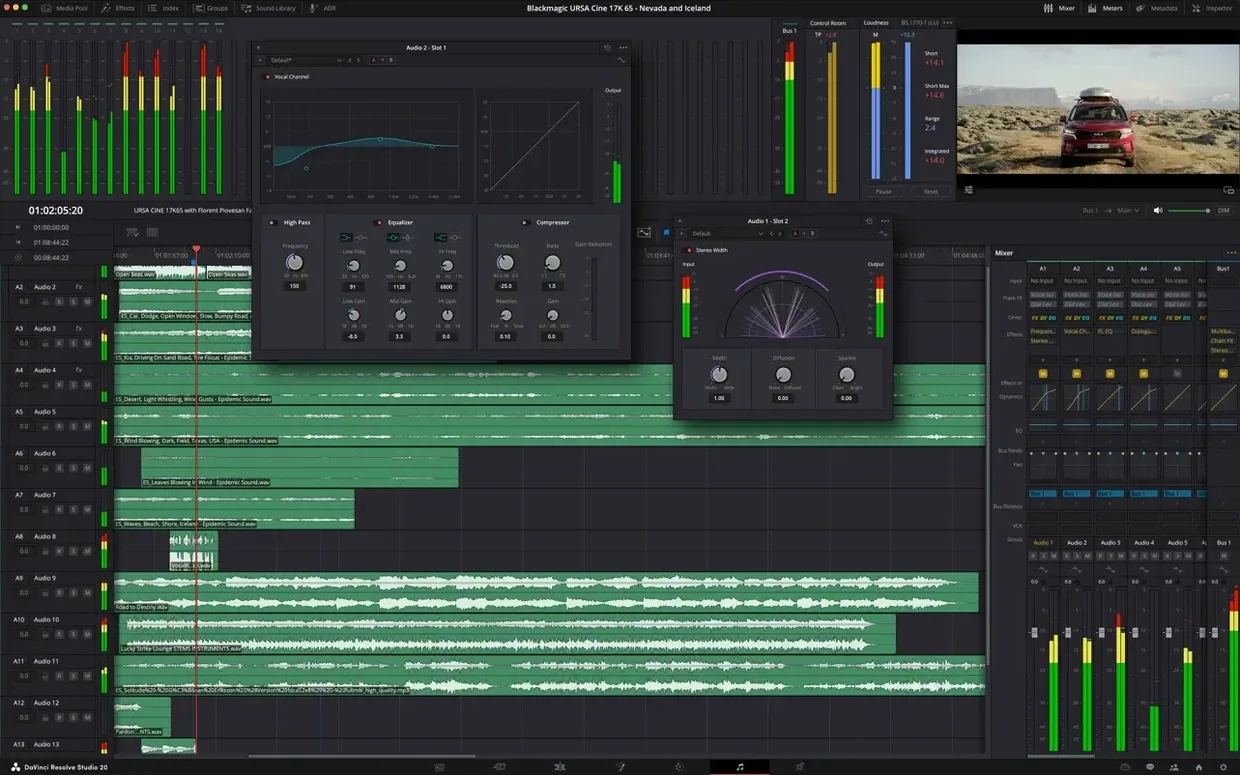
If you already work with DaVinci Resolve on a Mac, the Studio edition is the version that adds advanced color grading, Fairlight audio, and visual effects tools without leaving the same interface. Version 21.1 keeps that unified workflow and adds a few practical updates.
| Detail | Info |
|---|---|
| Developer | Blackmagic Design Inc. |
| Version | 21.1 |
| Category | Video |
| macOS Required | macOS 15 (Sequoia) |
| Architecture | Intel & Apple Silicon |
| Interface Languages | English, Spanish, Simplified Chinese, French, Japanese, Portuguese, Russian |
Before you download, check that your Mac runs macOS 15 — that is the only system requirement for this version. The app runs on both Intel and Apple Silicon machines, so no extra compatibility concerns. Once installed, you get the full Studio feature set: HDR grading, Fairlight audio post-production, and now an AI assistant that helps organize media and handle batch rendering. The 21.1 update also adds 20 new scripting APIs with built-in console support and over 25 new Krokodove graphics tools. It is a single application for editing, effects, color, and audio — useful if you prefer not to switch between separate tools during a project.
Create a Project, Not the Sample
The first thing to do after the installation finishes is open the project manager and create a new project, not the sample one. The 21.1 AI assistant can help organize media from the start — drag a folder of clips into the media pool and let it sort by scene, date, or camera type. I would take ten minutes to browse the new Photo page and check which camera formats your files use. The expanded format support in this version means most recent mirrorless and cinema cameras are covered, but it is worth confirming before a deadline.
DaVinci Resolve Studio will transcode on import if you want proxy media, but I prefer to work with the originals and let the 32-bit floating-point processing handle the math. Open the Fairlight page and test your audio interface if you use external hardware — the system recognizes it under the Fairlight menu without extra configuration. Also, turn on the console in the scripting workspace area to see what the 20 new APIs can do. Even if you do not write scripts, knowing they are there helps when you later need to automate a repetitive export step.
HEIC and HTJ2K Decoding Gains on Apple Silicon
The 21.1 update includes hardware-accelerated HEIC decoding on Apple Silicon. If you work with stills from recent iPhones or newer Canon cameras, the Photo page loads those files noticeably faster than before. On the same page, the GPU-accelerated HTJ2K decoding using Kakadu speeds up high-resolution JPEG 2000 files from cinema cameras — useful if you handle ARRIRAW or RED footage alongside stills.
The new Krokodove graphics tools are not just for visual effects. Some of them work well for text overlays and subtle motion graphics inside the edit timeline without needing a separate Fusion page. Look for them in the Effects library under the Krokodove section. The AI assistant can also batch-render timelines — a feature that is easy to skip because it sits quietly in the Deliver page menu. Select multiple timelines in the project manager, choose the assistant, and it queues them for export with your current preset.
Fairlight, HDR, and Krokodove in Studio Edition
The Studio edition adds the Fairlight audio post-production tools, advanced color grading with HDR, and the visual effects tools like Krokodove. If you need the Fairlight mixer or the AI assistant, install the Studio edition.
Can I run it on a Mac with Intel graphics?
Blackmagic Design recommends a dedicated GPU for color correction and effects, but the app runs on Intel machines with integrated graphics for basic editing. The 21.1 update adds NVIDIA RTX Spark support on Windows; on the Mac side, Apple Silicon machines handle the GPU load better. If you are on an Intel Mac with a discrete GPU, it will work. Expect slower performance on complex timelines with heavy effects.
Does the AI assistant require an internet connection?
No. The AI assistant runs locally on your Mac. It analyzes media metadata and timeline structure without sending data to a server. This keeps projects private and works offline.
Will my existing DaVinci Resolve projects work in version 21.1?
Yes. The 21.1 update opens project files from previous Studio versions. Once saved in 21.1, older versions of Resolve cannot open them, so keep a backup if you collaborate with someone still on an older release.
Scenario: A Wedding Colorist
Mariana edits wedding films in Lisbon. She receives footage from three cameras — a Sony A7S III, a Canon C70, and a DJI Mavic 3. Instead of opening three different apps for color, audio cleanup, and final export, she does everything in DaVinci Resolve Studio on her MacBook Air M2. The 32-bit floating-point processing handles the Sony highlights without clipping the white dress. The Fairlight page removes wind noise from the drone audio in one pass. The AI assistant on the Deliver page batches the ceremony, preparation, and reception timelines into three separate exports with identical color presets. She delivers the final videos the same evening without opening a second application.
Drag a Clip, Trim with the Cut Tool
Start the Mac, open the app, and load the project from the recent projects list. The timeline shows raw clips from a short commercial shoot. Drag a clip onto the timeline and use the cut tool to trim the beginning. Switch to the Color page — the interface shows the waveform and the color wheels. Adjust the shadows and highlights with the lift, gamma, and gain controls. The 32-bit processing keeps the sky detail intact even after pushing the exposure up a stop.
Add a text overlay from the Effects library — the Fusion page is not needed for simple titles. Drop the text onto a new track, type the copy, and adjust the font size. The Krokodove tools in the effects panel add a subtle motion blur on the text entrance. Play the timeline back to confirm the timing.
Open the Fairlight page. The audio track has a low rumble from an air conditioner. Use the built-in equalizer to cut the low frequencies. The Fairlight mixer shows the levels for each track — no need to route audio through a separate DAW. Export a quick preview to check the mix against the video.
Back on the Edit page, apply the same color grade to a second clip using the match color tool. The AI assistant suggests a batch render for the two completed scenes. Choose H.264 Master preset, set the destination folder, and start the render. While it exports, open the scripting console to see the new API commands — useful later for automating the same steps for next week's batch of footage.
Resolve Studio 21.2-REV1 ships a maintenance build for macOS 15 systems. No feature additions are detailed for this release.
| macOS | macOS 15 or later |
|---|---|
| Processor | Apple Silicon, Intel 64-bit |
| Download | 7.9 GB |
- macOS 15 or later
- Apple Silicon or Intel 64-bit
How to install, in order
- Download the package and extract it.
- Follow the installation and activation guide included in the package.
Comments and corrections 0
Sign in or open a free account to leave a comment.
No comments or corrections yet.