Astro Gold 6.2.1 — download for Mac
Mac Apps Updated
Builds natal charts and calculates transits, progressions, and composite comparisons.
Screenshot
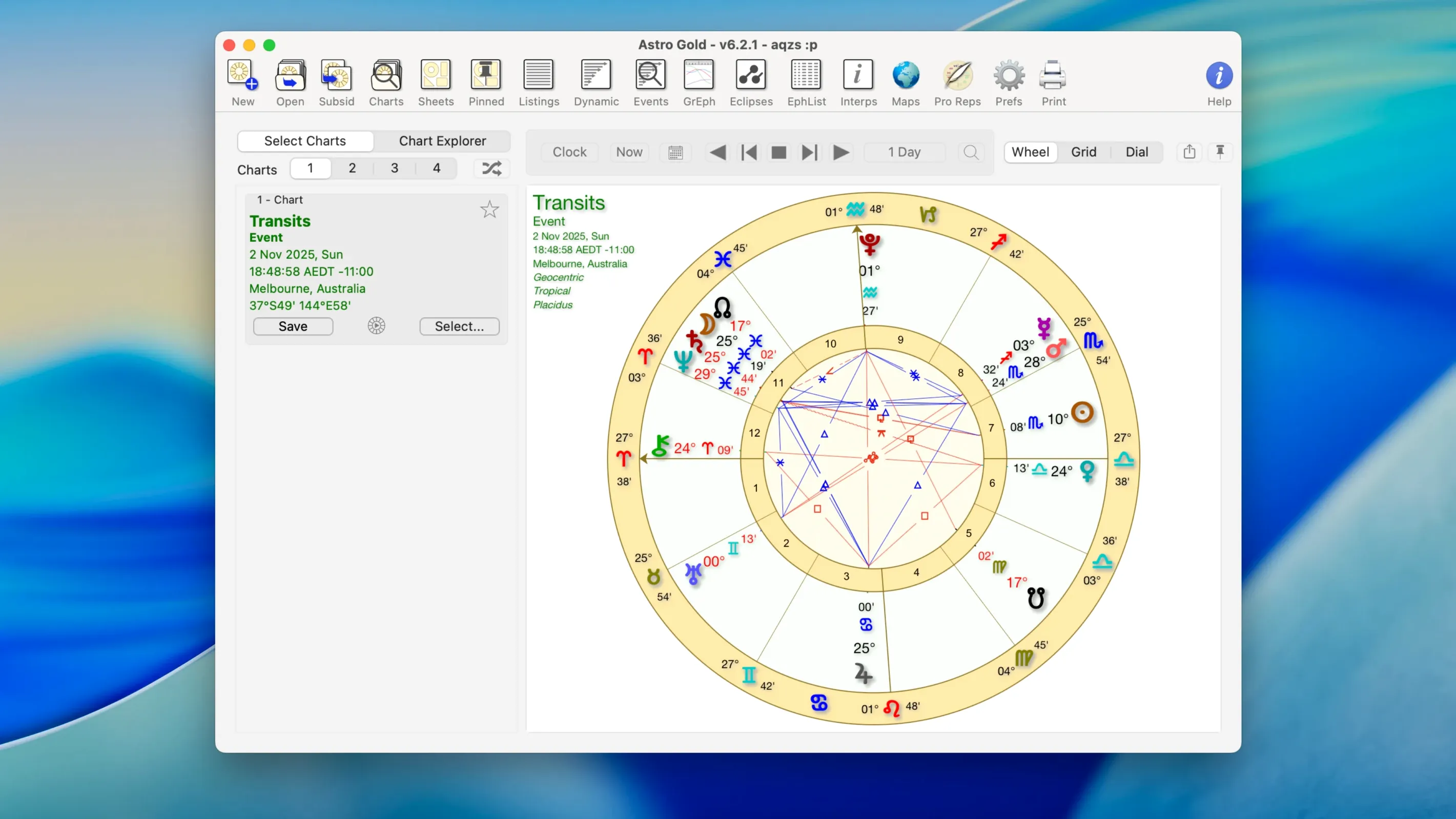
Astro Gold 6.2.1 installs on any Mac running macOS 10.13 or newer, including 64-bit Intel machines and Apple Silicon models. That covers most Macs still in daily office or home use, so hardware is rarely the first hurdle.
Natal charts, transits, progressions, and composite comparisons
- Building a natal chart before adjusting orb, aspect, and planet filters
- Studying transits alongside solar, lunar, and secondary progressions
- Working with symbolic directions and solar arc directions
- Comparing composite and Davison charts
- Reading ephemerides and planetary lines in astrocartography
English interface, macOS 10.13+, and chart filter tips
- The interface is in English only
- Requires macOS 10.13 or later
- Published by Cosmic Apps Pty Ltd
Newcomers often get the most from the chart settings early. The filter controls make a busy wheel easier to read, and the progression tools give you a second layer without leaving the main workspace.
macOS-native vs. web apps and emulated Windows tools
Astro Gold sits in a specific niche — dedicated astrology software for macOS. Most alternatives fall into two categories: web apps with limited offline use, or older Windows-focused tools running through emulation.
Solar Fire
Solar Fire runs on Windows only. On a Mac you need Boot Camp or a virtual machine, which adds friction to an already technical workflow. Astro Gold runs natively on both ARM and Intel Macs, no emulation layer needed.
Astro-Vision
Astro-Vision offers a Mac version, but its interface uses a more rigid chart layout. Astro Gold gives you round and square chart styles, and you can toggle aspects on or off — useful when you want a clean natal wheel for a quick read. Astro-Vision also lacks the same depth in fixed star catalog and ephemeris browsing.
TimePassages
TimePassages works well for basic natal charts but stops short on the progression and direction side. Astro Gold includes symbolic directions, solar arc directions, and solar, lunar, Saturn, and other returns — techniques that practicing astrologers use daily.
For anyone who needs synastry, composite, Davison, and relocation charts in one app without switching between tools, Astro Gold covers that ground without compromise.
Client birth data entry and tropical zodiac round chart
I open Astro Gold at the start of a new consultation. First, I enter the client's birth data — date, time, and place. The natal chart renders in a few seconds. I leave the default tropical zodiac and round chart style for now.
Next, I adjust the orbs. A busy chart can mask the main story, so I reduce orb values for minor aspects and leave major aspects at their standard range. The filter controls let me hide planets below the horizon if the chart feels crowded.
I switch to the transit view. The current date populates automatically. I scroll forward a few days to see where the Moon will be relative to the client's natal planets. If I need more detail, I open the solar progression panel and compare it side by side with the transit layer.
For a client moving cities, I use the relocation chart feature. I enter the new city coordinates and Astro Gold recalculates the houses. I also check the astrocartography map for planetary lines crossing that location.
Finally, I export a clean square chart with aspects visible and save the ephemeris data for the next six months. The whole session takes about fifteen minutes once the data is in.
Skipping orb and aspect filter adjustments
New users often skip the orb and aspect filters. The default settings show everything, which makes the chart look like a plate of tangled string. Reduce orbs for minor aspects first — you will see the main shapes clearly.
Another common mistake is ignoring the zodiac system toggle. Tropical and sidereal produce very different readings for the same birth data. Beginners who do not check which system is active can end up confused when the planetary positions do not match their reference books.
Some also overlook the aspect filter. Turning off minor aspects in a synastry overlay lets the major oppositions and conjunctions stand out. The composite chart quality improves when you are not distracted by every semisextile.
Finally, forgetting to set the correct chart style — round or square — can throw off a printed report. Each style reads differently on paper. I keep a square layout for printed handouts and round for on-screen work.
Workflow: synastry analysis from start to finish
- Open Astro Gold and enter the first person's birth data. Save the chart if you plan to reuse it.
- Enter the second person's birth data in a new chart.
- Open the synastry panel. The app overlays both charts automatically.
- Set the aspect filter to show only major aspects — conjunctions, oppositions, squares, trines, and sextiles. Hide the rest.
- Reduce orbs to 8° for outer planets and 5° for personal planets. This declutters the wheel.
- Read the major placements first: Sun-Moon connections, Venus-Mars interactions, and any Saturn contacts.
- Toggle the composite chart on to see the relationship's combined chart.
- Switch to Davison chart for a midpoint view of the relationship itself.
- Review the planetary lines in astrocartography if either person is considering relocation.
- Export the synastry report as a clean chart image for the client.
This workflow covers a full relationship reading without switching apps. The same process works for business partnerships or family dynamics — just swap the birth data and adjust filters accordingly.
No release notes filed for 6.2.1. They are added here when a build changes how the program behaves.
| macOS | macOS 10.13 or later |
|---|---|
| Processor | Apple Silicon, Intel 64-bit |
| Download | 58 MB |
- macOS 10.13 or later
- Intel 64-bit or Apple Silicon Mac
Questions about Astro Gold
Does Astro Gold work on Apple Silicon Macs?
Yes, version 6.2.1 supports both ARM and x86 64-bit Macs.
What chart types are included?
Astro Gold includes natal, composite, Davison, transit, progression, and astrocartography charts, along with ephemerides.
How to install, in order
- Open the downloaded disk image.
- Drag Astro Gold onto the Applications folder alias.
- After copying finishes, launch the app from Launchpad.
Comments and corrections 0
Sign in or open a free account to leave a comment.
No comments or corrections yet.