
Wolfram Mathematica 15.0 — download for Mac
Office Updated
Handles symbolic math, numerical modeling, and data analysis with a notebook environment.
Screenshots
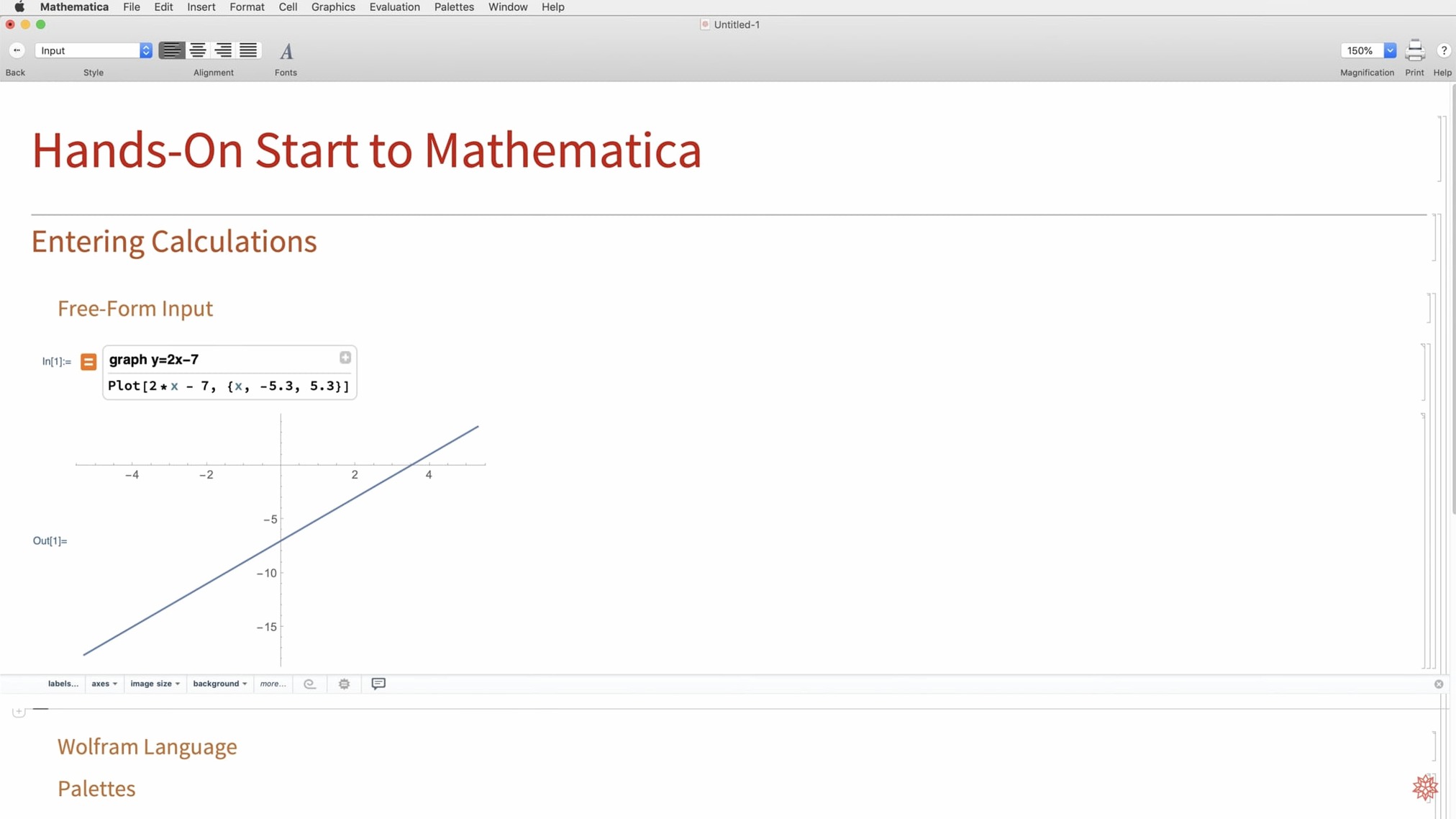
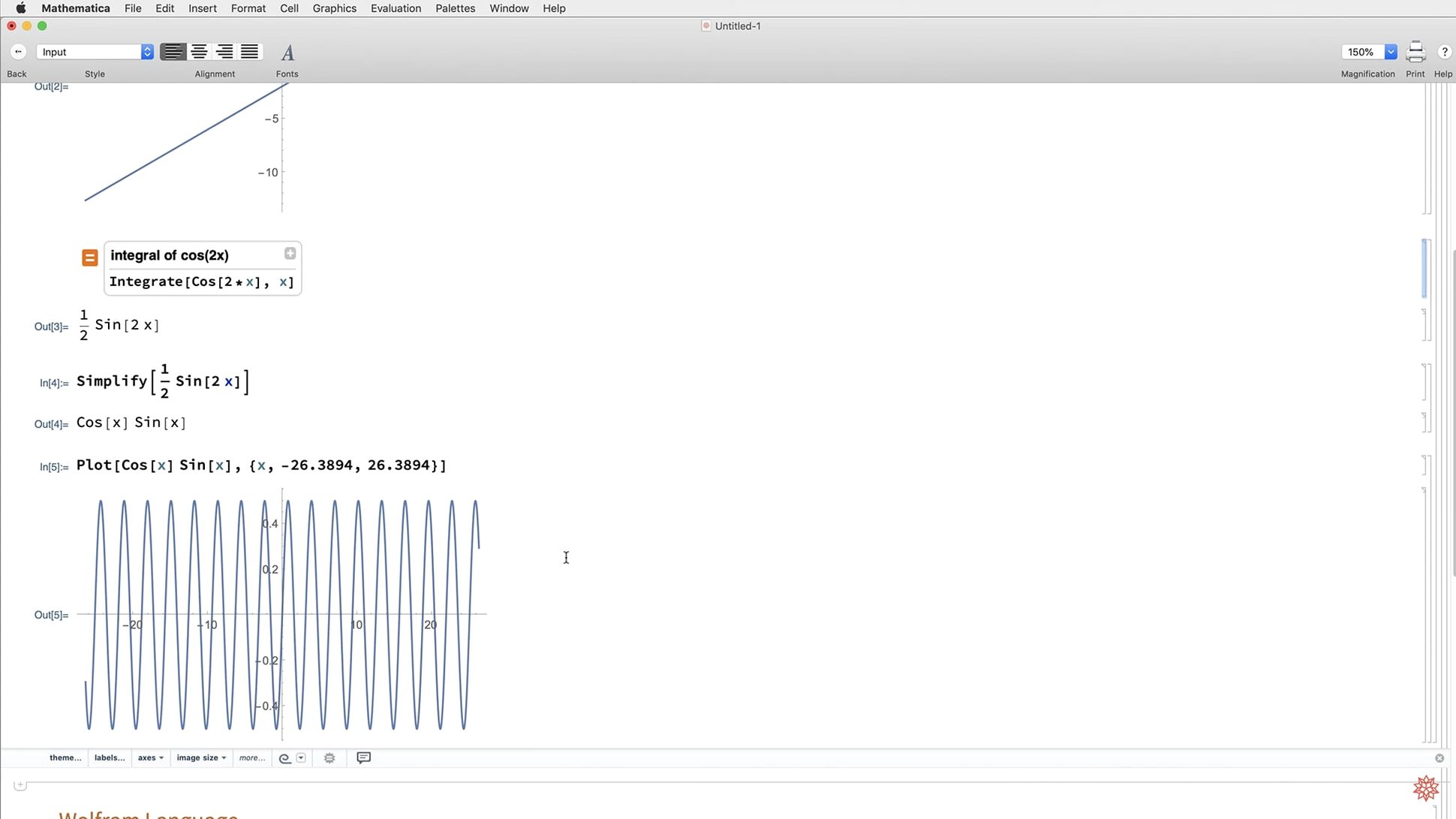
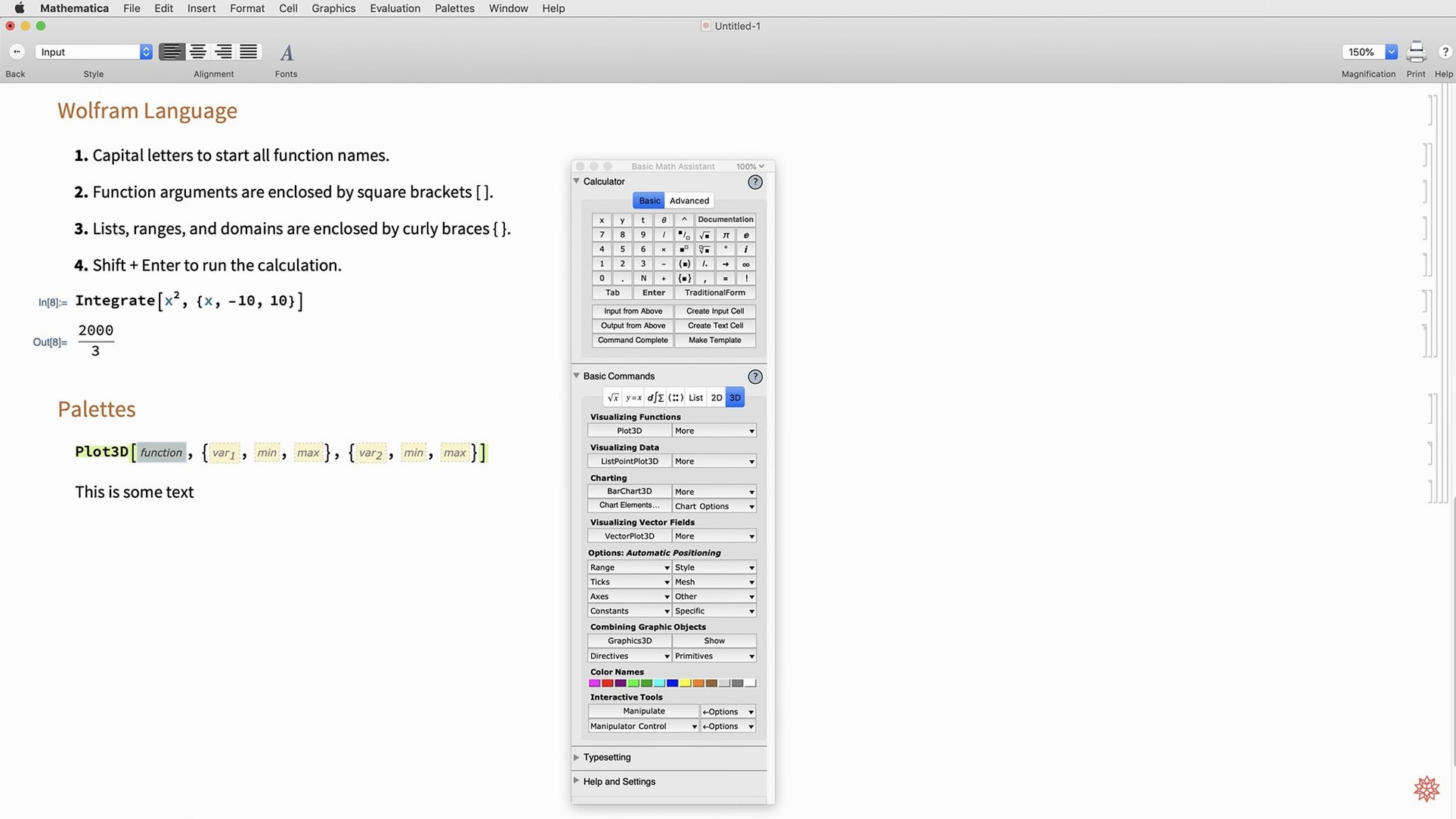
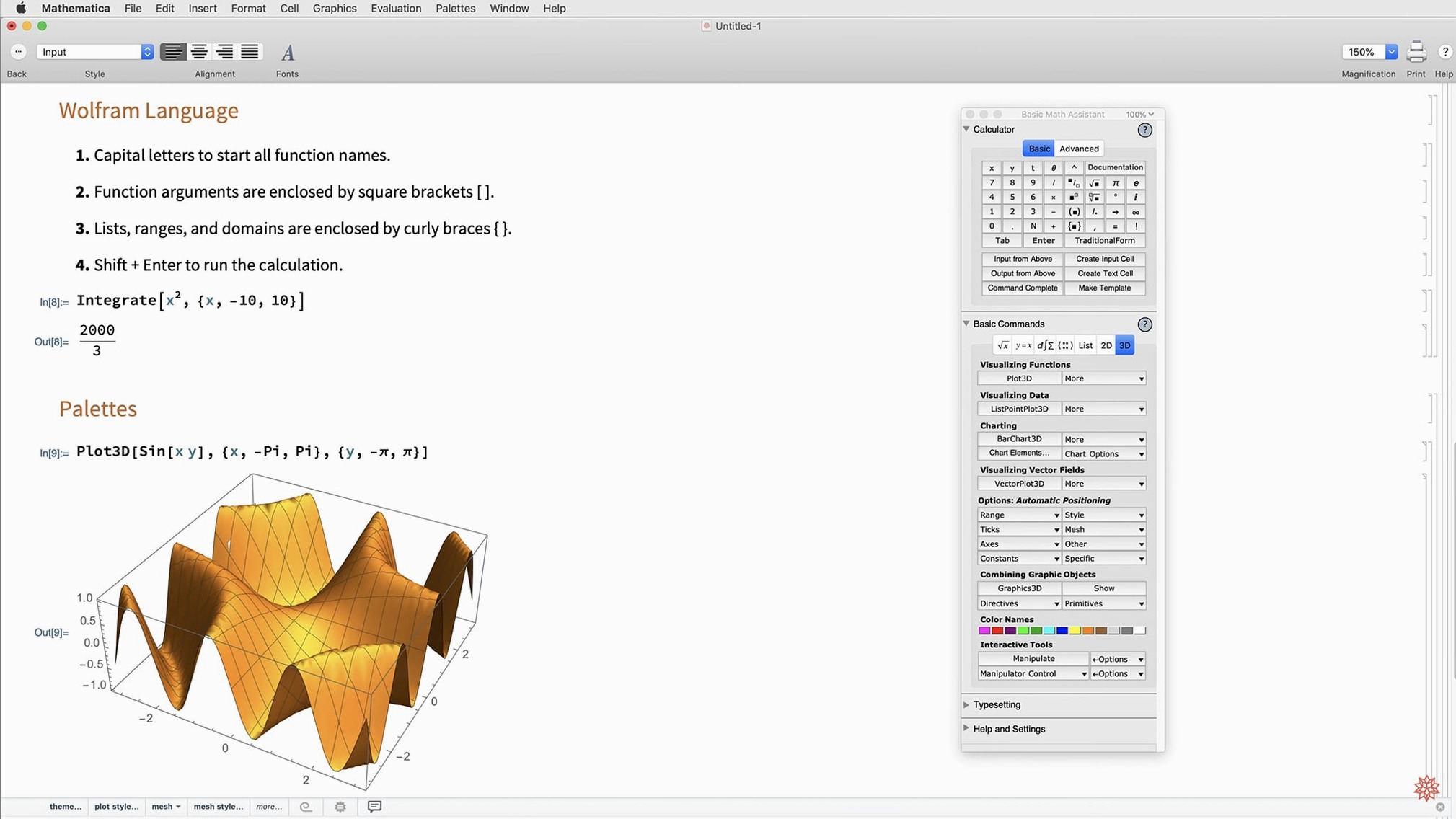
Engineers, researchers, and data analysts who live in symbolic math and numerical modeling reach for Mathematica when spreadsheets fall short. Version 14.3 keeps the core notebook environment but adds tools that matter to someone who uses the software daily.
Modeling with new matrix tools
New matrix decompositions and Hilbert transforms land in this release. If you work with linear systems or signal processing, these cut steps you'd otherwise script by hand.
Plotting without workarounds
ListFitPlot and expanded surface plotting functions let you fit data and visualize it in one pass. Vector-based maps and mesh processing tools replace the old import-export chain for geographic or CAD-like data.
Connecting to external tools
Faster Python and R integration means you can call pandas or ggplot2 from inside a notebook without slow bridges. ColumnwiseCombine and LLMGraph extend what you can pull from raw data or language models.
Compatibility and activation on Macs
Most questions I hear are about compatibility and activation. Mathematica 14.3 runs on macOS 12 and later, covering both Intel and Apple Silicon Macs. The installer detects your architecture, so there is no separate download for ARM or x86 — one package handles both. The activation process is included with the files you get; the instructions inside the archive walk you through it step by step.
Language support is broader than many expect. The interface and documentation are available in English, Russian, German, Spanish, French, Italian, Portuguese, Chinese (Simplified and Traditional), Japanese, Korean, Greek, Vietnamese, Lithuanian, Polish, and Ukrainian. You can switch languages in the preferences without reinstalling.
Another common question: can you use Mathematica offline? Yes. The notebook environment runs fully on your machine. Cloud access for sharing notebooks or using remote kernels is optional and browser-based, not required for everyday work.
Notebook unresponsive after install fix
One issue people hit early is the notebook interface not responding after a fresh install. This is usually a permissions problem with the configuration folder. Deleting ~/.Wolfram and relaunching the application clears it — Mathematica recreates the folder with correct permissions on next start, and your kernels will load normally.
Another snag: plotting functions that worked in older versions produce different color schemes in 14.3. This is because version 14.3 introduces new standard colors for dark-mode and light-mode environments. If you have existing notebooks with custom styling, the color shift can be surprising. The fix is to apply the old default stylesheet from the Format menu, or adjust your plot color arguments explicitly.
Occasionally, users on macOS 12 find that Mathematica launches but the Wolfram Language kernel fails to start. The cause is often a firewall or VPN blocking localhost communication. Mathematica uses local sockets for the kernel-frontend connection. Adding an exception for wolfram and MathKernel in your security software, or temporarily disabling the VPN, resolves it.
For Python and R integration, the new faster bridge in 14.3 requires those runtimes to be installed and on your PATH. If you get a "ExternalEvaluate" error, open a terminal and confirm python3 --version or R --version returns a version. Once they are reachable from the command line, Mathematica finds them automatically.
Mathematica vs. MATLAB: language depth and workflow
If you are choosing between Mathematica and similar tools, the differences come down to language depth and workflow style.
MATLAB is the closest competitor for numerical work. Its syntax is matrix-first, and its IDE is clean. But Mathematica gives you symbolic computation by default — no separate symbolic package to buy or load. For signal processing with Hilbert transforms or symbolic integration, Mathematica handles those natively in the notebook. MATLAB is stronger in control systems and hardware-in-the-loop testing; Mathematica is stronger when you move between symbolic algebra, numerical fitting, and visualization in a single session.
Maple is another symbolic engine, popular in academic math departments. Its interface is a notebook too, but the Wolfram Language ecosystem — LLMGraph, Markdown export, cloud deployment, and natural-language input — is broader. Maple's strength is pure symbolic math; Mathematica's is the range of built-in functions for data import, machine learning, and system modeling that you get without leaving the notebook.
Python with Jupyter is free and widely used. You can reproduce much of Mathematica's functionality with NumPy, SciPy, SymPy, and matplotlib. But you spend time assembling and debugging those libraries. Mathematica gives you one language, one documentation set, and one support team. For a project manager’s perspective: if your team has mixed skill levels, the consistency of the Wolfram Language reduces the troubleshooting overhead that fragmented open-source stacks bring. If your team already lives in Python, the faster R and Python integration in 14.3 makes hybrid workflows smoother than before.
| macOS | macOS 12 or later |
|---|---|
| Processor | Apple Silicon, Intel 64-bit |
| Download | 3.3 GB |
- macOS 12 or later
- Apple Silicon or Intel 64-bit Mac
- Interface languages: English, Russian, German, Vietnamese, Greek, Spanish, Italian, Chinese (Traditional), Chinese (Simplified), Korean, Lithuanian, Polish, Portuguese, Ukrainian, French, Japanese
How to install, in order
1. Install the app using the included instructions. 2. Use the included activation instructions if needed.Comments and corrections 0
Sign in or open a free account to leave a comment.
No comments or corrections yet.