
XMind Pro 26.05.01106 — download for Mac
Office Updated
Organizes complex ideas into mind maps with task tracking, meeting notes, and time management.
Screenshots




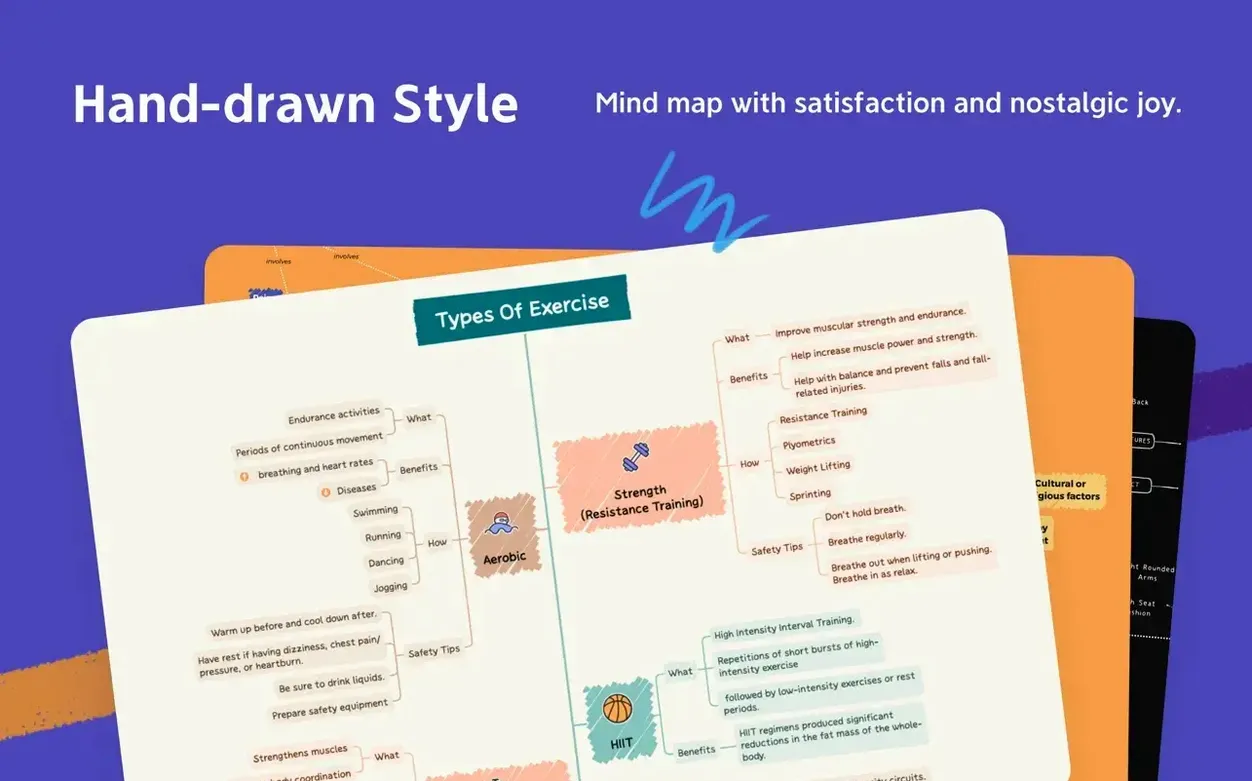


Project managers, team leads, and anyone who needs to organize complex ideas often land on XMind Pro. It is a full-featured mind-mapping and brainstorming tool that also handles knowledge management, meeting notes, task tracking, and time management. Before you download, here is a quick look at what you get and whether your Mac can run it.
- Runs on macOS 11 or later — Big Sur and everything newer.
- Native support for Apple Silicon and Intel 64-bit Macs; no emulation needed.
- Create mind maps, Ishikawa (fishbone) diagrams, tree diagrams, logic charts, and tables.
- Interface in English, Russian, German, Spanish, Italian, French, Portuguese, Thai, Indonesian, Korean, Japanese, and both Simplified and Traditional Chinese.
- Use it for structuring projects, running brainstorming sessions, or tracking tasks and timelines in one place.
If your Mac meets the requirements, XMind Pro gives you a solid set of templates and diagram types without a steep learning curve. For office work that involves planning or sorting through ideas, it is worth a look.
Start with Command-N and a blank template
I start most planning sessions by pressing Command-N and picking a blank mind map from the template picker. The central topic goes in first — usually the project name or the meeting agenda. From there, I press Tab to add a main branch, then Return to add a sibling branch. For a weekly project review, I might have five or six main branches: Progress, Blockers, Next Actions, Resources, Risks.
Once the skeleton is down, I switch to the outline view to reorder items without dragging. The outline panel on the left lets me promote or demote topics with a click, which is faster than repositioning nodes on the canvas. After the structure is right, I apply a theme from the built-in library — one of the cleaner flat themes works for client-facing maps, while the hand-drawn style is better for internal brainstorming.
For deeper work, I add markers to flag priority levels and progress. A red exclamation mark on a blocker, a green check on completed tasks, a clock icon for time-sensitive items. I also attach notes to individual topics by selecting a node and pressing Command-Shift-N. That is where I put meeting minutes or links to relevant documents.
When the map is ready, I export it as a PDF or PNG for the team. XMind Pro also lets you export to FreeMind format, which is useful if someone on the team uses a different mind-mapping tool. The whole process — from blank canvas to a shareable project overview — usually takes about fifteen minutes once you know the key shortcuts.
Project managers, team leads, and initiative break-downs
XMind Pro 26.04.01337 works well for several types of Mac users, but three groups tend to rely on it the most:
- Project managers and team leads — They use it to break down initiatives into work packages, assign owners, and keep a visual timeline of milestones. The Ishikawa diagram option is useful for root-cause analysis after a sprint review.
- Freelance consultants and knowledge workers — Anyone who needs to structure research or client briefs benefits from the tree and logic chart templates. The collaboration feature means a draft map can be shared with a client for feedback without switching to another tool.
- Students and academic researchers — Mapping out literature reviews or thesis outlines is faster with XMind than with a linear document. The table view is handy for comparing sources or study results side by side.
If you work with information that has more than two layers of hierarchy — projects with sub-projects, ideas with supporting arguments, processes with multiple decision points — XMind Pro is a natural fit. For simple to-do lists, a basic text editor would do, but for anything with structure, the visual map saves time.
Keep maps to three to five main branches at first
- Resist the urge to fill every branch immediately. Start with three to five main branches per map. You can always add sub-topics later. A crowded map on day one is harder to reorganize than an empty one.
- Use the outline panel as your primary navigation tool. The canvas is for visual layout; the outline is for editing structure. Switching between them early on builds good habits.
- Save a template of your own. After you make a map that works well, save it as a custom template. Next time you start a similar project, you skip the blank-canvas stage entirely.
- Try one non-standard diagram type early. If you always use mind maps, force yourself to create one Ishikawa diagram or logic chart in the first week. That way you know the feature exists when a real use case comes up.
- Export a test file to FreeMind format and open it in another app to confirm compatibility. It takes two minutes and saves troubleshooting later.
Settings worth changing right after install
The default setup works, but a few adjustments make the app fit your daily rhythm better:
- Auto-save interval. The default interval is fine for most people, but if you tend to switch between apps often, check that auto-save is on and set to a short interval. You can find this in the preferences under General.
- Default font and theme. Pick one theme as the default so every new map starts with your preferred colors and line style. This avoids the extra step of applying a theme each time.
- Language setting. If you work with international teams, set the interface to your primary language. The version supports thirteen languages, so switching is straightforward.
- Export defaults. If you regularly export to PNG or PDF, check that the export options are set to your preferred resolution and page size. That saves a dialog box every time you share a map.
XMind has published the change log for version 26.05.01106 on its website.
| macOS | macOS 11 or later |
|---|---|
| Processor | Apple Silicon, Intel 64-bit |
| Download | 254 MB |
- macOS 11 or later
- Apple Silicon or Intel 64-bit processor
Questions about XMind Pro
Does XMind Pro work on Apple Silicon Macs?
Yes. XMind Pro runs natively on both Apple Silicon and Intel 64-bit Macs.
How to install, in order
The mind-mapping canvas starts as a 254 MB download, ready for Intel and Apple Silicon Macs on macOS 11 or later — three steps from disk image to open application.
- Open the downloaded disk image.
- Drag the XMind app icon into the Applications folder shortcut.
- Once copying finishes, launch the app from Launchpad.
Comments and corrections 0
Sign in or open a free account to leave a comment.
No comments or corrections yet.