CleanMyMac 5.7.0 — download for Mac
Utilities Updated
Frees disk space and improves performance by clearing system junk and caches.
Screenshots
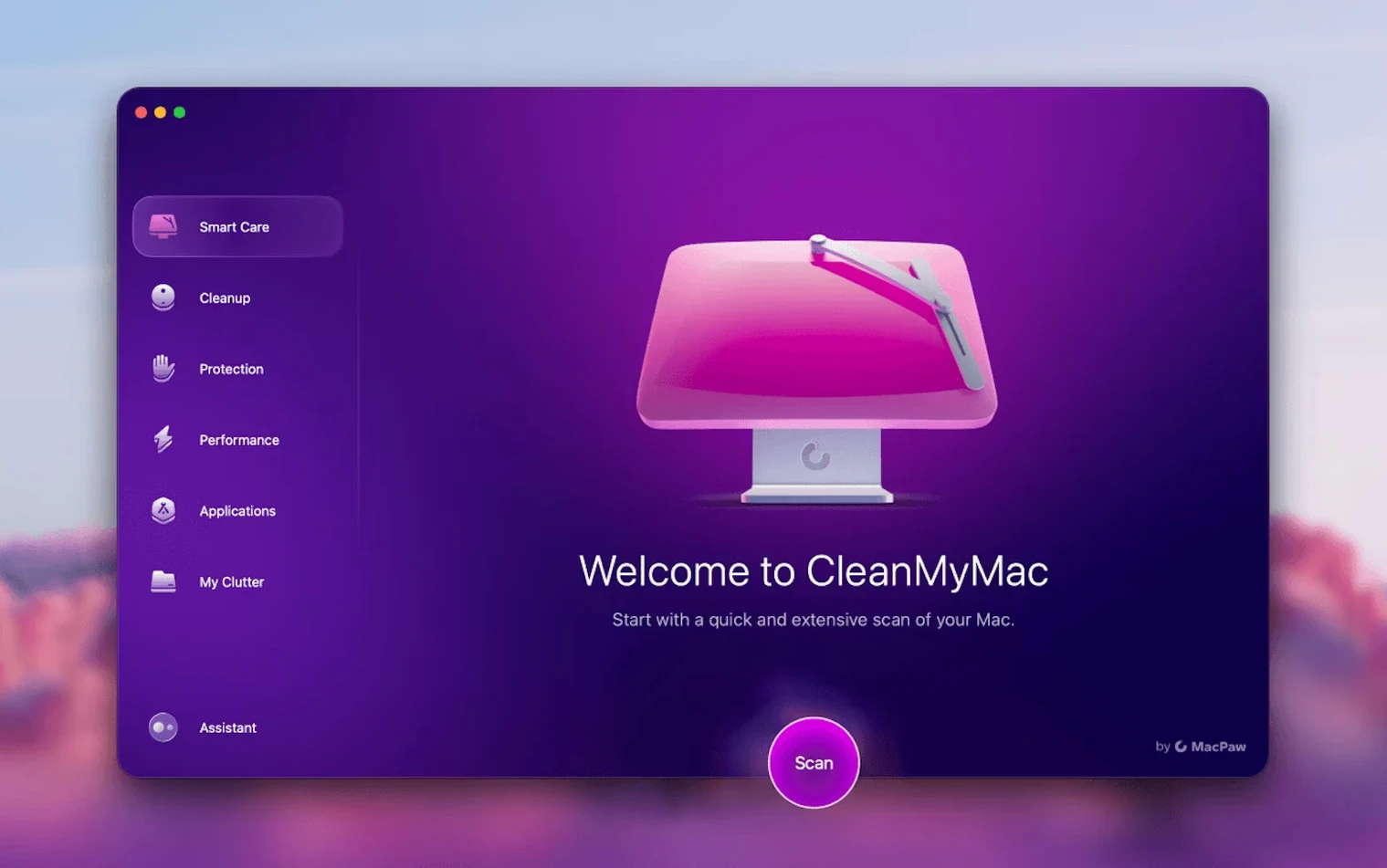
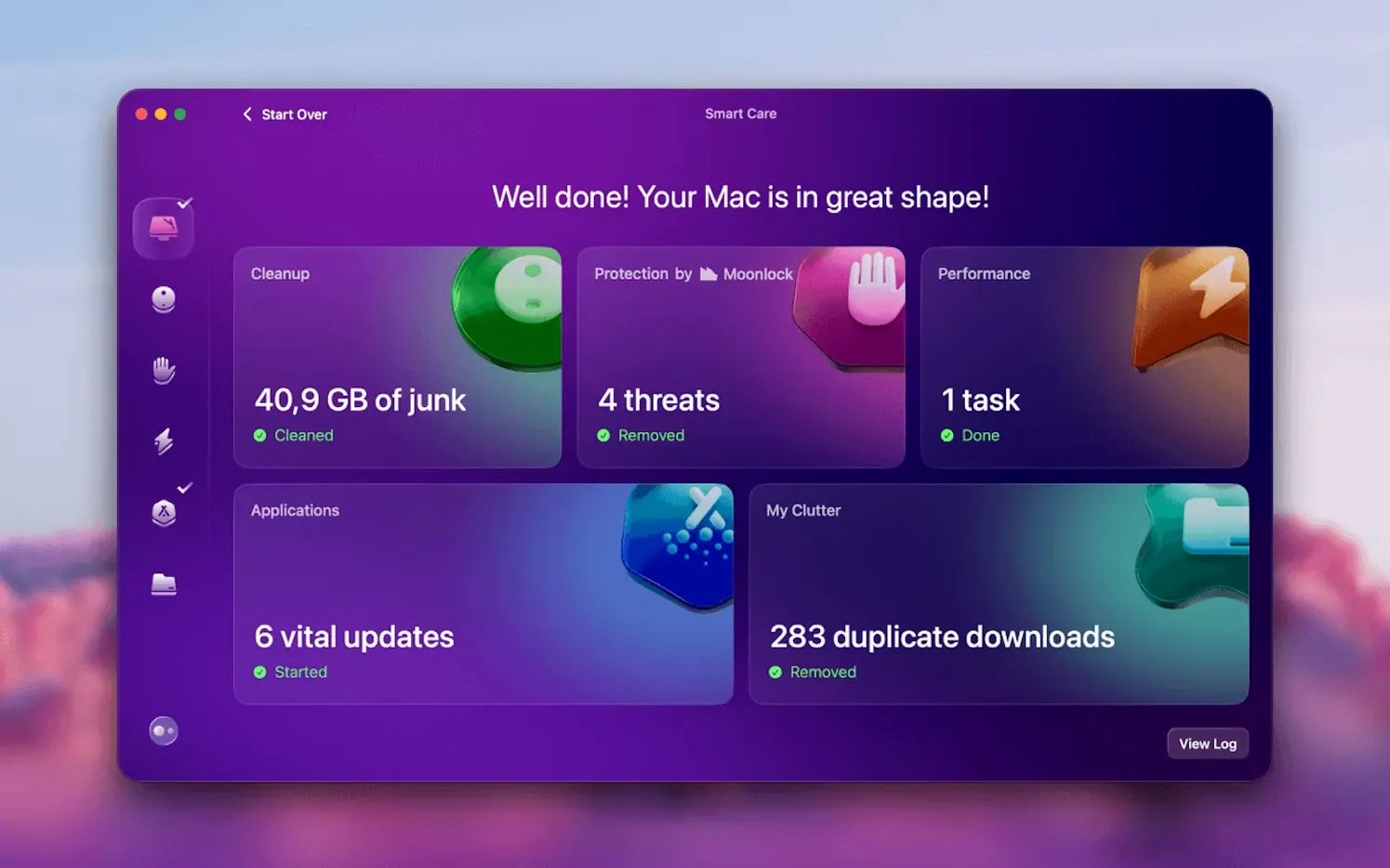
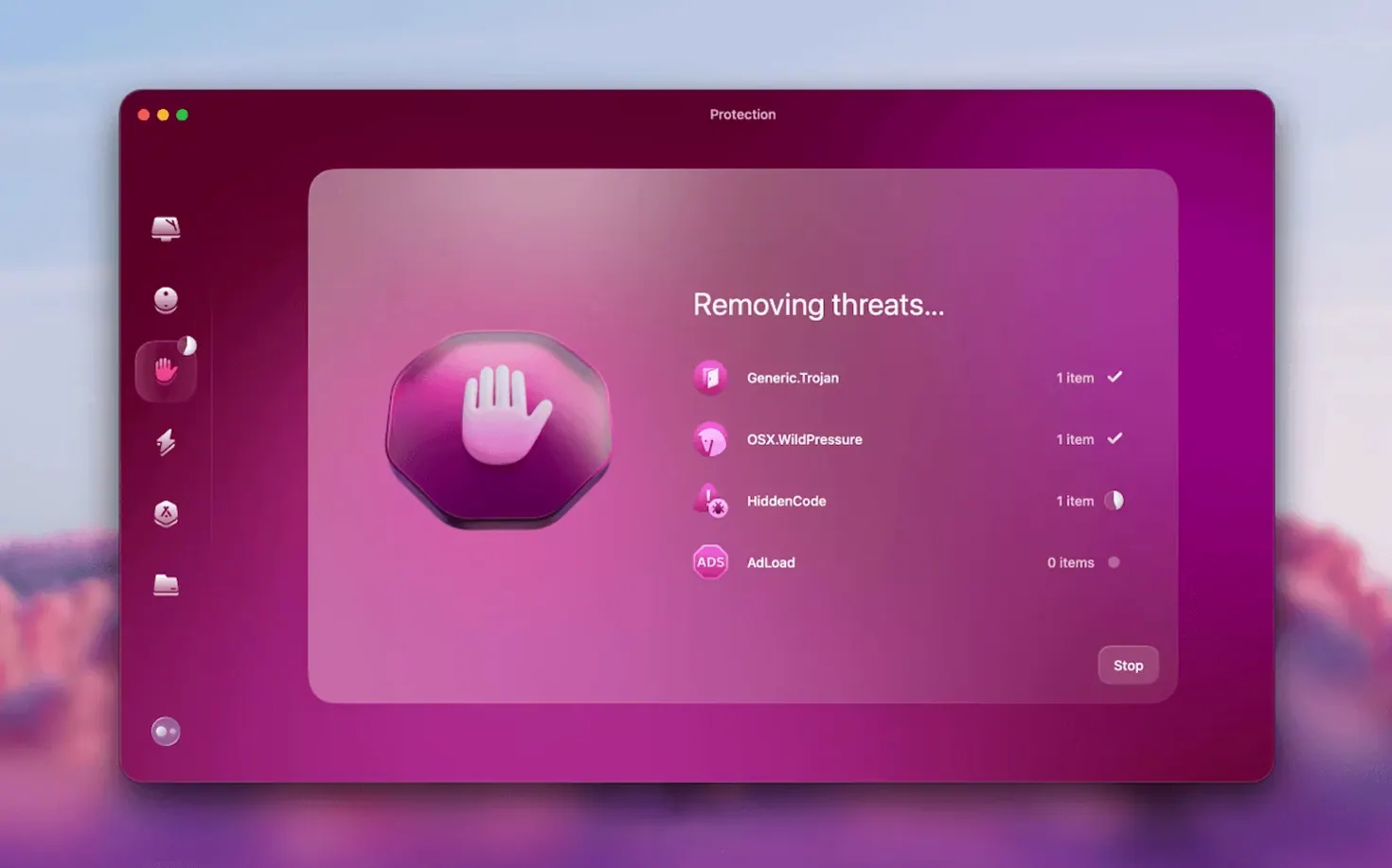
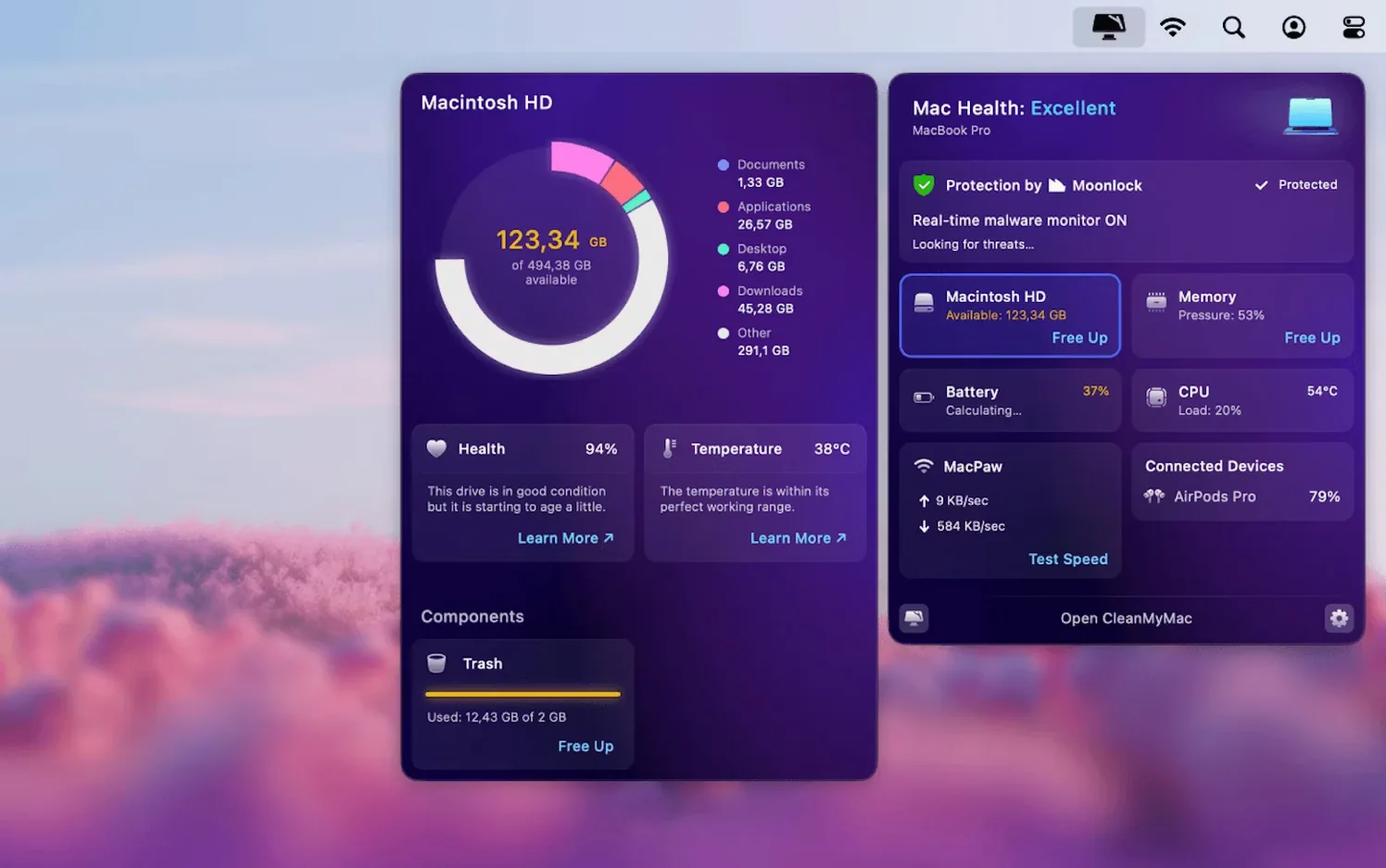
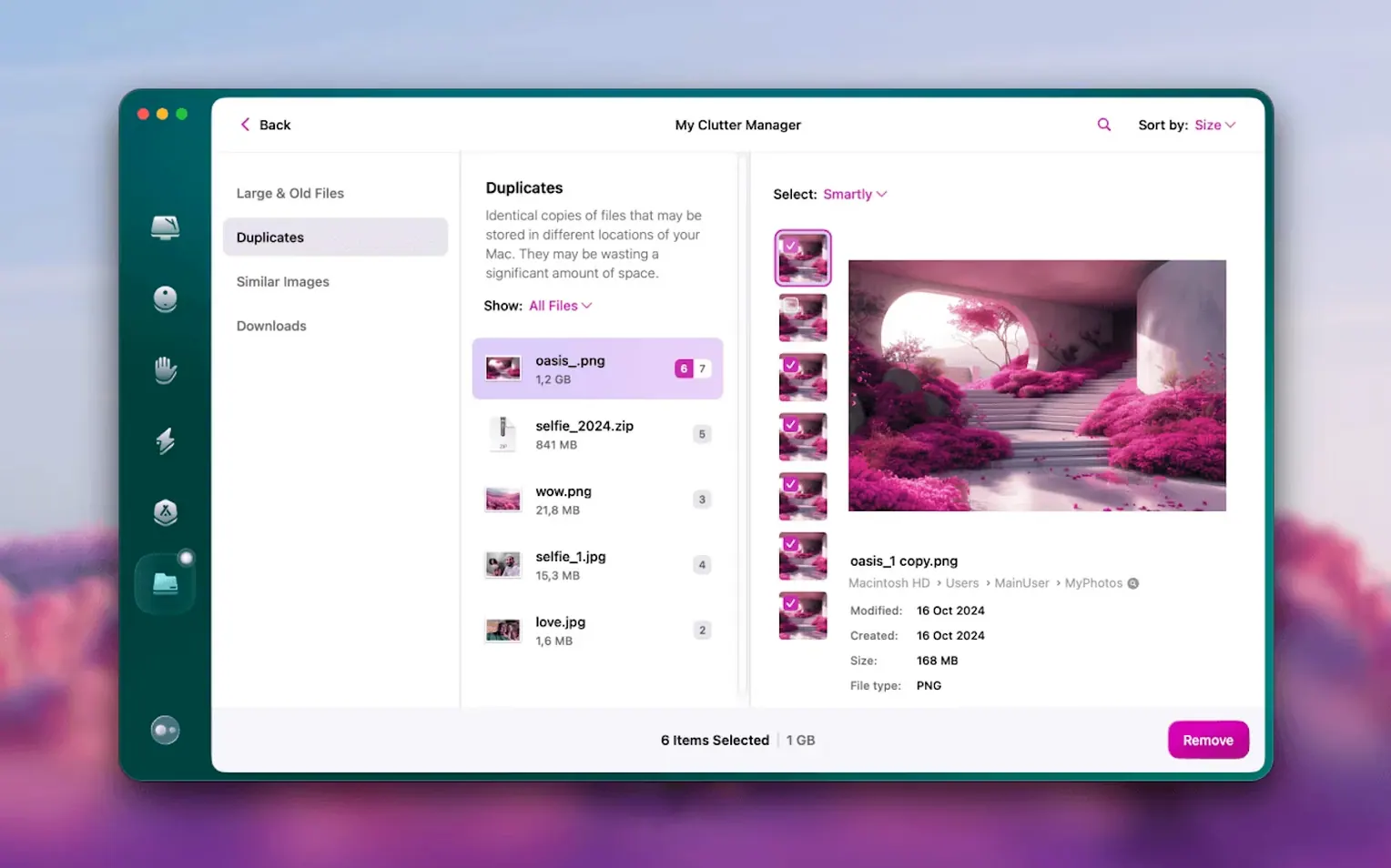
CleanMyMac is a Mac utility from MacPaw that combines system cleanup, performance tools and malware protection in a single app.
Removes Caches, Logs, and App Leftovers
It removes system junk, broken app leftovers and large unnecessary files. The instant cleanup scan targets caches, logs and temporary data without digging through settings manually.
Adds Malware Scanning to macOS Defenses
Yes. A protection module scans for malware threats and detects suspicious files. It is not a full antivirus suite, but it adds a layer of defense alongside macOS built-in protections.
What is File Scope used for?
File Scope gives a visual overview of what is taking up disk space. Large folders and forgotten archives surface quickly, which helps when a project drive runs low.
One Maintenance Tool for Busy Mac Owners
People who want one tool for maintenance instead of five. It suits project managers, freelancers and anyone who needs a Mac to stay responsive without spending Tuesday mornings hunting for disk space.
A typical work session with CleanMyMac starts at the end of the day, not the beginning. After closing out project reports and syncing a folder of site photos back to the server, I open the app and let the system scan run. It finishes in a few minutes. The summary screen shows how much junk it found — cache files from Slack, leftover PDF render temp files, old browser history. One click sends them away. Then I switch to the large files tool and check if any oversized downloads from the week are still sitting on the desktop. Usually there is one or two. A quick delete recovers the space.
Consolidates Disk Usage and App Removal
CleanMyMac works alongside macOS built-in tools like Disk Usage and the empty trash command, but it consolidates what would take several separate actions. You can run the app removal module after dragging a test version of an internal tool to the trash — it catches the remaining folders in Library and Application Support that macOS leaves behind. The Gmail cleanup tool, new in this version, ties into a web browser session through the system default email handler. It scans for large attachments and old newsletters without leaving the desktop. Drag installation means the app sits in the Applications folder like any other Mac program, so it responds to Spotlight, Launchpad and the Dock just as you expect.
Scenario: a freelancer finishing a client's video project
A motion designer in Porto renders a short commercial, uploads it to the client's review site and then needs to clear space for the next job. Instead of manually hunting through folders, they open CleanMyMac and run the large files scanner. They move it to an external drive. Then the system cleanup removes several gigabytes of Adobe cache and browser downloads from the week. The Email Cleanup module scans Gmail for large attachments from the client's thread chain, showing files that can be archived. The whole cleanup takes under ten minutes. The system feels responsive again for starting the next project.
Workflow: clearing space before a big install
- Open CleanMyMac and click the System Cleanup module. Let it scan and review the results. Remove the accumulated junk.
- Switch to the Large Files tool. Check each result — most are temporary or can be archived. Delete or move the ones that are no longer needed.
- Open the App Remover module. Look through the list for applications you installed once and never used again. Select them and click Remove. The tool also removes leftover folders from previous uninstalls.
- After the install, run a quick cleanup again. Installers often leave temporary files that the app can clear immediately.
The whole process takes about fifteen minutes and frees up enough space to leave room for the new software's cache and working files.
- New tools for cleaning and managing mail in Gmail.
- Added email cleanup functionality for attachments and old threads.
| macOS | macOS 11 or later |
|---|---|
| Processor | Apple Silicon, Intel 64-bit |
| Download | 180 MB |
- macOS 11 or later
- Apple Silicon or 64-bit Intel Mac
Questions about CleanMyMac
Which macOS versions does CleanMyMac support?
It requires macOS 11 or later and runs on both Apple Silicon and 64-bit Intel Macs.
How to install, in order
- Remove any older version of CleanMyMac from your system.
- Open the downloaded disk image.
- Drag the app onto the Applications folder alias.
- Once copying finishes, launch the app from Launchpad.
- On macOS 27, grant full disk access in System Settings before opening.
Comments and corrections 0
Sign in or open a free account to leave a comment.
No comments or corrections yet.