Compressor 6.0 — download for Mac
Utilities Updated
Converts and encodes media files with custom presets and watch folders.
Screenshots
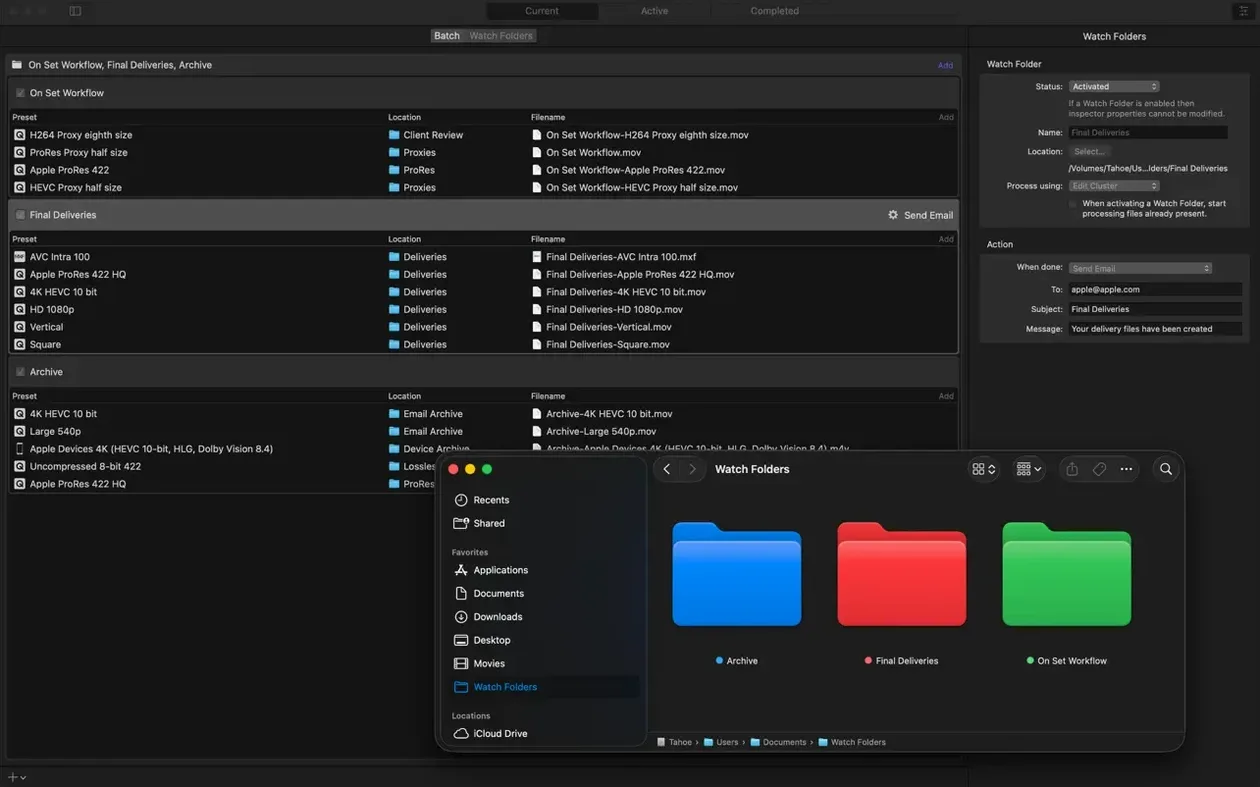
Ignoring Batch Setup in the Watch Folder
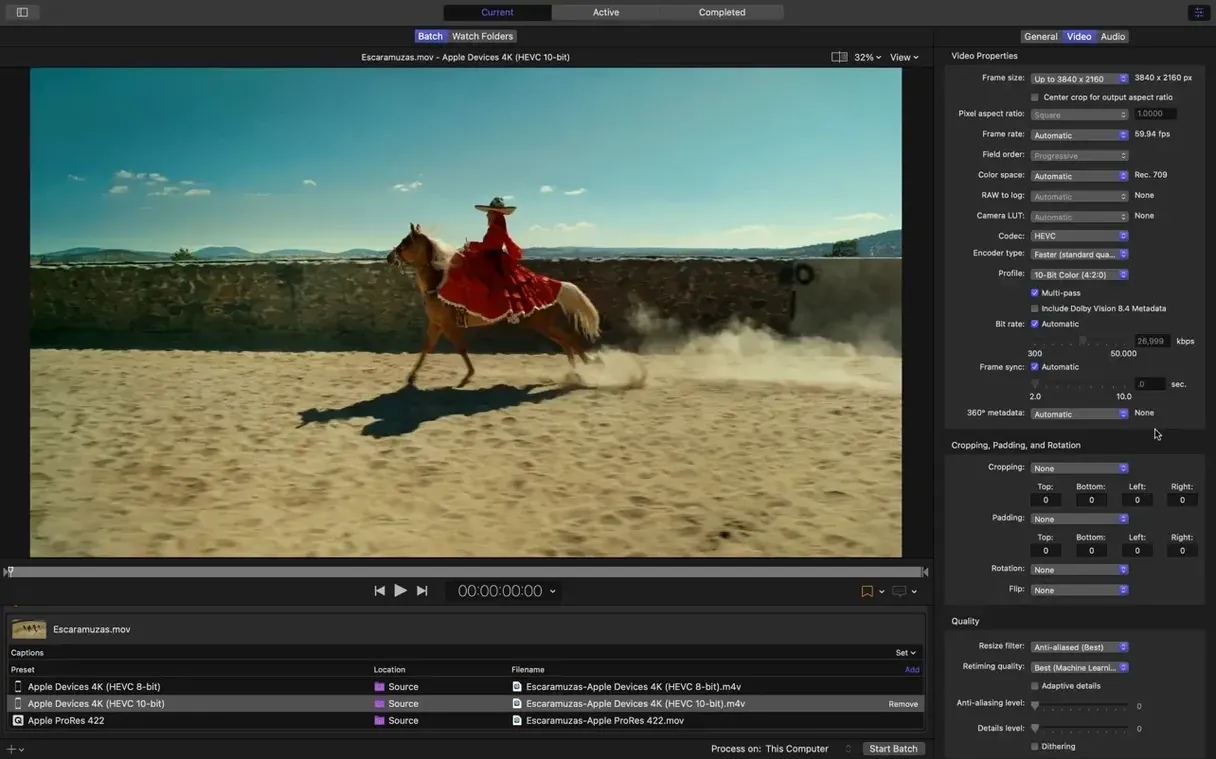
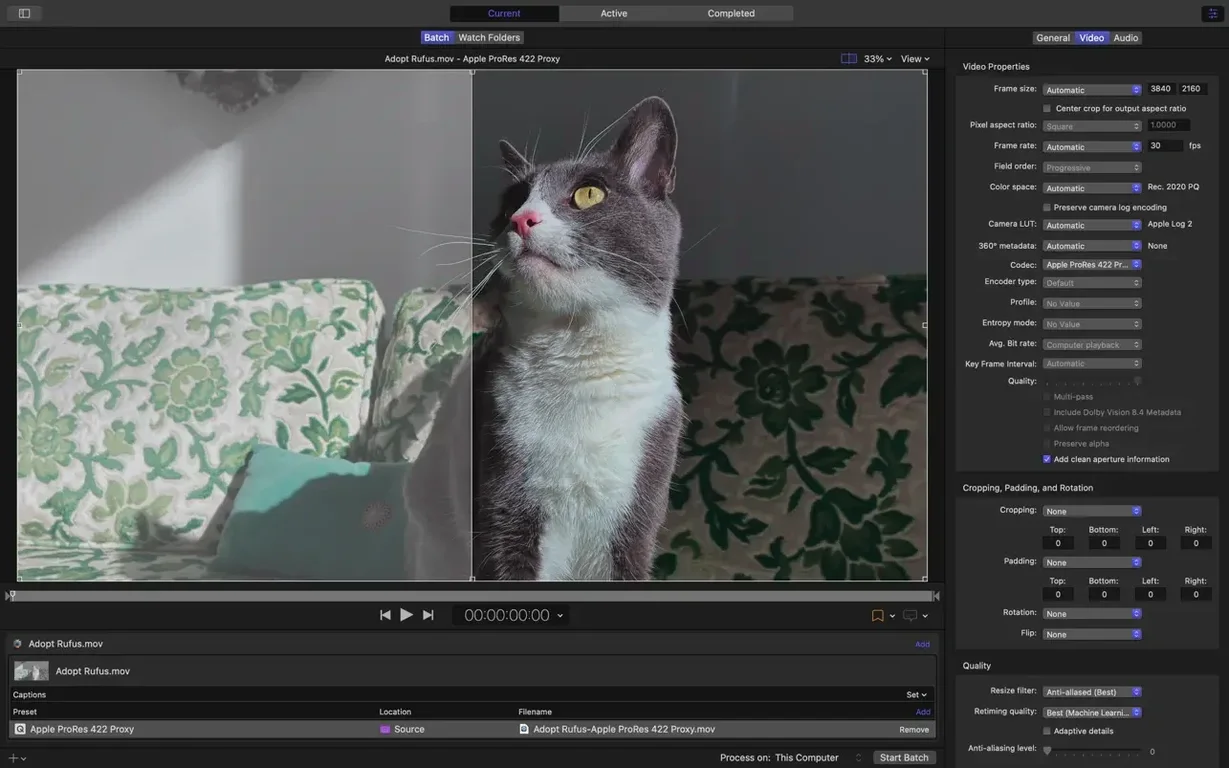
New users often treat Compressor like a simple converter app — drop a file, pick a format, walk away. That works for basic jobs, but it misses most of what the app can do. The first mistake is ignoring the side panel. Encoding settings live there, and the defaults are conservative. If you are sending files to a broadcast house or a streaming platform, you need to open that panel and match their spec.
Another frequent error is encoding directly from a media card or a network share. Compressor reads the source files each pass, and if the connection drops or the card is ejected mid-job, you lose that encode. Copy source files to the internal drive or a local SSD before you start a batch. It takes an extra minute and saves a re-run.
Beginners also skip the post-encode actions. The app can copy the finished file to a watch folder, send an email, or run a shell script when encoding finishes. If you encode the same deliverables every week, setting up one of these actions removes a manual step from your routine. It is a small convenience that compounds over a work week.
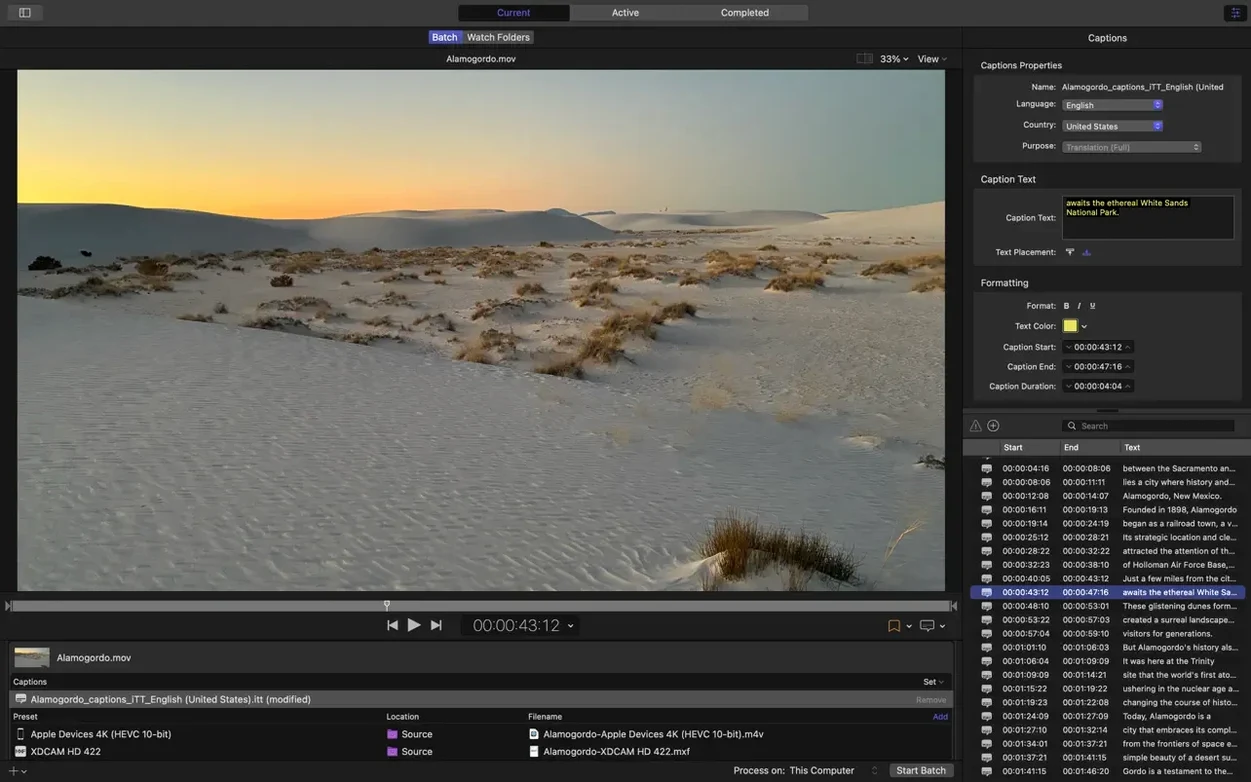
Finally, many users do not check the inspector panel for audio settings. The side panel shows the main format and bitrate, but the inspector holds per-track settings for language, channel mapping, and codec selection. If your output comes back with silent or mismatched tracks, the inspector is where you fix it before the next encode.
Rendering Engine Matches Final Cut Pro Output
Compressor uses the same rendering engine as Final Cut Pro and Motion. That means the output matches what you see in those apps — no unexpected color shifts or gamma changes between the timeline and the encoded file. This is not a feature you notice until you compare exports from different tools side by side.
The hardware encoder support for H.264 and HEVC is another detail that works quietly. If your Mac has the right hardware, Compressor uses it without any toggle or menu. You just select the format, and the app picks the fastest path. The only clue is the encode speed.
Distributed encoding across CPU cores is automatic. Compressor splits the job across available cores on your Mac. You do not need to configure anything. For long batches, this means the system stays responsive for other tasks while the encode runs in the background.
The side panel and inspector layout is worth learning early. The side panel holds the output settings you change most often — format, resolution, bitrate. The inspector is for the deeper audio and video properties you set once per project. Once you know which panel does what, setting up a batch takes seconds.
Requires macOS 15.6 and 8 GB RAM
Compressor 5.3 requires macOS 15.6 or later. It runs on both ARM and 64-bit Intel Macs, so it works on Apple Silicon and older Intel machines alike. The minimum memory is 8 GB, and you need 1.2 GB of free disk space for the application itself.
When you install, the downloaded disk image mounts automatically. You drag the app to the Applications folder alias, wait for the copy to finish, then open it from Launchpad or the Applications folder. There is no installer wizard — just the copy step and you are done.
The interface is available in English, German, Spanish, Simplified Chinese, French, and Japanese. If your team works in different languages, each user can set their own system language and Compressor follows it.
For storage planning, remember that the 1.2 GB requirement is only for the app. Your source media and output files will need significantly more space. A typical batch of 4K H.264 files can run tens of gigabytes per hour of footage. Keep that in mind when you set up your encoding workstation.
Can Run Standalone Without Final Cut Pro
Can I use Compressor without Final Cut Pro?
Yes. The app works as a standalone transcoder. It integrates with Final Cut Pro and Motion, but you can drag any supported media file into it and start encoding. The integration is a convenience, not a requirement.
Does it handle 360° video and HDR?
It does. Compressor includes custom output settings for 360° video, HDR, HEVC, and MXF. The current version also adds an anaglyph preview option for stereoscopic video and support for 180° Apple Projected Media Profile output. If your project uses immersive media, the app has the presets ready.
Can I encode to multiple formats in one pass?
You set up multiple output presets on the same source file. Each preset encodes independently, so you can produce an H.264 master, an HEVC version for streaming, and an MXF for broadcast from one source without re-reading it. This is a standard workflow in post-production.
Is the interface in my language?
The app ships in English, German, Spanish, Simplified Chinese, French, and Japanese. If your language is not listed, the interface falls back to English. The encoding settings and format names are consistent in any language.
Encoding Interview Footage to H.264 and HEVC
It is Tuesday morning and I have a batch of interview footage to deliver. The client wants a 1080p H.264 master for web playback and an HEVC version for archival. Both need the same audio track in 5.1 AAC.
I launch Compressor from the Dock. The main window shows an empty batch list. I drag the source clips from a Finder folder into the batch area. The app reads each file and shows it as a row with the source name, duration, and format.
Next, I add the first output preset. I click the output button and choose "Apple Device" from the list. The side panel opens with the format and resolution fields. I set the resolution to 1920x1080 and the video codec to H.264. For audio, I open the inspector panel and set the channel layout to 5.1 and the codec to AAC. I then click "Add Another Output" and repeat the process for HEVC, changing only the video codec.
Both outputs appear under each source clip. I can see them in the batch list as two entries per clip. I then set the post-encode action to copy the files to a shared folder on the office NAS. I choose "Copy to" from the post-encode dropdown and browse to the destination.
I click "Start Batch." The app begins encoding the first clip. The progress bar shows the overall job and the current encoding pass. I switch to email while it runs. The Mac stays responsive because Compressor distributes the work across CPU cores without maxing out the system.
When the batch finishes, a notification appears. I check the shared folder — the files are there in both formats. The entire session, from drag-in to finished files, took about the same time as the source footage. I close Compressor and move on to the next task.
Compressor 6.0 arrives as the current release, ready for the latest macOS and Apple Silicon machines. No detailed change log accompanied this version.
| macOS | macOS 26.6 or later |
|---|---|
| Processor | Apple Silicon, Intel 64-bit |
| Download | 122 MB |
- macOS 26.6 or later
- Apple Silicon or Intel 64-bit processor
Questions about Compressor
Does Compressor support distributed encoding on a single Mac?
Yes, it can distribute encoding across multiple CPU cores on your Mac to speed up processing.
Can Compressor create post-encode actions like emailing the file?
Yes, it supports post-encode actions such as email, file copy, file move, and running a custom script.
How to install, in order
Compressor 6.0 is a 122 MB download for Macs on macOS 26.6 or later, with builds for Apple Silicon and Intel 64‑bit.
- Open the downloaded disk image.
- Drag the Compressor application icon onto the Applications folder alias.
- Once copying finishes, launch Compressor from Launchpad.
Comments and corrections 0
Sign in or open a free account to leave a comment.
No comments or corrections yet.