dBpoweramp Music Converter 2026.09.13 — download for Mac
Utilities Updated
Converts batch audio files between formats with resampling and metadata support.
Screenshots
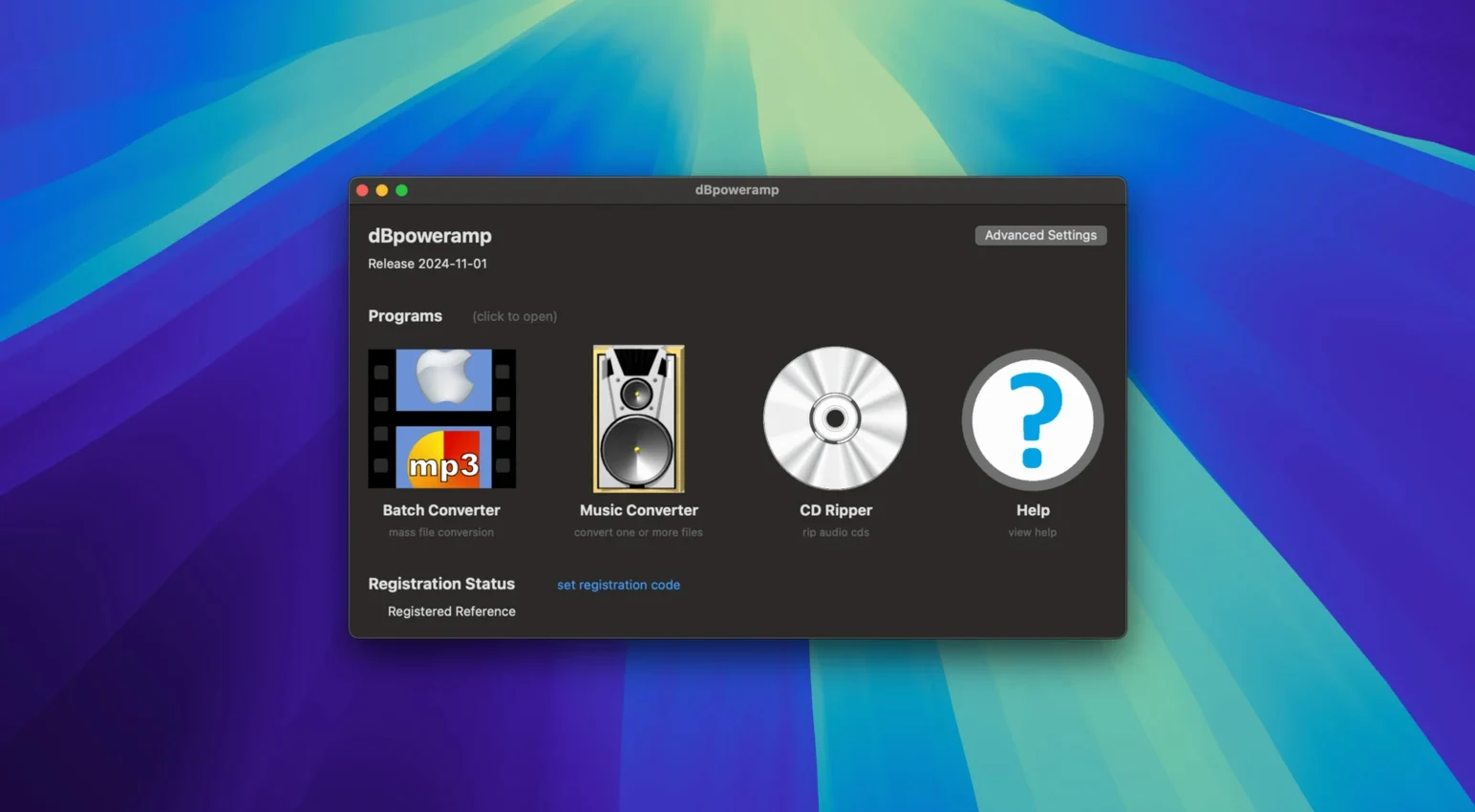
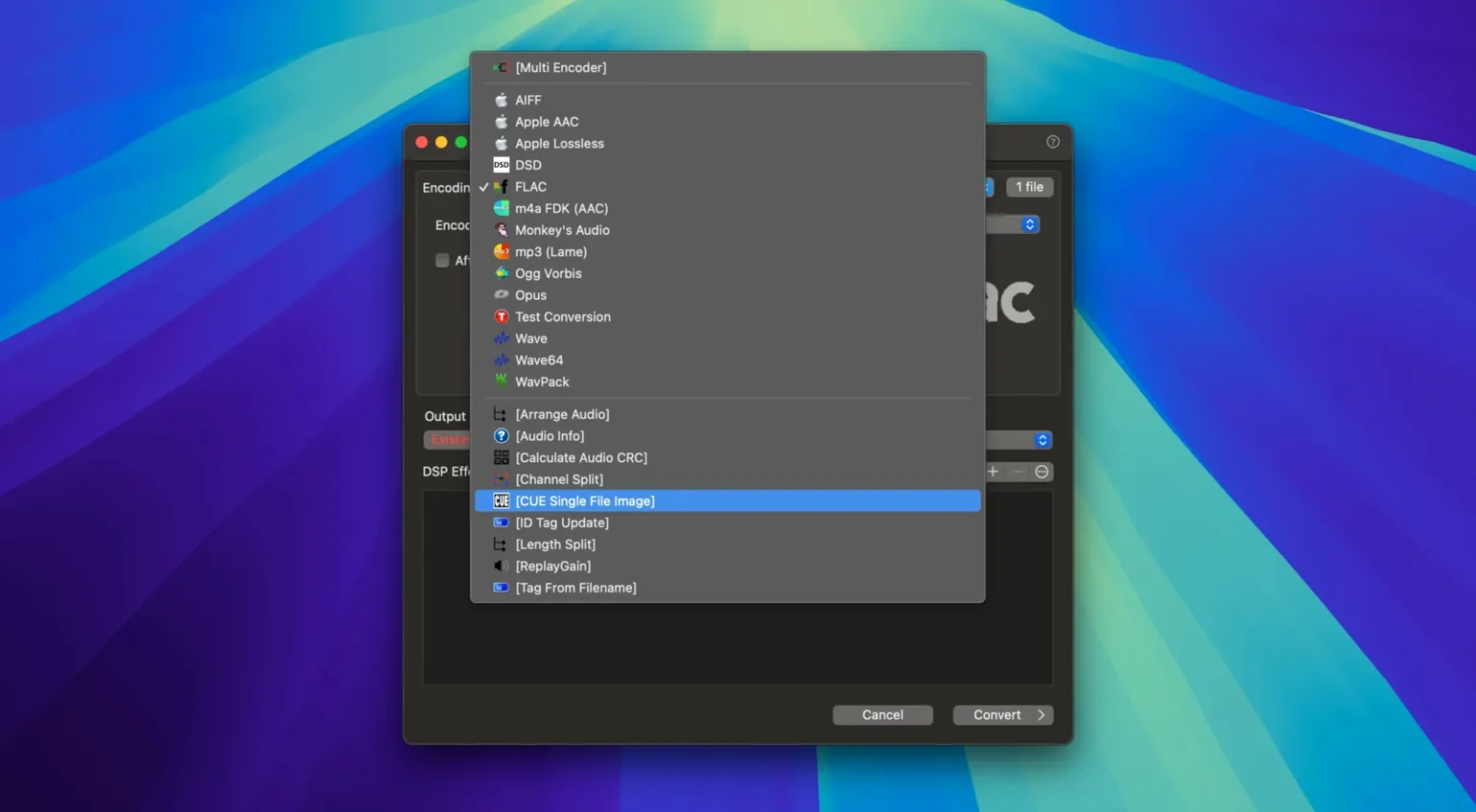
The resampling improvements in dBpoweramp Music Converter 2026.09.13 are the kind of update you notice when you’re converting a batch of 24-bit FLAC files for a car playlist. The app handles the work without you hovering over the progress bar.
| Detail | Value |
|---|---|
| Developer | dBpoweramp |
| Current version | 2026.09.13 |
| macOS support | macOS 11 and later; Apple Silicon & Intel 64-bit |
| Interface language | English |
You open the disk image, drag the app to Applications, and launch it from Launchpad. From there, drag a folder of WAVs onto the window, pick MP3 as output, and the app uses multi-core encoding to get through the list fast. The Apple Finder integration means you can right-click a file and convert without opening the main window. ID tag editing is built in, so you can fix artist names or album fields before the files leave the app. For anyone who moves audio between formats regularly, dBpoweramp Music Converter on macOS is a direct tool for the job.
Handles Apple Lossless Without Re-encoding
New users often wonder whether dBpoweramp Music Converter can handle Apple Lossless files without re-encoding them into something else. The answer is yes: the app reads Apple Lossless (M4A) and can output it as well, so if you keep a library in that format you are covered. Another frequent question is whether conversion strips album art. It does not. ID tags and embedded artwork carry over during the process unless you deliberately strip them with a DSP effect. People also ask if the app works on an external drive. It does. You can install it to an external volume and run it from there, though the default install path in Applications is fine for most setups.
Boost Thread Count for 6+ Core Macs
After the first launch, open the preferences and look at the encoding options. The app defaults to a balanced thread count for multi-core encoding. If your Mac has six or more performance cores, you can increase the thread allocation in the conversion settings to shave time off large batches. The resampling quality setting matters too. The 2026.09.13 release improved resampling, so set it to High Quality before you start converting 24-bit material unless you need speed above all. Under the DSP section, enable Volume Normalize if your source files come from different albums at different loudness levels. That single setting saves you from adjusting volume manually later. Finally, check the Finder integration tab and confirm that Convert with dBpoweramp appears in your right-click menu. If it does not, a restart of Finder usually brings it in.
Drag-and-Drop Fails When Files Are Locked
One snag that comes up is the app not seeing files after dragging them in. If nothing appears in the Music Converter window, check that the files are not locked by another process like iTunes or a media player. Close the other app and drag again. Another issue is the Edit Tags dialog closing prematurely when you press Enter. That was fixed in 2026.09.13, but if you are on an earlier build, update to this version. Users on the latest macOS build may see a warning about an Intel-only component. That warning is harmless and was addressed in the same update, so if you are running Apple Silicon, you can ignore it or apply the update to clear it. A third snag: batch conversions that stop mid-way. This usually happens when one source file has a corrupt header. The app skips the bad file if you enable Continue on error in the conversion options. Turn that on before you start large batches and you will not come back to a stalled job.
Batch Convert to FLAC and MP3 in One Go
Friday afternoon. You want them as FLAC for archival and as MP3 for the phone. Open dBpoweramp Music Converter from Launchpad. Drag the folder into the Music Converter window. The app lists all forty files, showing sample rate, bit depth, and duration in columns. In the output format dropdown, pick FLAC. Under the DSP tab, enable Sample Rate Conversion and set it to 44.1 kHz if the files are 48 kHz — the car system prefers the lower rate. Also tick Volume Normalize to even out the levels between tracks. Click Convert. The multi-core encoder splits the work across cores. While that runs, open the Batch Converter shortcut from the dBpoweramp folder. Add the same source folder, but this time set the output to MP3 at 320 kbps. The Batch Converter queues the job and starts after the FLAC run finishes. When both are done, right-click a FLAC file in Finder and choose Convert with dBpoweramp to open the ID Tag Editor and type in the artist and album for the whole batch. Select all forty files in the editor, fill in the fields, and save. The whole session, from drag to tagged files in two formats, takes under ten minutes. No extra software, no waiting for individual encodes.
- Resampling improvements were added.
- Edit Tags Enter key behavior fixed when autocomplete is visible.
- Warning about an Intel-only component on the latest macOS fixed.
| macOS | macOS 11 or later |
|---|---|
| Processor | Apple Silicon, Intel 64-bit |
| Download | 31 MB |
- macOS 11 (Big Sur) or later
- Apple Silicon or Intel 64-bit processor
Questions about dBpoweramp Music Converter
Does dBpoweramp Music Converter include CD ripping on Mac?
Yes, the macOS version includes CD Ripper functionality, so you can rip audio CDs and convert them in one step.
How to install, in order
- Open the downloaded disk image.
- Drag the app to the Applications folder alias.
- Launch the app from Launchpad after the copy finishes.
Comments and corrections 0
Sign in or open a free account to leave a comment.
No comments or corrections yet.