Downie 4.13.5 — download for Mac
Utilities Updated
Downloads videos from URLs you paste or drag into its window.
Screenshots
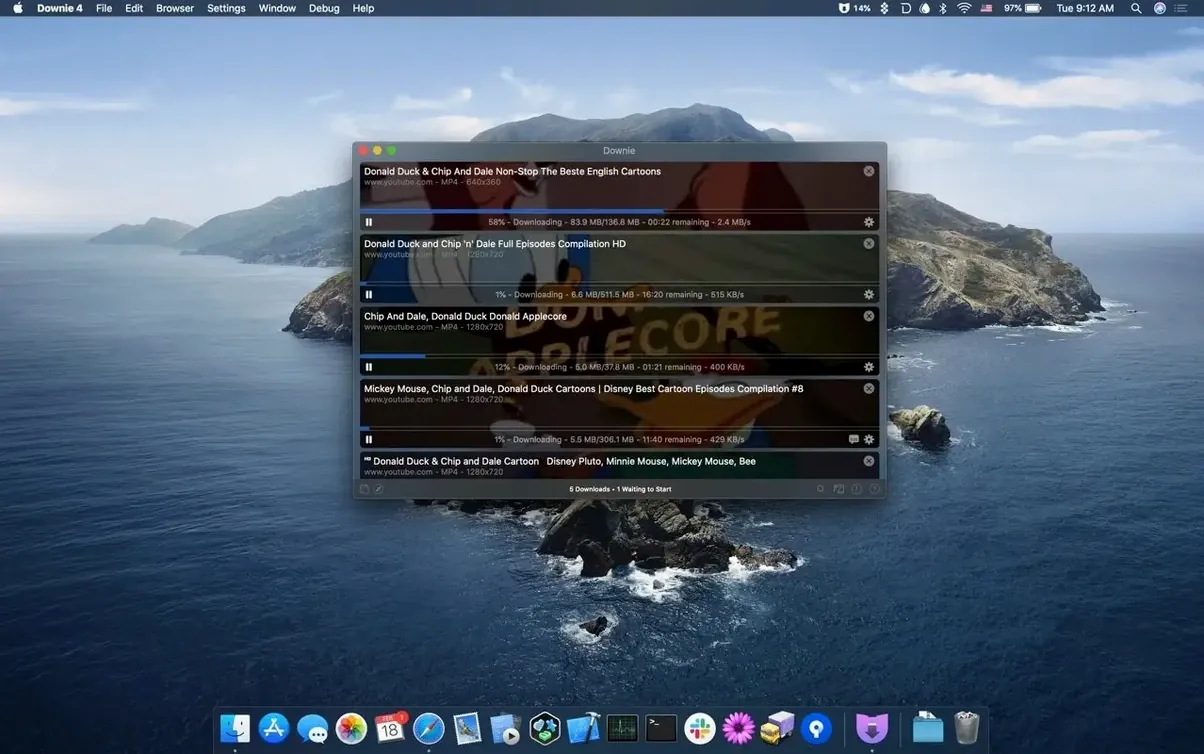
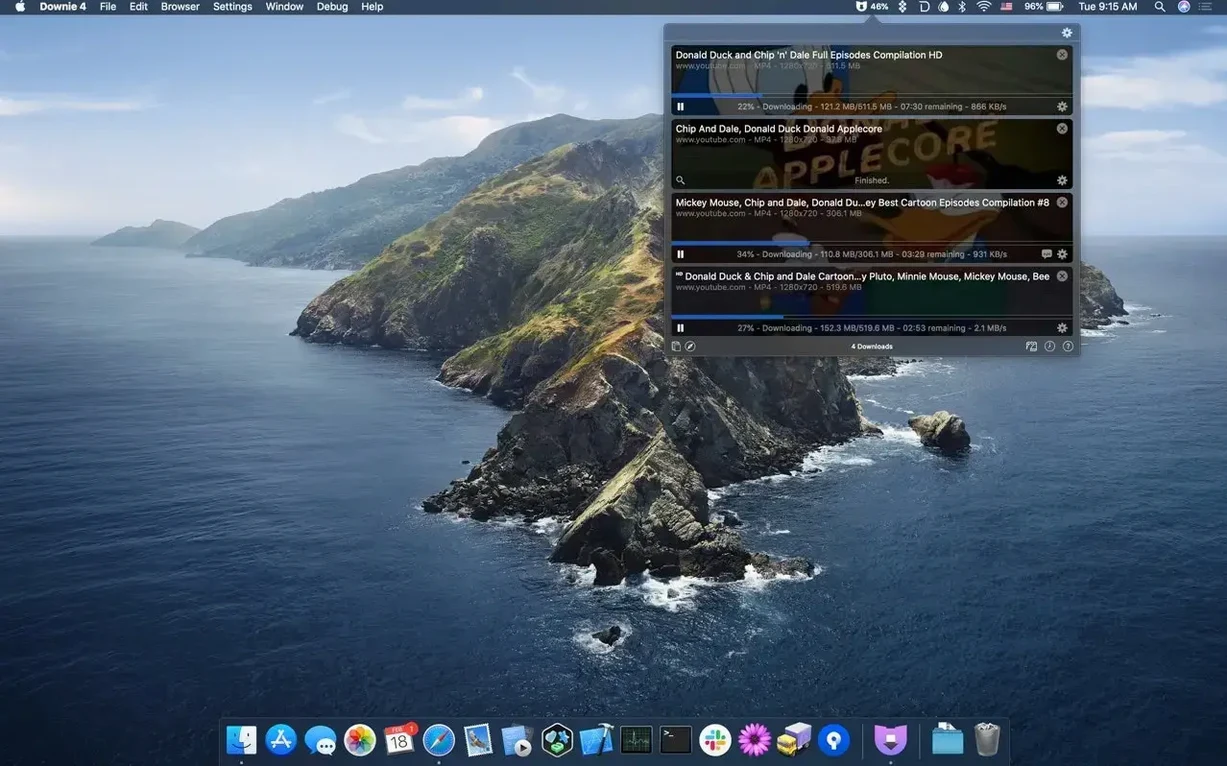
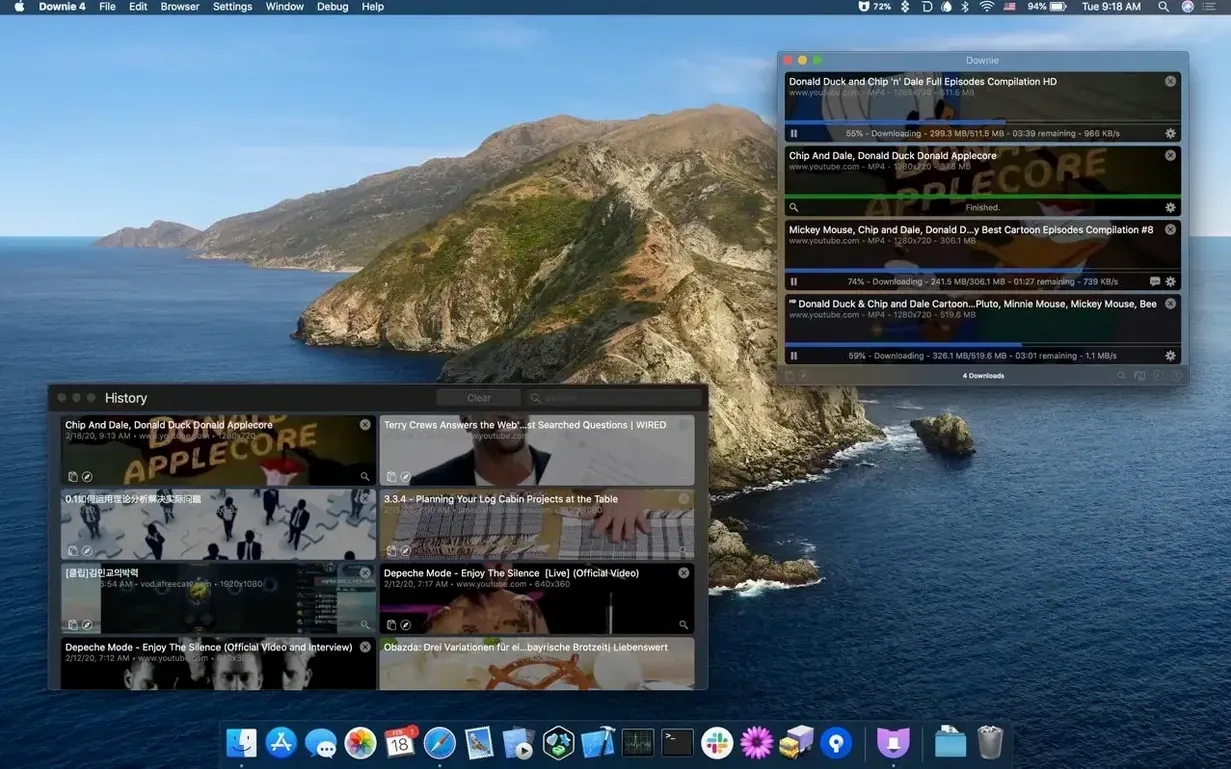
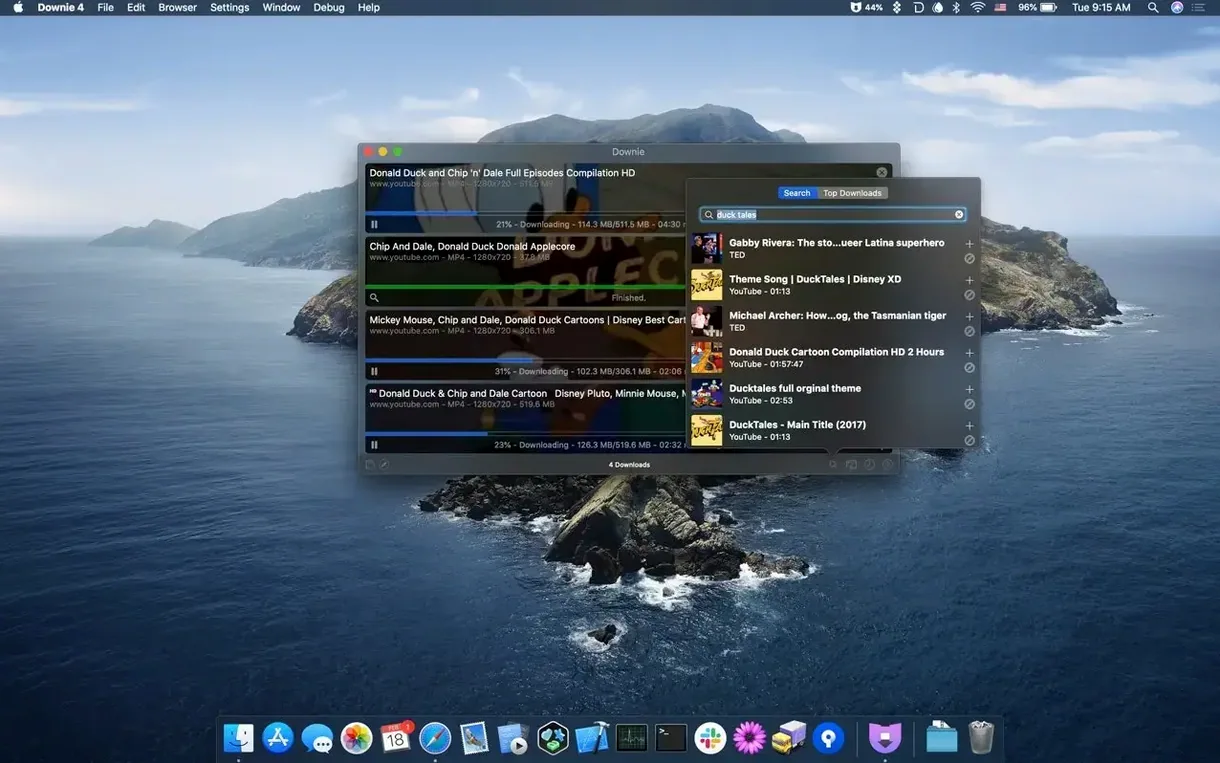
Video downloader with browser extension support — that is the quick description for Downie. The app sits in the menu bar or your Dock, watching for video URLs you paste or drag in, and starts pulling the file down immediately. It can also import a CSV or XML list of downloads with custom titles, which saves time when you queue several clips before a meeting.
Will Downie Run On Your Mac
Downie 4 requires macOS 11 or later and runs natively on both Apple Silicon and Intel Macs. The interface is translated into 32 languages, including English, German, Spanish, French, Hindi, Arabic and Russian. No additional runtime or framework is needed — the app installs clean from a disk image.
A Download Engine That Auto-Convert and Strip Audio
Beyond the core download engine, Downie can save only the audio track from a video and convert downloads to MP4 automatically. Browser extensions handle single-click capture from Safari, Chrome and Firefox. For post-processing, the app pairs with Permute. The language list covers Afrikaans, Bengali, Bulgarian, Czech, Danish, Dutch, Filipino, Greek, Hebrew, Indonesian, Italian, Korean, Norwegian, Persian, Polish, Portuguese, Slovak, Swedish, Thai, Turkish, Ukrainian, Vietnamese, plus Simplified and Traditional Chinese.
One Afternoon with Downie
Wednesday, halfway through a site survey. A client sends a link to a walkthrough video on Vimeo, then a second link to a product demo on YouTube. You copy the first URL, open Downie, paste it into the app window — the download starts before you finish switching back to your browser. You drag the second link from the browser address bar straight into the Downie window. The app queues it.
While the files come down, you grab a third link from a supplier’s Facebook post. Downie catches the URL as soon as you copy it, because the clipboard monitor is active. You hear the tone that signals a finished download. You open the Finder to check the file — it is already set to MP4, no extra step needed. Total time from link to saved file: maybe twenty seconds of your attention.
After lunch, you decide to pull the audio track from a training video. You paste the URL, switch the output format from video to audio in the settings, and start the download. The result is an MP3 file ready to drop into a project folder. No separate converter, no second app.
Better CSV and XML Queue Handling
The latest release keeps the same workflow but improves how the app handles large queues. If you rely on CSV or XML import — for example, when a colleague sends a spreadsheet of URLs for next week’s reference clips — the import now processes custom titles more reliably. Browser extensions received minor updates to keep up with site changes on YouTube and Vimeo. The language list also expanded: version 4.13.1 adds support for Hindi and Czech, which brings the total to 32 languages.
For everyday use, the most noticeable change is that clipboard detection is slightly faster at recognizing shortened or redirected URLs. That is the kind of fix you do not see in the interface but feel when you paste a link and the queue populates instantly.
Two Minutes of Preferences: Clipboard Monitoring and Defaults
After you drag Downie into Applications, open it and spend two minutes on preferences:
- Turn on clipboard monitoring so the app catches any video URL you copy, whether from Slack, email or a browser tab.
- Choose a default download folder. Point it to your project workspace or a dedicated Downloads folder — you can always change it per file later.
- Enable automatic conversion to MP4 if most of your team works in that format. The setting saves one manual conversion per download.
- Set the audio-only option to your preferred codec and bitrate if you regularly extract soundtracks.
Then install the browser extension for Safari or Chrome. The extension adds a button next to video pages. One click sends the URL to Downie without leaving the browser. That removes the copy-paste step entirely.
Try an import test on day two. Export a short CSV with two columns: URL and Title. Drag the file into Downie. The queue populates with your custom filenames, and the download runs unattended. If you manage a library of reference videos, this method keeps filenames consistent from the start.
Download Continues When You Close to the Dock
Downie’s paste-and-go behavior is its most obvious feature, but a few details make daily use smoother:
- The app continues downloading when you close the window to the Dock. You only stop a download by pressing the cancel button or quitting the app entirely.
- Dragging a URL from any browser address bar into the Downie window works even when the clipboard monitor is turned off. That is useful if you want to queue a link without changing your clipboard.
- When you import a CSV or XML file, the custom titles appear in the queue before the download starts. You can rename entries there if a title is too long or contains characters the filesystem will reject.
These are the details that make a difference when you handle downloads in the middle of a busy week — they save one or two clicks per file, and that time adds up over a project.
Version 4.13.5 ships with stability updates and housekeeping changes detailed in the developer notes.
| macOS | macOS 11 or later |
|---|---|
| Processor | Apple Silicon, Intel 64-bit |
| Download | 42 MB |
- macOS 11 or later
- Apple Silicon or Intel 64‑bit processor
Questions about Downie
Does Downie support downloading just the audio from a video?
Yes, Downie can save only the audio track from a video, letting you export the sound without the video file.
How to install, in order
The 42 MB download asks for macOS 11 or later and settles onto Intel or Apple Silicon Macs without extra steps.
- Mount the disk image and drag Downie 4 to your Applications folder.
- Open the app once and close it if prompted.
- Use the activation instructions included with the download to complete the setup.
Comments and corrections 0
Sign in or open a free account to leave a comment.
No comments or corrections yet.