Dropover 5.4.0 — download for Mac
Utilities Updated
Collects files into a floating shelf for dropping them all at once.
Screenshots
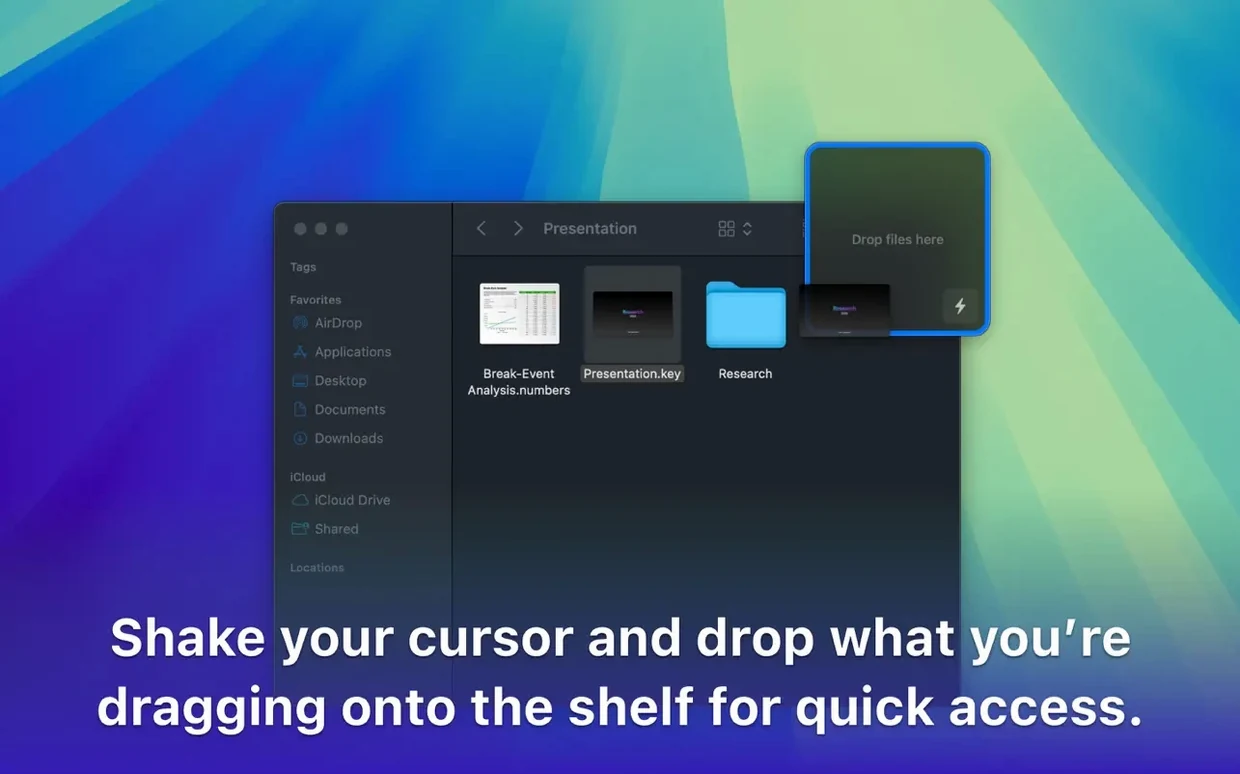
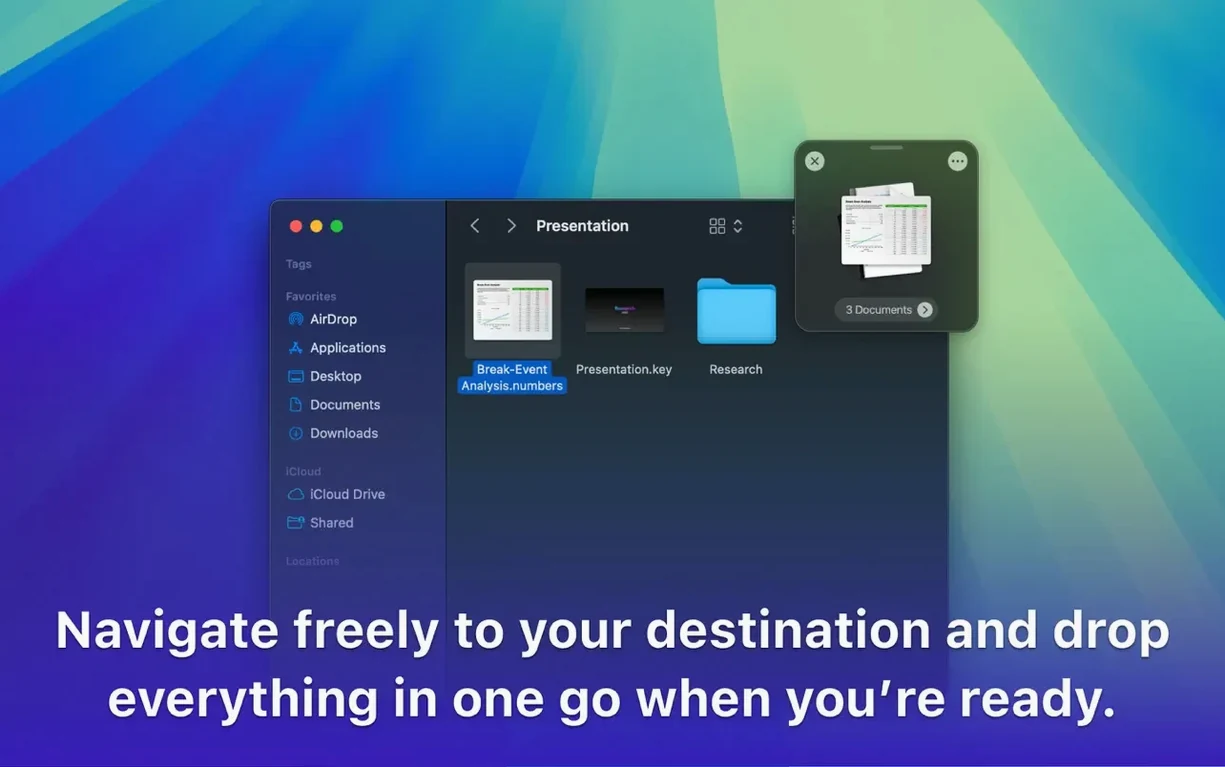
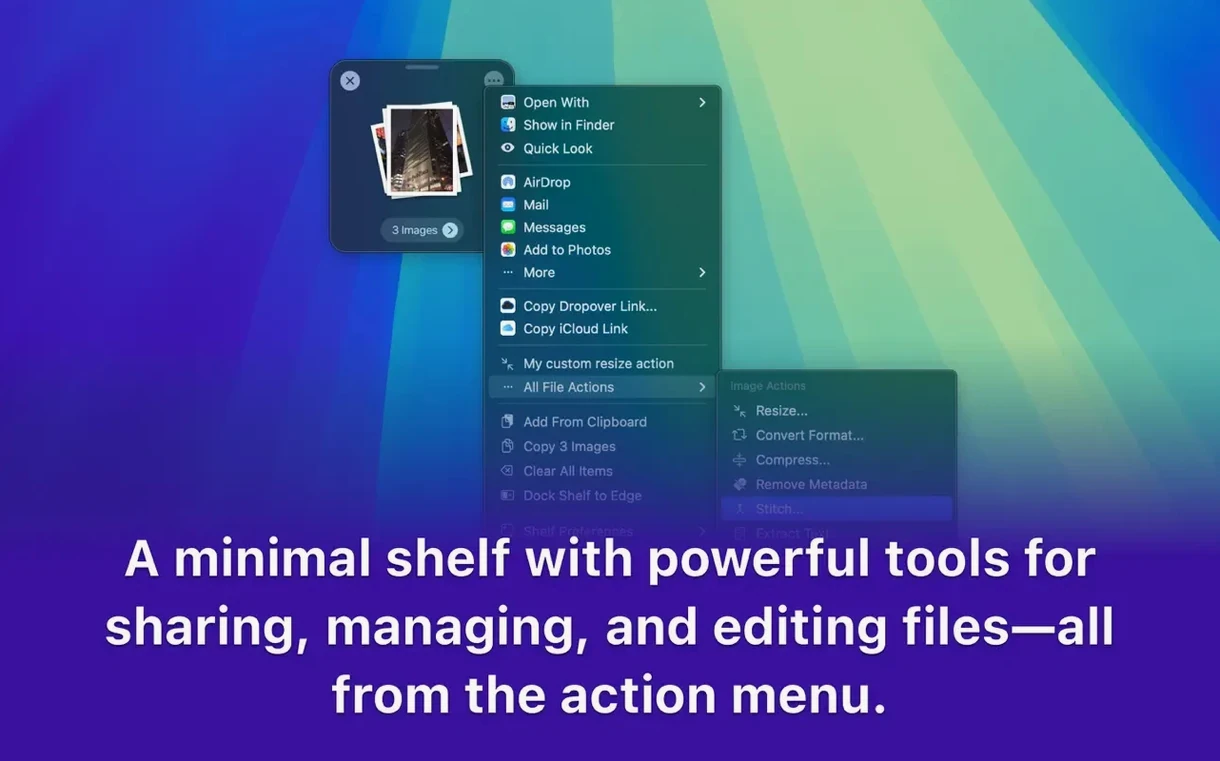
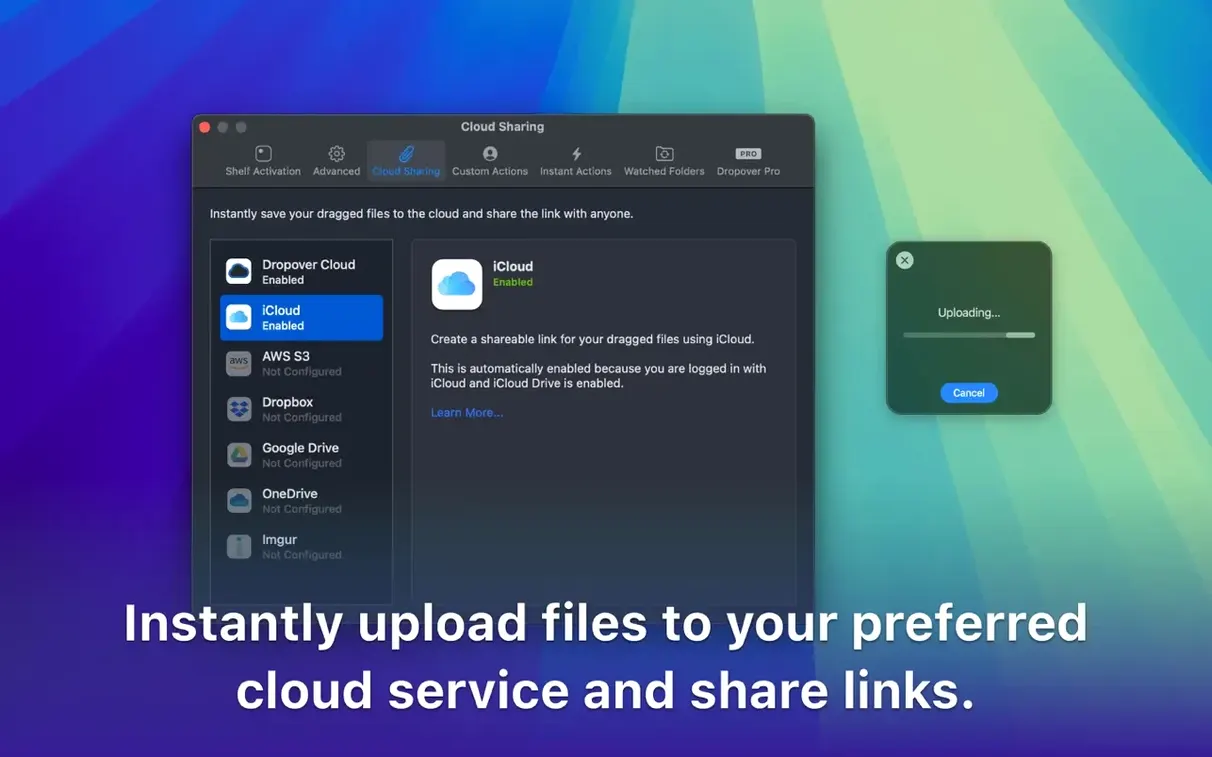
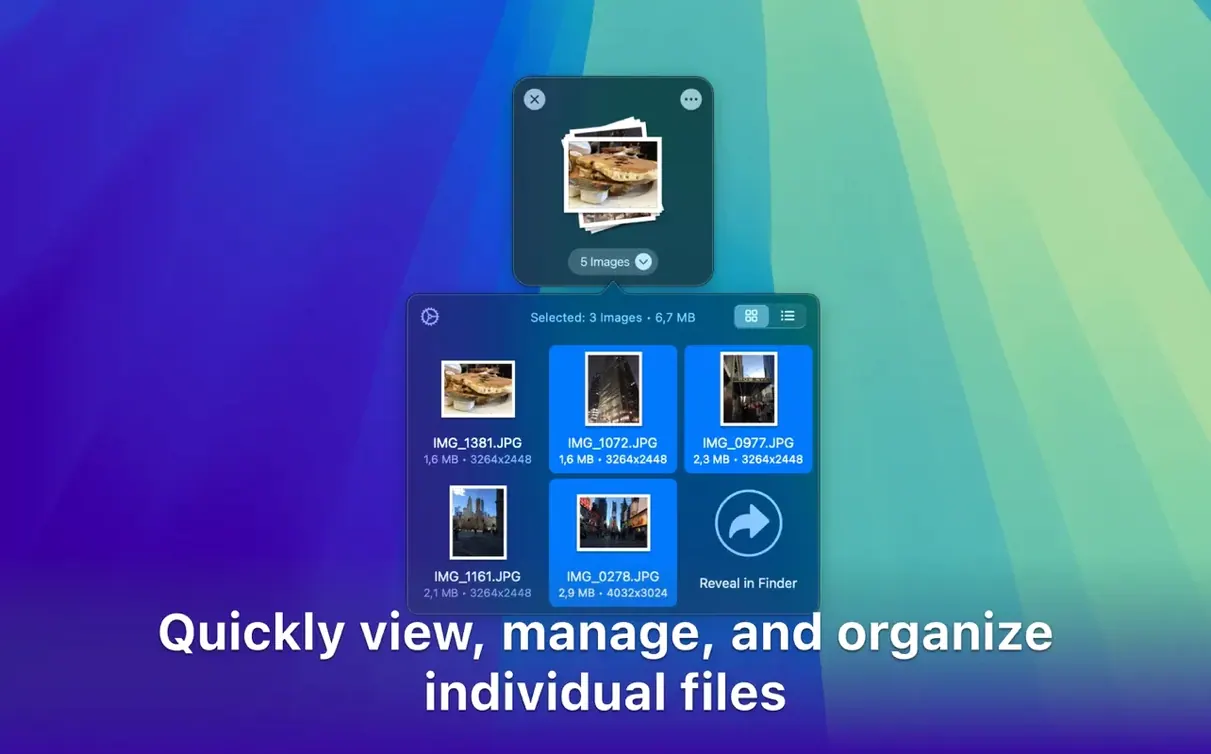
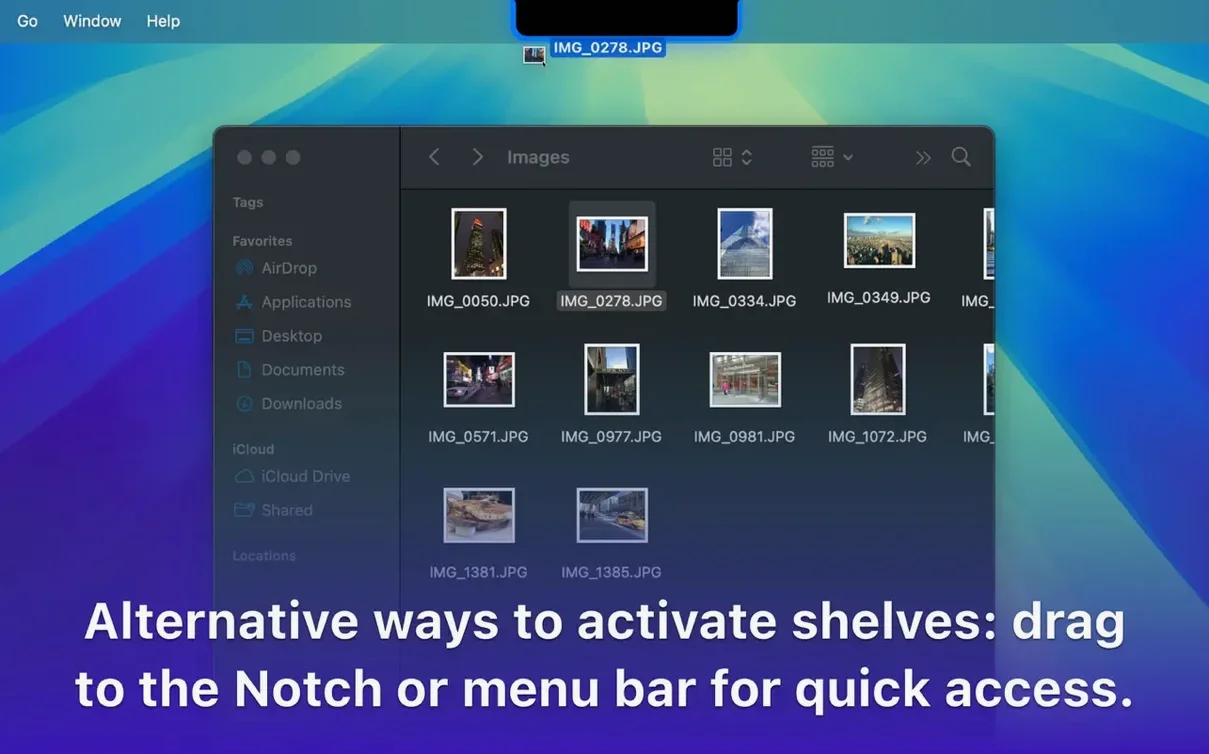
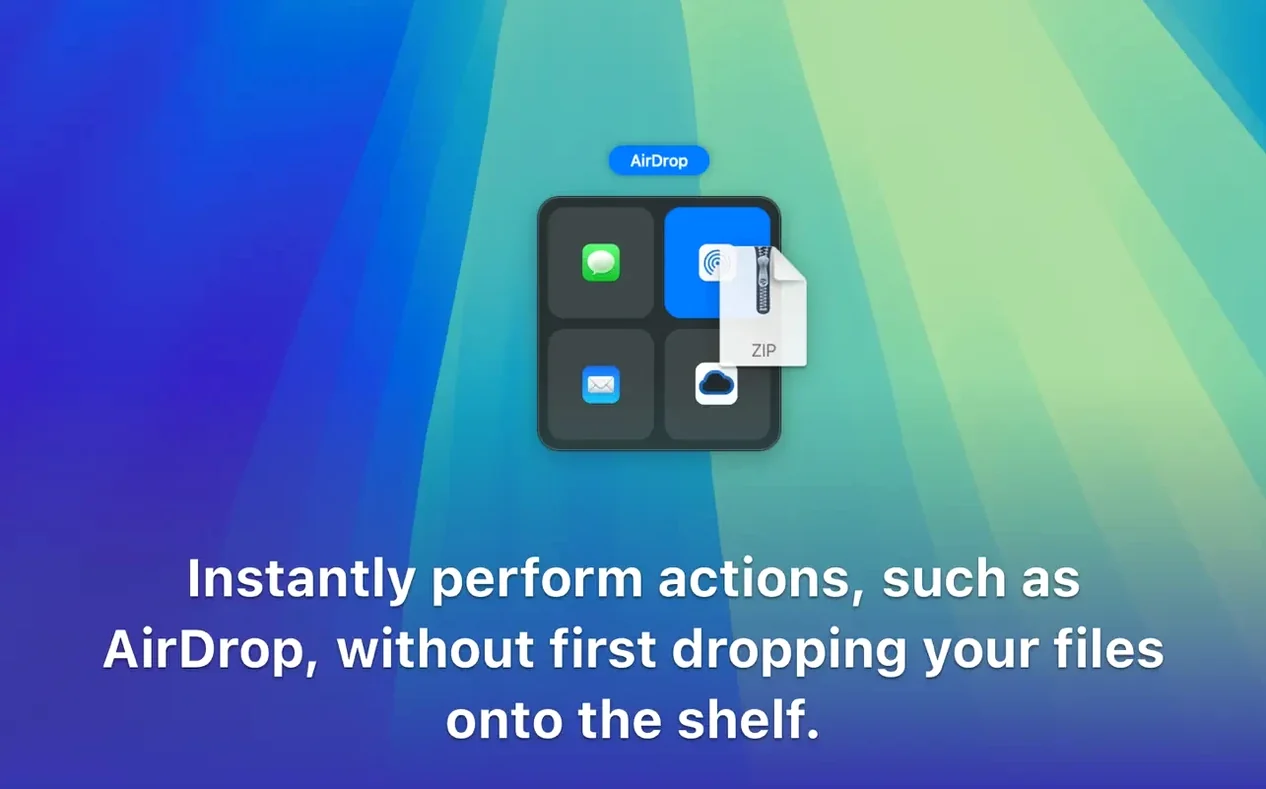
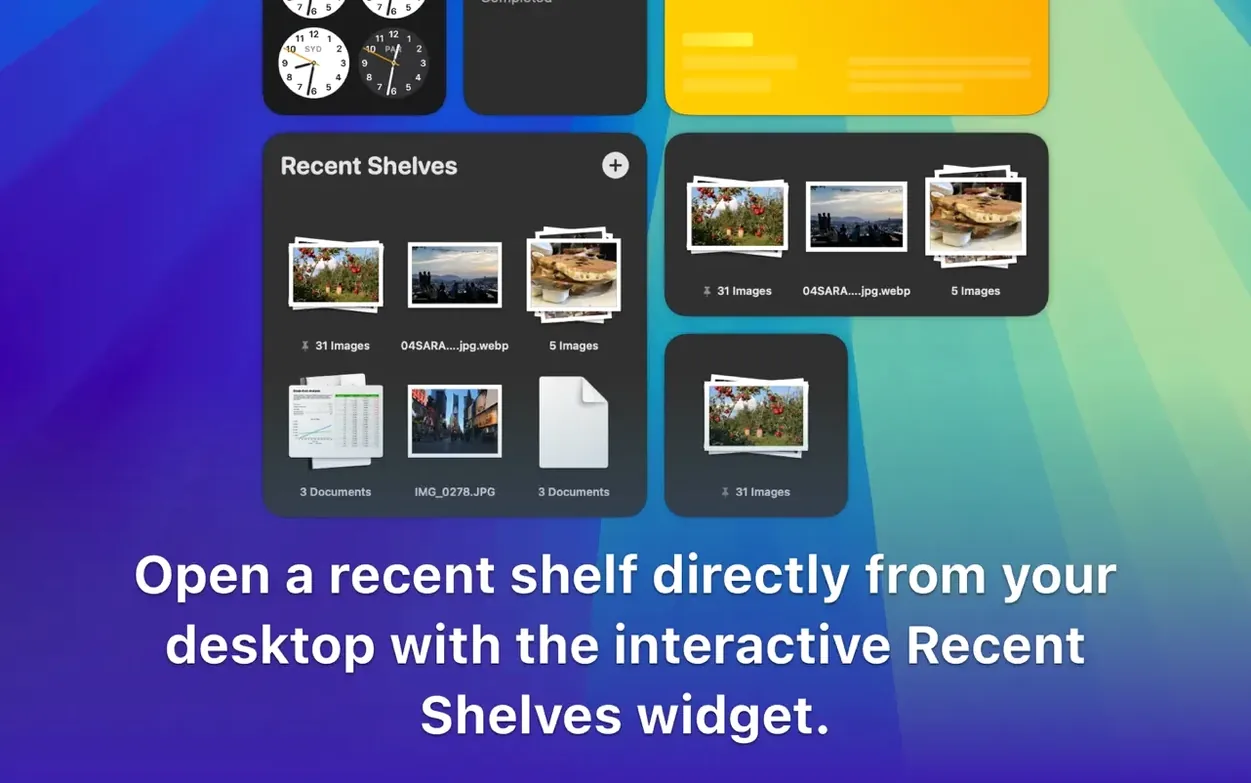
Dropover 5.3.0 lets you gather files, images, or text from multiple sources into a single floating shelf, then drop them all at once where you need them. No more switching windows with a handful of dragged items.
Set Up a Shelf
Drag any file or selection onto an empty area of your screen. A translucent shelf appears, holding everything you drop onto it. Resize, reposition, or adjust its transparency to suit your layout.
Move and Sort
Switch to any app, folder, or workspace. Open the shelf and drop its contents — or use a hotkey to send items to a specific destination. The shelf also appears in right-click context menus for quick staging.
Archive, Rename, or Share
From the shelf you can rename files, compress them into an archive, or share them directly. Cloud services like Google Drive and Dropbox are supported, so you can stage and upload without extra steps.
Dropover is one of those tools you don’t realize you need until you use it for a morning. Here is how a typical working session plays out.
Morning Session: Organizing a Project Folder
You are putting together reference images, a PDF brief, and a few screenshots for a renovation proposal. Normally you would open Finder, find each file, drag it to an email compose window or a chat app, then repeat. With Dropover, you start by dragging the first image onto an empty part of the screen. A small translucent shelf appears. You drag the PDF on top. Then the screenshots. Everything sits there, visible, while you move between apps.
Next, you switch to your email client to write the proposal. The shelf stays in place. You open it, select all items, and drop them into the message attachment area in one motion. Then you send. That sequence — gather, switch, drop — shaves seconds off every transfer, and over a week it adds up to real time saved.
Later in the same session, you need to archive a set of old floor plans before uploading them to Google Drive. You drag the folder from Finder onto the shelf. Right-click the shelf, choose Archive, and Dropover compresses them. Without closing the shelf, you open the Google Drive folder in your browser and drop the archive directly. No intermediate desktop folder, no manual zipping.
How Dropover Compares to Similar Tools
Dropover is not the only Mac utility for staging files. Here is how it stands next to a few alternatives.
Dropover’s Cloud Integration Edge
Yoink offers a similar floating shelf and is popular among Mac users who need quick drag-and-drop staging. Yoink’s shelf appears on a hotkey or trigger area, and it supports file renaming and archiving. Dropover adds integration with cloud services like Google Drive and Dropbox directly from the shelf, and it surfaces in right-click context menus and share sheets. That context menu support makes Dropover feel more embedded in the macOS workflow rather than a separate overlay.
Dropover vs. Unclutter
Unclutter focuses on keeping your desktop organized by hiding icons and grouping files into a shelf. It is good for decluttering, but its staging features are tied to the desktop itself. Dropover works anywhere — across monitors, inside apps, and between workspaces. If your files live in multiple folders or windows, Dropover is more flexible for cross-app transfers.
Dropover vs. Default Finder Tabs
macOS Finder lets you open multiple tabs and drag files between them. That works for two or three items. When you are gathering a dozen files from different locations, Finder tabs become tedious. Dropover collects everything in one place and lets you drop them all at once, regardless of where the destination is.
Translucent Shelf That Stays Out of Sight
Will Dropover clutter my screen?
The shelf is translucent and sits where you place it. You can resize it, adjust transparency, or hide it. It stays out of the way until you need it.
Does it work with cloud storage apps?
Yes. Files can be shared or moved directly to Google Drive and Dropbox from the shelf. You do not need to open the browser or desktop client first.
Can I use keyboard shortcuts?
Dropover supports hotkeys, so you can trigger the shelf, send items, or clear it without reaching for the mouse. The hotkeys are customizable in the app settings.
Does it support Apple Silicon?
Dropover runs on both Intel and Apple Silicon Macs, as long as macOS 12 or later is installed.
What file types can I put on the shelf?
Files, folders, images, links, and even plain text. The shelf accepts anything you can drag in macOS.
Workflow: Uploading a Batch to a Cloud Service
Here is a complete workflow for a task I do a few times a week: uploading a batch of project files to a shared Google Drive folder.
- Open Finder and locate the first file. Drag it onto an empty area of your screen. Dropover creates the shelf.
- Switch to another Finder window or the Downloads folder. Drag additional files, images, or a folder onto the shelf. Each item stacks on top of the previous.
- If you need to rename a file before uploading, right-click it in the shelf, select Rename, and type the new name. The change is applied to the copy on the shelf, not the original.
- To compress the batch, right-click the shelf and choose Archive. Dropover creates a single archive file and places it back on the shelf.
- Open Google Drive in your browser or the desktop app. Navigate to the target folder.
- Open the Dropover shelf. Drag the archive (or the individual files) into the Drive window. Dropover releases them all at once.
This workflow replaces six or seven separate drag operations with one collection phase and one drop. It also eliminates the risk of forgetting a file because you gathered them all before switching contexts.
Version 5.4.0 is now available. The developer’s update log details the full set of changes for this release.
| macOS | macOS 12 or later |
|---|---|
| Processor | Apple Silicon, Intel 64-bit |
| Download | 33 MB |
- macOS 12 (Monterey) or later
- Apple Silicon or Intel 64-bit processor
Questions about Dropover
Does Dropover work with cloud storage services?
Yes, it integrates with Google Drive, Dropbox, and other cloud services, letting you stage files and upload them directly from the shelf.
How to install, in order
A 33 MB download gets you up and running on any Mac that boots macOS 12 or later, whether it's built around Apple Silicon or an Intel processor.
- Open the downloaded disk image.
- Drag the Dropover icon into the Applications folder shortcut.
- Once copying finishes, launch the app from Launchpad.
Comments and corrections 0
Sign in or open a free account to leave a comment.
No comments or corrections yet.