Dynamic Notch 1.8.2 — download for Mac
Utilities Updated
Turns the MacBook notch into an interactive area for system controls.
Screenshots
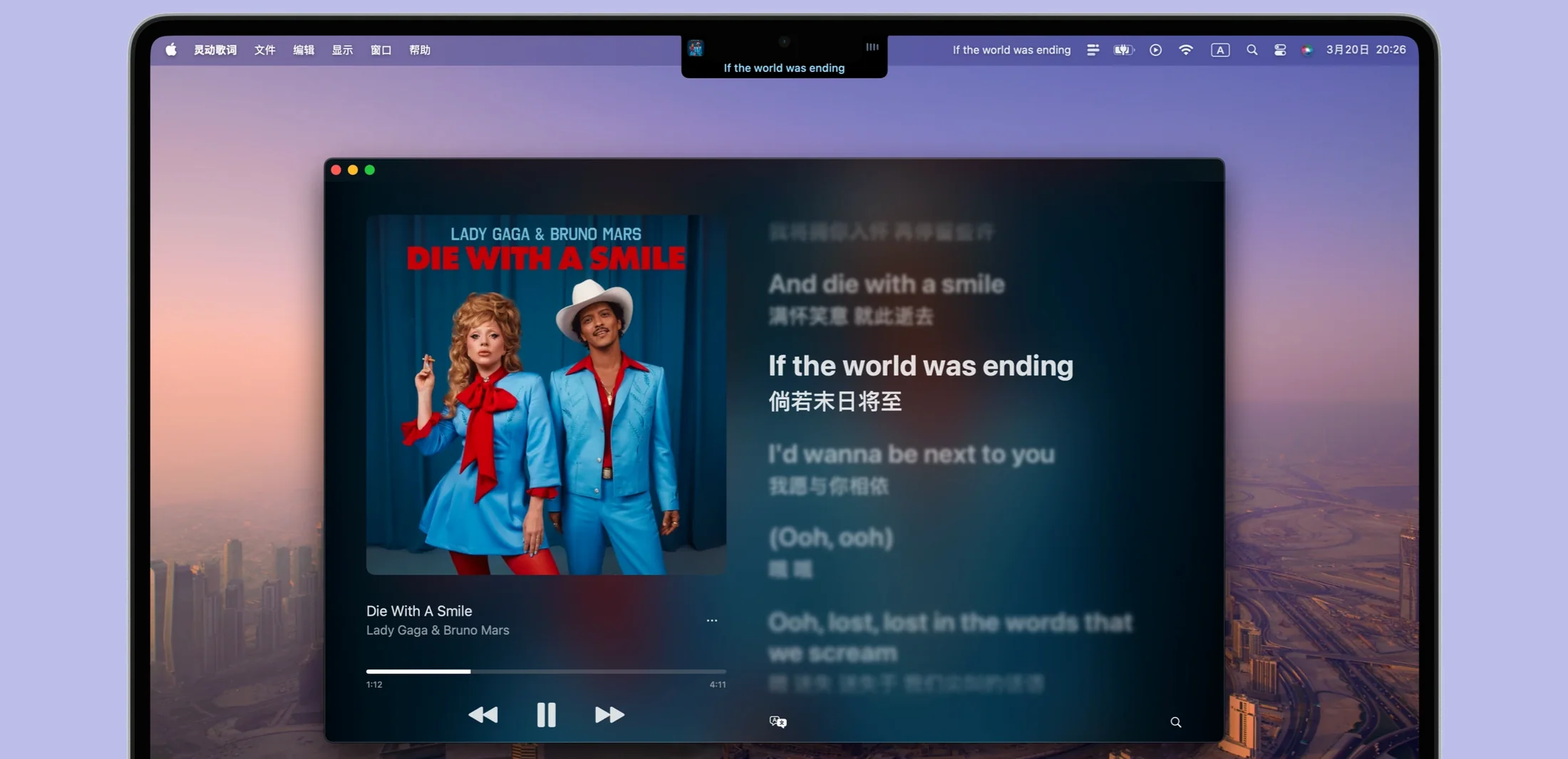
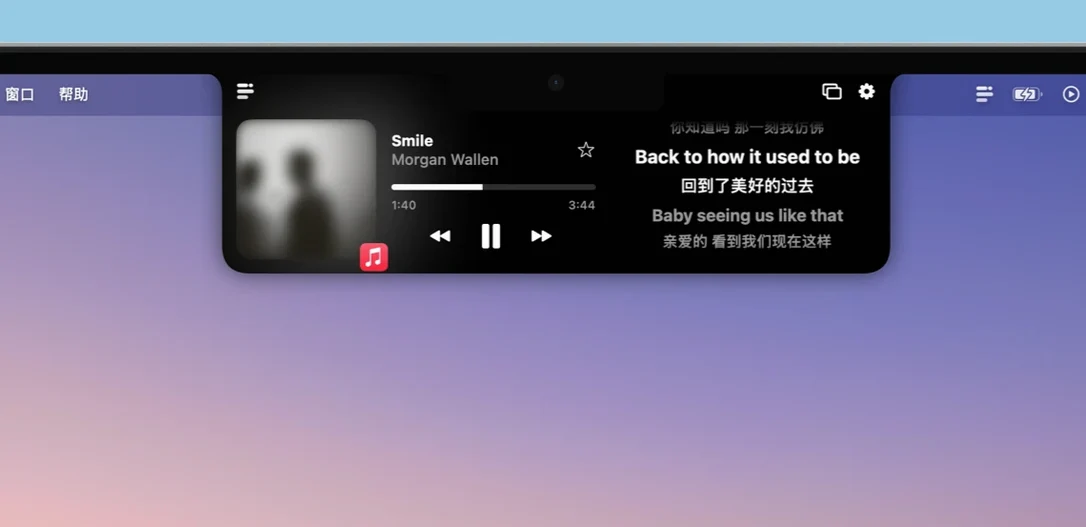
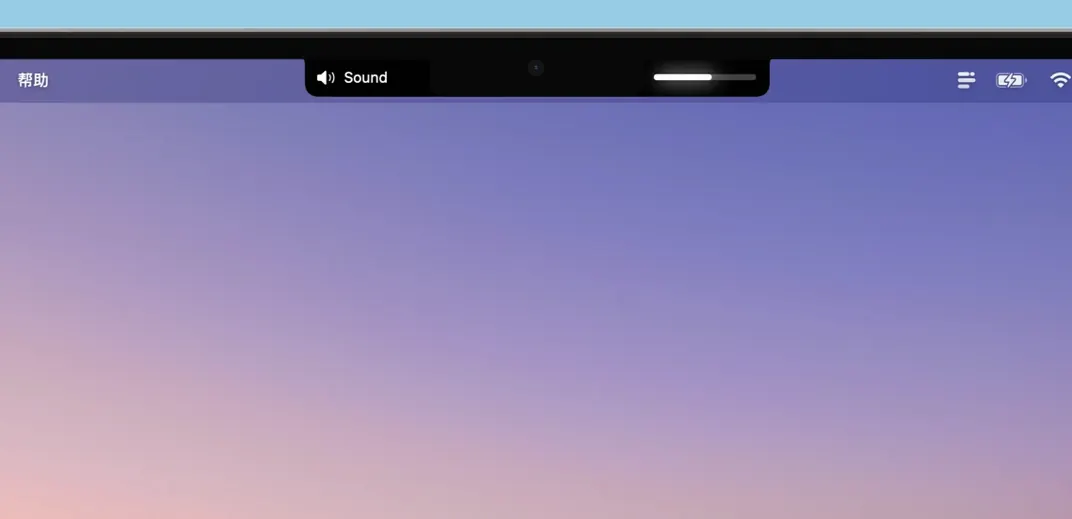
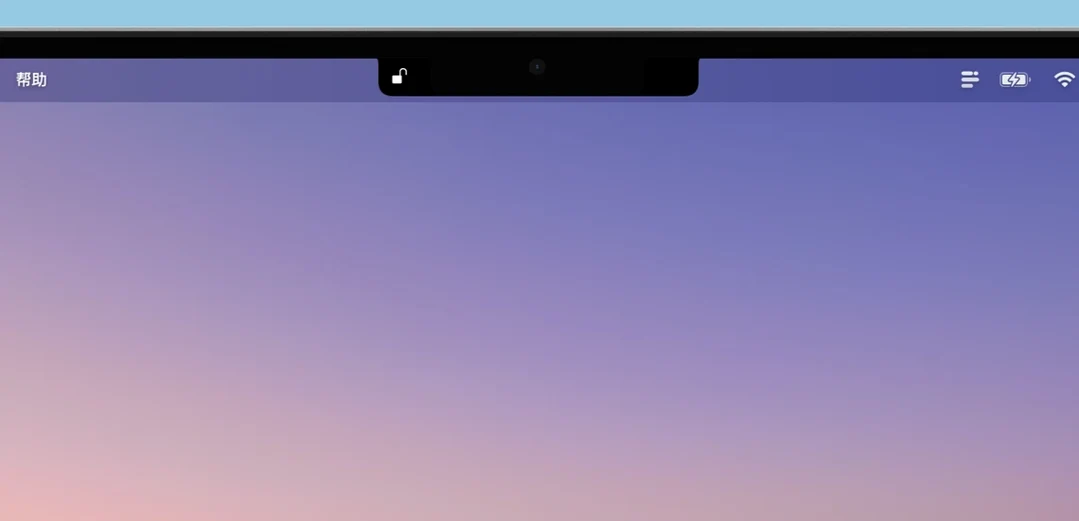
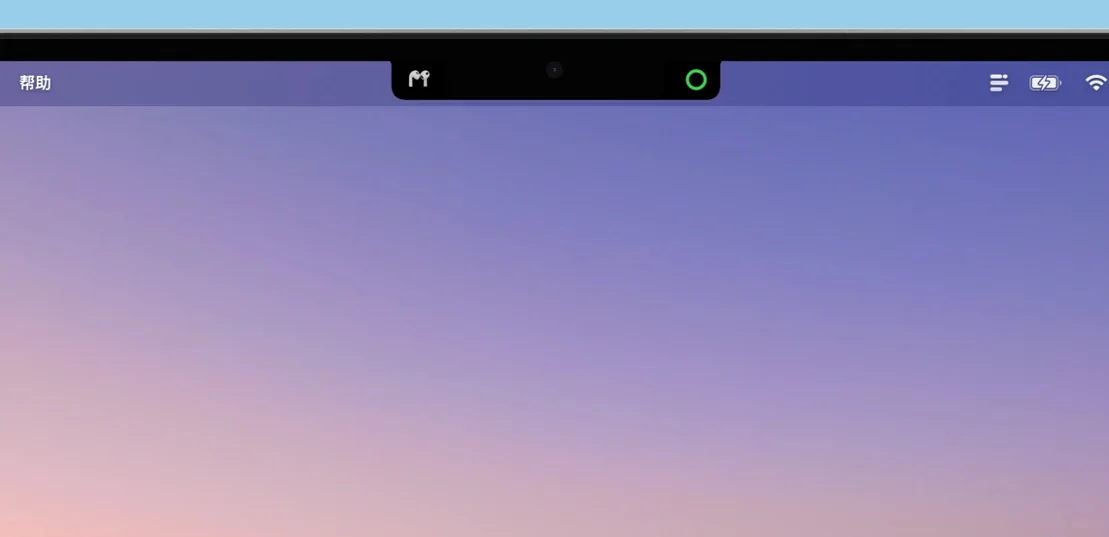
The MacBook notch is mostly dead space. You glance at it for the camera light and that’s about it. Dynamic Notch makes it functional — a small utility that turns the notch into an interactive area for system controls.
| Detail | Info |
|---|---|
| Version | 1.8.2 |
| Size | ~6 MB |
| Languages | 8 including English, Spanish, French, Korean |
| macOS | 11 or later, Intel & Apple Silicon |
Open the app, and the notch starts showing volume and brightness changes with a cleaner interface than the default macOS HUD. It also displays AirPods or headphone connection prompts and provides lock-screen indicators with an unlock animation. No configuration needed — it just works after you drag it to Applications and open it from Launchpad.
Responds Faster to System Events
Version 1.8.2 refines the notch area to respond faster to system events. The volume HUD replacement now shows the exact level without the default macOS overlay appearing briefly first. The lock-screen indicators remain visible until you authenticate, which is useful if you step away and come back to a dimmed screen.
The lyrics display for music playback has been adjusted to fit the notch width better — longer lines scroll rather than truncate, so you see the full line without opening the app. AirPods connection prompts now show the device name instead of a generic headphone icon.
Works on Any Modern MacBook with a Notch
Dynamic Notch 1.8.2 runs on macOS 11 and later and supports both ARM and 64-bit x86 architectures. That means it works on any modern MacBook with a notch — from the first M1 MacBook Air to the latest Intel models. The app file is about 6 MB, so it takes up negligible space on your drive. After you copy the app to Applications and launch it from Launchpad, it adds a small icon to your menu bar and starts monitoring the notch. The interface is available in eight languages, including English, Spanish, French, Korean, and both Simplified and Traditional Chinese.
Check Your Volume HUD Right After Install
Some practical notes for getting used to it:
- Check your volume HUD first. Press a volume key and watch the notch. If the default macOS HUD still appears, restart the app from Launchpad. It should take over after one launch.
- Let the unlock animation run. The first few times you wake your Mac, the animation may seem brief. After a day, it syncs with your wake pattern and feels natural.
- If nothing shows, the app is still working — it just means no supported device is paired.
- Test with music. Play a song in Apple Music or Spotify. The lyrics and playback info appear in the Dynamic Island area after a moment. If lyrics don't show, check the app's language setting aligns with your system language.
No configuration is required beyond the initial install — the app runs silently in the background and only appears when you adjust volume, connect audio devices, or wake the Mac. It's a set-and-forget tool for anyone who wants the notch to pull its weight.
No release notes filed for 1.8.2. They are added here when a build changes how the program behaves.
| macOS | macOS 11 or later |
|---|---|
| Processor | Apple Silicon, Intel 64-bit |
| Download | 23 MB |
- macOS 11 or later
- Intel or Apple Silicon processor
Questions about Dynamic Notch
Does Dynamic Notch replace the system volume HUD?
Yes, it can replace the default macOS volume and brightness HUD with its own interface that appears around the notch.
What Macs support Dynamic Notch?
The utility runs on macOS 11 or later and supports both Intel and Apple Silicon Macs.
How to install, in order
- Open the downloaded disk image.
- Drag the app to the Applications folder alias.
- After copying finishes, open the app from Launchpad.
Comments and corrections 0
Sign in or open a free account to leave a comment.
No comments or corrections yet.