Wondershare Recoverit 14.0.20 — download for Mac
Utilities Intel processors only Updated
Retrieves deleted files from drives that have already been emptied from the trash.
Screenshots
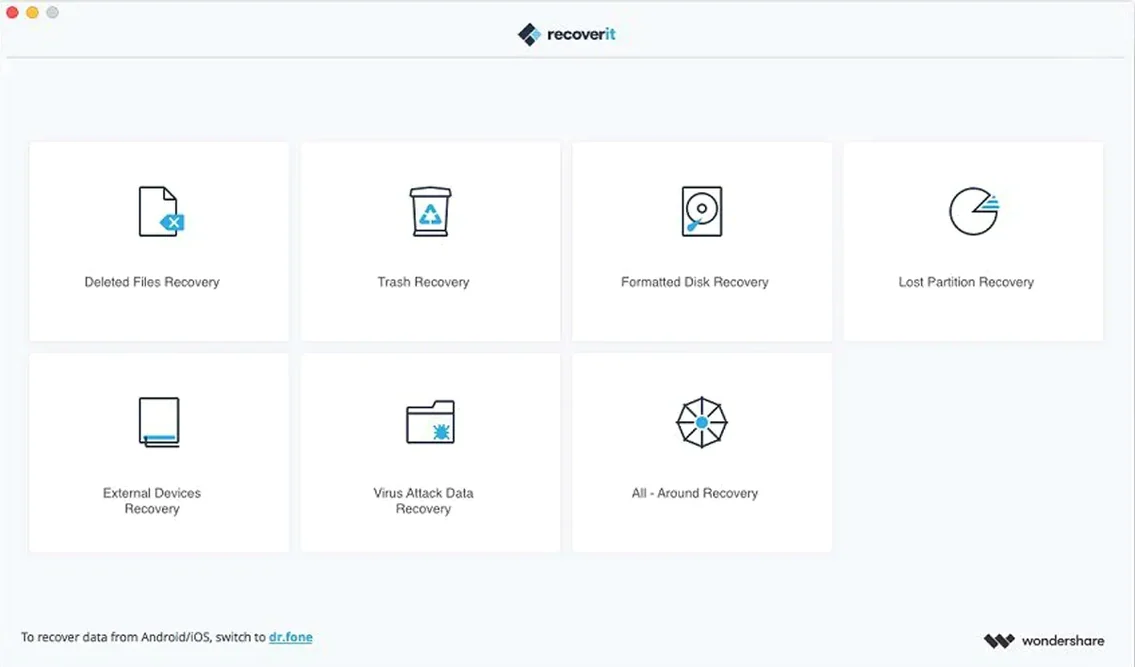
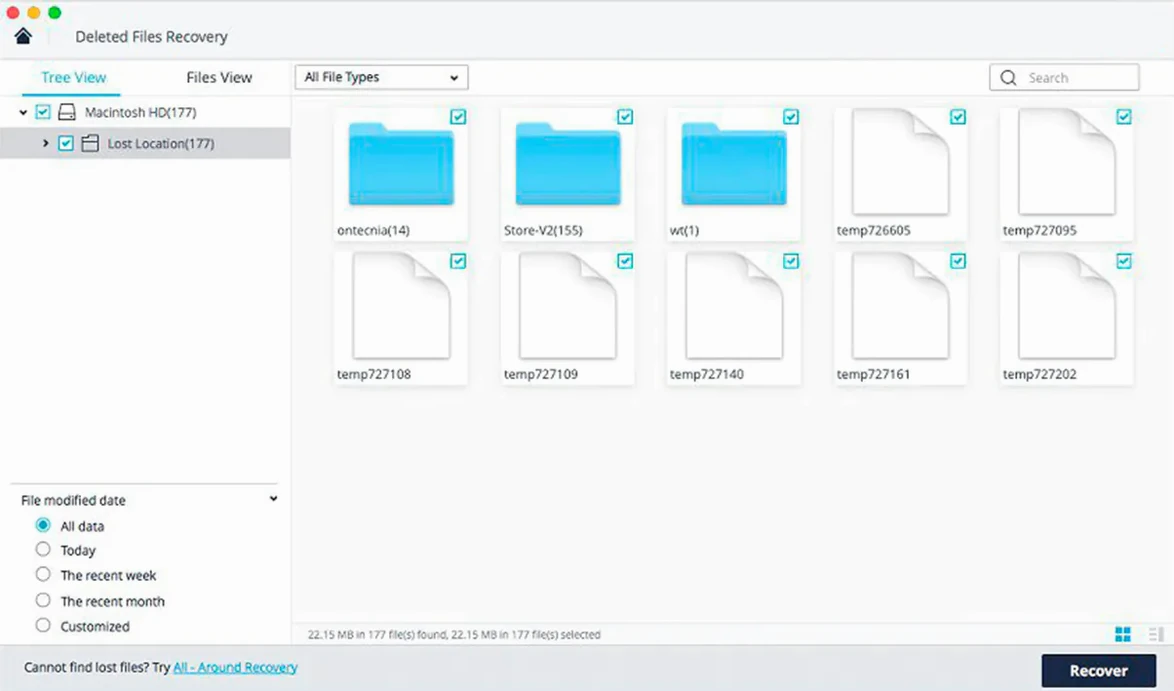
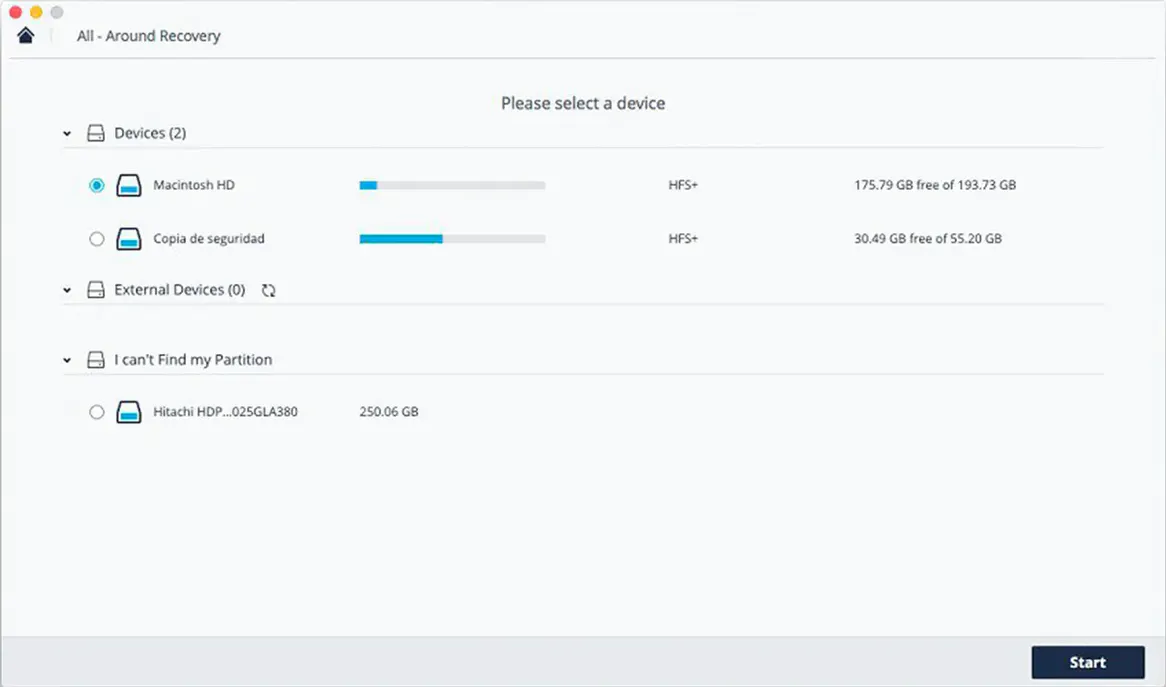
You know the feeling when a project file vanishes from the Finder. Recoverit 14 works like a second pass through the trash — but for drives that have already been emptied. Here’s how it handles a real recovery task.
Recovering a Deleted Document
- Open Recoverit and select the storage device where the file was lost.
- Click Start to run a quick scan; the tool indexes recoverable items by type and name.
- Preview the found document to confirm it opens correctly, then hit Recover to save it to a different folder.
PDF and Spreadsheet Recovery in Minutes
The scan takes minutes, not hours. For a project manager who just lost a contract PDF or a spreadsheet, that time difference matters. No deep technical setup — point at the drive, scan, pick files. The interface stays in English, German, Spanish, Italian, Portuguese, French, or Japanese, so teams across offices can use it without translation friction.
Index Your Drive Before You Lose Files
Do not wait for a disaster. Open Recoverit once right after installation, even if you have nothing to recover. Let it index your internal drive — the app builds a file map that makes later scans faster. If you have a spare USB stick or an old SD card, format it, copy a few test files, delete them, and run a recovery.
Keep the app installed. Deleting it because you think you are done is a mistake — data loss repeats. Leave Recoverit in your Applications folder. That way you skip the install steps when a drive fails on a Friday afternoon.
Set a mental rule: never save recovered files back onto the same drive you are scanning. Always choose a different folder or an external disk. The app itself shows this during recovery, but beginners sometimes override it and overwrite the very data they are trying to pull back.
Catches What Time Machine and Cloud Sync Miss
Recoverit does not replace Time Machine — it complements it. Time Machine handles scheduled backups; Recoverit catches what falls through the cracks when you emptied the trash before the backup ran. If you use cloud sync apps like Dropbox or Google Drive, remember that their local copies may also be gone after a sync conflict. Recoverit can grab the local version before it is overwritten.
The app works alongside disk utilities such as Disk Utility or GParted. If you have already formatted a partition by accident, do not write new data to it. Mount the drive in macOS, launch Recoverit, and scan the formatted volume. The quick scan handles most partition-loss situations without extra steps.
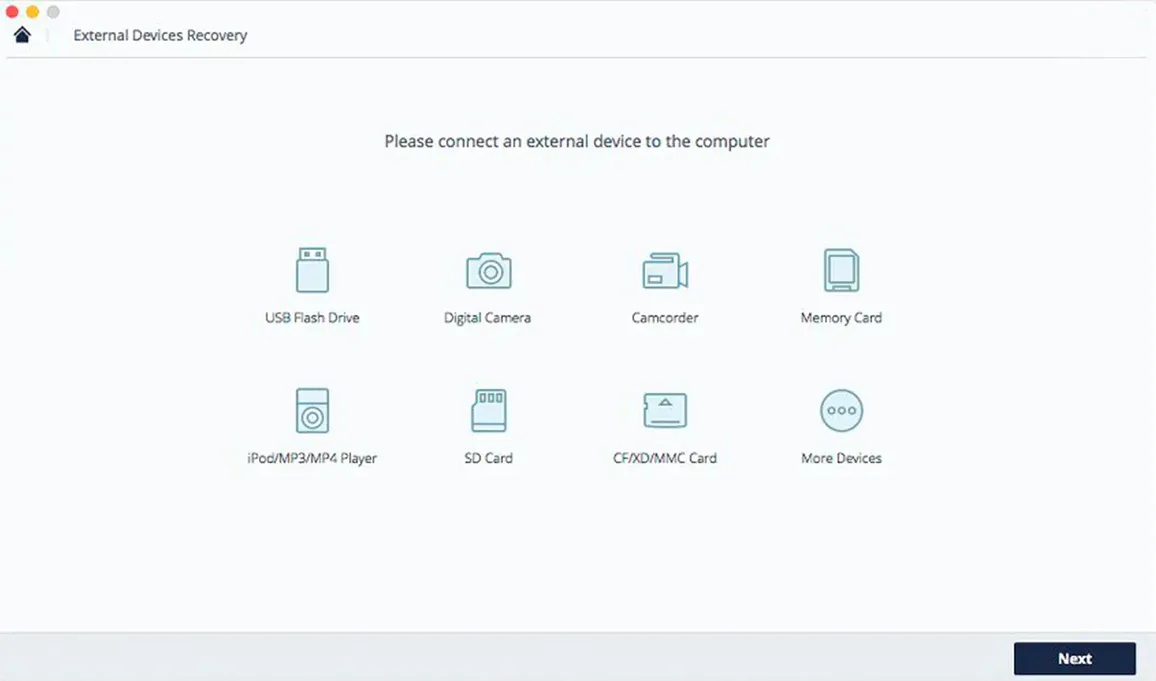
For project managers who keep shared project folders on external SSDs or USB flash drives, Recoverit reads those directly. No need to eject and reinsert. Just plug the drive in, select it from the device list, and scan. The same applies to memory cards from office cameras or drones.
Installing on the Drive You're Recovering
- Installing Recoverit on the same drive you are trying to recover. The app writes data during installation. If your internal SSD is the target, install Recoverit on an external drive or a different partition.
- Running a scan and then rebooting before recovery. Every write operation — even a system log file — can overwrite deleted data. Scan, preview, recover. Do not restart or open other apps in between.
- Trying to recover everything at once. Beginners select every listed file and hit Recover. That floods the target drive and slows the process. Pick only the files you actually need: documents, spreadsheets, the one contract PDF. Leave media files for later if space is tight.
- Ignoring the file preview. The preview shows whether the file is intact or corrupted. A PDF that looks blank in preview will not be readable after recovery. Skip it and move on.
- Using the wrong language setting. Recoverit defaults to English. If your team works in Portuguese or Japanese, change the language in Preferences before scanning. The interface labels shift immediately, and recovery paths become clearer for non-English speakers.
External Drive Not Appearing in App
Scan finishes but shows zero files
This usually means the drive was overwritten after deletion. If you saved new files, installed software, or even mounted the drive in another OS, the old data may be gone. Try the deep scan option — it takes longer but recovers fragments. If the drive is an SSD, the TRIM command may have erased the data permanently. In that case, no software can bring it back. This is not a Recoverit limitation; it is how modern SSDs work.
Recovered files do not open
Check the preview before recovering. If the preview shows garbled text or a broken image, the file was partially overwritten. Recover the next older version if you have a backup. For documents, try opening the recovered file in a text editor — sometimes the content is there even if the formatting is lost.
Reconnecting and Checking Disk Utility First
Unplug the drive, reconnect it, and wait for macOS to mount it on the desktop. If it still does not appear, open Disk Utility and check whether the drive shows up there. If it does, try a different USB port or cable. Recoverit reads the same devices that macOS mounts, so a drive that is invisible to the Finder is also invisible to Recoverit.
Recovery takes too long
Large drives (over 1 TB) with many small files take longer. Pause the scan, narrow the file types to documents and images only, and restart. The app respects filters during scanning, so you do not waste time on system files or cached media.
Recovering a Formatted USB Flash Drive
Wednesday morning, 10 a.m. A project coordinator walks over and says the quarterly budget spreadsheet is gone. The file was on a shared USB flash drive that got formatted by accident during a cross-office file transfer. The coordinator has not written anything new to the drive since the format. Good sign.
I plug the drive into my MacBook Air. It mounts as an empty volume in the Finder. I open Recoverit from the Applications folder. The main window shows a list of drives: the internal SSD, the USB flash drive, and a couple of network locations. I click the USB drive and press Start.
The quick scan runs for about four minutes. A progress bar moves across the top. Below it, a live counter shows files being found. When the scan finishes, the app displays a folder tree on the left and a file list on the right. I filter by Document type. Dozens of .xlsx and .docx files appear. Some filenames are intact; others show generic names like File_0001.xlsx.
I preview the spreadsheet named Q3_Budget_2024.xlsx. The cells show the data correctly — headers, figures, the totals column. Good. I check the second candidate, Q3_Budget_v2.xlsx, which also looks complete. I check a third version that the coordinator says was the final one. It previews fine. I select those three files, click Recover, and choose a folder on the internal SSD called Recovered_Files. The app copies them in under a minute.
I open each file in Numbers to confirm they are intact. The coordinator copies them back to a fresh USB drive. Total time from plug-in to handoff: under ten minutes. No stress, no second attempt. The app handled the whole session without extra settings or retries.
That is the session every project manager wants: a clear problem, a fast scan, usable files, and a delivery that does not eat into the afternoon. Recoverit 14 keeps that workflow simple enough that you do not need to read a manual mid-crisis. You just point, scan, preview, and save.
No release notes filed for 14.0.20.6. They are added here when a build changes how the program behaves.
| macOS | macOS 10.14 or later |
|---|---|
| Processor | Intel 64-bit |
| Download | 212 MB |
- macOS 10.14 or later
- Intel-based Mac
How to install, in order
- Mount the disk image and run Open Gatekeeper friendly.
- Press Enter in Terminal to bypass Gatekeeper.
- Drag the app to the Applications folder.
- Launch the app after installation.
Comments and corrections 0
Sign in or open a free account to leave a comment.
No comments or corrections yet.