Wondershare UniConverter 15.7.3 — download for Mac
Utilities Updated
Converts DRM-protected files, extracts audio from DVDs, and burns discs directly.
Screenshots
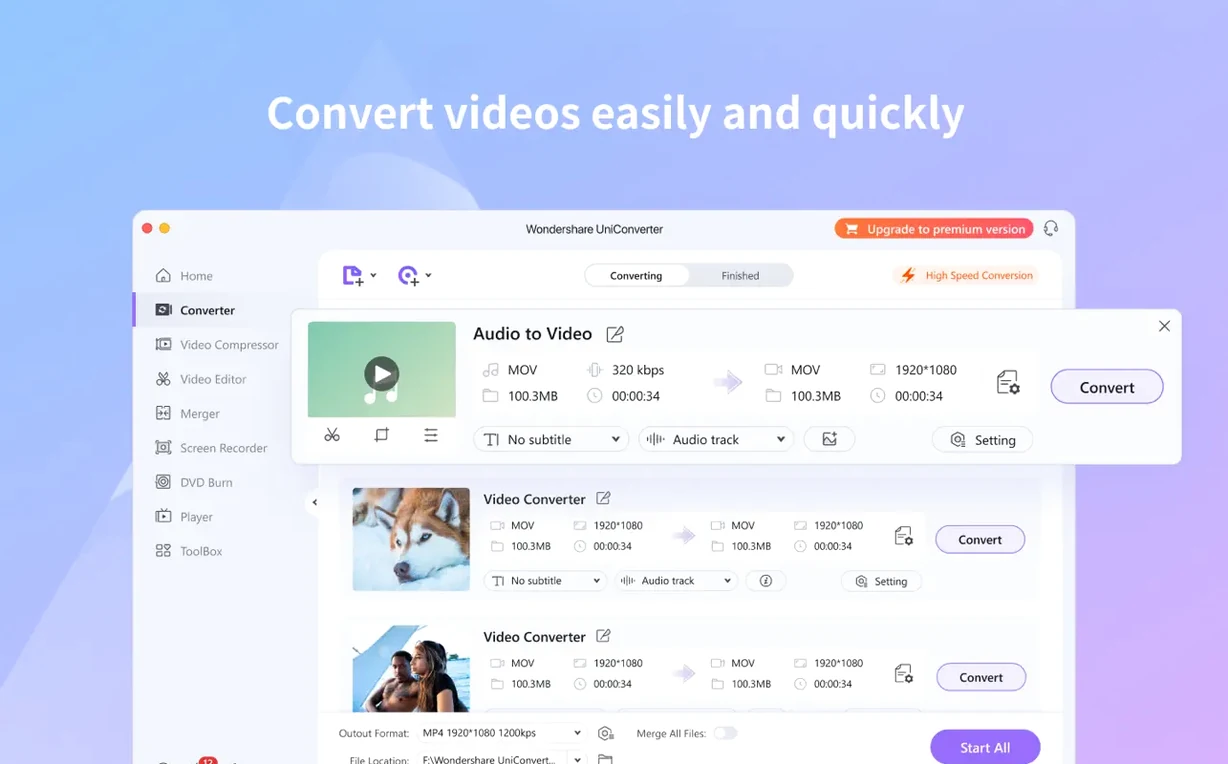
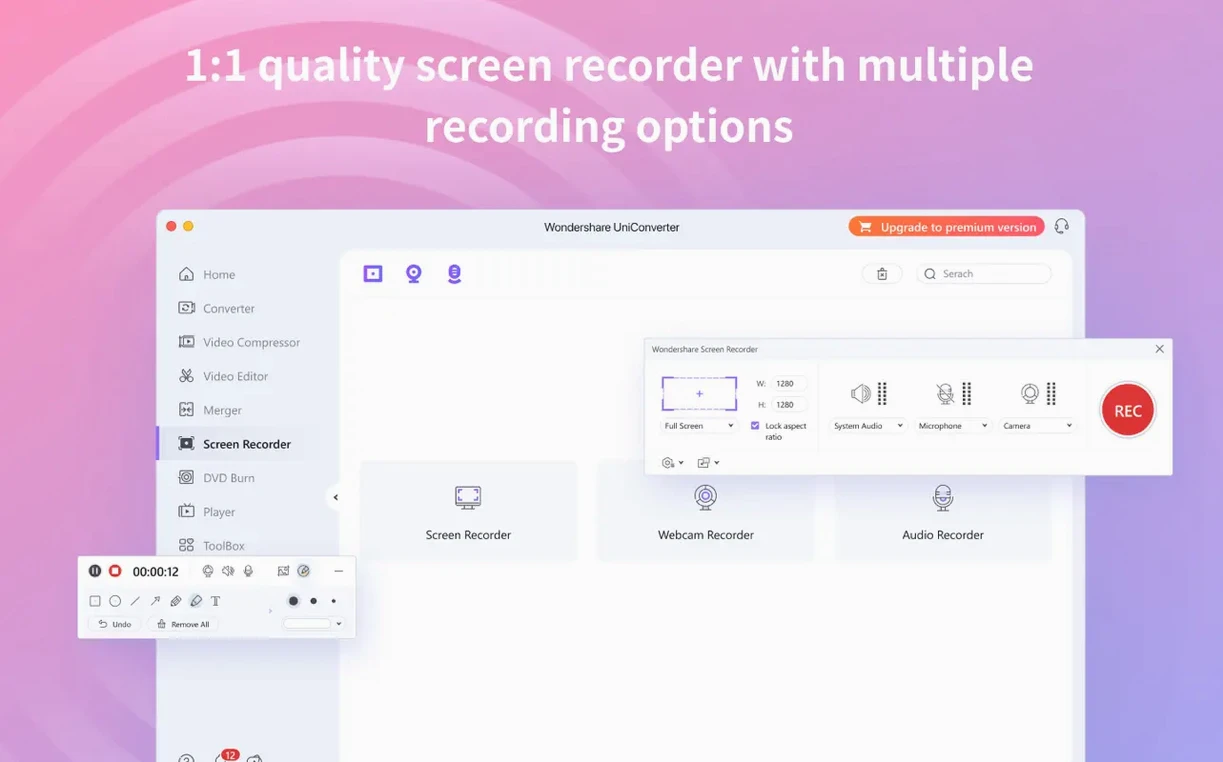
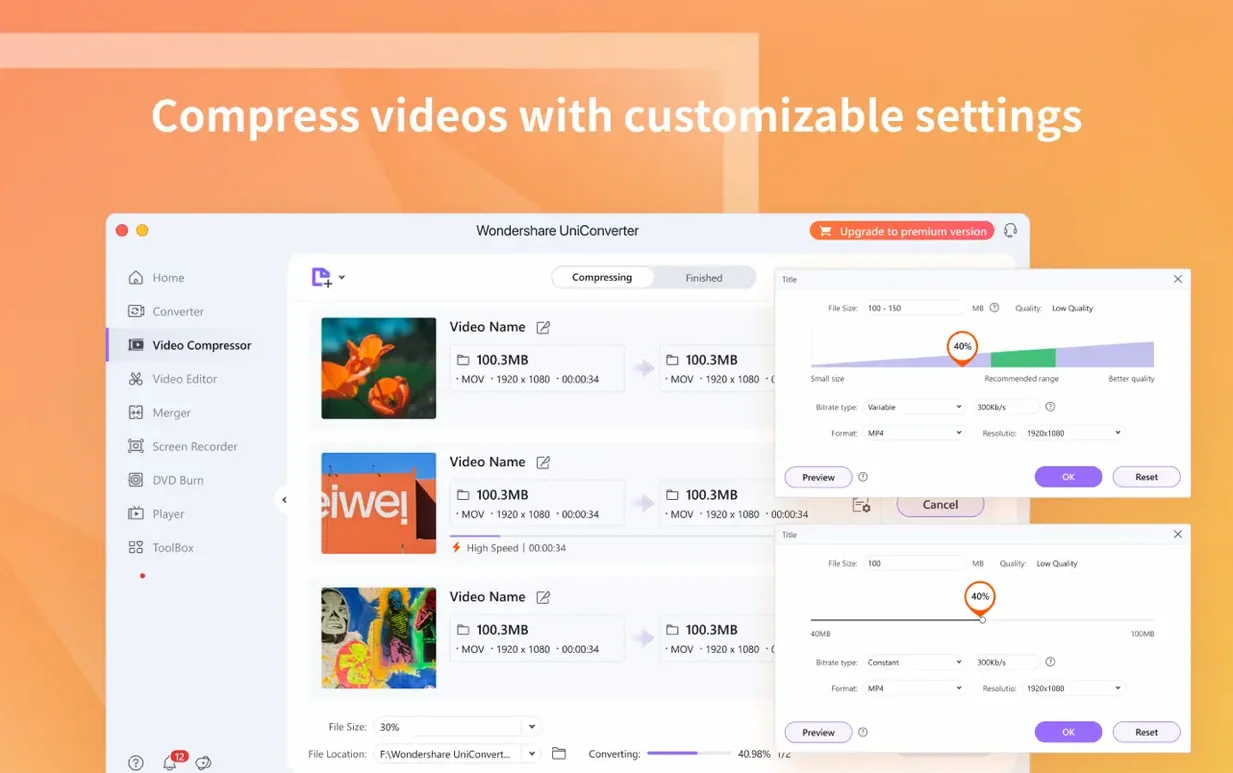
Most Macs already have QuickTime and maybe HandBrake for basic video conversion. But when you need to convert DRM-protected files, extract audio from a DVD, crop black bars from a recording, or burn a disc directly from a video file, those standard tools fall short.
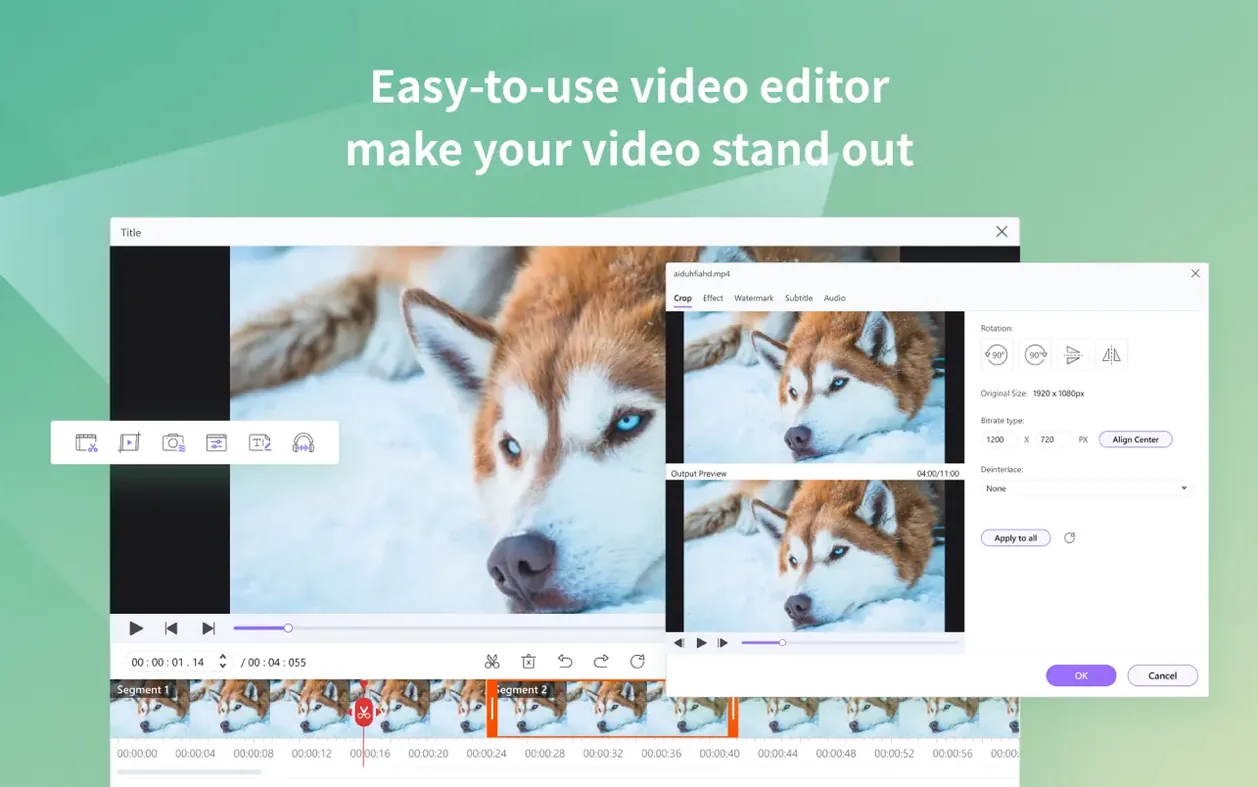
Wondershare UniConverter for Mac fills that gap. It's an all-in-one video converter that handles more than 159 formats, and it doesn't stop at conversion. You get a built-in video editor for cropping, trimming, and even converting 2D video to 3D. The app can also rip audio tracks from DVDs, burn video to disc, and transfer files wirelessly to Apple or Android devices without a USB cable.
Convert video and audio without separate tools
- Converting video or audio between formats without hunting for separate tools.
- Extracting audio from DVDs or video files for podcasts, samples, or offline listening.
- Removing black bars or cropping unwanted edges from screen recordings or camera footage.
- Burning DVD video from common file types.
- Wireless file transfer to iOS or Android devices when a cable isn't handy.
macOS 10.11+ with Intel or Apple Silicon
- Runs on macOS 10.11 and later, supports both Intel and Apple Silicon.
- Interface available in 19 languages.
- The app is part of a broader Wondershare product line, so menus and workflows follow that family's logic.
Set your output folder first
Out of the box, UniConverter defaults to a balanced conversion preset. Before you start your first project, open the Preferences panel and adjust a few things to match your workflow.
- Output folder location. By default, converted files land in the user Videos folder. If you work with a project drive or a NAS, change the output path early to avoid moving files around afterward.
- Hardware encoding toggle. On Intel Macs with Quick Sync or Apple Silicon with hardware encoding, check that accelerated encoding is enabled in the performance settings. It reduces conversion time on long files, though the exact speed depends on your source and output format.
- Default audio format for DVD rips. If you regularly extract audio from DVDs, set MP3 or AAC as the default audio output. That saves one dropdown click per batch.
- Wireless device pairing. If you transfer files to an iPhone, iPad, or Android tablet, pair the device via Wi-Fi from the Transfer panel before you start converting. The connection stays saved for later sessions.
Fix new-user snags like wrong output path
A few things trip up new users. Most are easy to fix once you know where to look.
Conversion stalls or finishes with a corrupt file
This usually happens with DRM-protected files or unsupported container formats. UniConverter handles many DRM cases, but not all. If a file stops mid-conversion, try converting the same source to a different intermediate format first — MP4 to MOV, for instance — and then to your target. That often resolves codec mismatches.
Wireless transfer doesn't find the device
Both the Mac and the target device must be on the same Wi-Fi network. Check that no VLAN or guest network isolation is blocking local discovery. If the device still doesn't appear, restart the app and the device's media player. On Android, make sure the Wondershare Transfer app is installed and running.
DVD burning fails or ejects the disc early
Use a blank DVD-R or DVD+R, not a rewritable disc if possible. If the burn process stops partway, the disc may be too slow — choose a 1x or 2x burn speed in the settings instead of the maximum. Also verify the disc has enough free space for the video length and format you selected.
Cropped video still has black borders
The crop tool applies a rectangular selection. If you are removing black bars from a 4:3 video on a 16:9 canvas, set the crop region manually rather than using the auto-detect option. Preview the result in the preview window before hitting Convert.
Best for budget video editors using DaVinci or FCP
UniConverter is not a tool for casual one-off conversions. It rewards people who work with media files regularly and need more than a simple format swap.
- Video editors on a budget. If you edit in DaVinci Resolve or Final Cut but need a quick format conversion, DVD audio extraction, or batch cropping without opening your main NLE, UniConverter handles those steps in one place.
- Archivists and media librarians. Converting DVD collections, extracting audio tracks, and normalizing file formats across a library is its core strength. The iTunes library integration means converted video can flow directly into your media server.
- Contractors and project managers. If you receive raw footage from clients in obscure formats or need to deliver files in a specific resolution and container, batch conversion and format presets cut the overhead of re-encoding each file manually.
- People who share video between devices. Wireless Transfer is a genuine timesaver when you are on a job site or in a meeting room without cables.
Don't ignore codec details in the 159 formats
The most common misstep is not reading the output format details before starting a batch. UniConverter lists more than 159 formats, but the codec selection within each format matters. Choosing H.264 for a 4K source produces a different file than H.265, and beginners often pick the first option in the list without checking the codec line.
Another one: skipping the preview. The preview window shows exactly how your crop, split, or effect will look. A quick play-through of the first few seconds catches rotated video, unintended crops, or wrong aspect ratios before you process the whole file.
Beginners also tend to run batch conversions on files that are already in the same format. If your source is already an MP4 H.264 file and you convert it to MP4 H.264, you re-encode unnecessarily. Use the copy-stream or passthrough option if UniConverter is only remuxing the container, not re-encoding the video.
Finally, don't ignore the output folder after conversion. UniConverter leaves files with the original name plus a suffix. If you batch-convert a folder of 50 clips, a few will end up with similar names. Rename them in the app's file list before exporting to avoid hunting through folders later.
- Compatible with OS X 10.11 and later.
- Supports ARM and 64-bit Intel Macs.
| macOS | OS X 10.11 or later |
|---|---|
| Processor | Apple Silicon, Intel 64-bit |
| Download | 324 MB |
- macOS OS X 10.11 or later
- Apple Silicon or 64-bit Intel processor
How to install, in order
- Mount the disk image and open Gatekeeper Friendly.
- Press Enter in Terminal to bypass Gatekeeper.
- Drag the app into the Applications folder.
- The app is ready to use.
Comments and corrections 0
Sign in or open a free account to leave a comment.
No comments or corrections yet.