YTD Video Downloader PRO 7.8.0 — download for Mac
Utilities Intel processors only Updated
Pulls video from YouTube, TikTok, Instagram, and other sites and converts it into common formats.
Screenshots
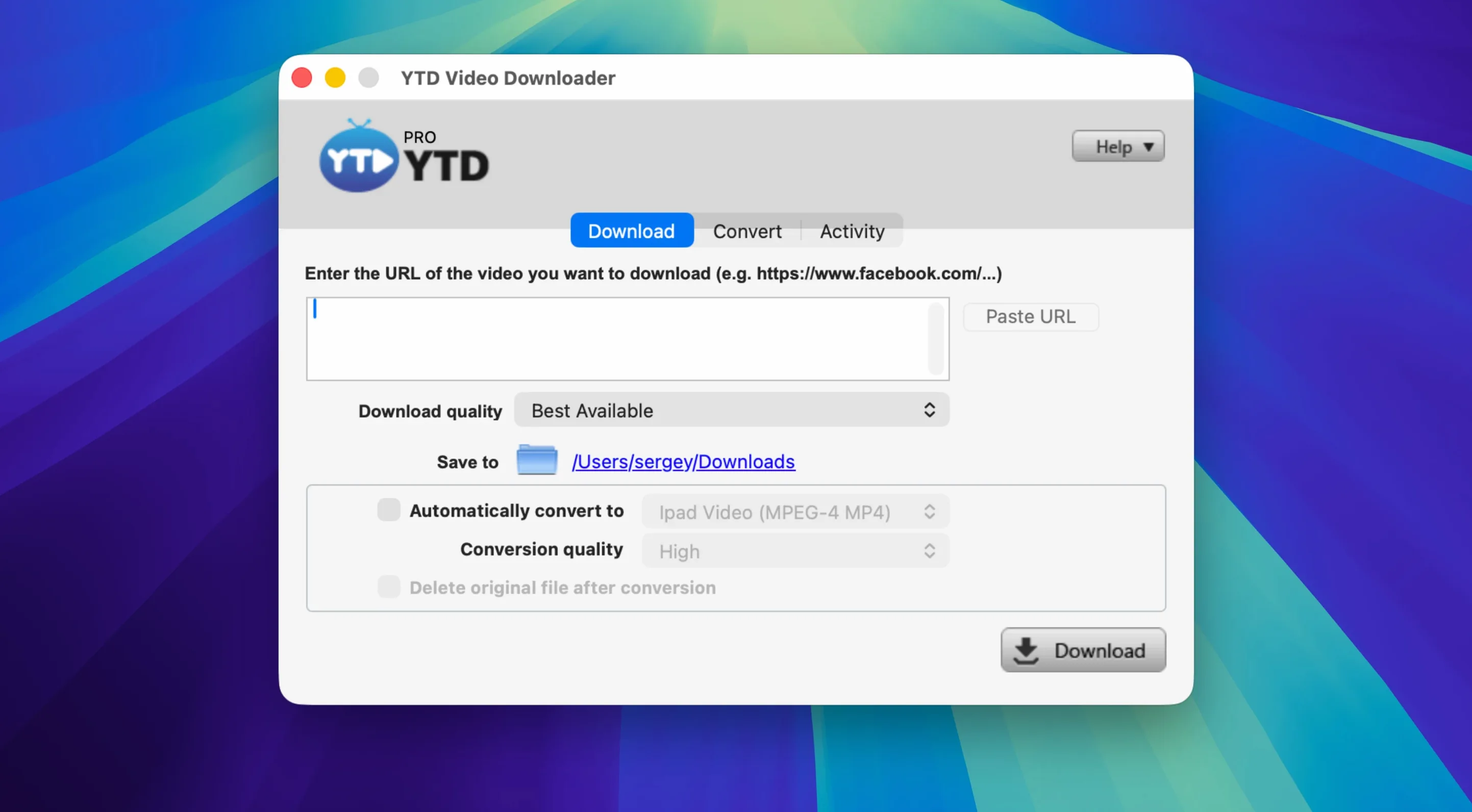
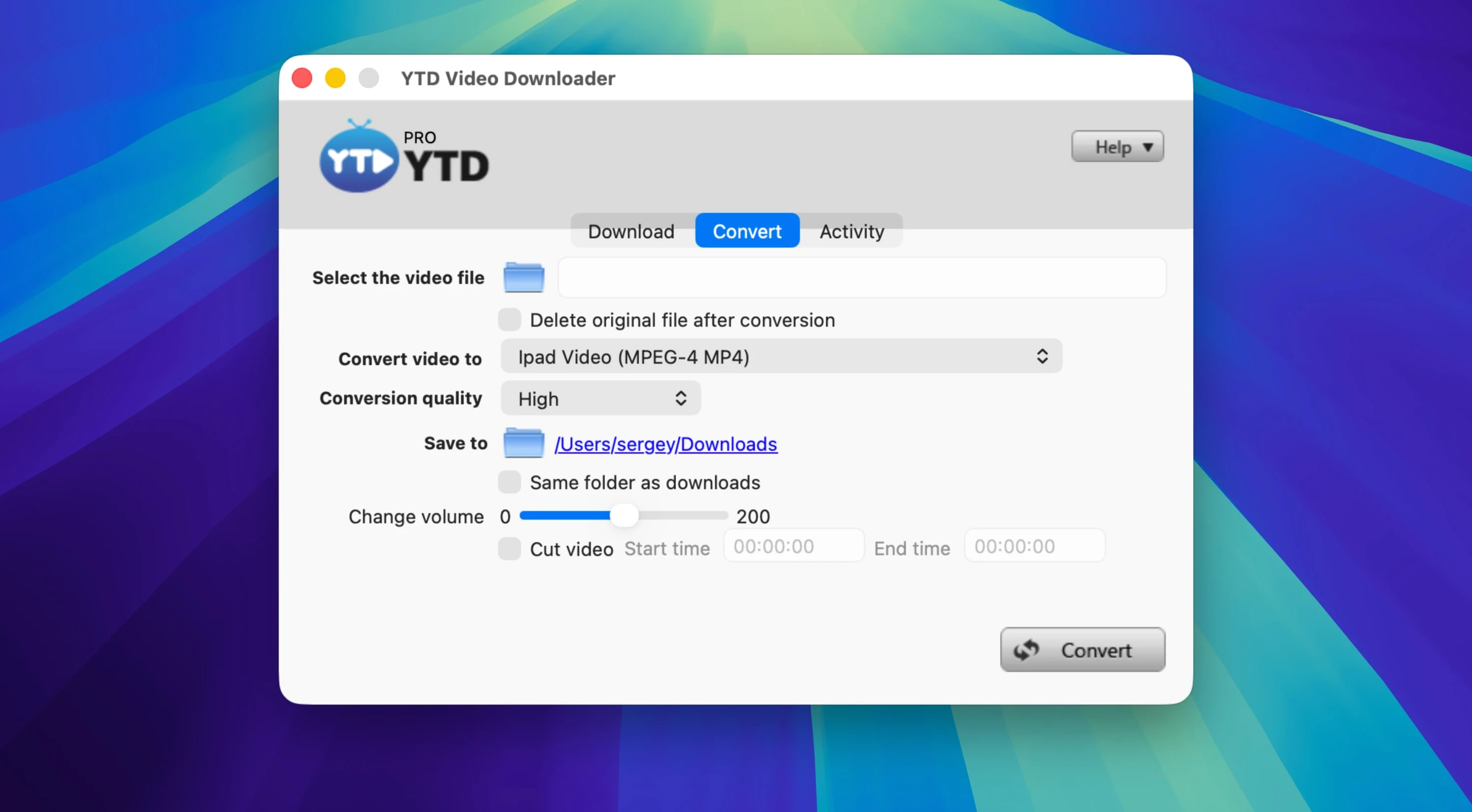
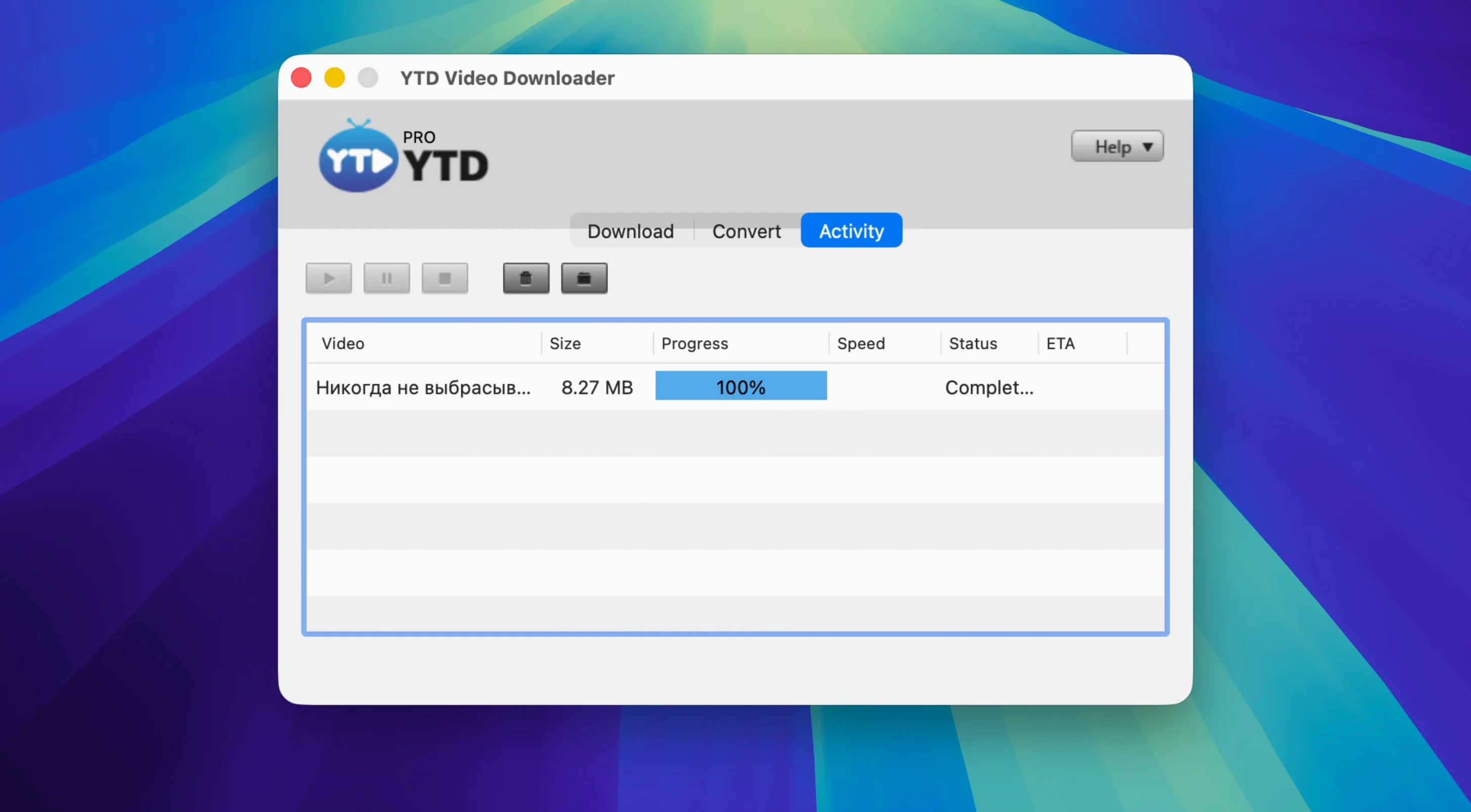
The latest version, 7.8.0, keeps the same core job: pulling video from YouTube, TikTok, Instagram, Facebook, Twitter/X, LinkedIn, and other sites onto your Mac. It also converts downloaded clips into .mp4, .mov, .wmv, .avi, .mp3, .3gp, or .flv — so if you need a file in a specific format for editing, sharing, or archiving, that step is built in.
The downloader handles interruptions well. You can pause and resume downloads, and if the connection drops, it retries automatically. No need to start over when a large file stalls halfway. The interface stays in English, which keeps things straightforward if you just want to paste a link, choose a format, and let it run.
This app is for anyone who regularly saves online video for offline viewing, reference, or repurposing. Office workers who collect training clips, content managers who archive social media posts, or anyone who prefers local copies over streaming buffers will find it useful. It runs on any Mac from OS X 10.10 onward, including Intel models.
Client Demo by Stand-Up
Wednesday morning, 9 a.m. — a client emails a link to a product demo on YouTube and asks for comments by the afternoon stand-up. I open YTD Video Downloader PRO 7.8.0, copy the URL from the email, and paste it into the app's field. The clipboard detection catches the link almost immediately, so the download queue populates without extra clicks. I select 720p .mp4 and hit start. The progress bar moves cleanly; the estimated completion sits at about four minutes for a 12-minute video.
While it runs, I open a second tab for a playlist of competitor ads the marketing team flagged on LinkedIn. I paste the playlist URL, choose MP3 conversion for the audio-only versions, and let the app process them in sequence. The pause-and-resume feature is useful here — when my VPN briefly drops, the download pauses and resumes automatically, no manual intervention. By the time I finish my coffee, both the single video and the playlist are saved to my Downloads folder, ready to review.
Playlist to Local Archive Workflow
A task I do every week: archive a full YouTube playlist for offline reference. Here's the full workflow from start to finish.
- Open YTD Video Downloader PRO and locate the playlist link from the browser.
- Paste the URL into the app's input bar. The app recognizes it as a playlist automatically.
- Choose output format — I set it to .mp4 for video files or MP3 if I only need audio.
- Select the download quality. The converter supports multiple resolutions.
- Click the download button. The app queues all videos in the playlist.
- Let it run. The connection can drop a few times during a long playlist of 20+ files; the auto-retry handles those without restarting.
- After completion, I convert any files that need a smaller format — say, .avi for a legacy media player used by a remote colleague — using the built-in converter.
- Done. The entire playlist sits in a local folder, no streaming buffers, no ads.
This workflow saves me roughly half an hour per week compared to manually fetching videos one by one through a browser. The local processing means I'm not tied to an internet connection once the files are saved.
Compliance Archiver for Social Media
This app suits three types of Mac users especially well.
Content managers and social media coordinators — anyone who needs to archive posts from TikTok, Instagram, Facebook, or LinkedIn for compliance or repurposing. They can paste a link, save the video locally, and convert it to a format their editing team uses, all without logging activity or leaving a history trail in the app.
Training and education staff — people who collect video tutorials, course materials, or conference recordings from YouTube and Vimeo, and need them available offline for classrooms or field work where internet access is unreliable.
Professionals handling presentations and legacy media — those who convert online clips into .wmv or .avi formats for older presentation systems or shared drives that accept only certain containers. The converter covers those formats alongside the usual MP4 and MOV.
The common thread: anyone who values a repeatable, predictable workflow for saving online video onto a Mac running OS X 10.10 or later, without the overhead of browser extensions or streaming accounts.
No release notes filed for 7.8.0. They are added here when a build changes how the program behaves.
| macOS | OS X 10.10 or later |
|---|---|
| Processor | Intel 64-bit |
| Download | 93 MB |
- macOS 10.10 or later
- Intel processor
- English interface language
Questions about YTD Video Downloader PRO
What output formats does YTD Video Downloader PRO support?
The built-in converter outputs .mp4, .mov, .wmv, .avi, .mp3, .3gp, and .flv.
How to install, in order
- Mount the disk image and launch Open Gatekeeper friendly.
- Press Enter in the Terminal window to bypass Gatekeeper.
- Drag the app to the Applications folder.
- Open the app when installation is complete.
Comments and corrections 0
Sign in or open a free account to leave a comment.
No comments or corrections yet.