
Movist Pro 2.21.1 — download for Mac
Video Updated
Plays high-resolution video files with hardware acceleration on older machines.
Screenshots
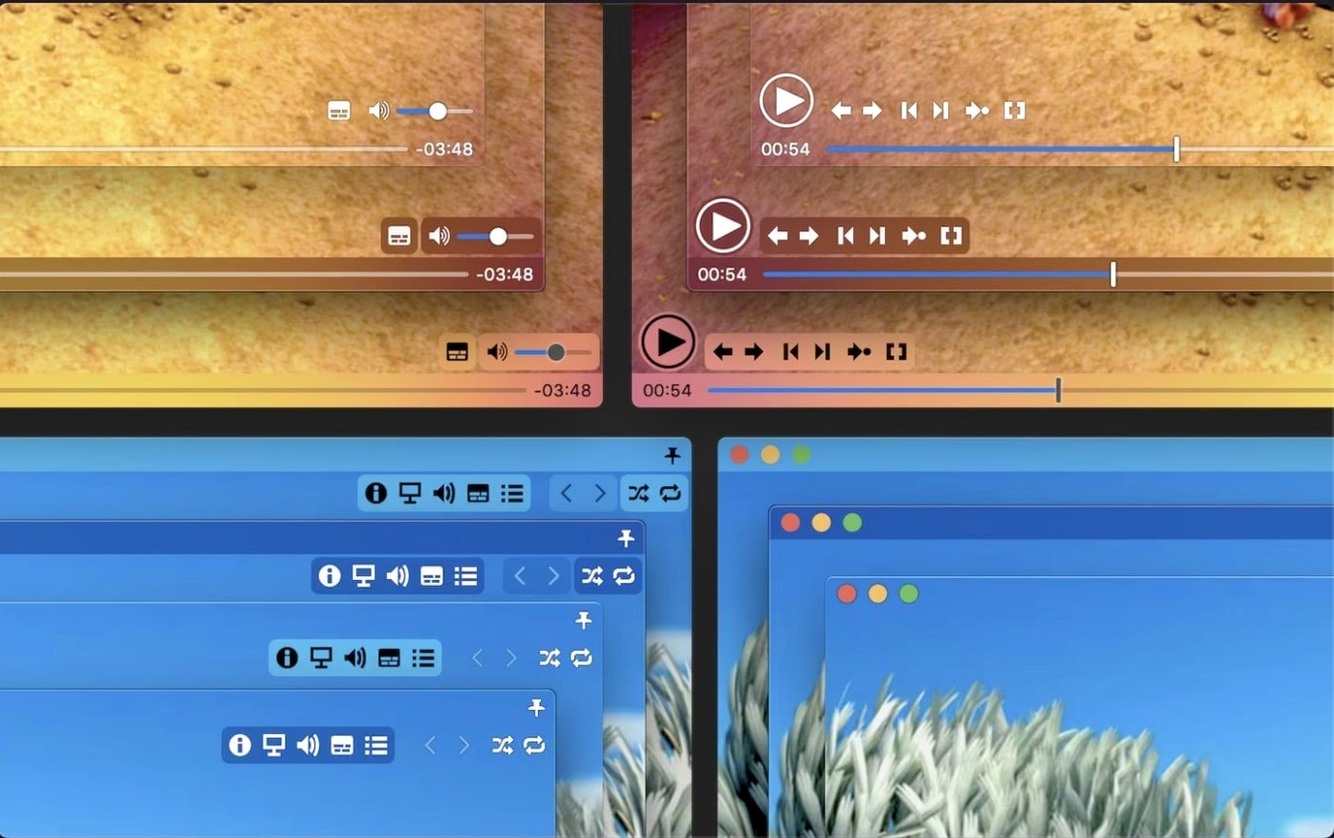
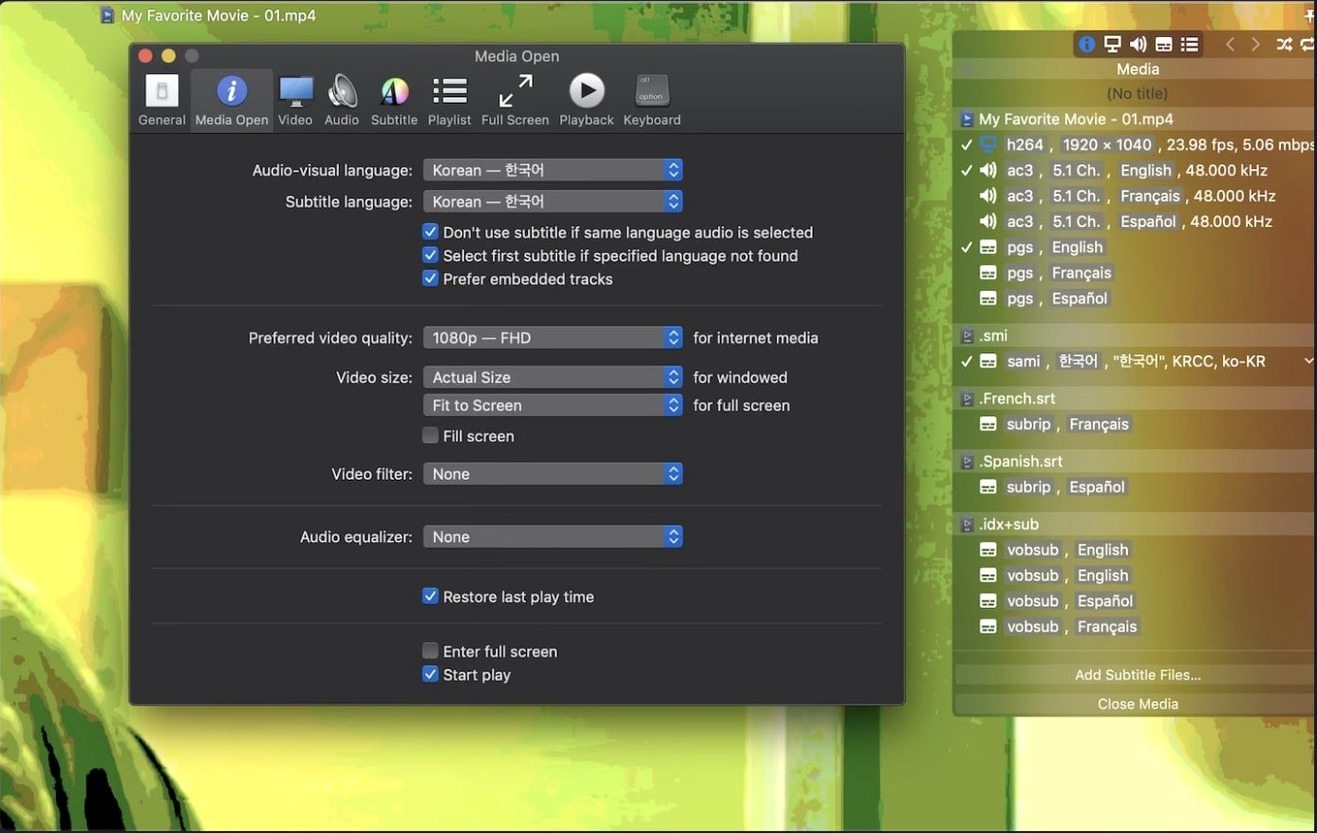
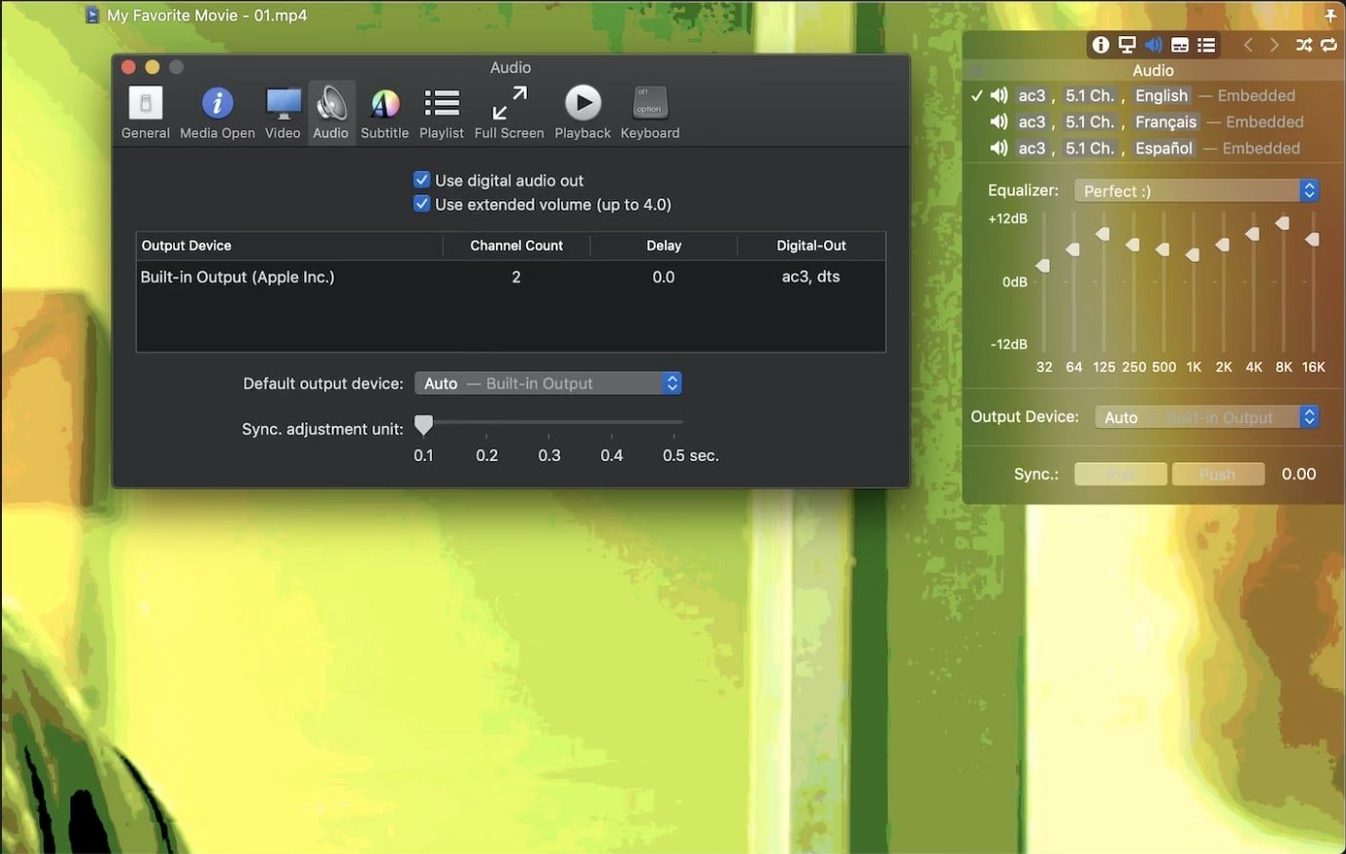
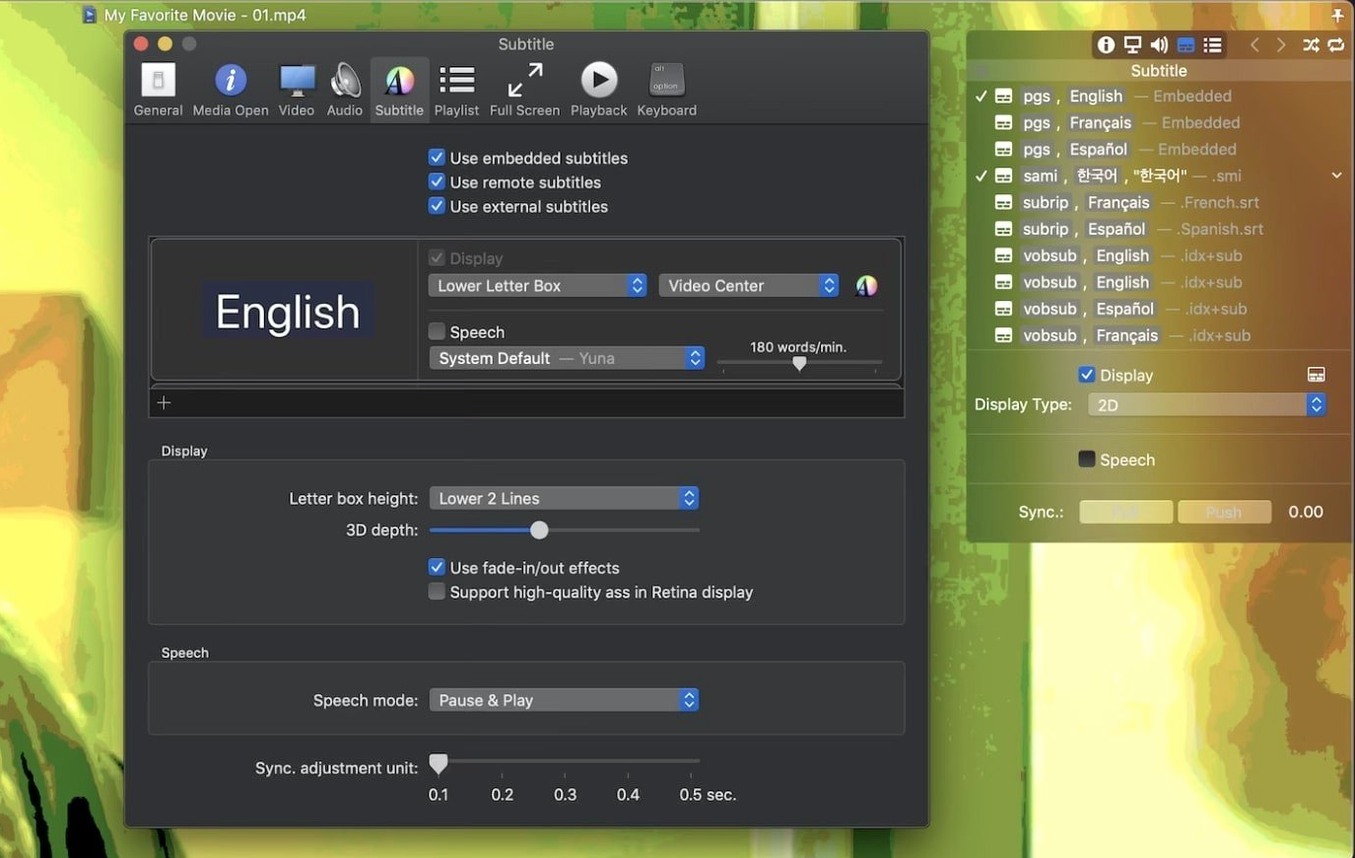
You open a 4K H.265 video on a MacBook Pro from 2018, and it plays without stutter. That is the kind of baseline Movist Pro aims for. It uses QuickTime or FFmpeg per codec and leans on hardware acceleration for H.264 and H.265/HEVC decoding, so older machines still get smooth playback.
| Item | Detail |
|---|---|
| Version | 2.17.2 |
| macOS | 10.13 or later |
| Architecture | Intel and Apple Silicon |
| Languages | English, Russian, Korean, Japanese, Simplified Chinese |
| Subtitles | 3D, embedded, Letter Box, compressed .zip/.rar |
Beyond playback, it handles high-quality subtitles and can autocomplete playlists by searching for episode and subtitle files. Sandboxed app mode keeps the player contained, and the latest version fixes a crash tied to disabled System Integrity Protection plus broken playback for some TS videos. The install routine requires mounting the disk image, running Open Gatekeeper friendly, pressing Enter in Terminal to bypass Gatekeeper, then dragging the app to Applications. It takes about thirty seconds.
For Editors Scrubbing 4K Dailies
Anyone who works with local video files daily will find this player useful. For video editors reviewing dailies, the hardware-accelerated decoding means they can scrub through 4K timelines without switching to a dedicated playback tool. The HDR tone mapping helps when a display does not natively support the source color space — you see the intended contrast and saturation instead of washed-out grays.
People managing media libraries benefit from the subtitle flexibility. If you archive foreign-language films with embedded or external subtitle tracks, Movist Pro reads them without conversion. The automatic text encoding detection saves time when files come from different regions; you do not stop playback to switch character sets. Compressed subtitle archives in ZIP or RAR format open directly, which removes an extra extraction step.
Users who work with multiple video files in sequence — trainers reviewing recordings, archivists cataloging footage — will use the playlist autocompletion feature regularly. The player finds episode and subtitle files for you, so building a queue of twenty clips takes a few clicks rather than twenty drag-and-drop operations. Shuffle and repeat modes suit looped presentations or preview sessions.
The sandboxed app mode matters for anyone who plays files from unknown sources. It runs the player in a contained environment, reducing the risk that a malicious file interacts with the rest of the system. That is a practical addition for an office where staff might load media from external drives or email attachments.
Subtitles That Stay Clear of the Picture
- Letter Box subtitle display — Subtitles appear outside the video frame in the black bars, so they never overlap picture content. Useful for films with lower-third graphics or burned-in captions.
- 3D subtitle support — Not a common feature in desktop players. If you watch stereoscopic content, the subtitles render correctly for each eye.
- Unlimited simultaneous subtitle display — You can show multiple tracks at once, which helps when comparing translations or studying a foreign language.
- Subtitle sync adjustment — A misaligned subtitle track gets corrected during playback without re-encoding the file.
- Screenshot capture — Grab a frame from any video without third-party tools. The capture respects the current subtitle and filter settings.
- Single-window mode and multi-document mode — Switch between one window for focused viewing or multiple windows for comparing clips side by side.
- Load and save playlists — Saved playlists mean repeat viewing sessions do not require rebuilding the queue.
Workflow: Previewing and Subtitling a Multi-Episode Series
This is a typical task for someone who needs to review a season of foreign-language episodes before adding subtitles.
- Open Movist Pro and use the Open menu to load the first episode file.
- Open the playlist panel. The player scans the folder for consecutive episode numbers and matching subtitle files. It populates the queue automatically.
- Enable subtitle display. If the subtitle file is inside a ZIP or RAR archive, Movist Pro reads it without extraction.
- If the subtitle timing is off by a few seconds, use the subtitle sync adjustment to shift it forward or backward. No need to edit the file externally.
- Switch to multi-document mode if you need a second window open to compare the original video against a reference file or an earlier episode.
- Capture screenshots of key frames that need translation notes. The screenshot saves the current subtitle overlay, so the note stays tied to the specific line.
- Save the playlist once you have all episodes queued. The next session loads in one step.
That sequence covers subtitle handling, playlist automation and multi-window comparison without leaving the player. It is a focused workflow for anyone who deals with series or lesson sets rather than single files.
Movist Pro 2.21.1 has been released. No detailed patch notes accompanied this build.
| macOS | macOS 11 or later |
|---|---|
| Processor | Apple Silicon, Intel 64-bit |
| Download | 60 MB |
- macOS 11 or later
- Apple Silicon or Intel 64-bit
How to install, in order
- Mount the disk image and run Open Gatekeeper friendly.
- Press Enter in Terminal to bypass Gatekeeper.
- Drag the app to the Applications folder.
- The app is ready to use.
Comments and corrections 0
Sign in or open a free account to leave a comment.
No comments or corrections yet.