Bogren Digital Ampknob BDH 66o6 Plus 1.2.118 — download for Mac
VST Plugins Updated
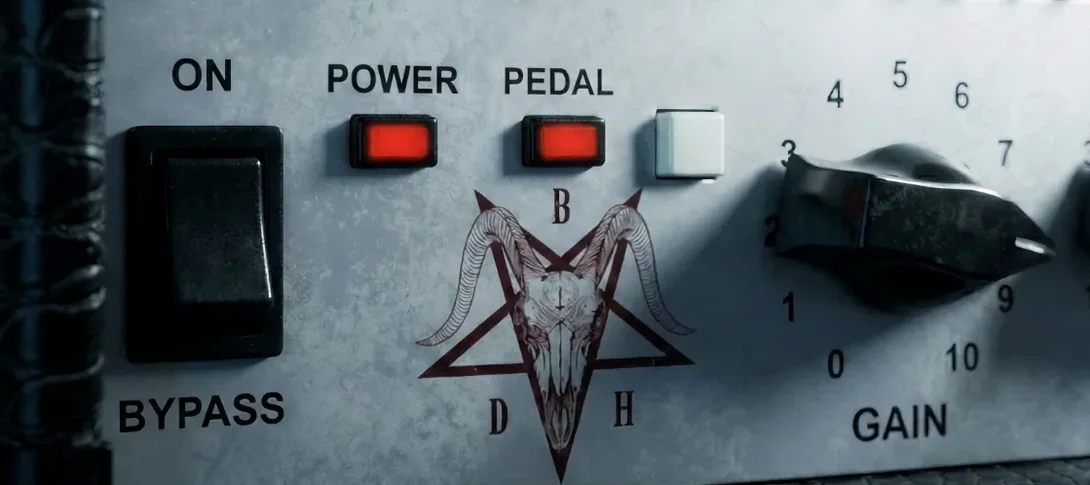
Shapes guitar tracks with a single-switch high-gain amp simulation.
Screenshot
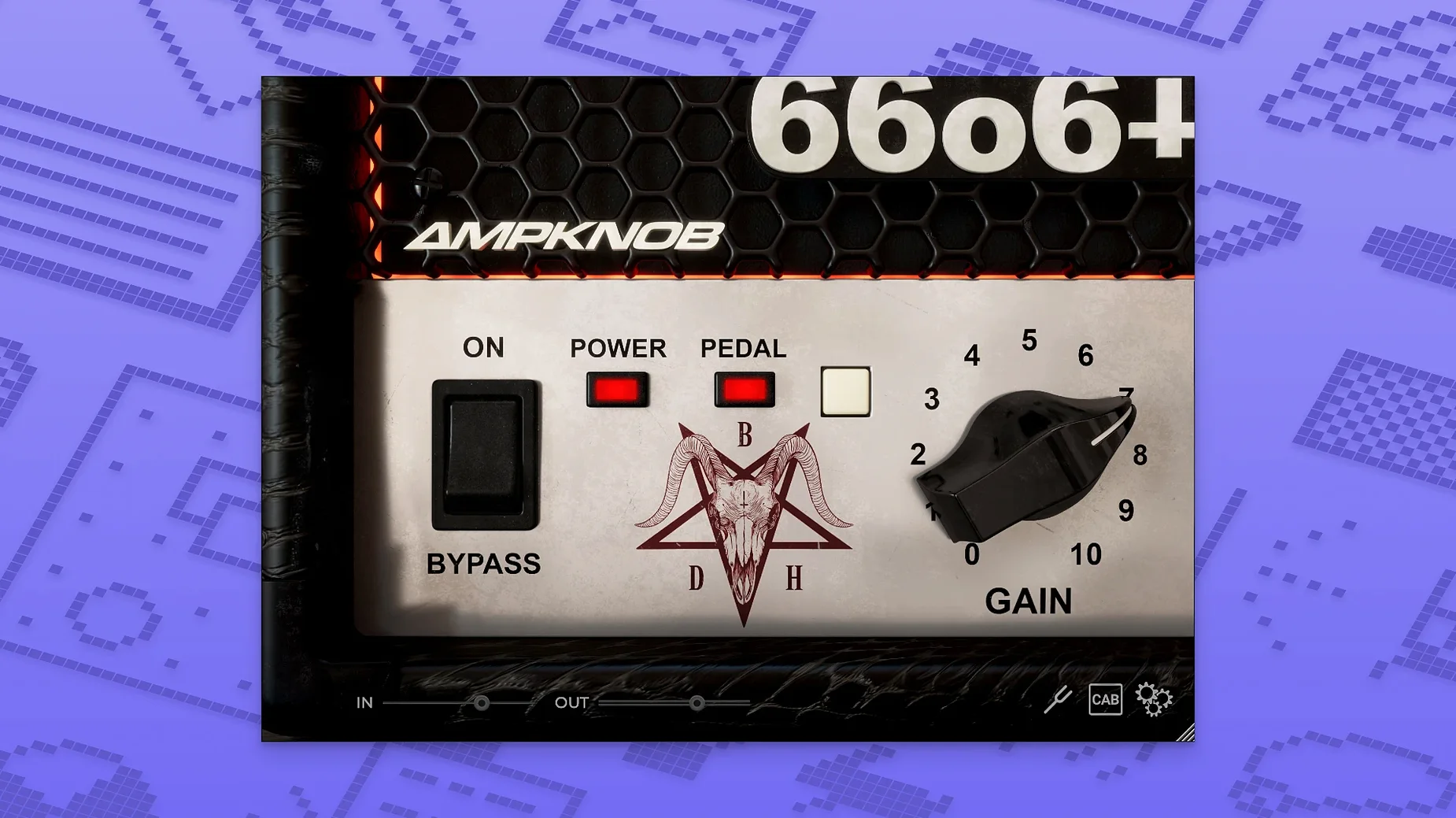
Mix engineers who need to shape a guitar track quickly, without scrolling through IR lists or tweaking a dozen knobs, will find the Bogren Digital Ampknob BDH 66o6 Plus a practical tool. It distills a hot-rodded high-gain amp from around 2000 into a single-switch operation.
On the guitar bus
Place it on a rhythm guitar bus to add density and tighten the low-end attack. The character switch lets you shift the voicing in one move, so double-tracked parts lock together without additional EQ.
On a solo track
Insert it on a lead line that needs more presence. It pushes the midrange forward and gives notes a sharper, more defined attack that cuts through a dense mix.
On a re-amp channel
Use it on a DI track routed to a re-amp bus. The simplified control set keeps the focus on sound character, not parameter hunting, which speeds up the tone-selection stage of a project.
First insert on your DAW track
The Ampknob BDH 66o6 Plus works as a standard audio plugin, so it loads inside any DAW that supports AU, VST3, or AAX. I keep it on an audio or instrument track, usually as the first insert after the raw DI signal. Because it does not require a separate impulse-response loader or external cab simulator, the signal chain stays short and predictable.
It also pairs well with macOS system features. You can name the track in your DAW after the amp character you dialed in, save the session as a template, and recall that tone instantly on future projects. The plugin’s single-window interface keeps the screen uncluttered, which matters when you are running multiple monitors on a MBP or iMac.
Real-world scenario: a home-studio guitarist tracking a demo
Carlos, a guitarist in Porto who records scratch tracks for his own songwriting, loads the 66o6 Plus on a DI track in Logic Pro. He sets the character switch to the tighter position to keep palm-muted chugs from turning into low-end mud. The result is a rhythm tone that needs no post-EQ. He then duplicates the track for double tracking, pans the two takes hard left and right, and the attack stays aligned without phase issues. Within ten minutes, he has a demo rhythm section that sounds close to a finished mix, and he can move on to writing the bridge without losing momentum.
Fixing no-sound and plugin-scan issues
- No sound or plugin not recognized – Verify that your DAW is scanning the correct plugin folder. After placing the plugin files, restart your DAW and rescan plugins from its preferences menu. On macOS 10.13 or later, check that the plugin is allowed in your security settings if you use a locked-down session.
- Character switch seems to have no effect – The change is most noticeable on distorted or saturated signals. If your source is clean and low-gain, the difference is subtle. Drive the input signal harder or add gain staging before the plugin to hear the shift.
- Plugin loads but CPU meter jumps – The 66o6 Plus is generally efficient, but if you run multiple instances on a busy session, freeze or bounce the tracks you are not actively editing. macOS’s built-in Activity Monitor can help you spot if a single instance is spiking.
- Latency during tracking – Lower your DAW’s buffer size to 128 or 64 samples when recording through the plugin. If the latency persists, disable the plugin while recording and re-enable it during mixing.
Default character switch position for clean parts
Before you start a session, open the plugin and confirm the character switch is set to the position you expect. Many users leave it on the brighter, more saturated side by default, then wonder why a clean arpeggio part sounds too aggressive. I set the switch to the tighter, more restrained position when I track, then toggle it later if the arrangement needs more energy.
Also, check that the output level matches your channel fader. The plugin can add density, so your track’s perceived loudness may rise. Drop the output trim by 1–2 dB if you need to keep the same headroom you had before the insert.
No release notes filed for 1.2.118. They are added here when a build changes how the program behaves.
| macOS | macOS 10.13 or later |
|---|---|
| Processor | Apple Silicon, Intel 64-bit |
| Download | 253 MB |
- macOS 10.13 or later
- Intel and Apple Silicon support
- Interface language: English
How to install, in order
- Open the downloaded folder and locate the installer package.
- Run the installer and follow the on-screen prompts to place the plugin files.
- Open the included instructions and complete the activation steps to authorize the plugin on your system.
Comments and corrections 0
Sign in or open a free account to leave a comment.
No comments or corrections yet.