
MiniMeters 1.0.30 — download for Mac
VST Plugins Updated
Measures audio levels with clean meters for mixing and mastering work.
Screenshots
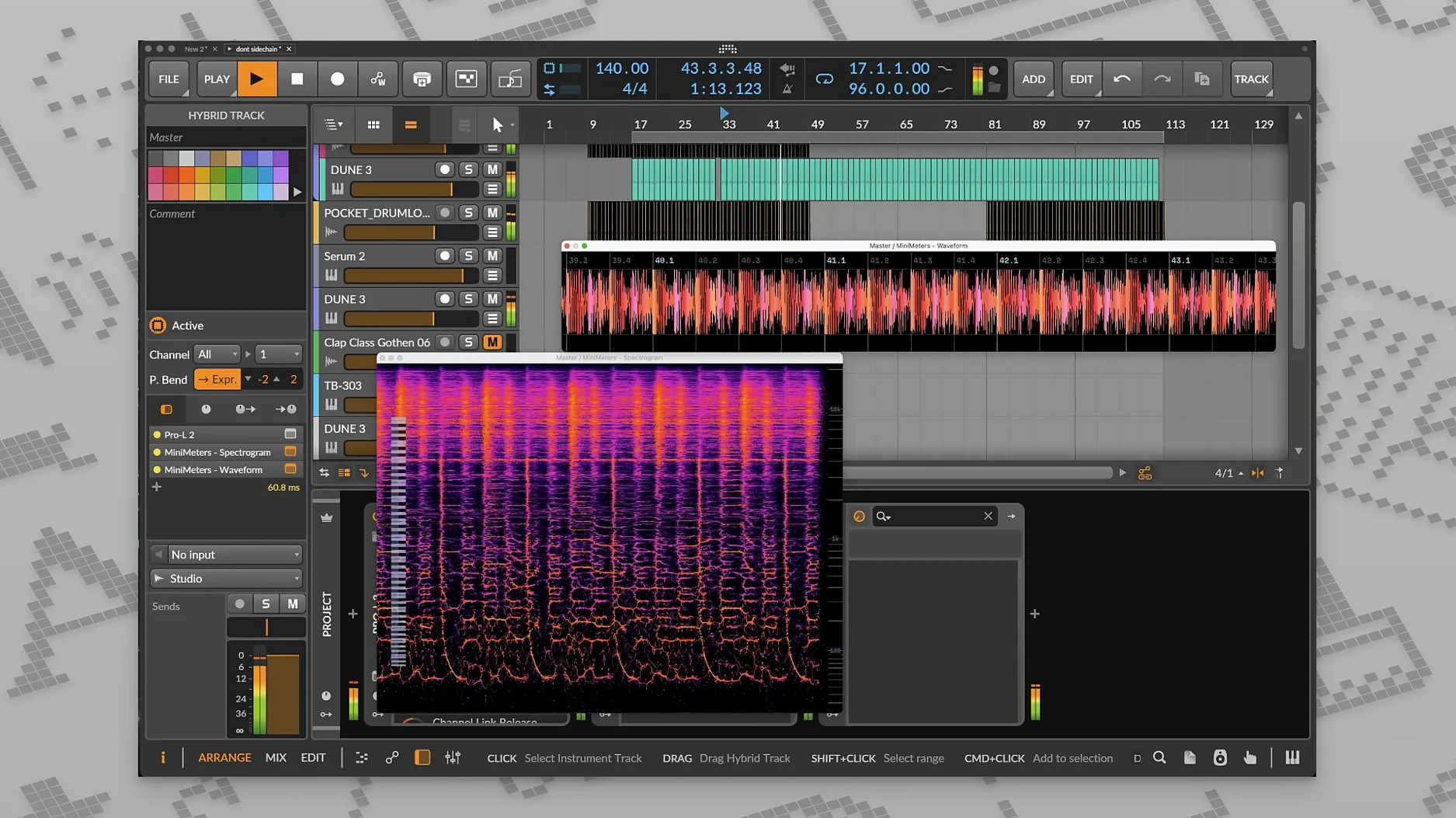
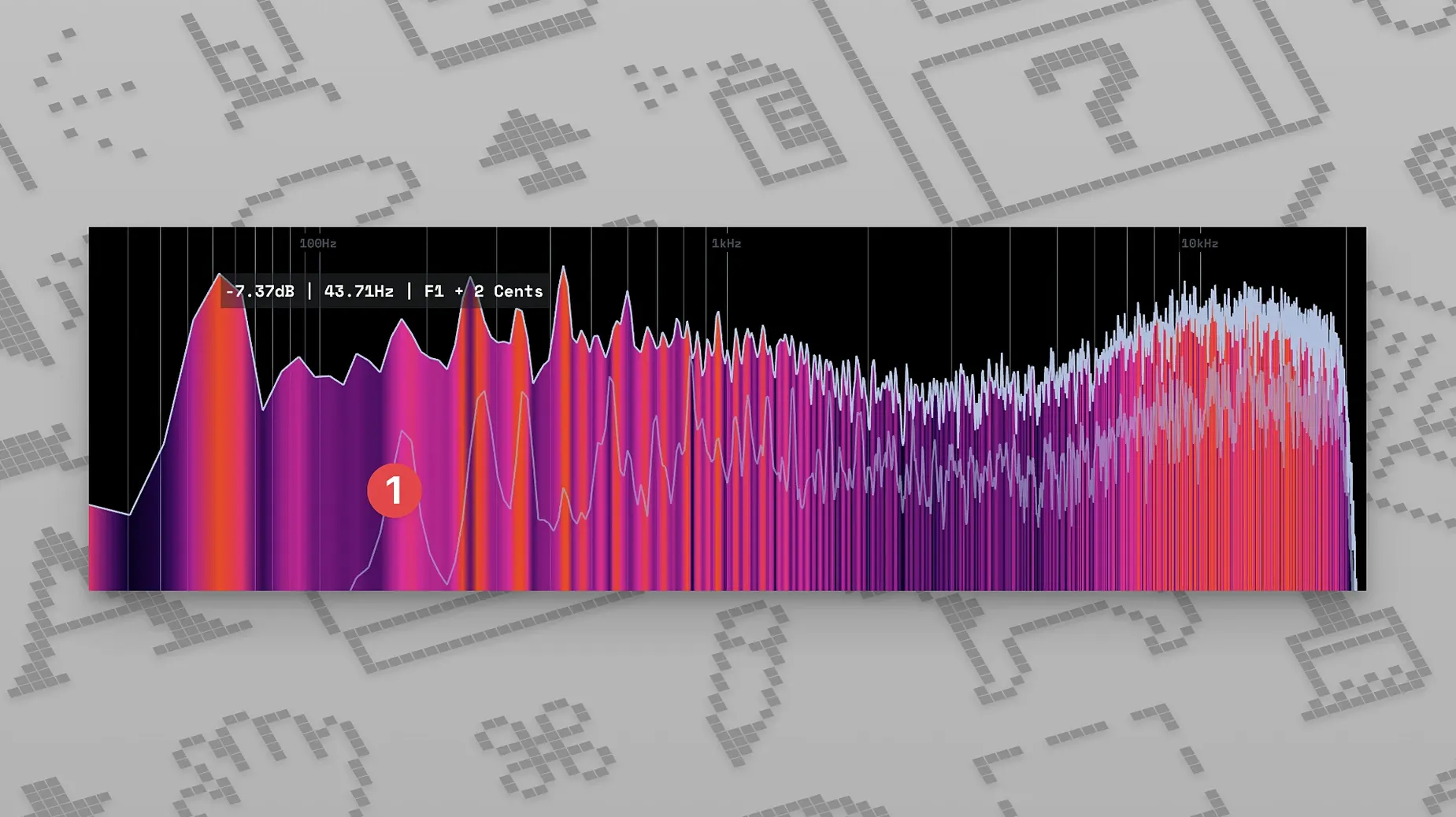
Version 1.0.30 of MiniMeters fixes long-standing bugs and small UI issues, making an already stable metering tool a bit more polished on the Mac. This release keeps the same clean layout and the same small set of formats: Audio Unit, VST2 and VST3 plug-ins plus a standalone app for checking system audio.
| Detail | Info |
|---|---|
| Version | 1.0.30.358 |
| Developer | Direct Music |
| Category | VST / Audio metering |
| Format | AU, VST2, VST3, standalone |
| Languages | English |
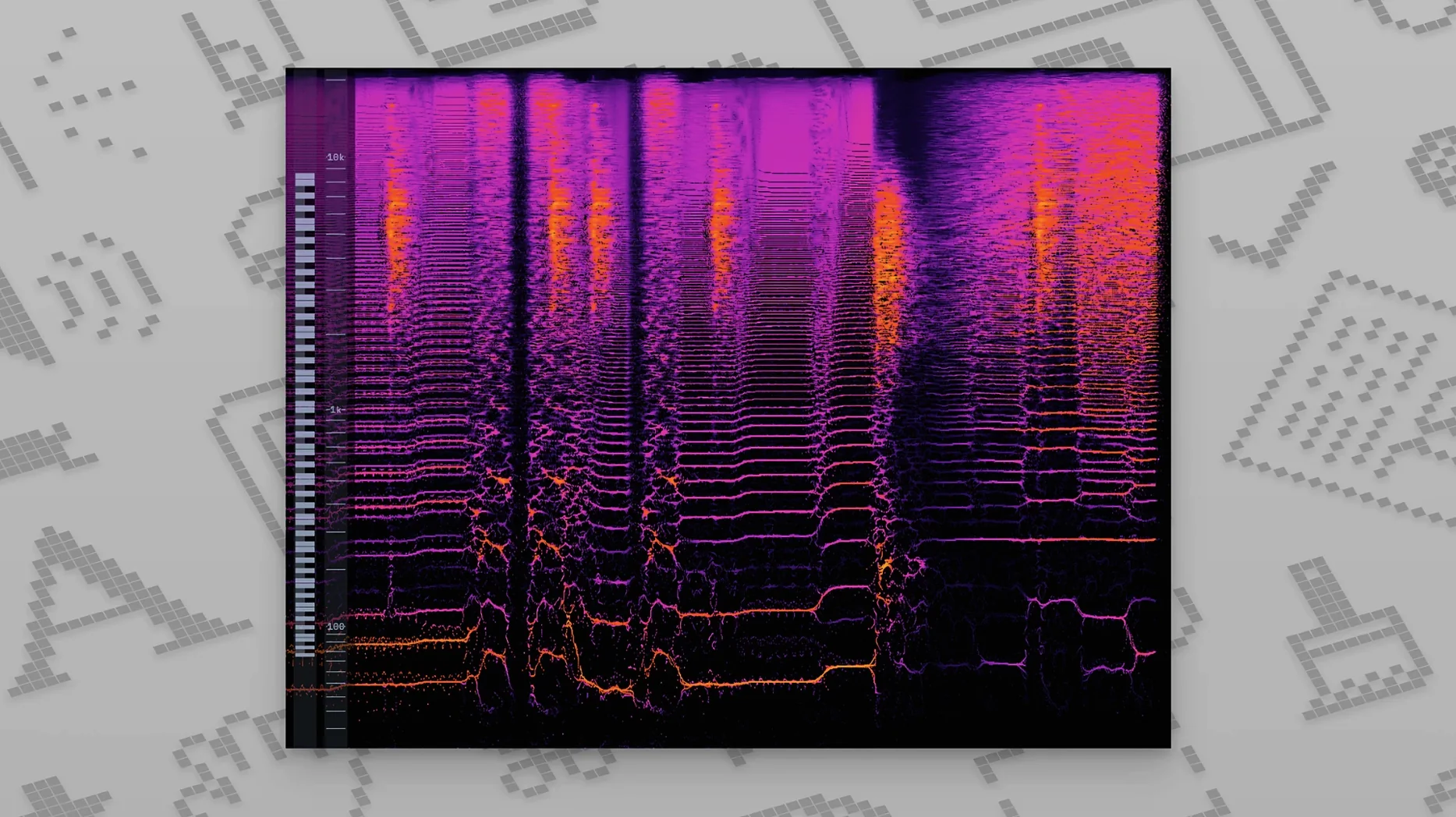
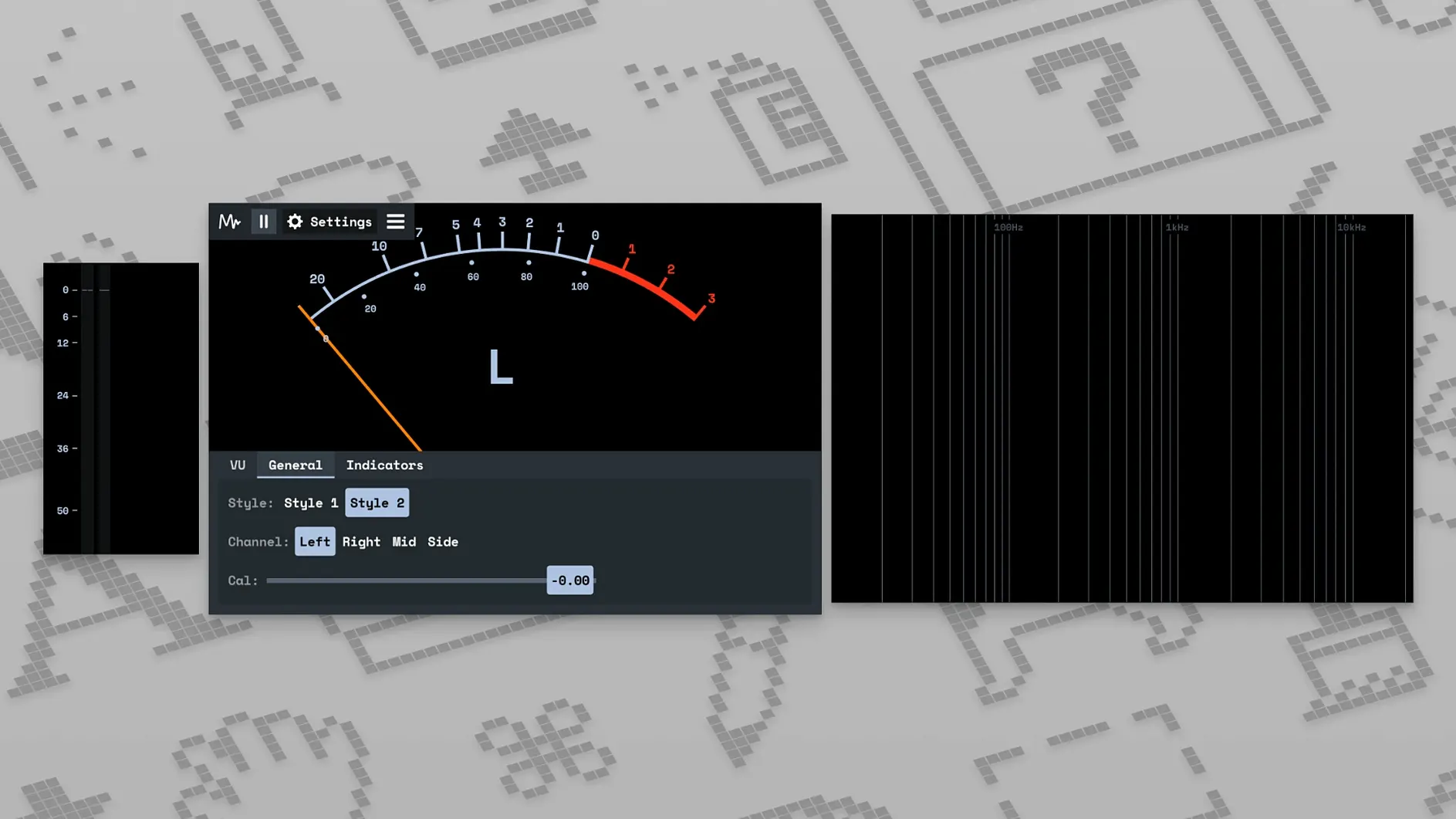
MiniMeters runs on macOS 10.15 or later, works on Intel and Apple Silicon Macs, and is meant for mixing, mastering and comparing reference tracks. The interface lets you pick tools, colors and layout, and includes a stereo meter for channel balance. The spectrogram got an update in v0.8.0, and the LUFS meter became spec-compliant in v0.7.0. It is a straightforward utility: launch the app or load the plug-in, read the meters, adjust your mix. No hype, just a clean signal check.
Installer Places App and Plug-ins for You
When you open the disk image and run MiniMeters.pkg, the on-screen instructions walk you through placement. On macOS, the installer puts the app and the plug-in formats where your DAW expects them. After that, launch MiniMeters in standalone mode to confirm the interface loads without routing anything through a host yet.
The standalone window shows the default meter set. Play any audio through your system output and watch the bars move. This is the quickest way to see if everything is wired right before you hook it into your DAW session.
Interacting With a DAW
MiniMeters includes a separate component called MiniMetersServer. This server handles the signal path between your music software and the meter display. If you load the AU, VST2 or VST3 plug-in onto a track, the server forwards the audio to the meter window so you see the same readout you would get in standalone mode.
For a first session, insert the plug-in on a master bus and confirm that the server is running in the background. The official setup does not require you to open the server manually every time, but knowing it is there helps if the metering display stops updating.
Remove Unneeded Meters in Preferences
After the install, open the interface preferences. You can choose which tools appear on screen. The layout options let you remove meters you do not need for the current session and keep the display compact. The color settings are personal preference, but for long mixing sessions, a darker scheme reduces eye strain.
The LUFS meter can be set to show overall loudness and peak values. If you are comparing two mixes, keep the reference track meter visible next to the live meter. The stereo meter is useful to check if your mix is center-heavy or has an unbalanced side signal. Toggle it on if you work on stereo material regularly.
Fewer Freezes When Switching Sessions
The release notes for 1.0.30 mention fixed long-standing bugs and small UI issues. In practice, this means fewer unexpected meter freezes when switching between DAW sessions, and the interface redraws more reliably after you change layout settings. The spectrogram update from v0.8.0 remains in place, and the LUFS meter still follows the spec correction from v0.7.0. Nothing in 1.0.30 changes how you read the meters, but the fixes remove small annoyances that could interrupt a workflow.
If you have been using an earlier build, upgrading is straightforward. The same .dmg file and .pkg installer handle the update. Your saved layouts and color presets carry over because the preference files are stored separately from the application binary. After the update, verify that the server process launches correctly the first time you insert the plug-in in your DAW.
Who Would Use MiniMeters
A mixing engineer checking bus levels against a reference track. A mastering engineer watching LUFS values for platform compliance. A producer comparing two mix versions side by side. The plug-in also fits into a podcast workflow where consistent loudness matters. Anyone who needs a clear, no-frills meter that does not eat up screen space will find it useful.
MiniMeters suits audio professionals who need real-time loudness and spectrum analysis, but its server-dependent design and unlicensed "minimeters cracked" versions lack official support. Cracked versions often break this signal path, causing the meters to show no data. The same applies to minimeters free download or minimeters torrent files found online. The official installer is a single .dmg file, and the setup is simple enough that a clean copy avoids the server issues that modified builds introduce.
- Fixed long-standing bugs and small UI issues.
| macOS | macOS 10.15 or later |
|---|---|
| Processor | Apple Silicon, Intel 64-bit |
| Download | 103 MB |
- macOS 10.15 or newer
- Intel or Apple Silicon
Questions about MiniMeters
Can MiniMeters run as a standalone app?
Yes — it includes a standalone mode for checking system audio without needing a DAW open.
Does MiniMeters work on Apple Silicon Macs?
Yes — it supports both Intel and Apple Silicon architectures on macOS 10.15 and newer.
How to install, in order
- Open the downloaded disk image.
- Double-click MiniMeters.pkg.
- Follow the on-screen installation instructions.
Comments and corrections 0
Sign in or open a free account to leave a comment.
No comments or corrections yet.
More picks from VST Plugins
Complete VST Plugins catalog Minuit Solstice
1.2.0
117 MB
 Melodyne
5.4.2
97 MB
 Native Instruments Massive X
1.7.2
1.6 GB
 Neural DSP Archetype Petrucci
1.0.0
745 MB
 Neural DSP Archetype Rabea X
1.0.1
742 MB
 Neural DSP Archetype Tim Henson X
1.0.1
575 MB
 Neural DSP Parallax X
1.0.0
179 MB
 Neural DSP Soldano SLO-100 X
1.0.0
340 MB