Neural DSP Archetype Petrucci 1.0.0 — download for Mac
VST Plugins Updated
Handles clean arpeggios to high-gain riffing on a guitar track.
Screenshot
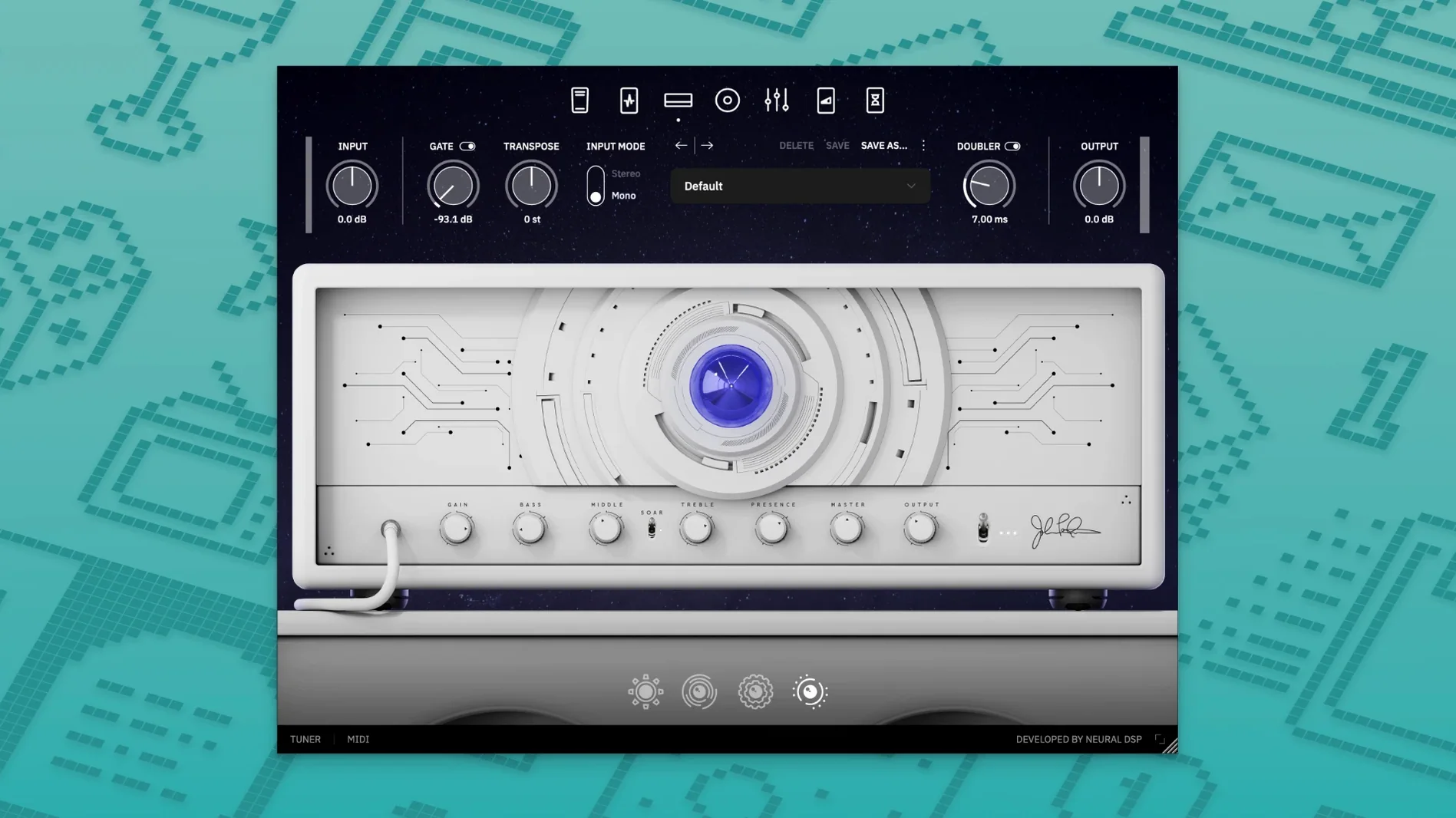
Version 1.0.0 is the initial release of Neural DSP Archetype Petrucci for macOS and Windows. It sits naturally on a guitar track, handling everything from clean arpeggios to high-gain riffing. For a bus, route a stereo pair of rhythm guitars through it to glue the tone without losing definition. Direct monitoring during tracking works, thanks to low-latency processing on native Apple Silicon and Intel Macs. The plugin’s interface stays in English and runs on macOS 10.15 or later. It also pairs with Quad Cortex and Quad Cortex mini for preset transfer, so the same sound can follow you off the Mac. For session work, this is the track-level tool that doesn’t demand menu diving.
Installs on macOS 10.15 or Later
Archetype Petrucci 1.0.0 installs cleanly on any Mac running macOS 10.15 or later, whether it uses Apple Silicon or Intel silicon. The disk image you download opens like any other drive; run the installer and it places the plugin files into your system’s standard VST2, VST3, AU, and AAX folders. The standalone version appears in your Applications folder. No secondary installers, no extra account logins. You get one English-language interface with the same layout on a 13-inch screen or an external monitor. It registers in your DAW’s plugin scanner on first launch — no manual paths to set.
Set Input Level to Green Before Playing
Open the plugin on a guitar track before you play a note. Set your input level so the meter hits green on your hardest pick attack — orange only on accents. That single step saves ten minutes of gain-staging later. If you are running a Quad Cortex or Quad Cortex mini, route the USB preset transfer first so the plugin matches your hardware tone. In standalone mode, check that your audio interface buffer sits at 128 samples or lower. The plugin does not override your DAW’s sample rate, but matching it to your project avoids a resize pop when you load it mid-session.
Duplicate Track for Stereo, Don't Disable Cab
- Loading the same instance on two tracks and expecting a stereo image. The plugin is a mono source. Duplicate the track, pan one left and one right, then tweak the second instance slightly.
- Disabling the cabinet section entirely and wondering why the tone sounds brittle. Even a flat cabinet model gives the IR body — bypassing everything leaves raw preamp signal.
- Dragging the plugin onto a master bus and pushing gain. It is a guitar tool, not a mix finisher. Gain staging inside the plugin expects instrument-level input, not a mixed stereo stem.
- Running it on macOS 10.14 or earlier. The installer will refuse silently or fail. Check your About Mac panel before downloading.
Standalone Mode for Riff Checks Without a DAW
The standalone version opens with no DAW at all. Plug a guitar into your interface, launch the app, and you are live. That is useful for checking a riff idea or dialing a tone without opening a session. The preset transfer to Quad Cortex and Quad Cortex mini works both ways — you can tweak on the Mac, send it to the hardware, and take that same preset to a stage rig. The AU format means Logic Pro users see it in the instrument list without extra wrapping. The plugin remembers its last window position between sessions, so it does not reappear off-screen after a monitor swap.
Rescan Plugin Folders and Check Permissions
Plugin not found in DAW. Open your DAW’s plugin manager and rescan folders. If it still does not show, check that the VST2 or VST3 copy actually landed in /Library/Audio/Plug-Ins/ — the installer places it there, but a permissions lock on a shared system can block it. Re-run the installer with your user account as administrator.
Audio crackles under load. Raise your interface buffer to 256 samples. The plugin itself is efficient, but a session with many tracks can starve the audio thread. If the crackle persists, switch your DAW to use the AU or AAX format — some hosts handle those formats better than VST3 for real-time guitar processing.
Standalone app does not see the audio interface. Quit the app, unplug and reconnect the interface, then launch again. If it still fails, open your system’s Sound settings and confirm the interface is selected as the default input device. The standalone mode respects the macOS default, not the plugin’s own picker.
Preset transfer to Quad Cortex fails. Connect the hardware via USB before launching the plugin. The plugin scans for the device at startup. If you plug the unit in after the plugin window is open, quit and relaunch. The transfer menu only shows the target if the connection was present at launch time.
Installer says “This disk image is damaged.” Download the file again. The 1.0.0 release from November 21, 2024 can suffer a bad transfer on slow connections. Redownloading and re-mounting the disk image usually resolves it without contacting support.
- Initial 1.0.0 release for Windows and macOS.
| macOS | macOS 10.15 or later |
|---|---|
| Processor | Apple Silicon, Intel 64-bit |
| Download | 745 MB |
- macOS 10.15 or later
- 64-bit system
- Native Apple Silicon support
- Interface language: English
Questions about Neural DSP Archetype Petrucci
Does Archetype Petrucci work on Apple Silicon Macs?
Yes, version 1.0.0 supports both Apple Silicon (ARM) and Intel (x86) 64-bit architectures natively.
How to install, in order
- Open the downloaded disk image.
- Run the standard installation procedure.
Comments and corrections 0
Sign in or open a free account to leave a comment.
No comments or corrections yet.