
HitPaw Video Converter 4.5.0 — download for Mac
Mac Apps Intel processors only Updated
Converts video formats and auto-reframes footage for different aspect ratios.
Screenshots
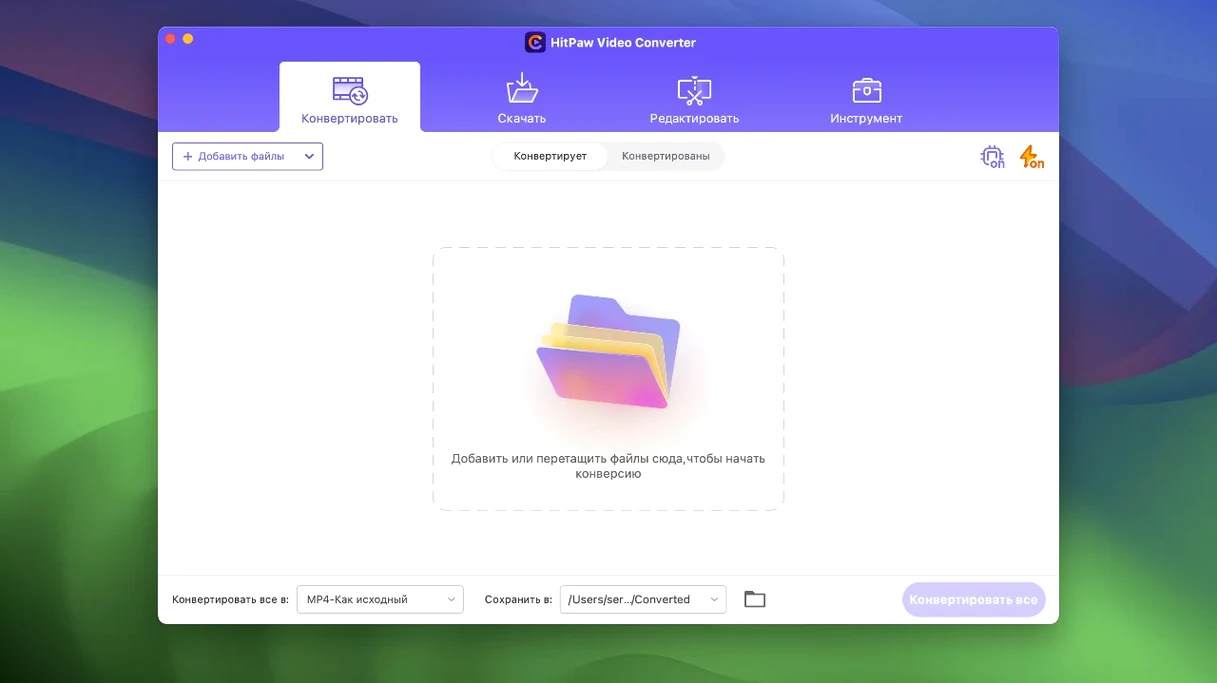
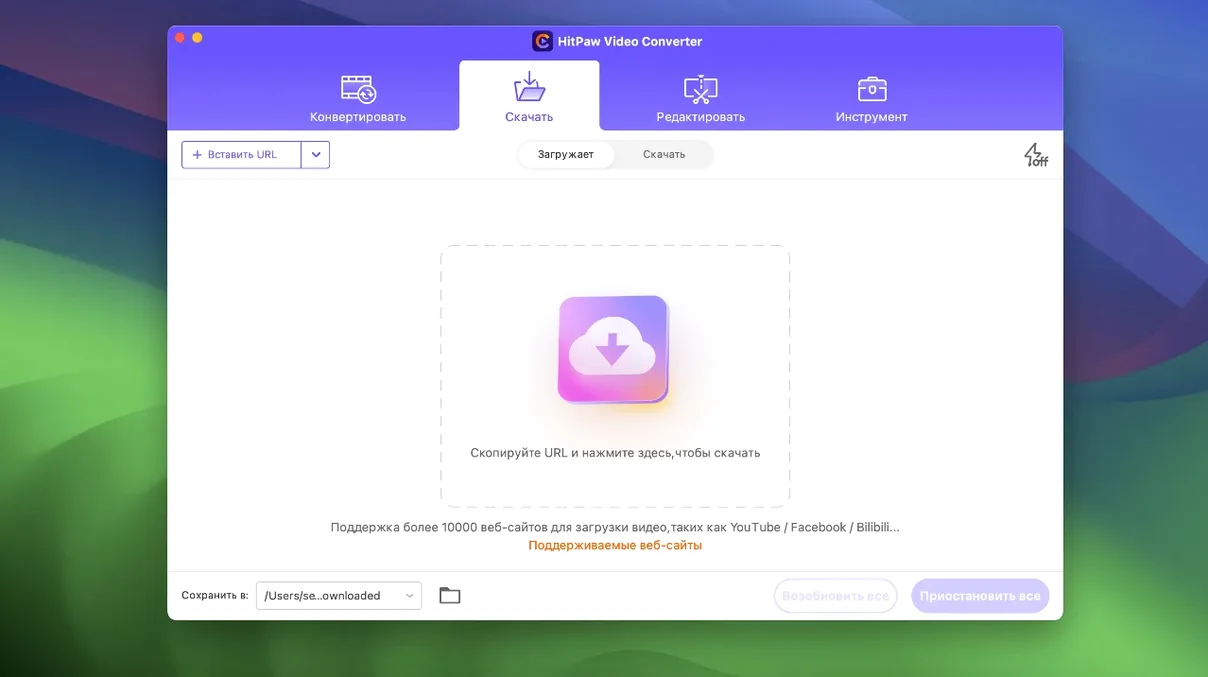
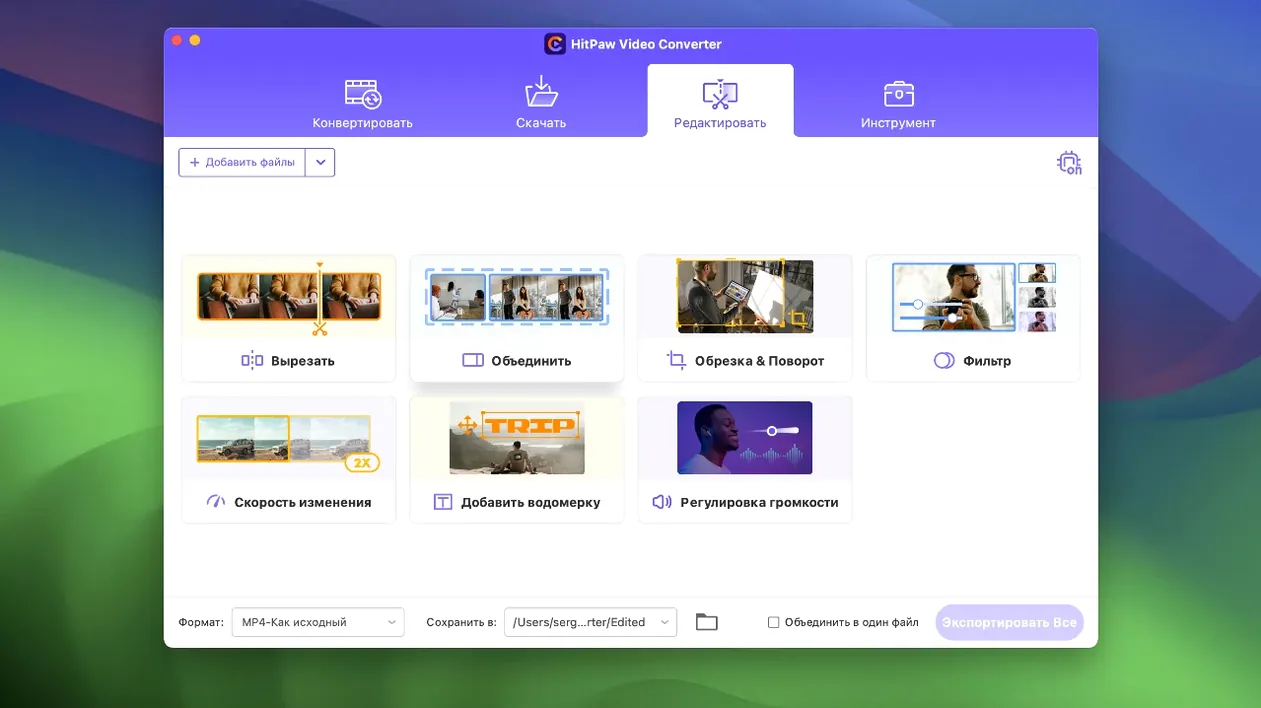
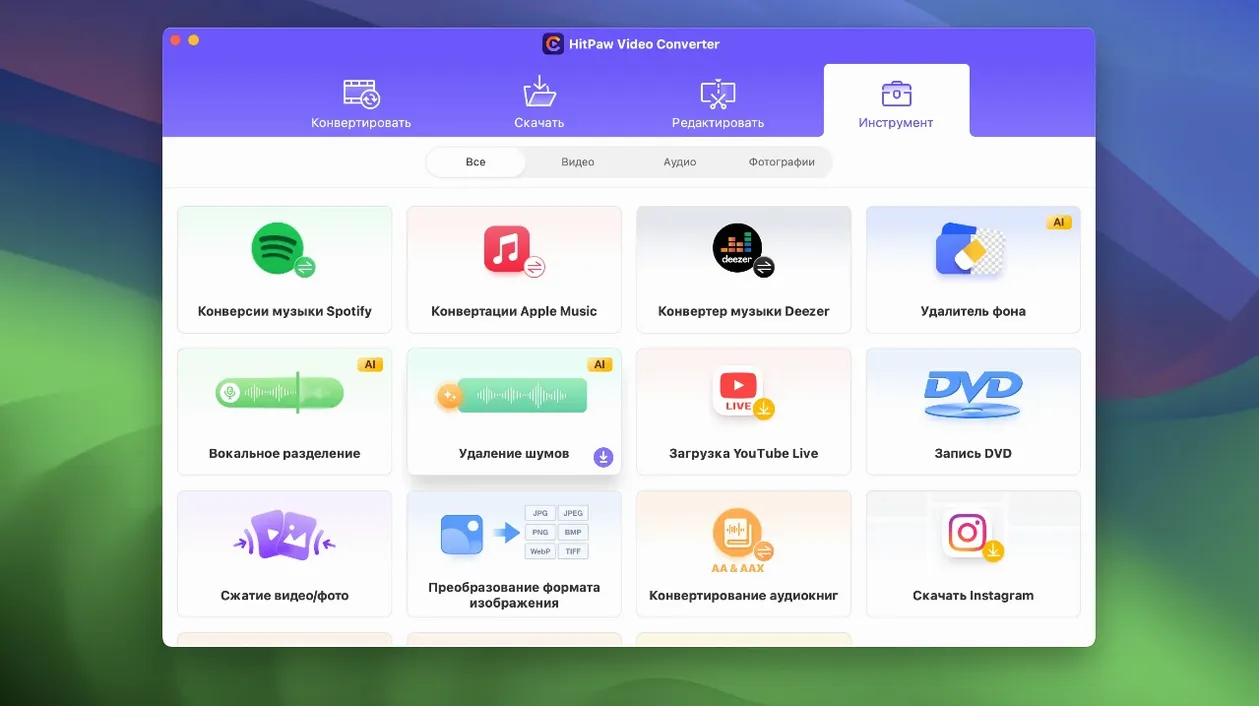
The auto reframe feature is the headline addition in version 4.5.0 — it lets you reposition footage for different aspect ratios without manual keyframing. The update also optimized the compression module and cleaned up the editor module display, so less time is spent hunting for controls.
Under the hood, the app still handles conversion to more than 1000 formats including MP4, MOV, MKV, and MP3. Built-in AI tools and lossless conversion for video, music, DVD, and images remain part of the package. The Mac version supports macOS 10.13 or later.
Faster menus and previews in the editor
The editor module display was optimized — menus and preview areas now respond faster and show settings without overlapping, which matters when you’re trimming multiple clips in a row.
Does it still support the same file formats?
Yes. Version 4.5.0 keeps the same broad format support: MP4, MOV, AVI, VOB, MKV, MP3, and hundreds more. No formats were dropped in this release.
Apple Silicon support now available
Saves time for mixed-source video editors
After setting this up on a few colleagues' machines, the people who get the most use out of it fall into a few groups. Video editors working with mixed-source footage — cellphone clips, downloaded YouTube references, camera originals — save time because they can batch-convert everything to a single format before importing into their NLE. The AI tools help with quick color adjustments and background removal without switching to a dedicated editor.
People who manage social media accounts find the auto reframe feature useful. If you're publishing the same clip to Instagram Reels, YouTube, and TikTok, the tool handles the cropping for different ratios automatically. That alone cuts out a repetitive step.
IT and office workers who handle presentations or training materials also benefit. Converting a ProRes file to a smaller H.264 version for email, or pulling audio from a meeting recording as MP3, happens in a few clicks. The interface is straightforward enough that non-technical staff can use it without hand-holding.
Users who archive personal media — old DVD rips, home videos in obscure formats — appreciate the lossless conversion option. You don't lose quality when moving from VOB to MKV or from MOV to MP4.
Output preset ignored: the top slip
The most frequent slip I see is ignoring the output preset. Beginners open a file, hit convert, and end up with a format that doesn't play on their device. Always check the output format dropdown before starting a batch — the app remembers the last setting, which might not be what you need for the next job.
Another mistake: converting everything to the highest quality preset without considering file size. A 4K ProRes file converted to lossless MP4 stays enormous. For everyday use, pick a reasonable preset like H.264 with medium quality. You'll barely notice the difference on screen, and your drive will thank you.
People also overlook the download module's URL field. If you paste a link and nothing happens, check that the URL is from one of the 10,000 supported sites. Private or region-locked videos won't work. Similarly, the download fails if you're behind a proxy without configuring it in the app's network settings.
New users sometimes close the app mid-conversion, thinking the progress bar froze. The tool processes files in the background, so let it finish. Check the output folder before assuming something went wrong.
Test with a single MP4 first
Start with a single test file. Pick a short MP4 clip — under a minute — and convert it to MP3 and MKV. This confirms the pipeline works and lets you see how fast your Mac handles the job. Once you're confident, move on to batch work.
Configure the output folder early. By default, converted files land in the same folder as the source, which clutters your directories. Create a dedicated "HitPaw Output" folder on your desktop or in Documents and point the app there in the preferences. You'll thank yourself when searching for finished files later.
Use the auto reframe feature on one clip before committing to a batch. Open a short video, select the target ratio (16:9, 9:16, 4:5, etc.), and preview the result. The AI repositions the subject automatically, but check for awkward crops — if the clip has fast motion or multiple subjects, manual adjustment might be needed.
Learn the keyboard shortcut for adding files to the queue. It saves clicks when you're pulling clips from Finder. The app also accepts drag-and-drop from folders, so make a habit of dropping files directly onto the window.
Drag files from Finder, share from macOS menu
HitPaw works well alongside the Finder's native batch operations. Select ten files in a folder, drag them into the app, and the queue populates in seconds. It also integrates smoothly with the macOS Share menu — right-click a video file, choose "Open With," and pick HitPaw to start a conversion without launching the app first.
If you use Apple's Photos app for basic edits, HitPaw can handle the format conversion side. Export a project from Photos as an MOV, then convert it to a web-friendly MP4 with H.264 compression. The two tools cover different needs without overlap.
For people running a video editing workflow, HitPaw sits between your camera or download source and your main NLE. Download a clip from a streaming site, convert it to ProRes or DNxHD for editing, then export the final project back through HitPaw for compression or reframing. It handles the heavy lifting on format changes so your editor doesn't have to re-encode on import.
macOS's system-wide file management applies here too. Use Smart Folders in Finder to automatically collect converted files by date or format. Set up a saved search for "kind:Video AND date:today" and point it at your output folder — you'll always see fresh conversions without digging through directories.
The app also respects macOS's privacy and location permissions. If you're on a work machine with strict security policies, HitPaw won't access the Downloads folder unless you explicitly point it there. This makes it safe enough for office deployments where IT controls application behavior.
The official product page lists macOS 10.15 as the requirement, and the architecture remains Intel. Apple Silicon users would run it through Rosetta 2.
- Added auto reframe feature.
- Optimized the compression module.
- Optimized the editor module display.
| macOS | macOS 10.15 or later |
|---|---|
| Processor | Intel 64-bit |
| Download | 577 MB |
- macOS 10.15 or later
- Intel processor
Questions about HitPaw Video Converter
What is the build label for version 4.5.0?
The listed build label is "Скачать с MediaFire."
Does the Mac product page use the name HitPaw Univd?
Yes, the Mac product page refers to this app as HitPaw Univd.
What interface languages are available?
The app supports 16 languages: Russian, English, German, Arabic, Indonesian, Spanish, Italian, Traditional Chinese, Simplified Chinese, Korean, Dutch, Portuguese, Turkish, French, Hindi, and Japanese.
How to install, in order
- Mount the disk image and launch Open Gatekeeper friendly.
- Press Enter to bypass Gatekeeper in the Terminal window.
- Drag the app into the Applications folder.
Comments and corrections 0
Sign in or open a free account to leave a comment.
No comments or corrections yet.