Rusty's Retirement 1.1 — download for Mac
Games Intel processors only Updated
Lets you farm crops idly while focusing on other screen tasks.
Screenshots
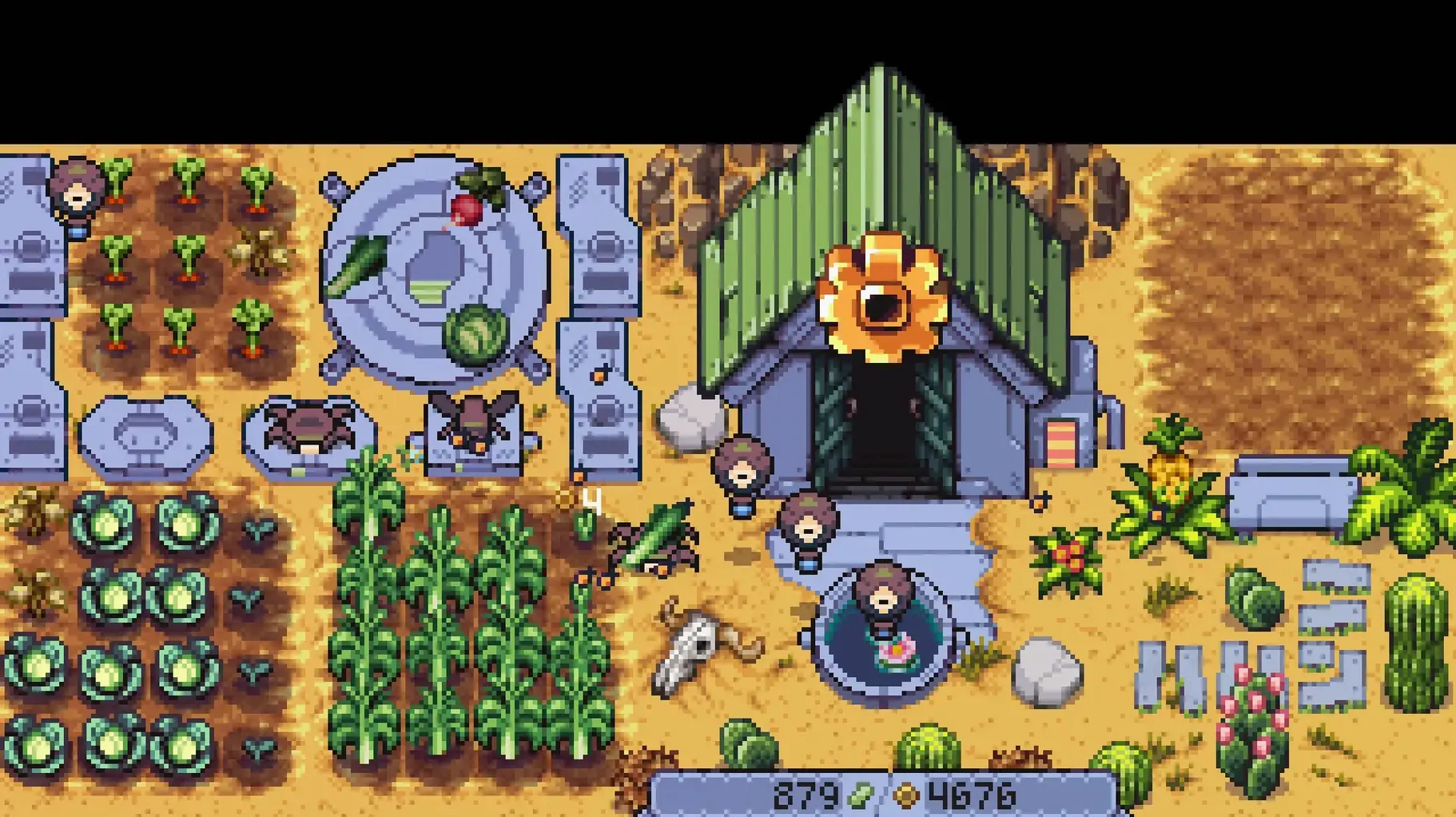
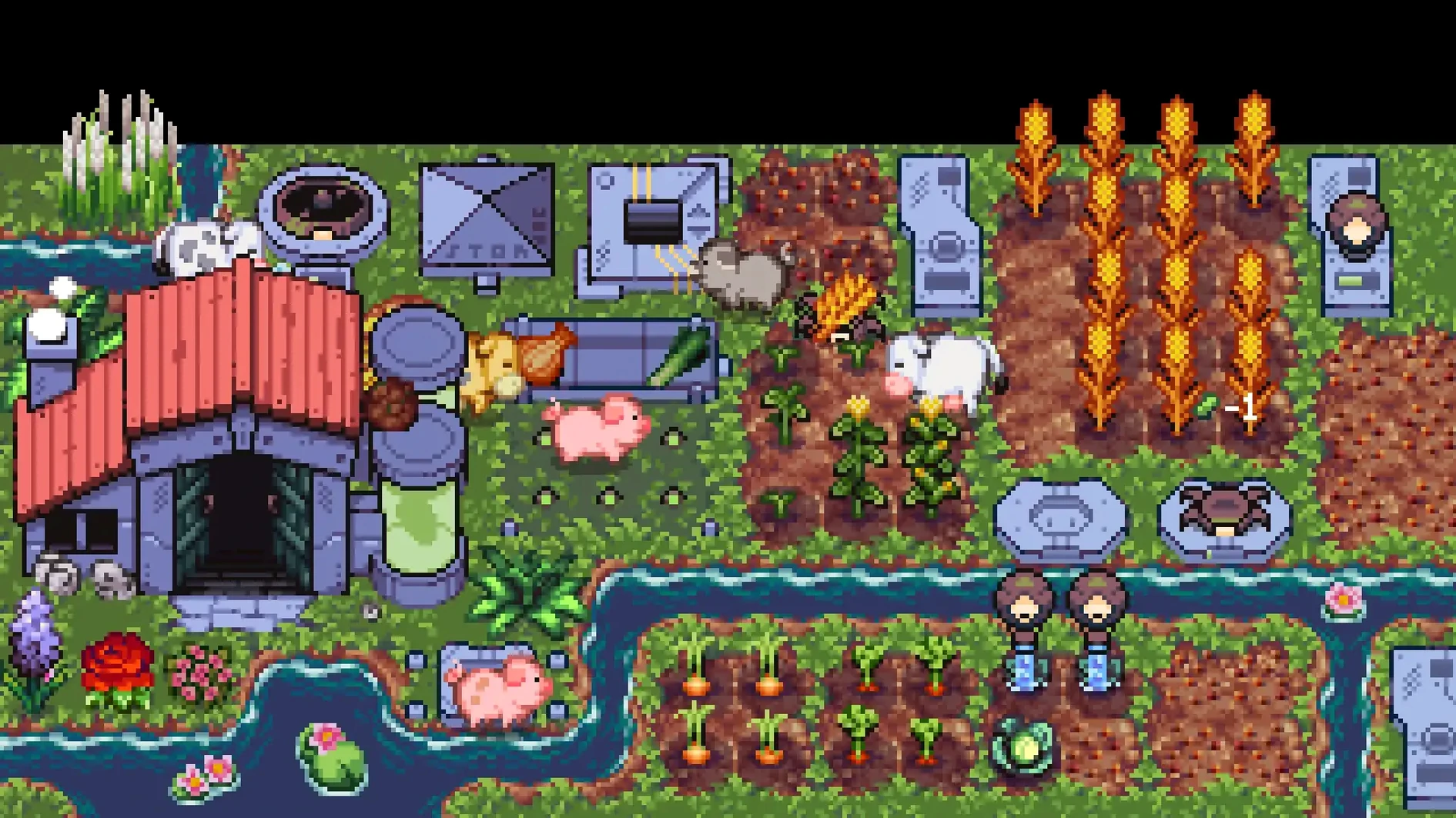
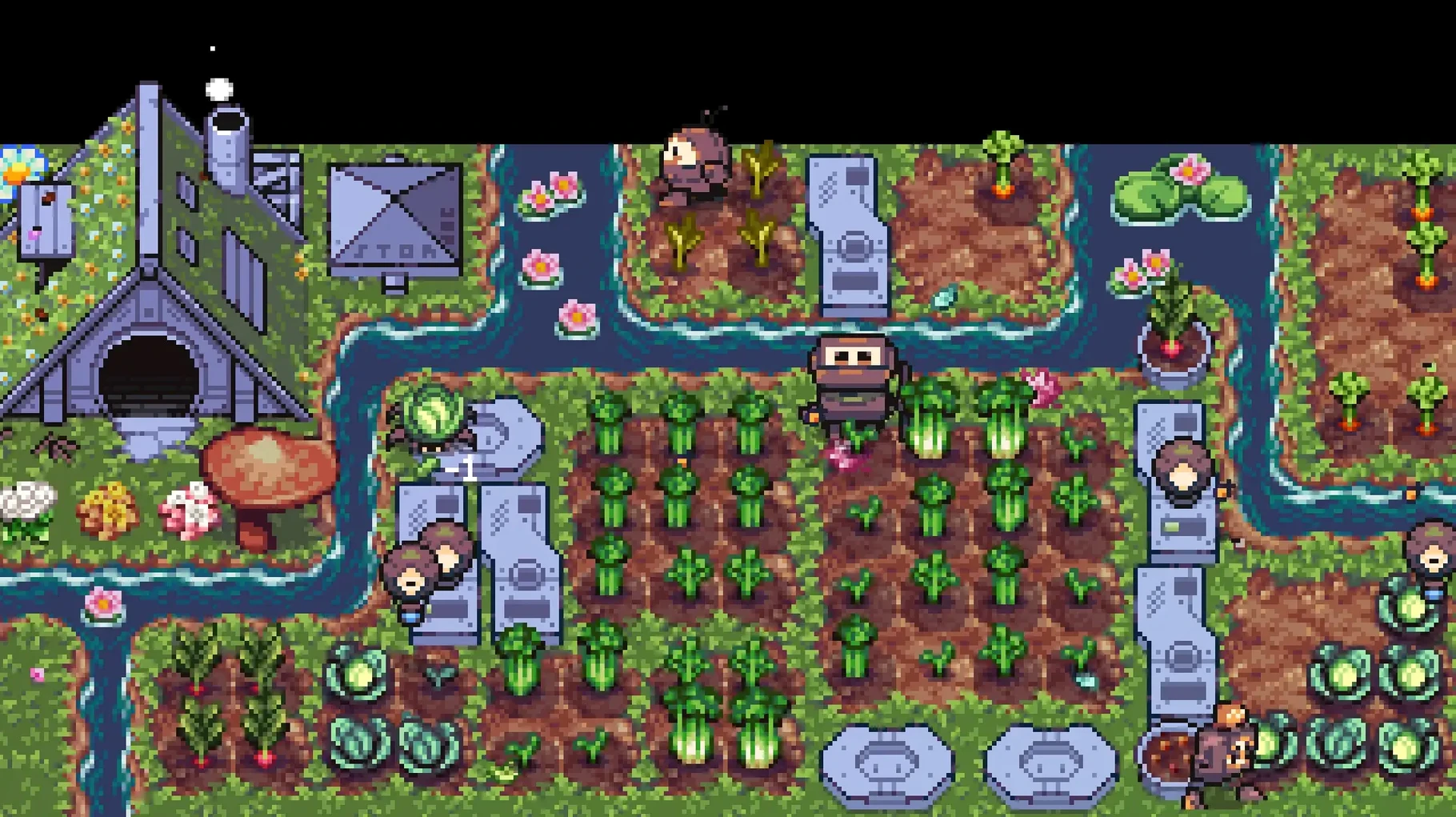
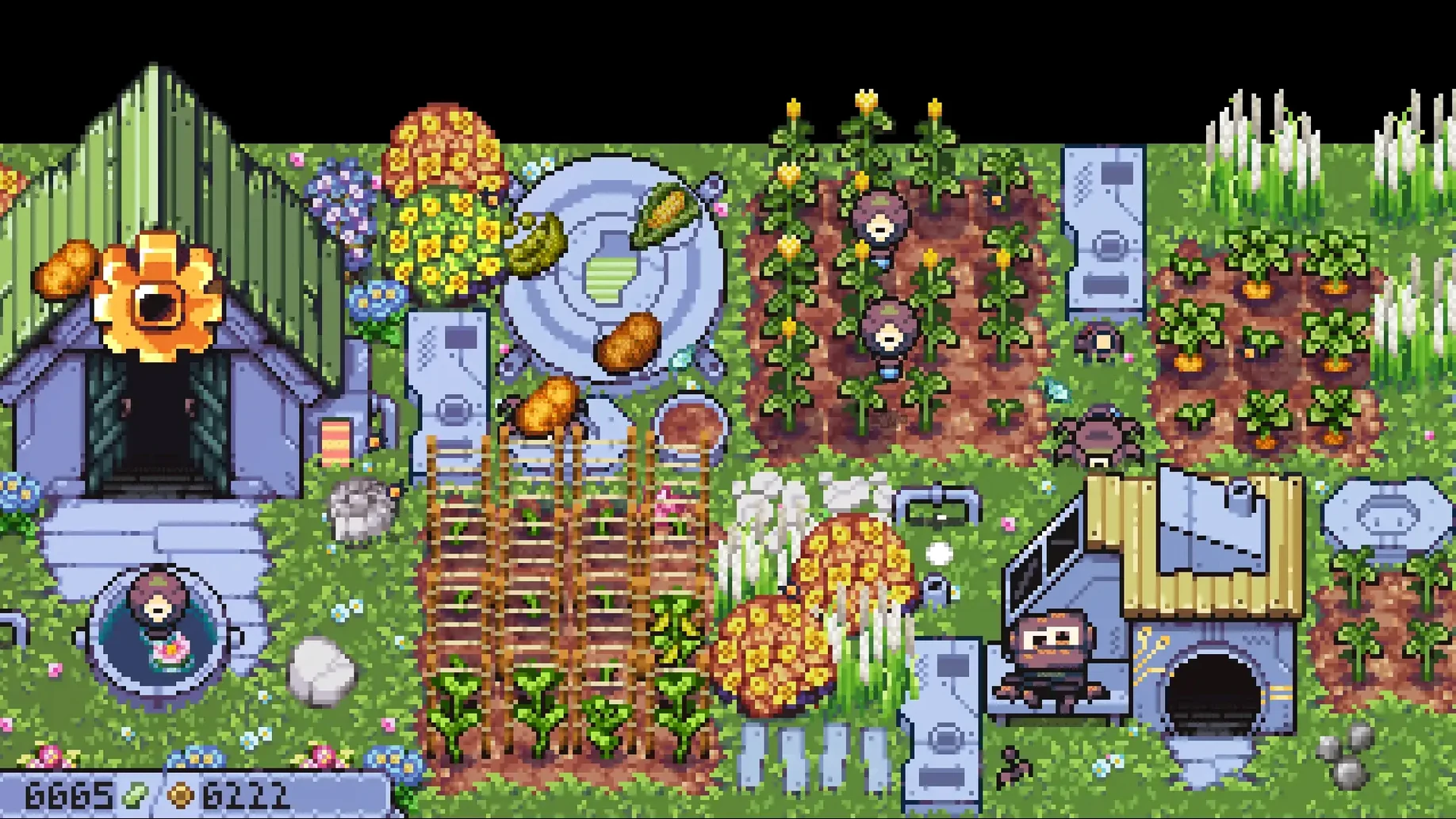
Rusty's Retirement is an idle farming simulator designed to sit at the bottom of the screen while you work on other tasks. This version 1.1 release from Mister Morris Games lets you plant, water, tend, and harvest crops — all without demanding your full attention.
- Download the disk image from the torrent.
- Open it and drag the app into the Applications folder shortcut.
- After the copy finishes, launch the game from Launchpad.
Once running, Rusty handles the farm work while you stay productive. Small robots can be configured, upgraded, and fueled with biofuel derived from crops. As your farm expands, new crops like carrots and tomatoes unlock. The game runs on Intel Macs and supports English, German, Spanish, Italian, Traditional and Simplified Chinese, Korean, Portuguese, French, and Japanese.
Working Alongside Your Mac
Rusty's Retirement is built for multitasking. It takes up a narrow strip at the bottom of the screen, so it doesn't block your main work. On a MacBook Air, you can keep a PDF of project specs open in the top half, a calendar in the other half, and Rusty quietly farming down below. The game respects macOS window management — you can snap it to the side, hide it behind other windows, or let it stay visible while you type.
Because the game doesn't require constant clicks, it plays well with full-screen apps. Run it alongside a browser, a spreadsheet, or a note-taking app. The small screen footprint means you can monitor crop progress without switching desktops. For anyone who spends the day in planning tools or document editors, Rusty's Retirement fits into the gaps between meetings.
Automation vs. Stardew Valley and Graveyard Keeper
Rusty's Retirement vs. Viridi
Viridi is a calm plant-growing app that runs in its own window. It asks you to water and tend plants yourself. Rusty's Retirement automates most of that work with robots. Viridi suits people who want a gentle, hands-on gardening pause. Rusty's Retirement suits people who want to see progress without touching the mouse.
Rusty's Retirement vs. Farm Together
Farm Together is a full-screen farming sim where you plant, harvest, and expand in real time. It expects your attention. Rusty's Retirement, by contrast, is designed to be ignored for long stretches. Farm Together rewards active play sessions. Rusty's Retirement rewards passive observation — you check in, see what grew, upgrade a robot, and go back to work.
Rusty's Retirement vs. Stardew Valley
Stardew Valley is a deep, story-driven farming RPG. It demands hours of focused play. Rusty's Retirement is a much smaller commitment. It's not a game you binge; it's a game you keep running in the background for days. If Stardew Valley is a weekend hobby, Rusty's Retirement is a desk companion.
Robots and Biofuel: The 1.1 Refinements
The version 1.1 update refined the automation loop. Robots can now be configured more precisely, so you can set them to focus on specific crop types or tasks. The biofuel system was adjusted — crops convert to fuel at a more predictable rate, which makes planning robot upgrades simpler. Unlocking new crops like tomatoes and carrots happens a little faster than in the initial release.
For everyday use, that means less time spent tweaking robot schedules and more time watching the farm run itself. The interface languages stayed the same, so nothing changed on that front. The game still runs on Intel Macs and requires no activation.
No release notes filed for 1.1. They are added here when a build changes how the program behaves.
| Processor | Intel 64-bit |
|---|---|
| Download | 126 MB |
- macOS (version not specified)
- Intel architecture
Questions about Rusty's Retirement
Can I automate the farm in Rusty's Retirement?
Yes. You can deploy small robots that plant, water, tend, and harvest crops. They can be configured and upgraded to improve efficiency, and they run on biofuel produced from your crops.
What languages does Rusty's Retirement support?
It supports English, German, Spanish, Italian, Traditional Chinese, Simplified Chinese, Korean, Portuguese, French, and Japanese.
How to install, in order
- Open the downloaded disk image.
- Drag the app into the Applications folder shortcut.
- After copying finishes, open the app from Launchpad.
Comments and corrections 0
Sign in or open a free account to leave a comment.
No comments or corrections yet.