Audio Hijack 4.6.1 — download for Mac
Utilities Updated
Records audio from any app by building a custom recording chain.
Screenshots
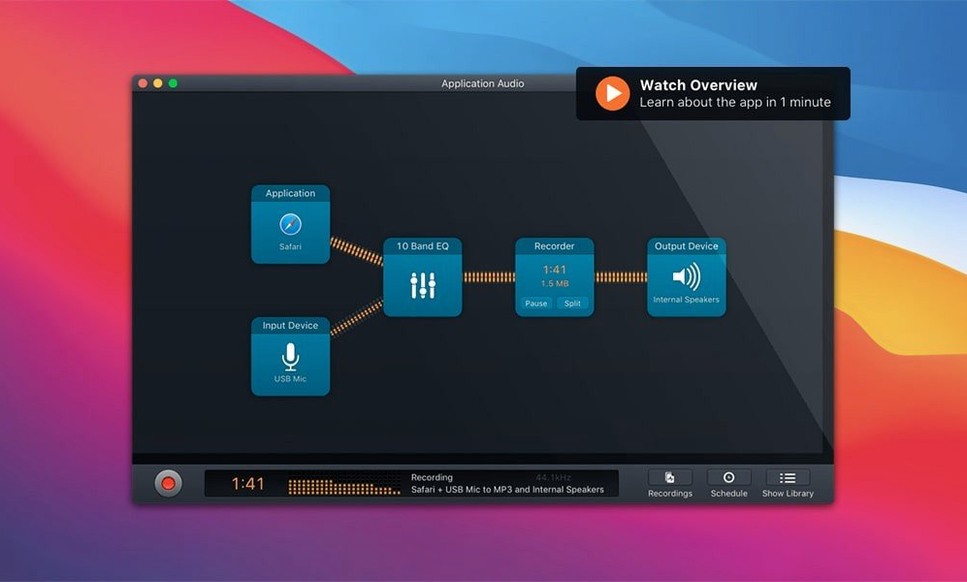
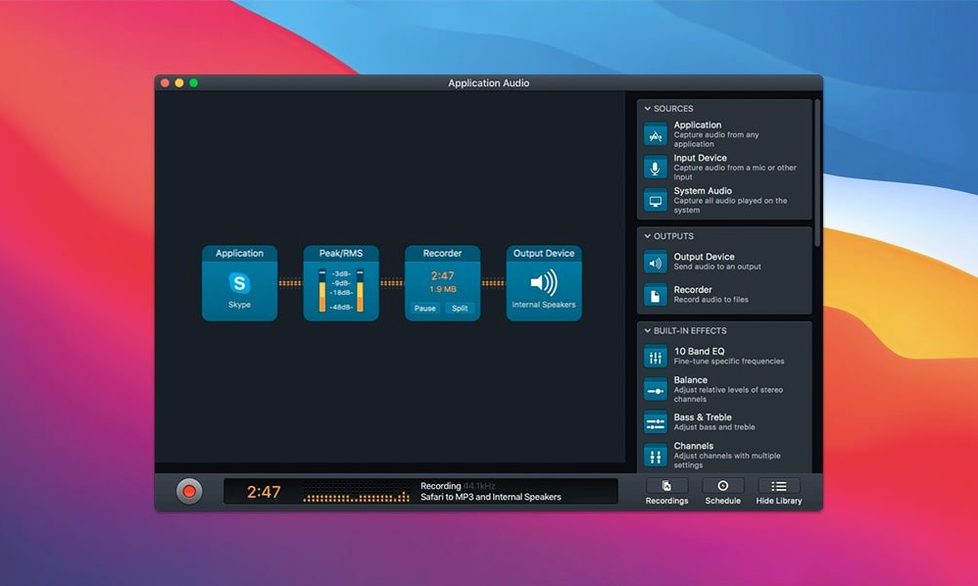
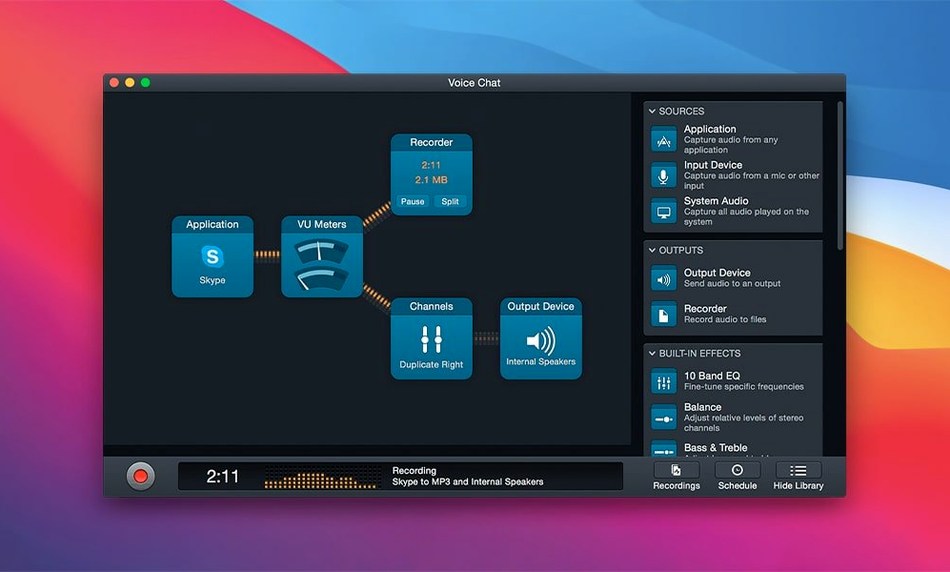
A project update call runs over FaceTime. You need the client's confirmation on a scope change, so you open Audio Hijack, drag the FaceTime block into the session, and hit record. The call file lands on your desktop, ready for the meeting notes.
The app works by letting you build a recording chain from blocks. You pick a source — an application, a microphone, a vinyl deck through a USB interface — then add processing blocks like Denoise or Dehum, and finish with an output block that saves to MP3, FLAC, or AAC. You can capture from several sources at once in a single session, which helps when you are pulling audio from a browser stream and a local mic simultaneously.
Built-in filters clean up recordings without a separate editor. Declick handles vinyl transfers, Denoise quiets background hiss on voice memos, and Dehum strips electrical interference from digitized tapes. The Transcribe block runs a Whisper model locally to generate text from spoken audio, useful for turning meeting recordings into searchable documents.
For anyone managing project documentation, the ability to record VoIP calls, internet streams, and app audio directly turns the Mac into a capture hub. Post-processing tools inside the app mean you do not bounce files to another program for basic cleanup.
Prebuilt Template Sessions
Some features are not obvious on first launch but save time once you find them.
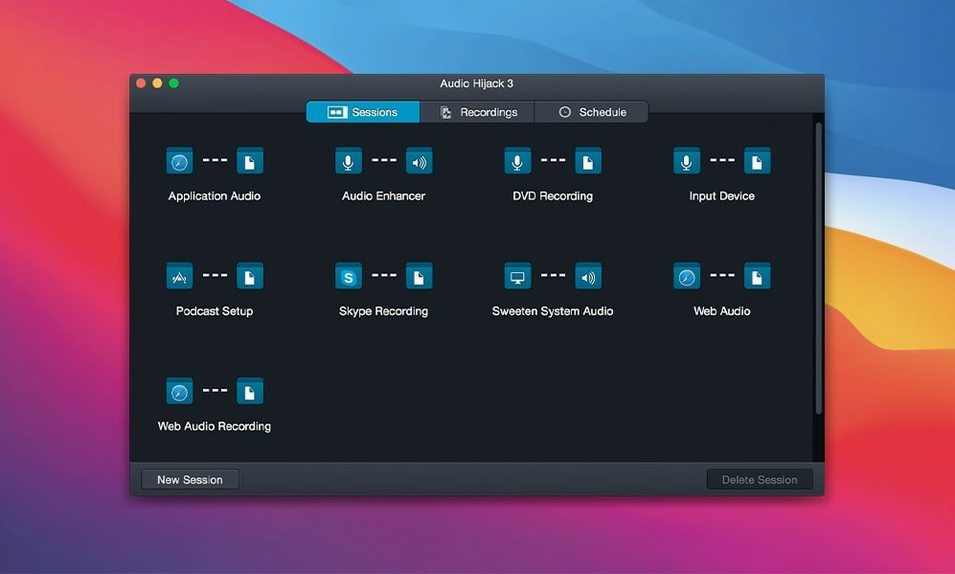
Template sessions. Audio Hijack includes prebuilt recording setups. Instead of building a chain from scratch each time, you load a template that matches the task — recording a FaceTime call, digitizing a record, or capturing a browser stream. The template places the source, processing, and output blocks in the correct order, so your first recording is ready after selecting file format and destination.
FLAC output. The app writes FLAC files directly. If you archive audio for long-term storage or need lossless copies for transcription, FLAC keeps the original quality at smaller sizes than WAV. No separate conversion step.
Multiple sources in one session. A single session can accept audio from a microphone and an application simultaneously. This matters when you want the presenter's voice from a web conference combined with your local commentary, all captured together without post-editing.
Post-processing without leaving the session. After recording, you can apply Denoise, Declick, or Dehum to the captured clip without starting a new session or exporting to another tool. The processing blocks work on recorded audio the same way they work on live input.
Getting Productive with the Block Interface
When you open Audio Hijack for the first time, the block-based interface may look unfamiliar. Here is how to get productive quickly.
- Pick a template. Choose the template that matches what you want to record. For a Skype call, select the VoIP template. For a vinyl transfer, use the analog source template. This places the correct blocks automatically.
- Check the source block. Click the source block and confirm it points to the correct application or hardware input. If you are recording from FaceTime, the source block must list FaceTime as the target application.
- Set the output format and location. Click the output block and choose MP3, FLAC, or AAC. Set the save folder to a place you will find easily — the desktop or a project folder.
- Run a short test recording. Record ten seconds, stop, and play back the file. Confirm the audio level is usable and the correct source was captured. Adjust the source volume if needed.
- Learn the block order. Drag processing blocks before the output block. Noise removal filters should come after the source but before the output. Reordering blocks changes the processing chain, so experiment with Denoise before Declick to see which order sounds better for your material.
Fixing Silent Recordings and Source Block Errors
New users run into a few predictable issues. Here are the typical problems and their solutions.
No audio in the recording. The source block was not pointed at the correct application or hardware input. Click the source block and verify the selected source matches what is producing sound. Test with a short recording before a long session.
Audio skips or cuts out. The Mac may be processing other tasks that compete with the audio capture. Close unnecessary applications, especially web browsers with many tabs. If the problem persists, reduce the sample rate in the output block to 44.1 kHz — most recordings do not need higher rates.
Mount the disk image, run Open Gatekeeper friendly, and press Enter in the Terminal window that appears. Then drag the app to the Applications folder. After that, the app launches normally.
Transcribe block does not produce text. The Transcribe block runs a local Whisper model. The first time you use it, the model downloads, which can take a few minutes depending on your internet speed. Wait for the download to finish before expecting results. If it still fails, check that the Mac has at least 4 GB of free disk space for the model files.
Recording captures the wrong application audio. Some applications, like web browsers, mix audio from multiple tabs. Use the source block's application menu to select the specific browser or app, then test with a short clip to confirm only the intended sound is captured.
Why a Fifteen-Second Test Recording Matters
Skipping the test recording. Beginners often set up a session and record a full call or vinyl side without testing. This risks capturing silence, wrong source audio, or distorted levels. A fifteen-second test catches most configuration errors.
Forgetting to set the output folder. The default save location may be buried deep in the system folders. After a recording finishes, new users sometimes cannot find the file. Set the output folder to a project-specific location before recording. The desktop is a reliable choice for non-sensitive material.
Ignoring the source block's application selector. When capturing audio from a VoIP call or a web stream, beginners assume the source block automatically records whatever the Mac plays. It does not. You must select the specific application from the source block's menu. Without this step, the recording captures the microphone or system audio, not the call.
Applying noise filters in the wrong order. The sequence of processing blocks changes the result. Placing Denoise after Declick may produce different artifacts than the reverse order. Test both orders on a short sample to see which sounds cleaner for your material.
Using high sample rates unnecessarily. Setting the output block to 96 kHz or 192 kHz increases file size and processing load without improving quality for voice recordings, podcasts, or most music archives. Stick to 44.1 kHz or 48 kHz unless your source material requires higher rates.
Overlooking updates. Version 4.6.0 includes an updated Transcribe block with a Recommended transcription model and a newer Whisper.cpp backend. Running an older version means missing those improvements. Check for updates periodically to keep the transcription feature working well.
Version 4.6.1 has landed with the latest round of adjustments from Rogue Amoeba. The full notes are up on their site for those who want every detail.
| macOS | macOS 14.4 or later |
|---|---|
| Processor | Apple Silicon, Intel 64-bit |
| Download | 26 MB |
- macOS 14.4 or later
- Apple Silicon and Intel 64-bit Macs
Questions about Audio Hijack
Can Audio Hijack record Skype and FaceTime calls?
Yes. You can select VoIP applications as a source block and capture both sides of a conversation.
Does the app work on Windows?
No. Audio Hijack is available only for macOS.
What cleaning filters are included?
It includes Denoise, Declick, and Dehum filters for removing background noise, record clicks, and electrical hum.
How to install, in order
The installer clocks in near 26 MB and asks for macOS 14.4 or newer, covering both Apple Silicon and Intel 64-bit Macs. A short four-step routine puts Audio Hijack 4.6.1 where it belongs.
- Mount the disk image and launch Open Gatekeeper friendly.
- Press Enter in the Terminal window that appears to handle Gatekeeper.
- Drag the Audio Hijack app into your Applications folder.
- The app is ready to use.
Comments and corrections 0
Sign in or open a free account to leave a comment.
No comments or corrections yet.