BetterDisplay Pro 4.0.4 — download for Mac
Utilities Updated
Manages resolution scaling, color adjustments, and virtual screens.
Screenshots
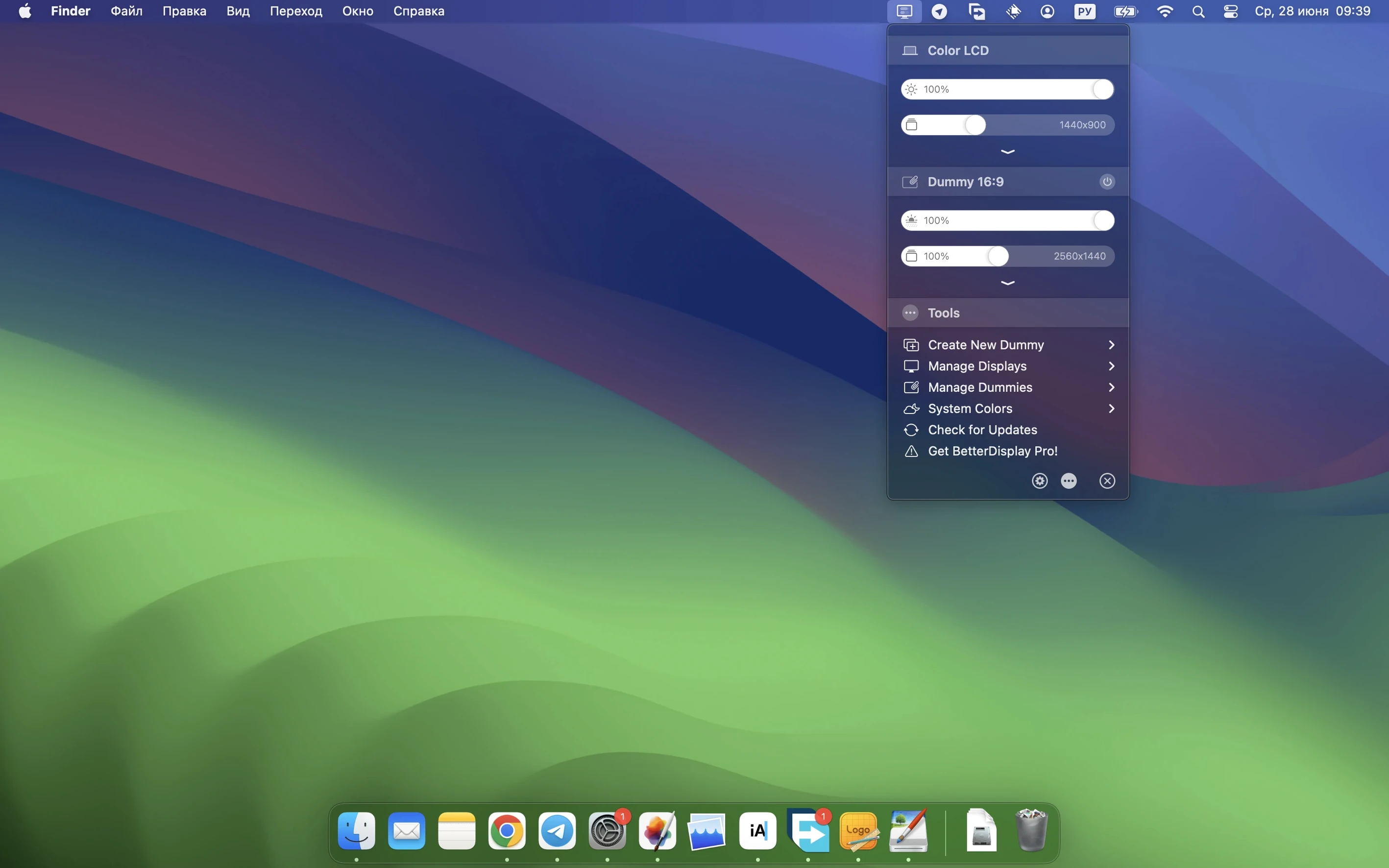
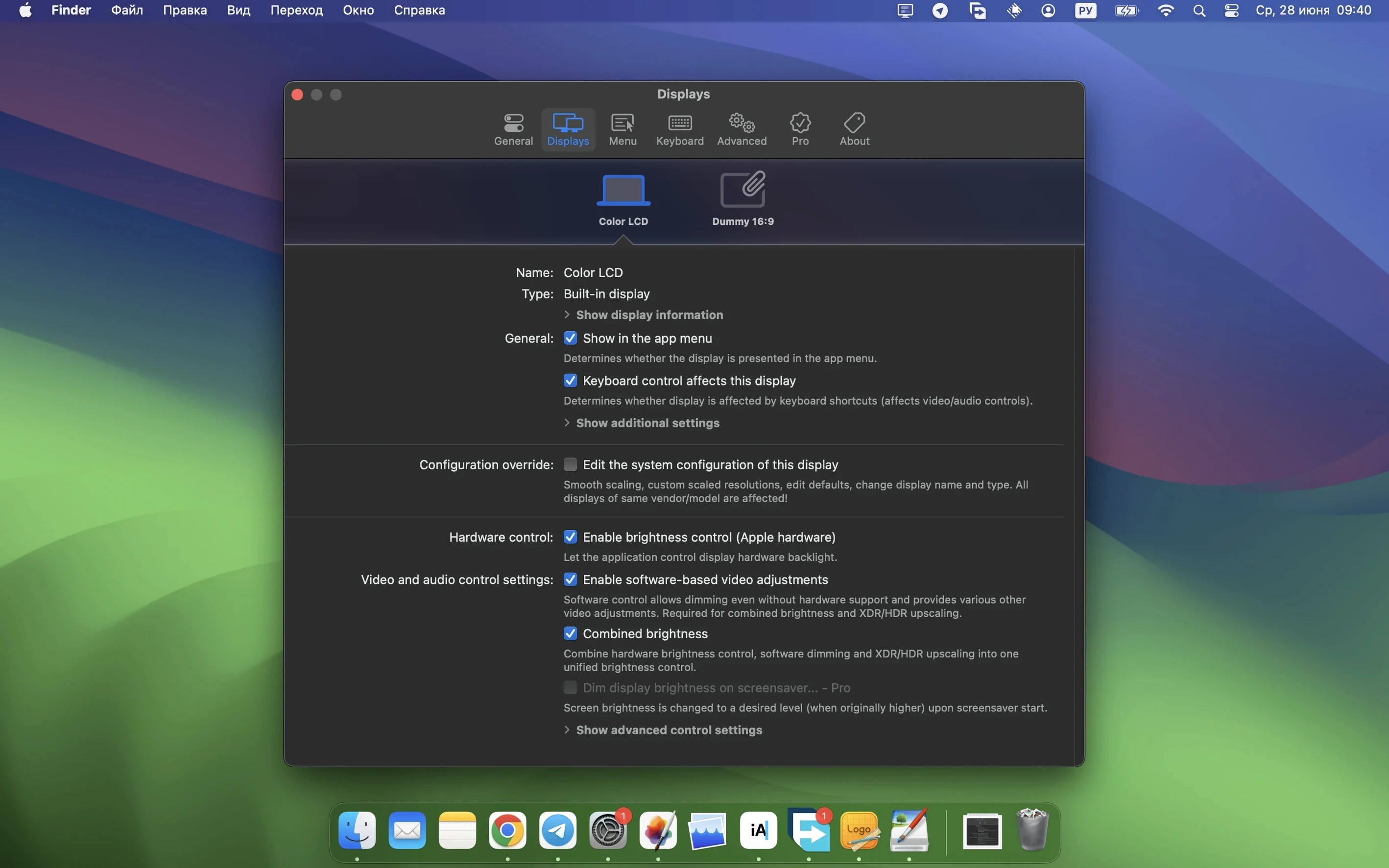
BetterDisplay Pro is a Mac utility that replaces the standard display settings with a full management layer for resolution scaling, color adjustments, and virtual screens. Version 5.0.6 keeps the core toolset intact while refining control speed and the sharpening pipeline.
| Detail | Note |
|---|---|
| Version | 5.0.6 |
| macOS | macOS 26 or later |
| Architecture | Apple Silicon & Intel 64-bit |
The app turns any connected screen into a fully scalable HiDPI display, so you can pull crisp 1:1 pixel mapping from resolutions that macOS normally hides. For compatible Apple Silicon Macs, the XDR/HDR brightness upscaling pushes SDR content closer to the panel’s peak luminance. On the arrangement side, picture-in-picture windows let you keep a secondary display visible in a floating overlay while working on the main canvas. Virtual displays remain available for testing layouts without extra hardware, and the override manager stores per-display configurations that load automatically when a screen reconnects. Under the hood, multi-display DDC control moves faster in this release, and the sharpening slider can now apply a heavier effect without haloing, which helps on matte panels that soften text.
Adjust One Slider at a Time to Avoid a Washed-Out Image
Most first-time users try to adjust every slider at once. The result is usually a washed-out or over-sharpened image that looks worse than the default macOS output. Start with one thing: resolution scaling. Set the HiDPI value to something close to your panel’s native pixel density and leave color and brightness alone until the sharpness looks right.
A second common error is enabling XDR/HDR brightness upscaling on a display that doesn’t support it. The app shows which screens are compatible, but people skip that check and wonder why the image clips. Verify compatibility in the display info panel before toggling that setting.
Another mistake is forgetting to save a per-display override profile. Beginners adjust settings, disconnect the monitor, reconnect it, and find everything back at defaults. The override manager stores configurations by display EDID — use it. A saved profile means you plug in the same screen and the app reapplies your scaling, brightness, and color correction automatically.
Graphic Designer Swaps Scaling Presets for a Larger Canvas
Maria works on a MacBook Pro with a single 27-inch 4K display. Text stays sharp, toolbars are smaller, and the canvas area grows noticeably. The override manager remembers both scaling presets, so she swaps between them from the menu bar without re-entering numbers.
External Monitors Only: Internal Display Stays Under macOS Control
Will this mess with my built-in display?
No. BetterDisplay Pro manages external monitors and virtual displays. The internal screen remains under macOS control unless you explicitly add it to the override list. Most people never touch that setting.
Do I need to disable macOS scaling first?
Not required. The app works on top of the OS display system. It intercepts the signal and applies its own scaling after macOS has done its pass.
How do I remove the virtual displays?
Open the app’s display list, select the virtual screen, and delete it. The system returns to its previous display arrangement. Nothing permanent changes on the Mac side.
Does it work with USB-C hubs and docking stations?
Yes, as long as the hub passes DDC or HDMI-CEC signals. Most modern docks work without extra configuration. If the app doesn’t detect a connected display, confirm that the hub supports the protocol the monitor uses.
Simplified Device Control and Faster Multi-Display DDC
- Simplified device control configuration. The settings panel for DDC and HDMI-CEC now shows fewer options by default, with advanced toggles tucked behind a single expand. You spend less time hunting for the right checkbox.
- Faster multi-display DDC control. If you run two or more external monitors, brightness and contrast adjustments now apply near-instantly across all of them. Previous versions had a noticeable delay when sending commands to secondary displays.
- Stronger sharpening effects. The sharpening slider can now go further without introducing visible artifacts. Matte screens benefit the most — text that looked slightly soft at default settings now reads cleaner at a lower slider position than before.
- Stream video filter automation. The app can now detect video playback and automatically apply a filter profile. Useful for people who switch between design work and watching content on the same monitor. You set the filter once, and the app toggles it when a video starts.
These changes make the app faster to configure and more responsive in multi-monitor setups. The sharpening improvement alone justifies the upgrade for anyone who works with text-heavy layouts on a panel that isn’t Retina-class.
- Simplified device control configuration.
- Faster multi-display DDC control.
- Stronger sharpening effects with less haloing.
- Stream video filter automation added.
| macOS | macOS 13.3 or later |
|---|---|
| Processor | Apple Silicon, Intel 64-bit |
| Download | 16 MB |
- macOS 26 or later
- Apple Silicon or Intel 64-bit Mac
How to install, in order
- Open the downloaded disk image.
- Drag BetterDisplay to the Applications folder.
- Launch the app from Launchpad once copying finishes.
Comments and corrections 0
Sign in or open a free account to leave a comment.
No comments or corrections yet.