AutoCrypt 2.5.2 — download for Mac
Utilities Updated
Encrypts hundreds of files in one batch without altering the originals.
Screenshots
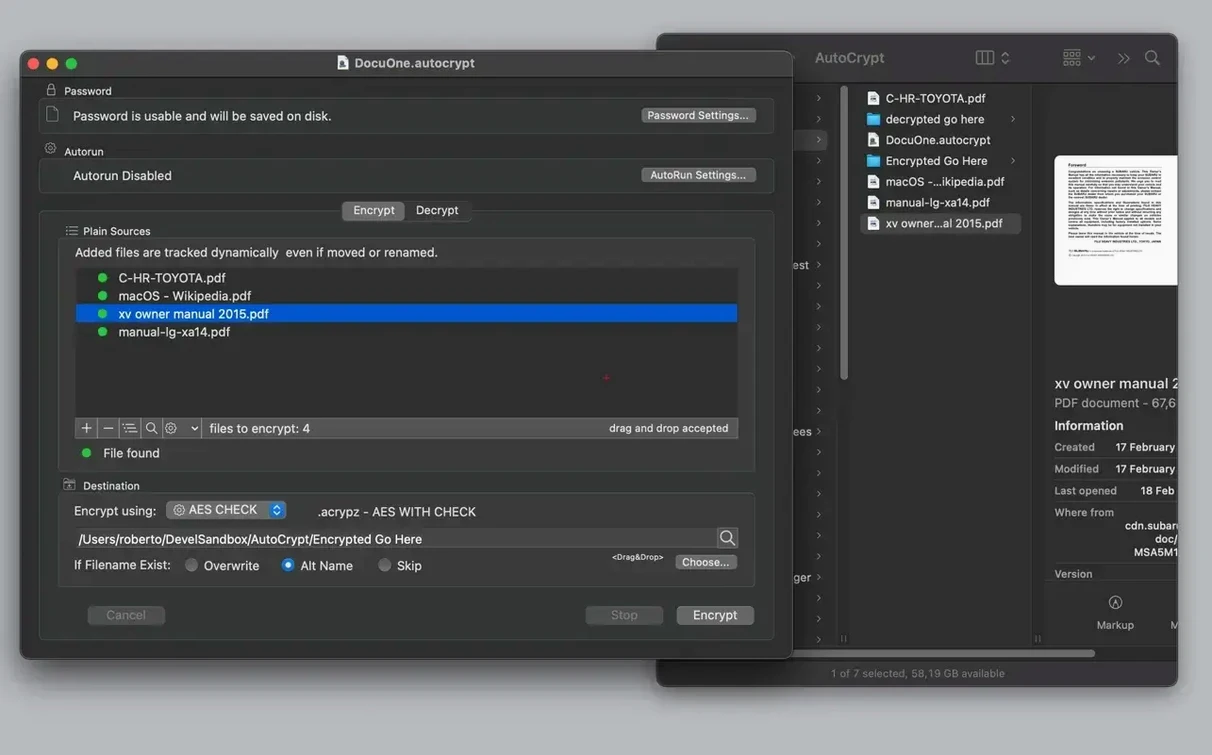
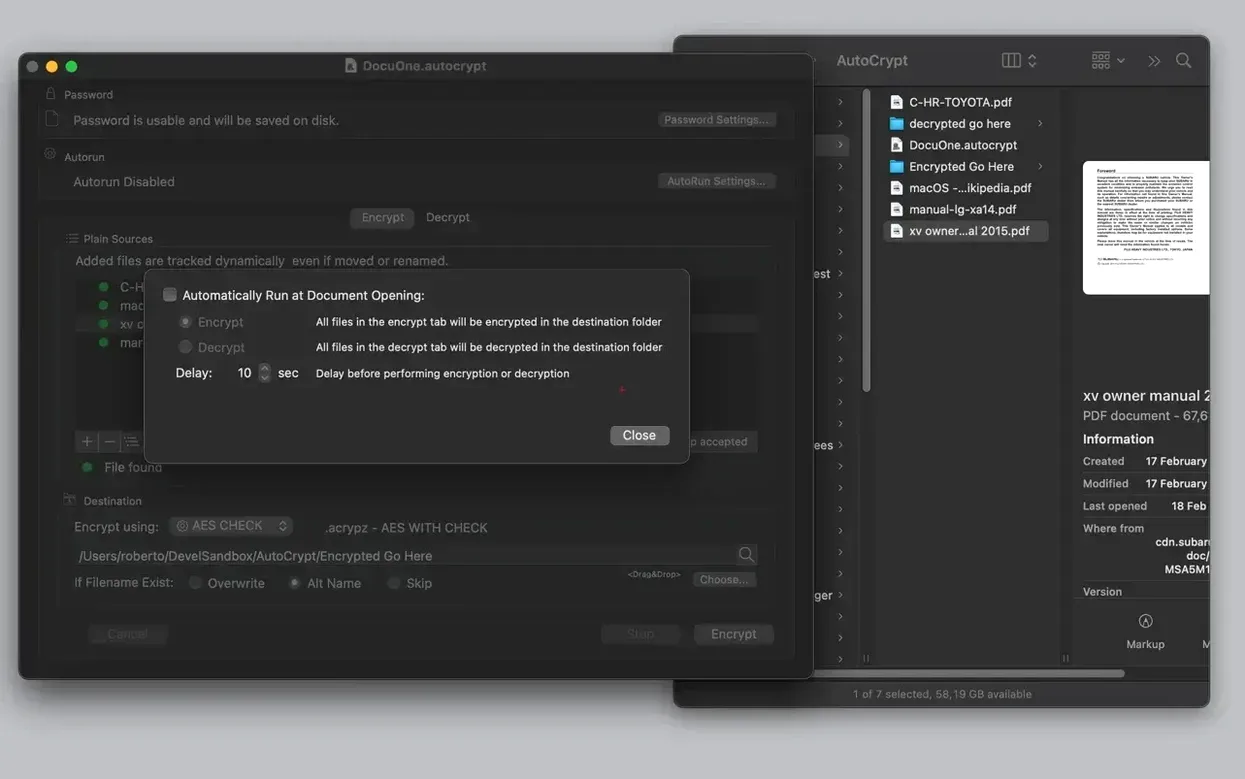
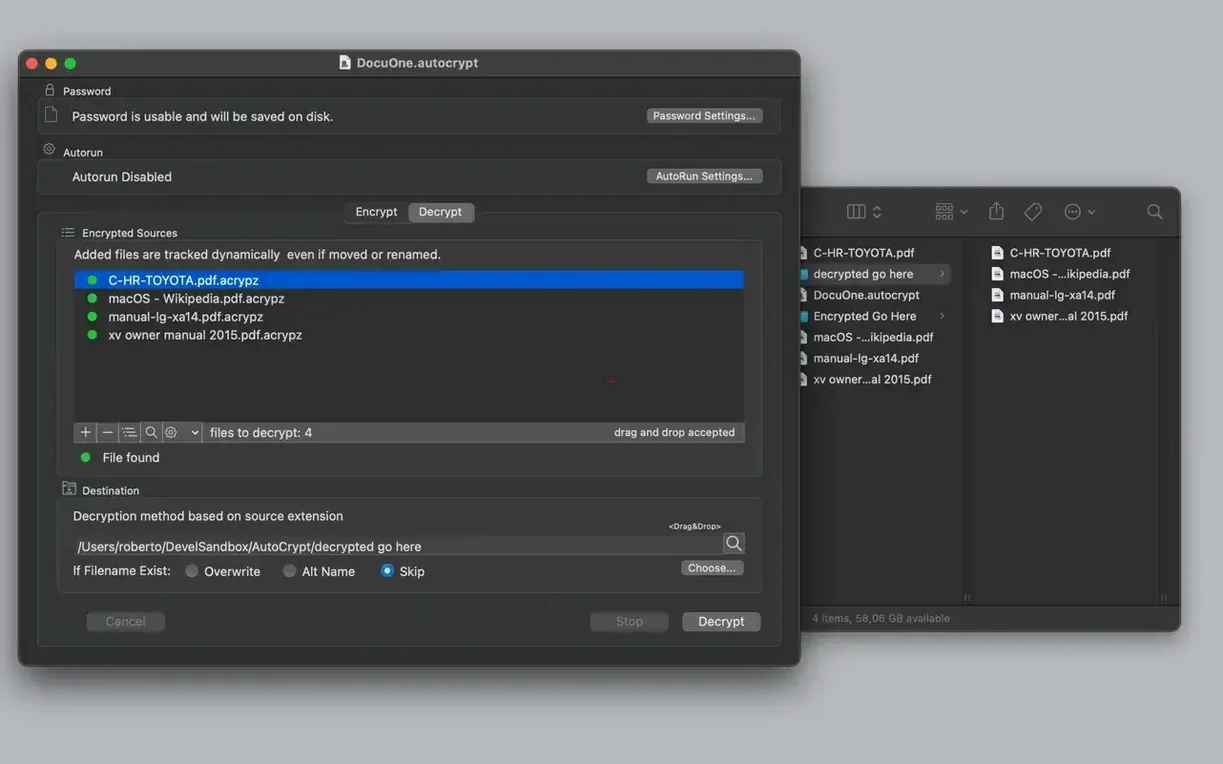
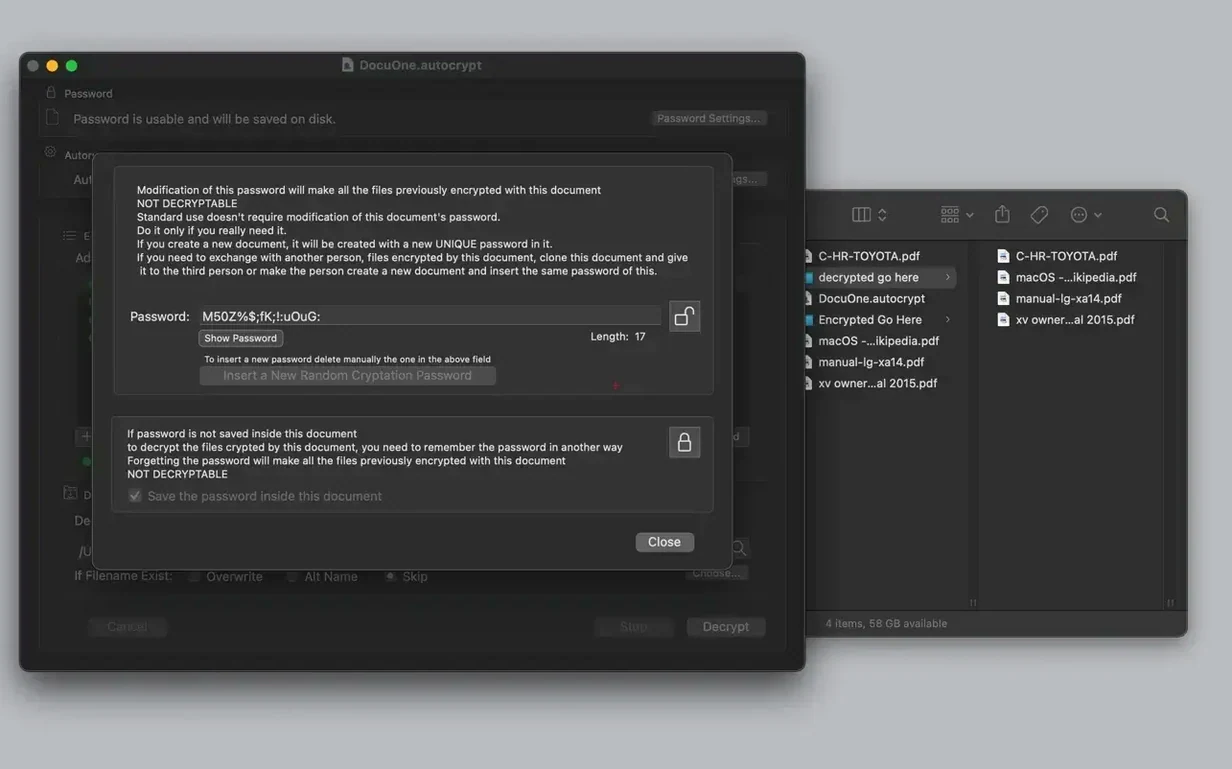
AutoCrypt 2.5.2 handles hundreds of files in one batch run without touching a single source document. A project manager with a folder full of contracts, CAD exports, and site reports can encrypt them all to a separate destination in under a minute.
One-click AES-256 encryption with autosave
- One-click encryption of a single file or a batch of documents.
- AES-256 CommonCrypt protection that keeps source files unchanged.
- Tabbed document management — handle multiple encryption tasks in one window.
- Autosave and automatic resume so a stopped session picks up where it left off.
- Built-in PDF user guide accessible directly from the app.
- Light and dark mode support that stays readable across long work hours.
Document-based tabs with English-only interface
- Document-based workflow — each file opens as a separate project tab.
- Encrypted output always lands in a destination folder you specify.
- Interface language is English only.
- Runs on macOS 10.13 and later, including Apple Silicon and Intel Macs.
Starting with AutoCrypt — a practical workflow
When you have a batch of signed contracts, invoices, or confidential drawings to encrypt, the document-based model saves time over repeating the same settings. Here is a typical sequence from first file to final output.
- Drag a folder of files onto the app window, or use the file picker to load them. The tabbed interface shows each document as its own project.
- Set the destination folder once. Every encrypted copy lands there, while the originals stay untouched in their original location.
- Enter the encryption password. AutoCrypt saves the settings inside the document — that means the next time you open that project, the password field and output path are already filled.
- Click to encrypt. The app uses multithreaded processing to work through the batch, so a dozen PDFs finish in roughly the same time it takes to encrypt one.
- To decrypt later, open the same project tab, enter the password, and let AutoCrypt handle it automatically. The decrypted file arrives in the destination folder.
For repeat work — weekly payroll sheets or monthly drawing sets — the saved settings are the main time saver. Open the project, add new files, and run the batch without re-entering paths or passwords.
Test two or three files to verify output path and decryption
- Start with two or three test files to verify the output path and password work as expected. Decrypt them straight away to confirm the process.
- Use the built-in PDF user guide for the menu layout and tab management. It is accessible from within the app and covers the tag-based search and version browsing features.
- Set up a dedicated destination folder on your desktop or in your project directory. Naming it clearly — for example, "Encrypted_output" — avoids confusion when you run multiple batches.
- Enable autosave if you plan to leave a project open overnight or between tasks. The app will resume from where you left off.
Run Gatekeeper command again if app doesn't open
Most issues come from the Gatekeeper bypass step during installation. If the app does not open after dragging it to Applications, reopen Terminal and run the Open Gatekeeper friendly command again — it needs to run once per session on some macOS versions.
Another typical snag: encrypted files appear in the wrong folder. The destination path is stored inside the document, so if you loaded a project from a previous session, the output path might point to an old location. Check the destination field before hitting encrypt.
Users sometimes forget that encrypted files are unreadable without the password. If you lose the password, there is no recovery built into the app — keep a record in a safe place outside the project files.
Tag-based search can feel slow if you have many documents open at once. Close tabs you are done with, and the search results will update faster.
- Bug fixes for more stable batch processing.
- Updated built-in user guide.
- Optimized for macOS 14 Sonoma.
| macOS | macOS 10.13 or later |
|---|---|
| Processor | Apple Silicon, Intel 64-bit |
| Download | 8 MB |
- macOS 10.13 or later
- Apple Silicon and Intel Macs
- English interface
Questions about AutoCrypt
Can AutoCrypt encrypt many files at once?
Yes, it can batch process hundreds of files to a destination folder with a single click.
How to install, in order
- Mount the disk image and run the Gatekeeper-friendly opener.
- Press Enter in the Terminal window that appears.
- Drag AutoCrypt to your Applications folder.
- Launch the app.
Comments and corrections 0
Sign in or open a free account to leave a comment.
No comments or corrections yet.