BetterTouchTool 6.726 — download for Mac
Utilities Updated
Defines custom trackpad and Magic Mouse gestures beyond system defaults.
Screenshots
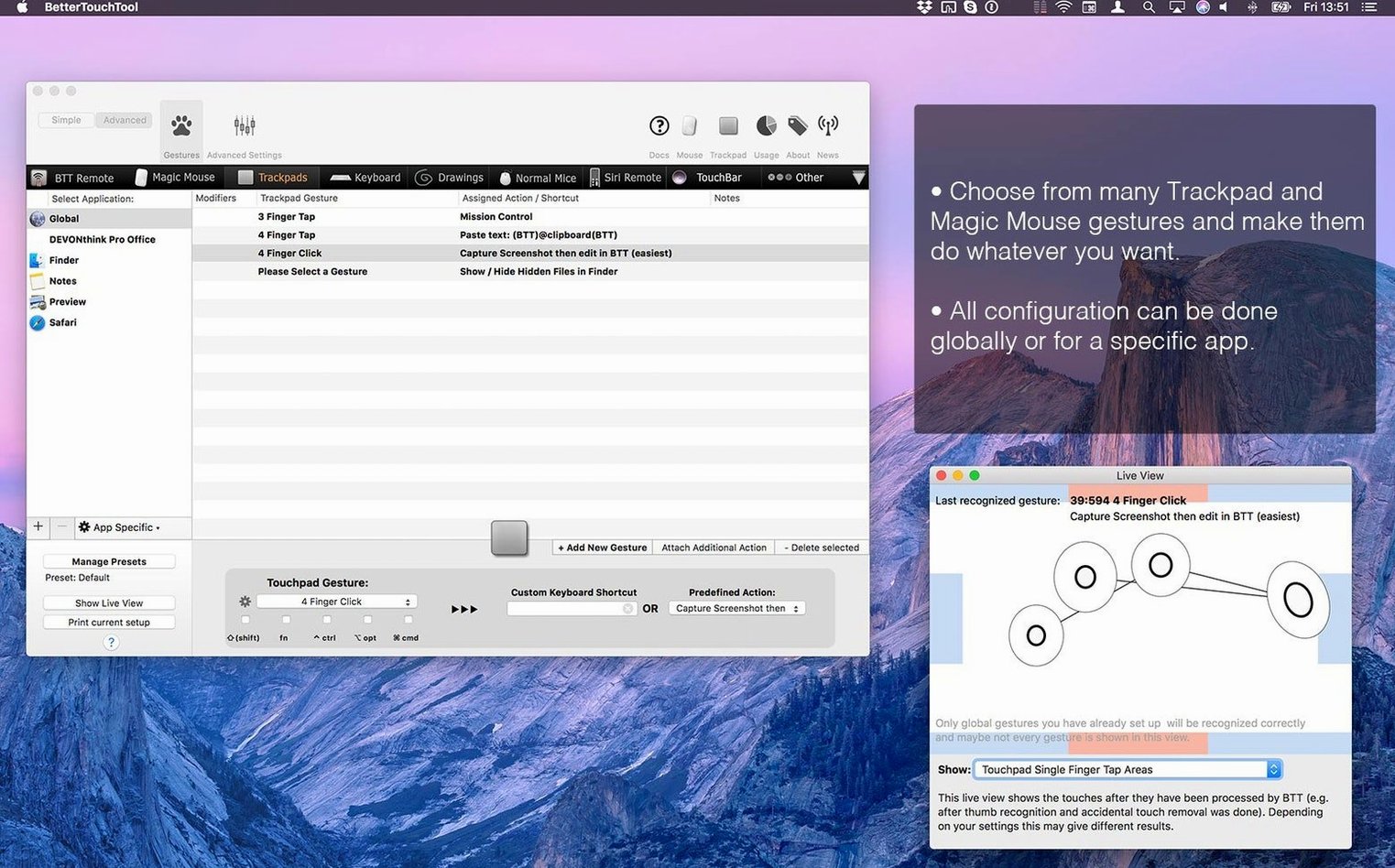
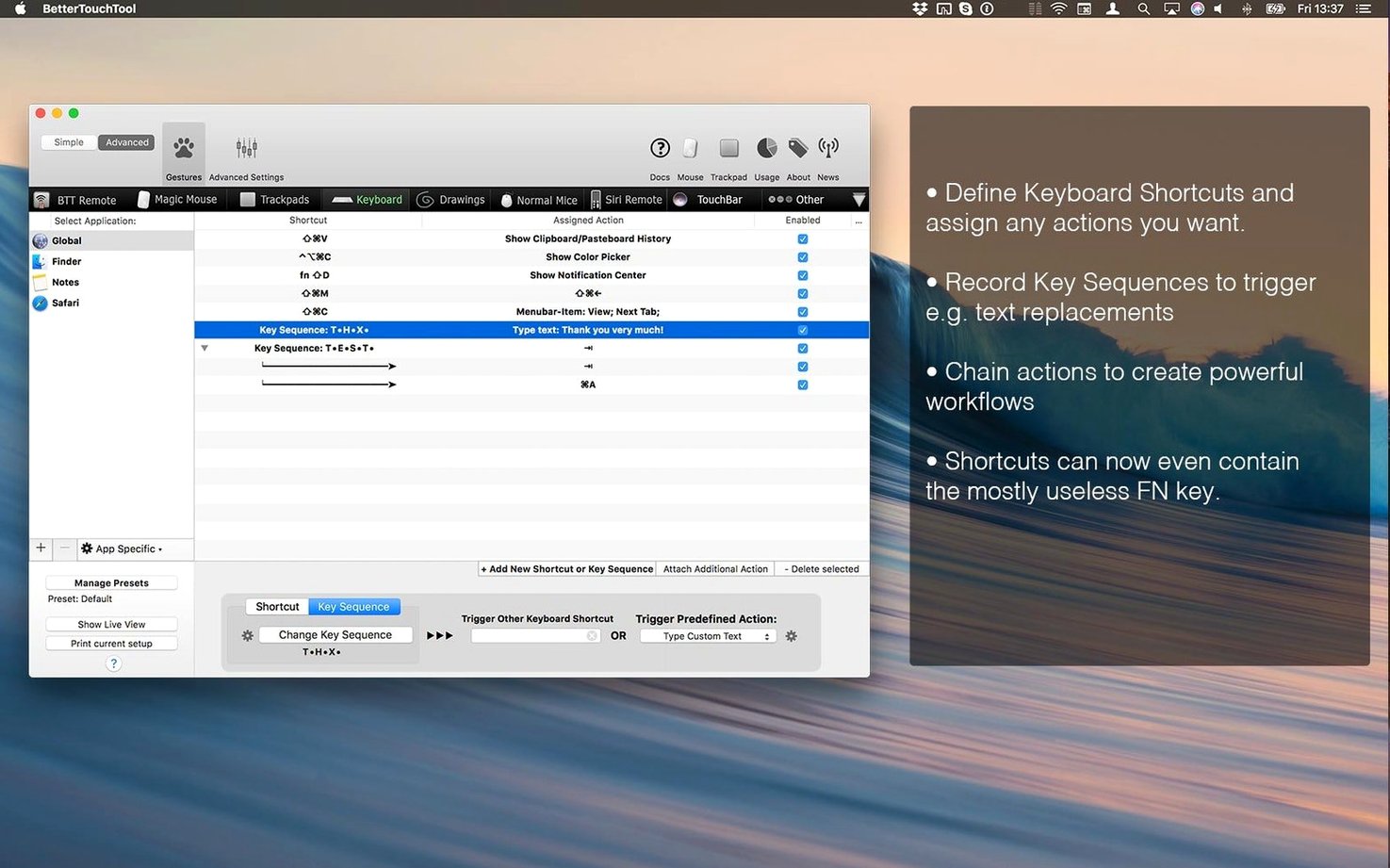
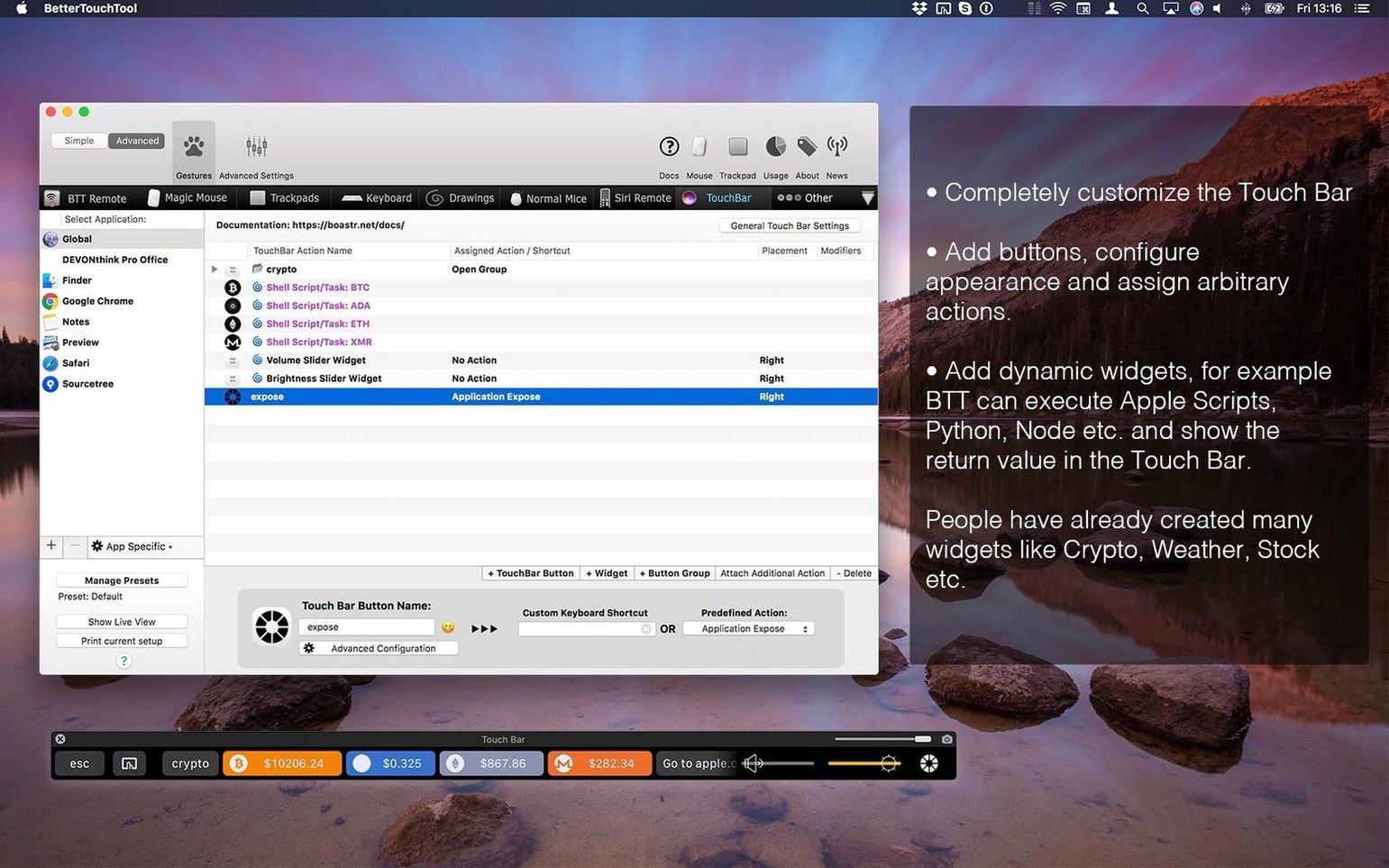
You open a folder on your desktop with a three-finger click, then tap the Touch Bar to run a build script. That is BetterTouchTool at work — a utility that extends macOS input handling beyond what System Settings allows.
Start with the trackpad. The app lets you define gestures for the trackpad, Magic Mouse, and a standard mouse. A corner click can trigger Mission Control; a swipe can snap a window. The setup window shows all current bindings, so you are not guessing.
Next, look at the Touch Bar. You can build custom widgets, assign actions to them, and even have them execute AppleScript or HTTP requests. If your Mac has no Touch Bar, the same logic applies to keyboard shortcuts and Siri Remote buttons.
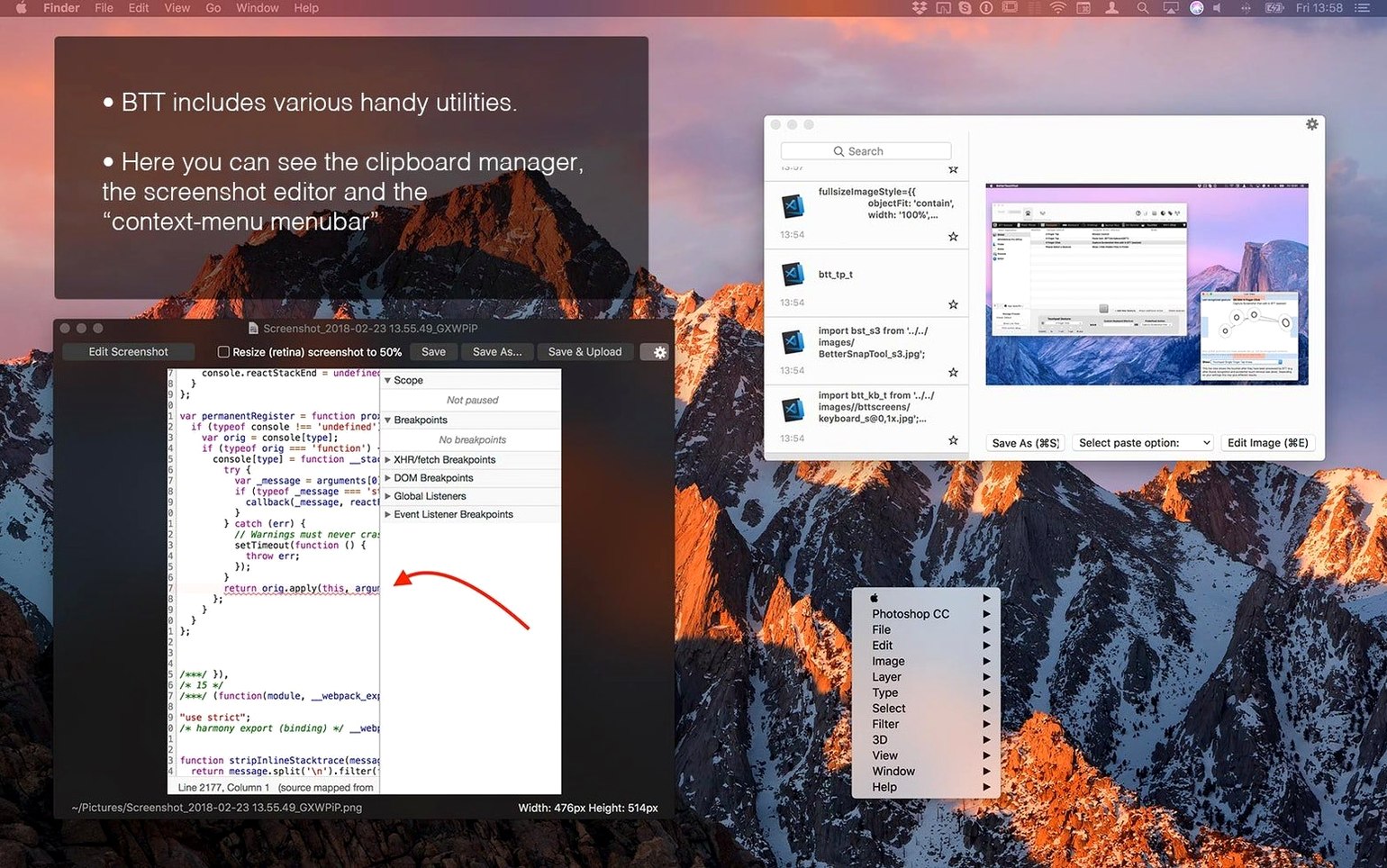
The built-in screenshot tool is worth a look too — it captures and edits an image in one pass. For a project manager, that alone saves time on daily documentation.
No Conflicts with macOS Shortcuts
People often wonder whether BetterTouchTool conflicts with existing macOS shortcuts. It doesn't. The app runs alongside system defaults and only overrides the bindings you explicitly set. If you leave a gesture unassigned, the system handles it normally. You can also assign rules by application, so BetterTouchTool only activates inside specific apps and leaves the rest untouched.
Another common question is whether the app drains system resources. BetterTouchTool runs as a background process and responds to input events only when they happen. It doesn't poll or scan. Most users won't notice it in Activity Monitor unless they look specifically for it.
Nothing is locked behind a paywall during those 45 days.
People using Apple Silicon machines ask about compatibility. Version 6.726 runs natively on ARM and x86 64-bit Macs, with no Rosetta translation needed for the Apple Silicon models. macOS 10.15 or later is the only requirement.
Project Manager Shortcuts for PlanGrid or Procore
Here is a practical workflow for a project manager who wants to speed up daily tasks in a construction management app like PlanGrid or Procore.
- Open BetterTouchTool and go to the application-specific rules section. Add your project management app from the list of running applications.
- Define three custom keyboard shortcuts for that app alone: one to open the task list (Command+Shift+T), one to flag a photo with a status (Command+Shift+F), and one to jump to the day's schedule (Command+Shift+S). These shortcuts override the system only inside the designated app.
- Add a trackpad gesture — a three-finger tap — that switches to the last-used project folder in Finder. Set the action to "Open Folder" and enter the folder path.
- Create a Touch Bar widget that runs an AppleScript. The script checks the current date, opens the corresponding daily log file in your note-taking app, and positions the cursor at today's entry. This widget sits at the end of the Touch Bar and updates automatically.
- Test each binding by switching into the app and performing the gesture or shortcut. Adjust if the action triggers the wrong command.
The whole setup takes about ten minutes. Once saved, you do not revisit it unless you change project management tools or reorganize your folder structure.
Silent Startup and Morning Review
You start the day by opening BetterTouchTool from the system tray. The app sits there silently, applying your saved configurations. You do not think about it again until you use a shortcut or gesture.
At 9 AM, you are reviewing a PDF of the week's site plans. You need the elevation drawing from page 34. Normally you would drag the scroll bar or press Page Down thirty-four times. Instead, you draw a small circle on the trackpad with two fingers — a custom gesture you mapped to "Go to next section" in Preview. Three circles later, you are on page 34. You hold the Command key and tap three fingers on the trackpad to snap a screenshot of the elevation detail, annotate it with the screenshot tool, and save it to the project folder.
At 10:30, you get a request from the site supervisor for the approved change order log. You open the construction management app, press Command+Shift+L (your custom shortcut for "latest log"), and drag the file into an email. BetterTouchTool's clipboard manager comes in handy here — you copied three file paths earlier, and they are still in the history, ready to paste.
In the afternoon, you switch to financial spreadsheets. You have set a Magic Mouse gesture for this: a left-button click with a slight upward drag inserts the SUM formula for the selected range. No more reaching for the function key.
Before leaving, you use the Siri Remote to trigger a closing script: it opens the daily progress report, attaches it to a pre-drafted email, and marks the day as complete. Your Mac locks after ninety seconds of inactivity, set through a BetterTouchTool trigger.
Works with Accessibility and Clipboard Tools
BetterTouchTool works alongside macOS accessibility features, not against them. If you use Stick Keys or Slow Keys, those remain active. The app intercepts events after the system interprets them, so no conflict arises with assistive technologies.
Clipboard manager integrates with any application that accepts paste — text editors, email clients, file rename dialogs. The history panel sits in the tool tray and stores recent copies without interfering with the system clipboard. You can paste normally or pick from history.
Screenshot tool saves directly to the clipboard or to disk, which means you can drop images into Slack, Notion, or your construction management platform without intermediate steps. The on-the-fly editor adds arrows, boxes, and text before saving.
For automation enthusiasts, the AppleScript support ties into macOS's native scripting. You can write a script that checks calendar events and adjusts Touch Bar widgets based on the current meeting. Custom URL schemes and HTTP requests let you trigger webhooks from a trackpad gesture or a remote button. This works with any service that accepts webhooks, from Slack to IFTTT.
Touch Bar widgets appear as native elements in the macOS Touch Bar area. They use minimal space and do not interfere with system controls. If you prefer hardware remotes, Siri Remote and Apple Remote support is handled through the same gesture engine, so you can assign actions to physical buttons as easily as to touch gestures.
- Version 6.726 is available.
| macOS | macOS 10.15 or later |
|---|---|
| Processor | Apple Silicon, Intel 64-bit |
| Download | 61 MB |
- macOS 10.15 or later
- Apple Silicon or Intel Mac
- Interface language: English
Questions about BetterTouchTool
What input devices does BetterTouchTool support?
It works with the trackpad, Magic Mouse, normal mouse, keyboard, Siri Remote, Apple Remote, and the Touch Bar.
Can BetterTouchTool run scripts from a gesture?
Yes, custom actions can trigger AppleScript, custom URL schemes, and HTTP requests.
How to install, in order
- Open the downloaded package.
- Read the included installation and activation instructions.
Comments and corrections 0
Sign in or open a free account to leave a comment.
No comments or corrections yet.